Custom Webhook Response: Send Your Own Status, Headers and Data
Reply to a webhook with data from the run: String, JSON or XML bodies, any HTTP status from 200 to 599, extra…


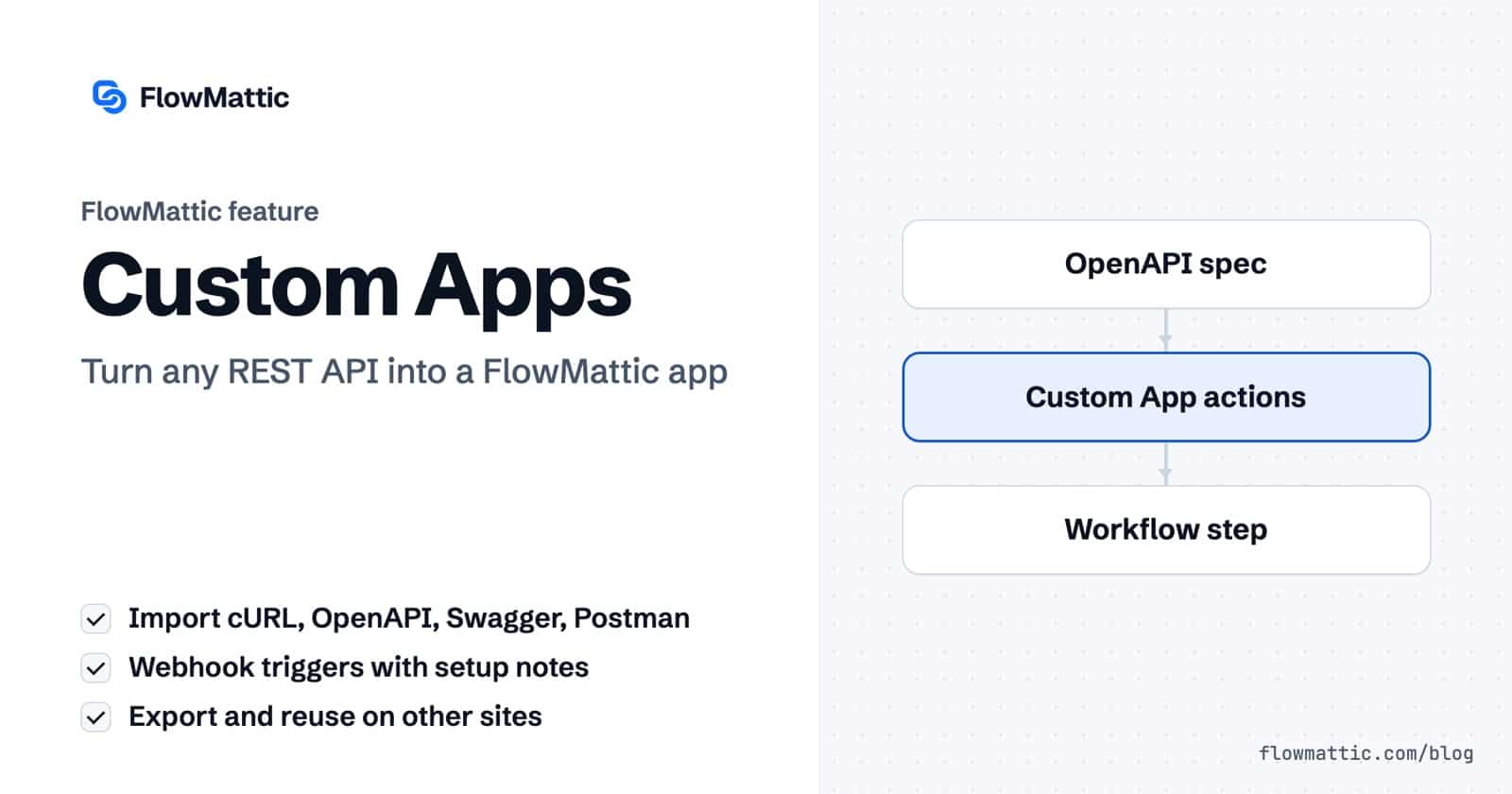
FlowMattic Custom Apps let you connect any REST API to WordPress as a private integration, without writing plugin code. You describe the API once (its authentication and endpoints) or import it from cURL, OpenAPI, Swagger or Postman, and the app appears in the workflow builder next to FlowMattic’s nearly 900 integrations.
It is for teams whose key tool is not in the integration library: an internal system, a niche SaaS product, a regional payment or SMS gateway, or your own product’s API. This guide covers how custom apps are built, the action and trigger settings, authentication, importing specs, and seven use cases.
A Custom App turns any REST API into a FlowMattic app. You manage them under FlowMattic → Custom Apps. Each app can hold actions, which call your API from inside a running workflow, and triggers, which give your service a webhook URL that starts a workflow.
Custom apps do not hold credentials themselves. They point at a Connect, the same credential store the built-in integrations use, so you paste a key or approve OAuth once and every action in the app uses it.
Click Create New App. On the App Info tab, fill in App Name (the name shown in the builder), an optional App Description, and an App Logo. Use Choose Default Authentication to pick a saved Connect, or leave it on No Authentication for a public API. Click Save App Info and the Triggers and Actions tabs become available.
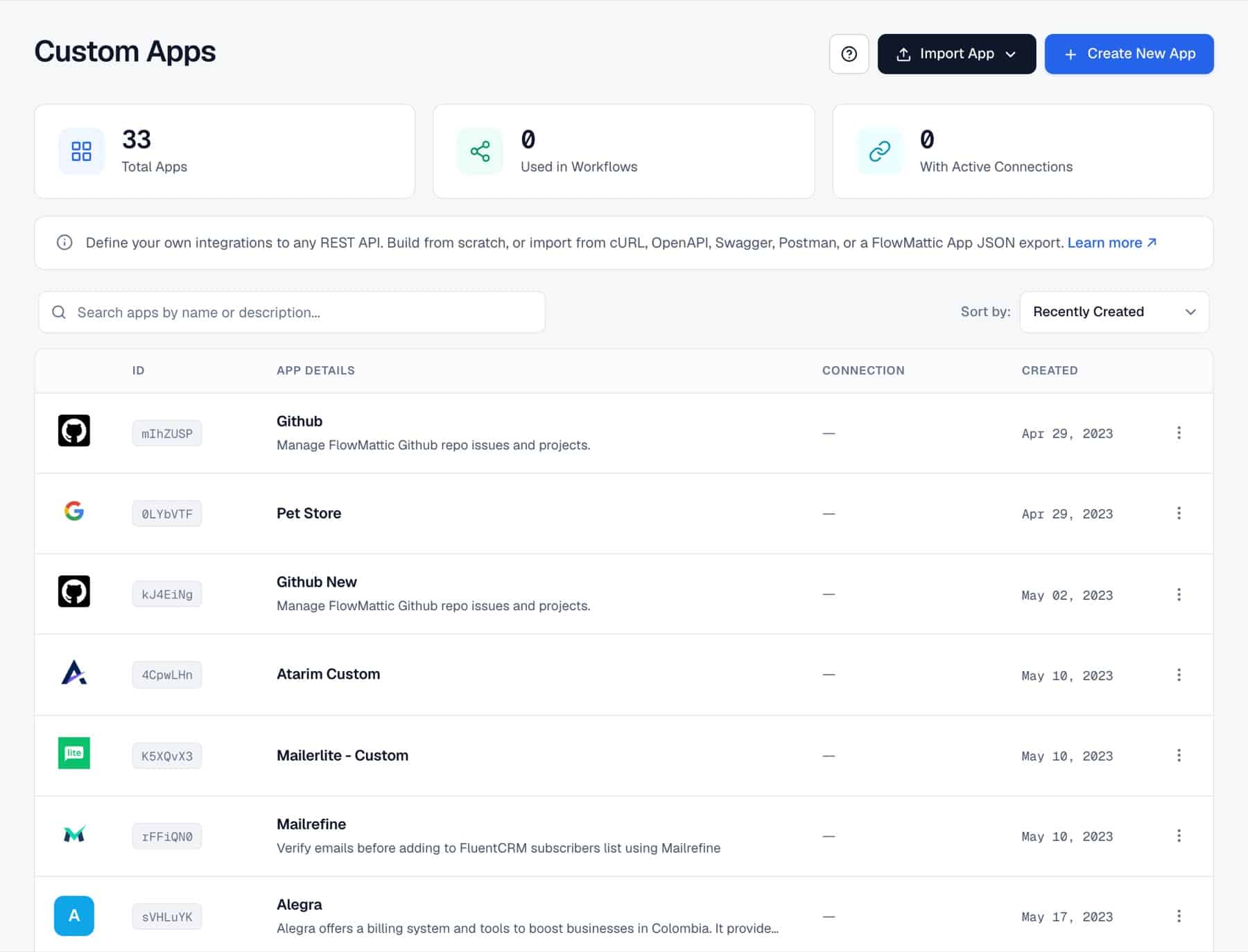
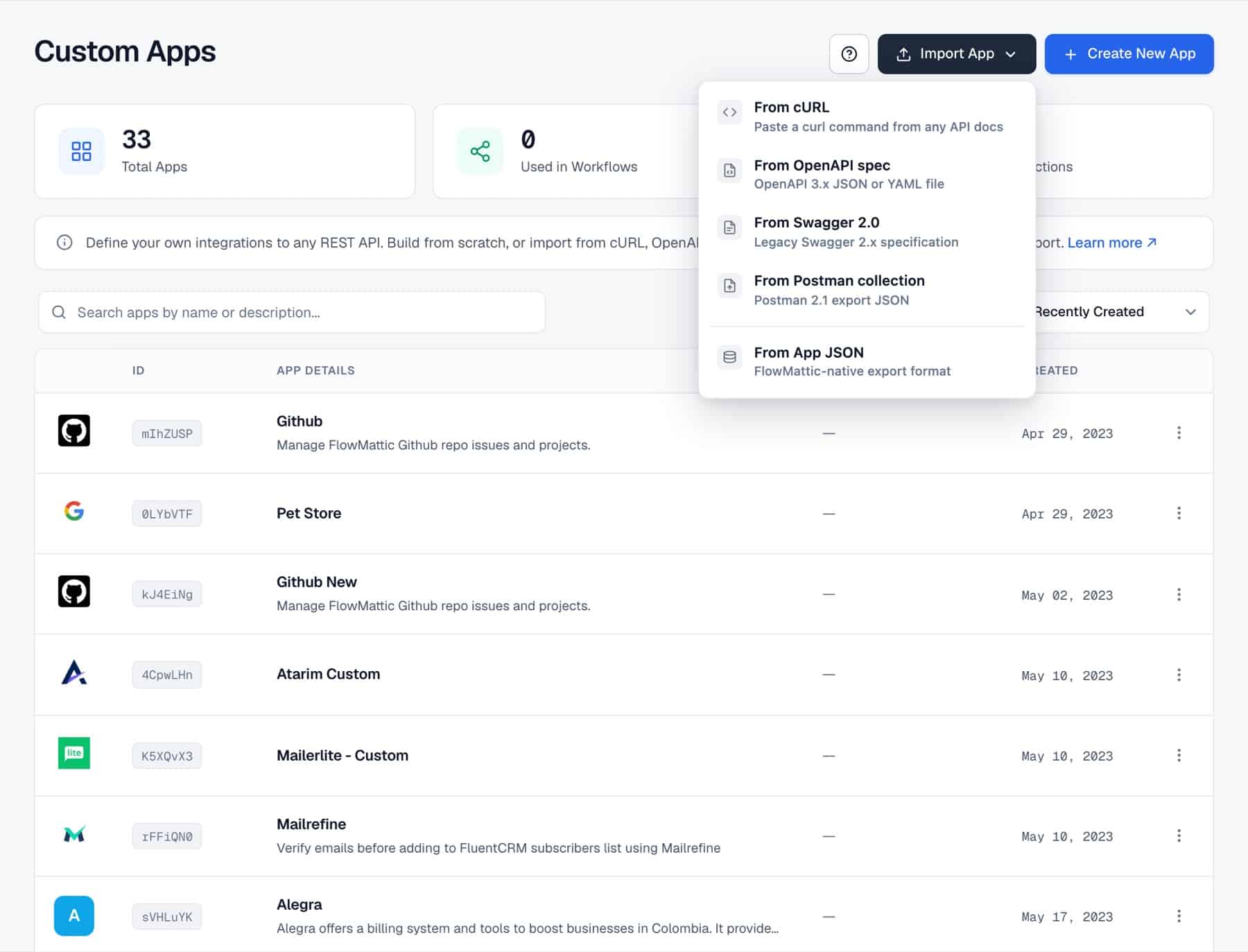
On the Actions tab, click Create New Action, give it an Action Name and description, and fill in the Action Event API Configuration (see the table below). Or click Import Actions and choose From cURL, From OpenAPI spec, From Swagger 2.0 or From Postman collection.
An import can paste text, upload a JSON or YAML file up to 5 MB, or fetch the spec from a URL. FlowMattic lists the actions it found with their method and path, flags any that need attention, and lets you pick which ones to create. If names collide with existing actions, choose Skip existing or Create duplicate. If endpoint URLs lack a host, enter a Base URL and it is applied to every affected action.
On the Triggers tab, click Create New Trigger, add a Trigger Name such as “Deal won”, a description, and Setup Instructions (HTML allowed) for whoever configures the sending service. Each trigger gets its own webhook URL; when your service calls it, the workflow runs with the payload as mappable fields.
Add a step and pick your app from the app list. Choose an action, map fields from earlier steps, and test it against the live API. Under Choose Connect Account, a step can use a different Connect than the app’s default, which is handy when one workflow talks to two accounts.
| Setting | What it does |
|---|---|
| HTTP Method | GET, POST, PUT, DELETE or PATCH. |
| API Endpoint URL | Where the request goes. Wrap path parts in double braces, such as https://api.example.com/v1/users/{{user_id}}. |
| Request Content Type | JSON, Form-data, Encoded Form Data, Text, HTML or XML. |
| Set Headers | Custom headers the endpoint expects. |
| Set Body/Query/Path Parameters | Fields shown in the step. Names must match the API’s keys. Fields can be typed as numbers, booleans, options or a file URL, which is downloaded and sent as binary. A Boolean field set to Yes sends true, in a hand-written JSON body too. |
| Default Value and Use default when empty | Per body field, in its Field Settings. The Default Value pre-fills the field when the step is added, and variables such as {{cur_year}} work in it. Set Use default when empty to Yes and the Default Value is also sent whenever the mapped value is empty at run time, for parameter bodies and hand-written JSON bodies alike. It is off by default. |
| Request Body (Raw JSON / XML) | A hand-written body that references parameters with double braces. |
| Import cURL Request / Import JSON | Fill the action from a pasted curl command or a sample JSON body. |
| Simple Response | A step option to retrieve the response data in a simple format that is easier to map. |
For authentication, a custom app action applies the Connect you choose: OAuth 2.0 (the access token in the Authorization header), Bearer Token, Basic (key and secret), or API Key, sent as a header or a query parameter. Credentials are stored in your own WordPress database, base64-encoded rather than encrypted, not on a FlowMattic server. If the Connect a step relies on has been deleted, the step fails with a message instead of sending the request without authentication.
From the app list’s three-dots menu you can Edit App, Export App (as JSON), Duplicate App, Copy App ID or Delete App. Import App → From App JSON restores an export on another site.
A retailer’s ERP has a REST API but no WordPress plugin. A custom app with a “Create sales order” action sends each paid order, and a second action updates stock in WooCommerce from the ERP’s response.
WooCommerce Order Paid → ERP: Create sales order → WooCommerce Update Product
A clinic uses a local SMS provider. Importing its cURL example creates a “Send SMS” action in a minute, and booking confirmations go out by text.
New Booking → SMS Gateway: Send SMS
A SaaS company imports its own OpenAPI spec to get every endpoint as an action, and adds a “Subscription cancelled” webhook trigger. Cancellations update the customer’s WordPress account and start a win-back email.
Acme API: Subscription cancelled → WordPress Update User → Send Template Email
An agency builds a custom app for a CRM its clients share, exports it as JSON, and imports it on each client site. Each client connects their own account through a Connect, or the agency creates the Connect with Ask someone for them and sends the client a private link to add their key.
New Form Submission → Northwind CRM: Create lead
A support team adds “Look up order” and “Issue credit” actions to a custom app for their billing system. An AI Agent uses them as tools to answer tickets with real account data.
IMAP Email Received → AI Agent (tools: Look up order, Issue credit) → Send Email
Custom app triggers are webhooks, so for an API that cannot push, a schedule runs every 15 minutes, works out the time 15 minutes ago, and passes it to a “List records created since” action. An Iterator then posts each new record to Slack.
Schedule → Date/Time Formatter → Custom app: List records created since → Iterator → Slack
A legal team generates a contract PDF and uploads it to their document management system. A file-URL parameter on the custom action downloads the PDF and sends it as binary in the request.
Human in the Loop → Generate PDF from Template → DMS: Upload document
firstName in the docs must be firstName in the action, not first_name.No. To connect any REST API to WordPress, you fill in the method, endpoint, headers and parameters in a form, wrap dynamic values in double braces, and the action is ready. No PHP or JavaScript is involved.
Yes. Import Actions accepts OpenAPI 3.x, Swagger 2.0 and Postman 2.1 collections as JSON or YAML, pasted, uploaded or fetched from a URL, plus single cURL commands. You preview the actions before anything is created.
Custom app actions authenticate with OAuth 2.0, Bearer Token, Basic or API Key Connects, or no authentication for a public API. Set a default Connect on the app and override it on any step.
Yes, through webhook triggers. Each trigger has its own URL, and when your service calls it the workflow runs with the payload as fields. For APIs without webhooks, use a Schedule trigger with one of the app’s actions.
Yes. Export App downloads the full definition as JSON, and Import App → From App JSON restores it on another FlowMattic site. Credentials are not part of the app, so each site connects its own account.
If it has a REST API, it can be a FlowMattic app, and you can connect any REST API to WordPress the same way. See the Custom Apps page, then try FlowMattic and build your first one.
Reply to a webhook with data from the run: String, JSON or XML bodies, any HTTP status from 200 to 599, extra…
Post workflow data to any webhook URL as JSON, multipart form data or URL-encoded fields, with nested bracket keys and the receiver's…
Give any app a URL on your WordPress site and turn each request into a workflow run, with signature checks, sample payloads…