Send a Webhook From WordPress: Webhook Outgoing Explained
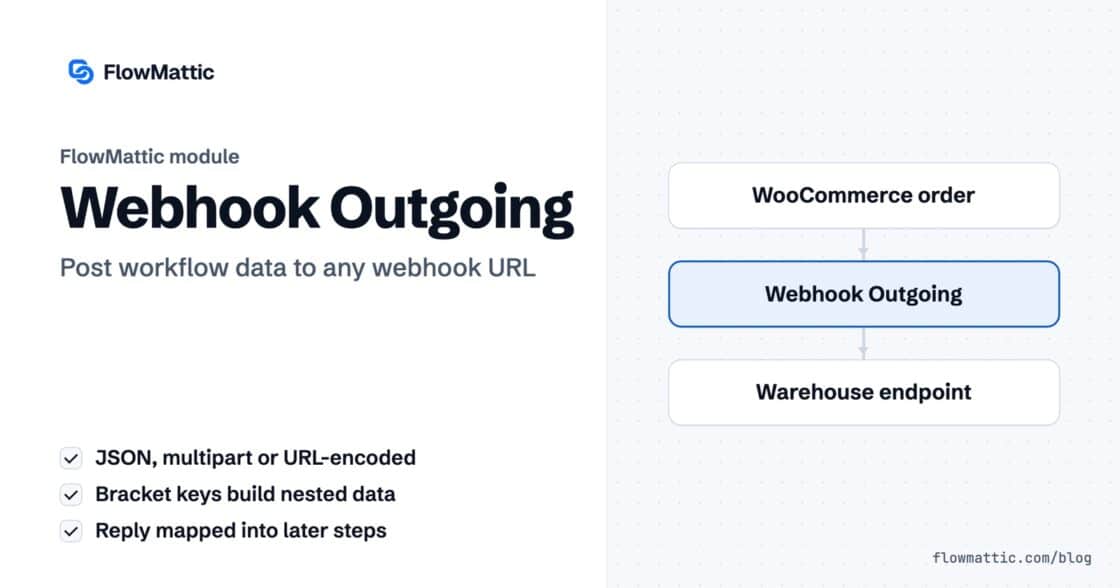
Post workflow data to any webhook URL as JSON, multipart form data or URL-encoded fields, with nested bracket keys and the receiver's…


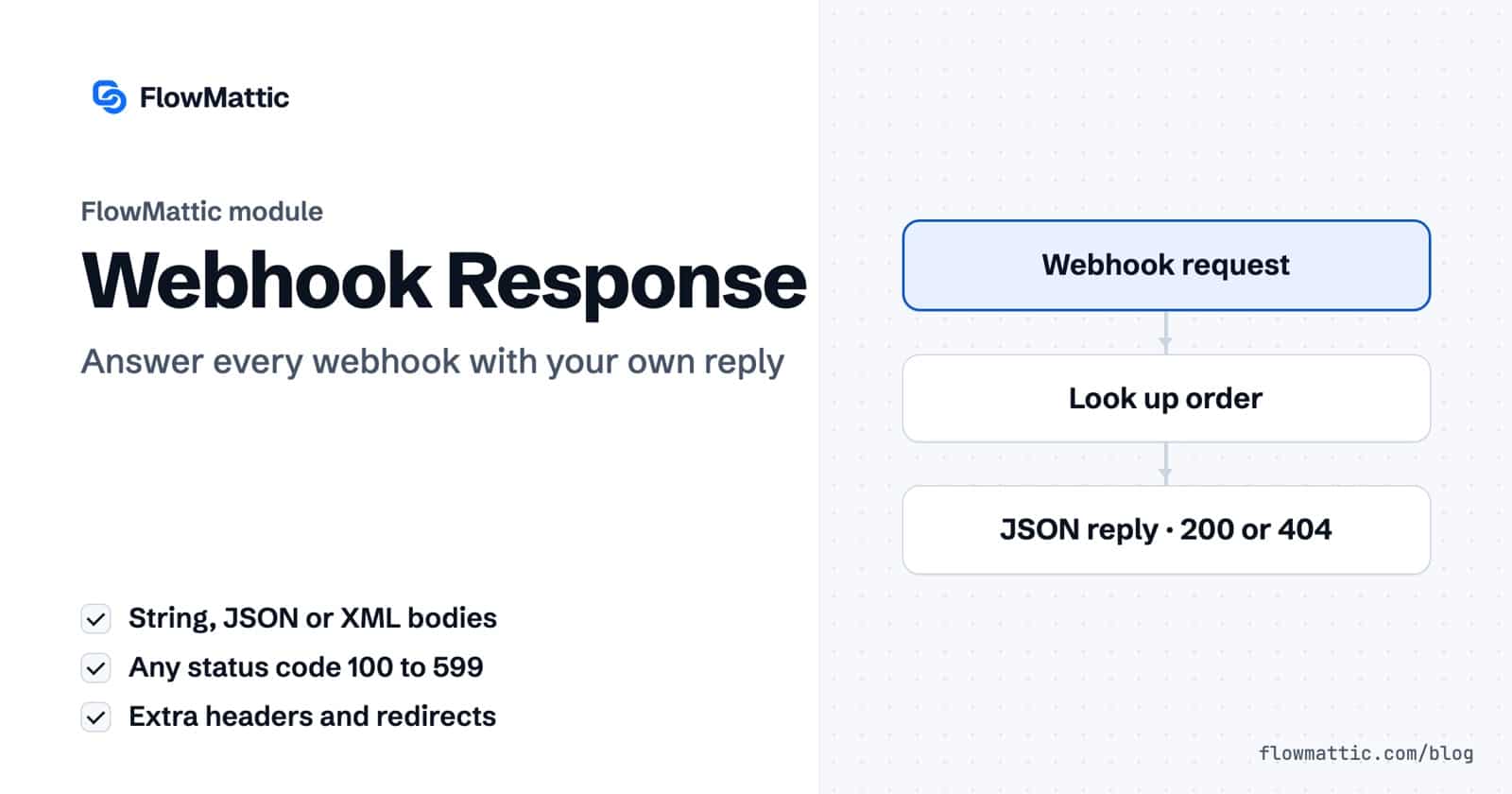
A custom webhook response is the reply your WordPress site sends back to whoever called a webhook: the body, the HTTP status code and the headers. FlowMattic’s Webhook Response module builds that reply from the data in your workflow, so a caller gets an answer instead of a generic “Response Captured”.
It is for anyone turning a webhook trigger into a small API: slash commands, order lookups, form handlers, SMS replies, or a front end that needs JSON back. This guide covers the response types, status codes, headers and redirects, how the reply is timed, and seven practical uses.
Webhook Response is a built-in action app for workflows that start with a webhook trigger. It has two actions:
The webhook trigger can already send a fixed reply through its Send a custom webhook response box. The module is what you use when the reply depends on the run, such as a looked-up record, an AI answer or an error code.
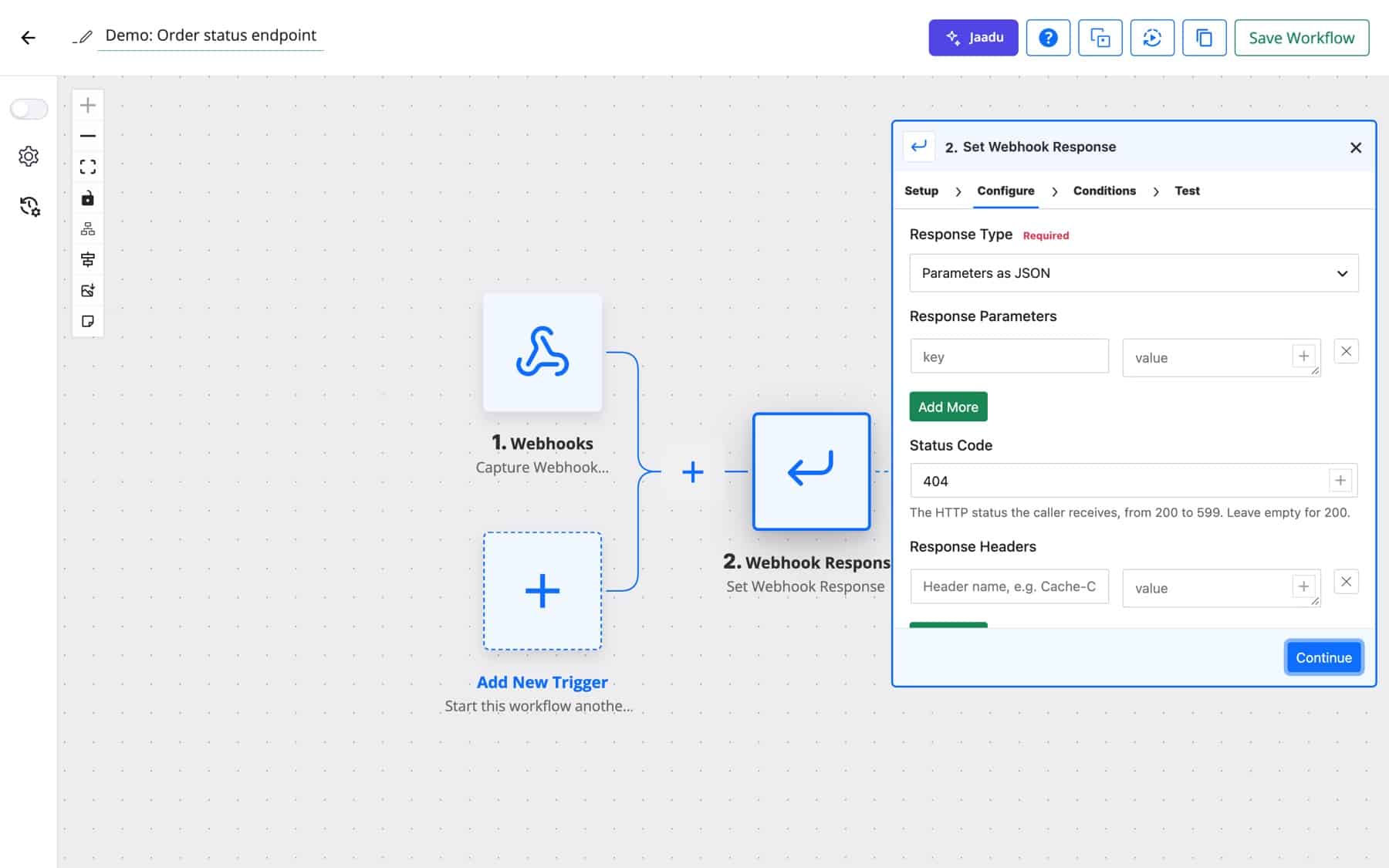
| Option | What it does |
|---|---|
| Response Type: String | Returns the text in Response String. |
| Response Type: Parameters as JSON | Builds a JSON object from the key and value rows under Response Parameters. |
| Response Type: Custom JSON | Returns the JSON you write in the Custom JSON box, with dynamic tags inside. |
| Response Type: Parameters as XML | Builds XML from the rows under XML Parameters, inside a <Response> root element, sent as application/xml. |
| Response Type: Custom XML | Returns the XML you write in the Custom XML box, sent as application/xml. |
| Status Code | Any HTTP status from 200 to 599, including codes WordPress has no name for. Leave it empty for 200. |
| Response Headers | Extra headers such as Cache-Control or a custom X- header. The response type sets Content-Type, and header names cannot use dynamic tags. |
| Redirect URL | On Set Webhook Redirect URL, the address the visitor is sent to. |
Status codes and headers work on both webhook URL styles, permalink-based and REST API-based. If the webhook trigger delivers via FlowMattic Cloud, Cloud forwards the request straight away instead of queueing it and returns your site’s reply to the sender.
A workflow that contains a Webhook Response step keeps the request open while it runs, and the caller receives the reply when the run in that request has finished. That is what lets later data reach the response, and it also means every step adds to the caller’s wait. Keep slow work, such as long AI calls or big loops, out of workflows whose callers have short timeouts.
If several Set Webhook Response steps run, the last one decides the reply. Steps in Router routes that do not run have no effect, so each route can carry its own answer.
A support team’s /order 1042 command posts to the trigger. A lookup finds the order and Parameters as JSON returns a text key with its status, which Slack shows to the user who asked.
Flow: Webhook → Look up order → Set Webhook Response (Parameters as JSON)
An e-commerce site gives its mobile app a URL that takes an order number. A Router sends found orders to a 200 reply with the order details, and unknown numbers to a 404 with a short message, so the app can handle each case properly.
Flow: Webhook → Get order → Router → Set Webhook Response (200 or 404)
A partner posts leads to your site. When required fields are missing, one route returns Status Code 422 with a JSON list of what is wrong; complete leads go on to the CRM and get a 201.
Flow: Webhook → Router (fields present?) → CRM or Set Webhook Response 422
Some SMS providers read the webhook’s XML reply to decide what to text back. Parameters as XML wraps your keys in a <Response> element; Custom XML covers any other shape the provider expects.
Flow: Webhook (incoming SMS) → AI Agent reply → Set Webhook Response (Custom XML)
A SaaS help widget posts a customer’s question to a webhook. An AI Agent drafts the answer from your docs and Custom JSON returns it with a sources field for the widget to display.
Flow: Webhook → AI Agent → Set Webhook Response (Custom JSON)
A marketing site shows upcoming events in a widget that calls a webhook. The reply carries the events from a WP Tables lookup and a Cache-Control response header, so browsers do not ask again on every page view.
Flow: Webhook (GET) → WP Tables find records → Set Webhook Response with Cache-Control
An agency’s landing page form posts straight to a webhook URL. With the trigger’s Workflow End Action set to Redirect to URL, a Set Webhook Redirect URL step sends trial sign-ups and demo requests to different pages.
Flow: Webhook (form post) → Router → Set Webhook Redirect URL
hub_challenge or challenge, the trigger echoes that value as plain text instead of your response, as subscription checks expect.item.Start a FlowMattic workflow with the webhook trigger and add a Webhook Response step with Set Webhook Response. Choose String, JSON or XML, map the data you want to return, and the caller receives it when the run finishes.
Yes. Enter any HTTP status from 200 to 599 in Status Code, such as 201, 404 or 422. Leave the field empty to reply with 200.
Yes. Parameters as XML builds XML from key and value rows inside a Response root element, and Custom XML returns whatever XML you write. Both are sent with the application/xml content type.
The caller waits for the run to finish, because the reply is built from its data. Keep these workflows short, and move slow follow-up work into a separate workflow when the caller has a tight timeout.
Webhook Response is included with every FlowMattic plan. Try FlowMattic and turn your first webhook into an endpoint that answers.
Post workflow data to any webhook URL as JSON, multipart form data or URL-encoded fields, with nested bracket keys and the receiver's…
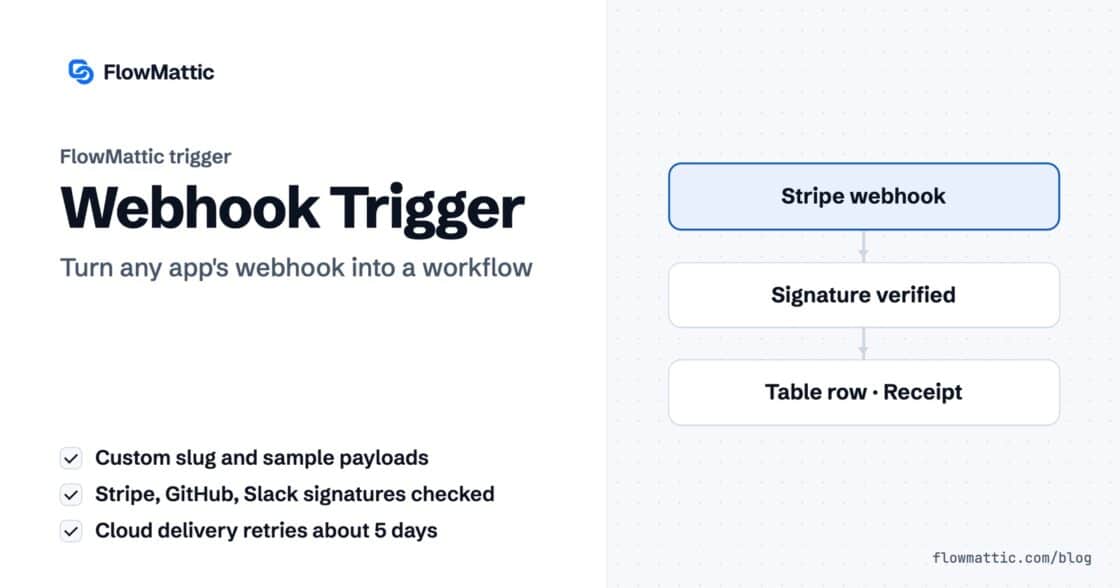
Give any app a URL on your WordPress site and turn each request into a workflow run, with signature checks, sample payloads…
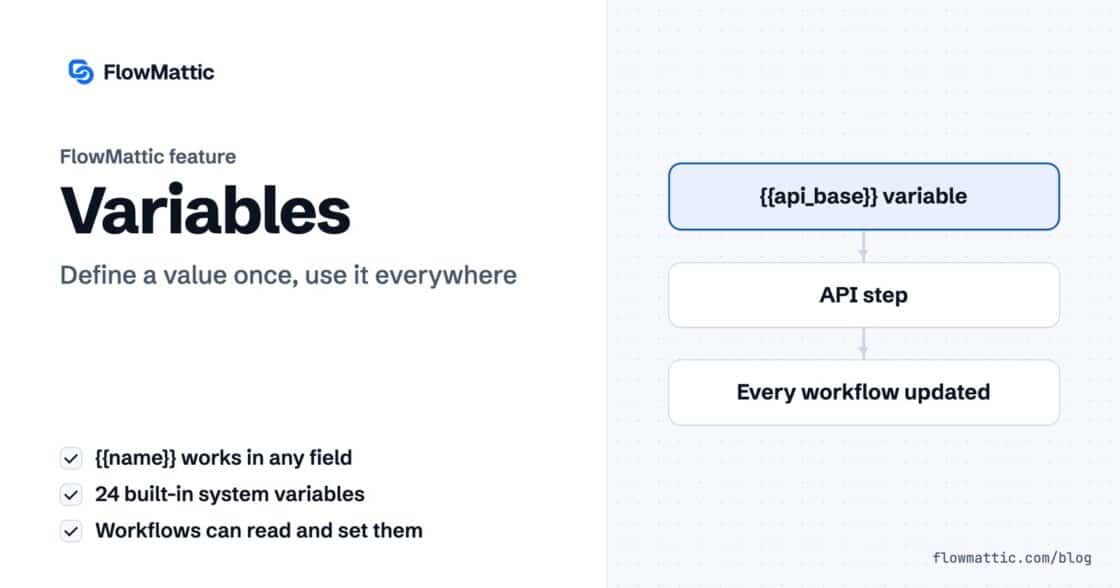
Store a value once and use it in any step of any workflow as a {{name}} token. Covers custom, system and local…