Custom Webhook Response: Send Your Own Status, Headers and Data
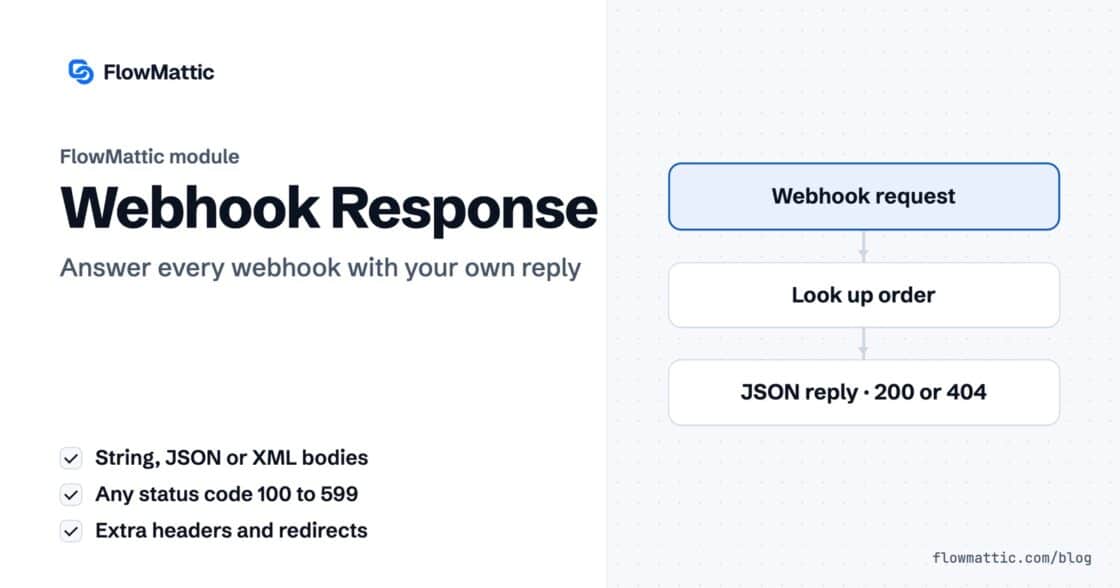
Reply to a webhook with data from the run: String, JSON or XML bodies, any HTTP status from 200 to 599, extra…


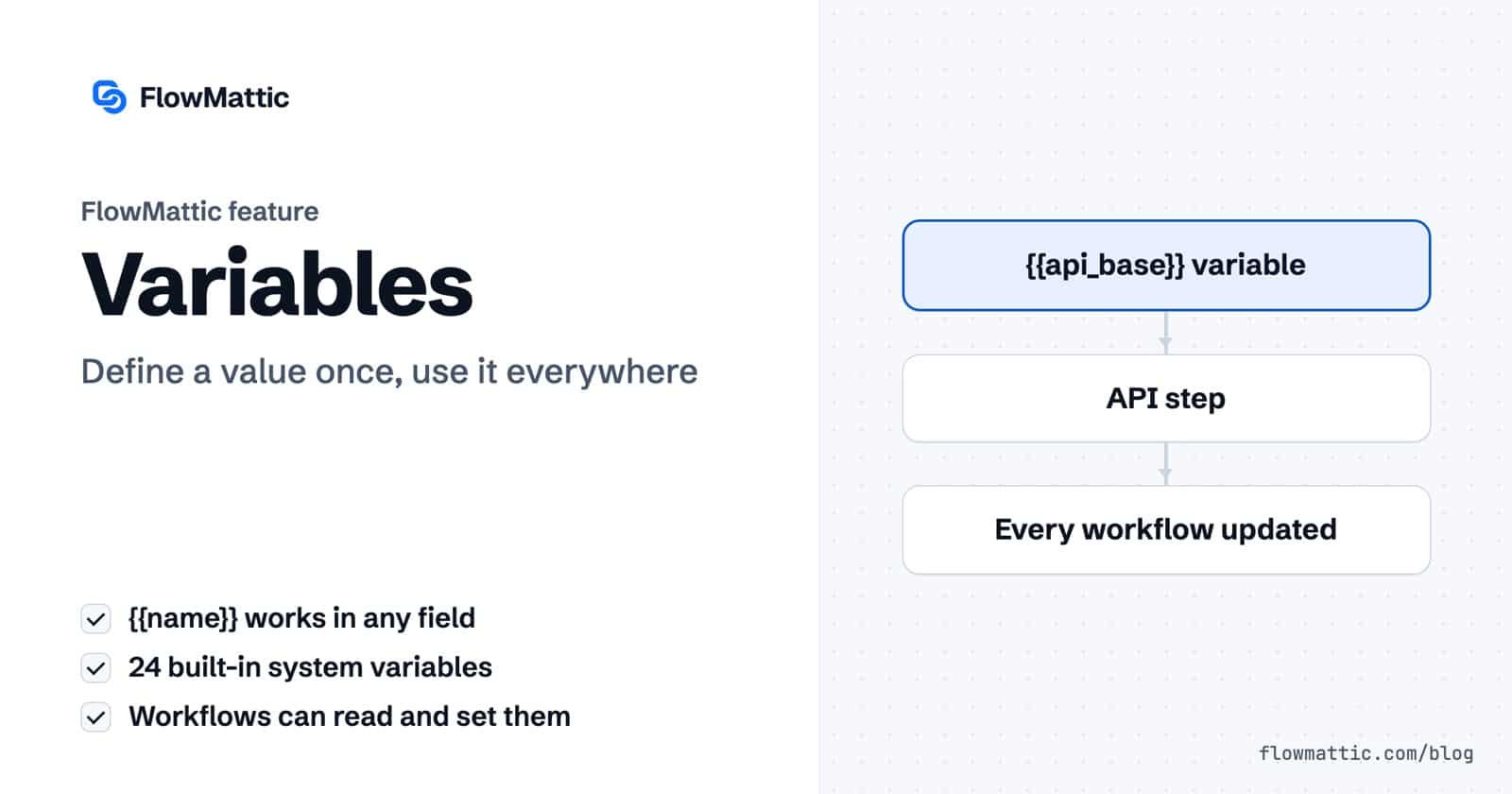
Workflow variables in FlowMattic let you store a value once, give it a name, and use it in any field of any workflow as a {{name}} token. Change the value on the Variables screen and every workflow that references it picks up the new value on its next run.
They are for anyone who keeps typing the same base URL, list ID, sender address or prompt snippet into step after step. This guide covers the three kinds of variables FlowMattic offers, how they are replaced at run time, how a workflow can read and change them, and seven practical uses.
A variable is a named value that FlowMattic swaps into a step’s fields when the step runs. You manage them under FlowMattic → Variables, a screen with two lists and a search box that matches names and descriptions.
Custom variables are stored in their own table in your WordPress database, so they are shared by every workflow on the site.
Click New Variable. The Create New Custom Variable window asks for three things:
my_custom_var or myCustomVar.Click Create Variable. Each row in the list then offers Edit Variable, Duplicate and Delete Variable, plus a copy button that puts the ready-made {{name}} token on your clipboard.
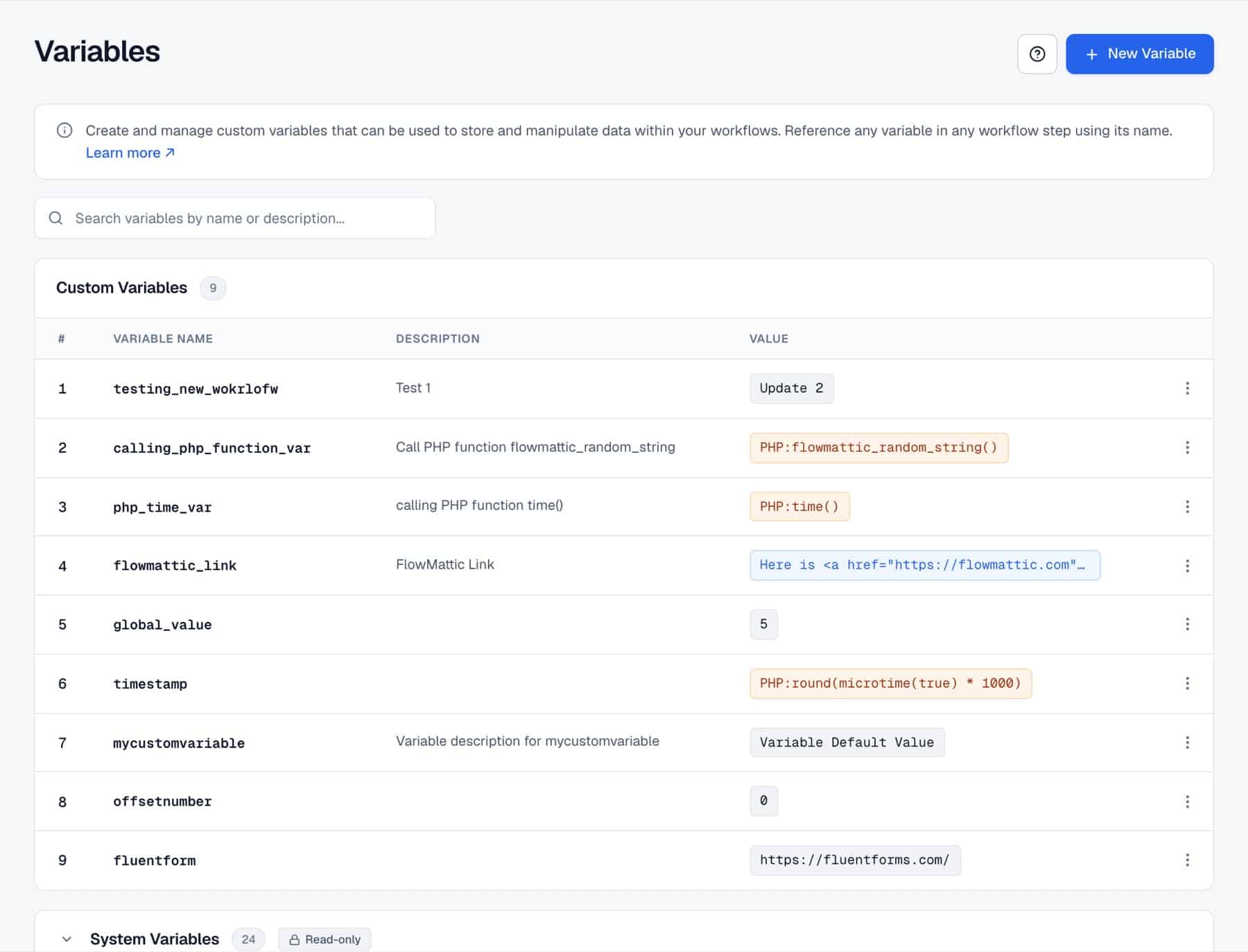
Type the name in double curly braces into any step field, or open the dynamic tag picker in the workflow builder and choose it from the Variables group. A variable sits happily next to data from earlier steps, so an endpoint such as {{api_base}}/customers followed by an ID from the trigger resolves correctly.
When a step runs, FlowMattic looks for {{…}} tokens in its settings and replaces each known variable with its current value. Workflows read the value at run time rather than a copy saved in the step, which is why one edit on the Variables screen reaches every workflow at once.
| Variables | What they insert |
|---|---|
iso_8601_utc, iso_8601_local | The current date and time in ISO 8601, in UTC or the site time zone. |
utc_cur_date_time_24, utc_cur_date_time_12, utc_cur_date, utc_cur_time_24, utc_cur_time_12, utc_cur_timestamp | The current date, time or timestamp in UTC, in 24-hour or 12-hour form. |
local_cur_date_time24, local_cur_date_time12, local_cur_date, local_cur_time_24, local_cur_time_12, local_cur_timestamp | The same values in the site’s local time. |
cur_year, cur_month, cur_day | The current year, month and day in local time. |
blank, space, line_break | An empty value, a single space or a line break, for stitching text together. |
boolean:true, boolean:false | A boolean. After the colon, true, yes or 1 give true; anything else gives false. |
random_number:100 | A random number from 1 up to the number after the colon. |
random_string:10 | A random string of the length after the colon, between 2 and 100 characters. |
The FlowMattic Tools app has six actions for variables. Use them when a workflow needs to remember something for later.
| Action | Fields | What it does |
|---|---|---|
| Get Variable Value | Variable Name | Returns the current value of a custom variable. |
| Set Variable Value | Variable Name, Variable Value | Overwrites the value of an existing custom variable. |
| Create Local Variable | Variable Name, Variable Type (String or Array), Variable Value or Variable Values | Stores a value for this workflow and returns its Variable ID. |
| Get Local Variable | Variable ID | Returns the stored value. |
| Update Local Variable | Variable ID, Variable Type, value | Replaces the stored value. |
| Delete Local Variable | Variable ID | Removes it. |
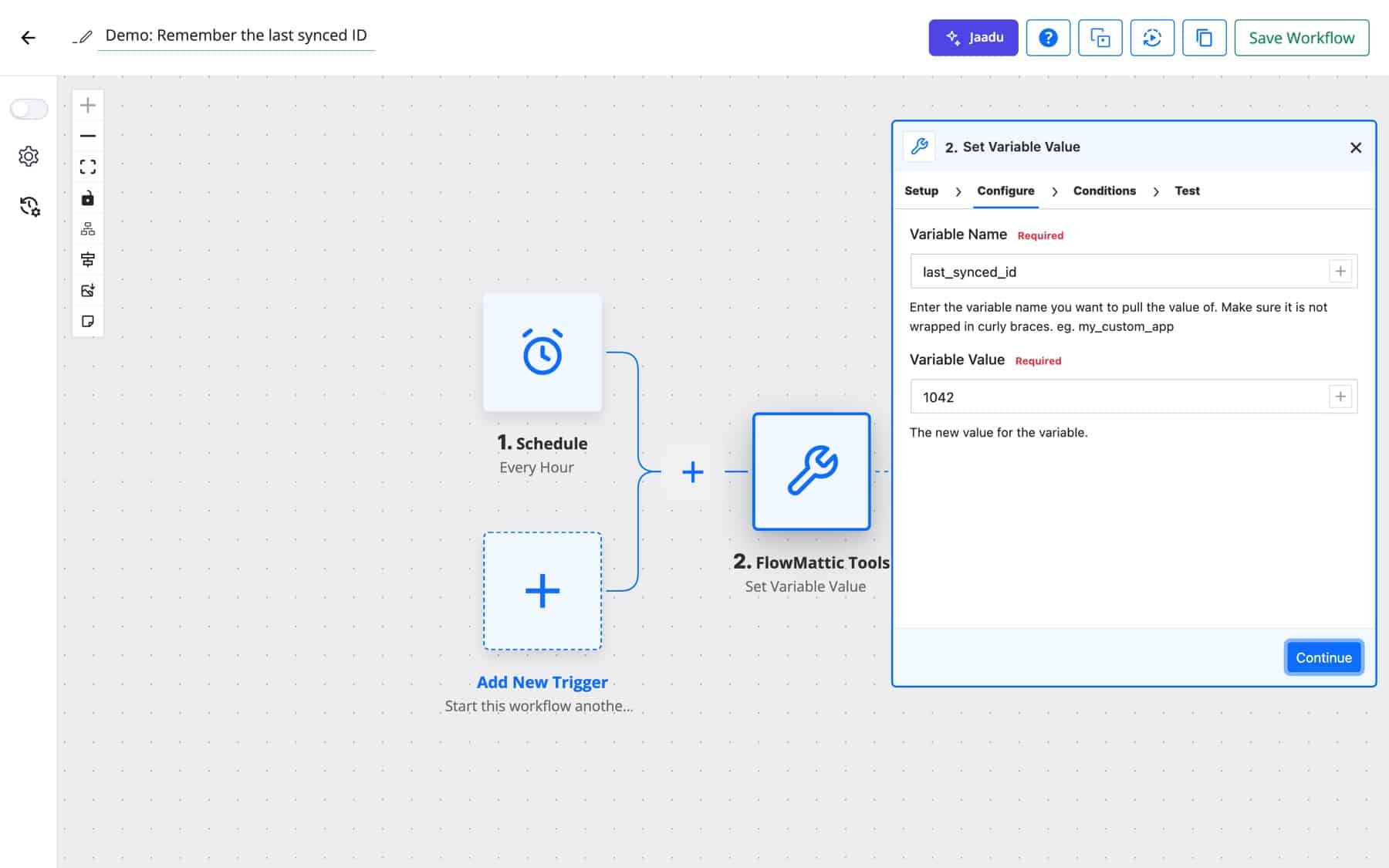
In the Tools actions, type the variable name without curly braces. Local variables are addressed by their Variable ID, which the Create step returns; the ID is built from the workflow and the name, so it stays the same each time that workflow creates the variable.
A SaaS team’s Custom App actions and API steps all start with {{api_base}}. During testing it points at the sandbox; on launch day one edit on the Variables screen moves every workflow to production.
Flow: Webhook → API request to {{api_base}}/orders → WP Tables row
Order confirmations, booking reminders and failure alerts all show {{support_email}} as the reply address. When the support inbox moves to [email protected], every message follows.
Flow: WooCommerce new order → Send email (Reply-To {{support_email}})
An e-commerce shop builds invoice numbers from {{invoice_prefix}}-{{cur_year}}- plus the order ID. The prefix is set once; the year changes on its own on 1 January.
Flow: Order paid → PDF invoice with {{invoice_prefix}}-{{cur_year}} → Email the customer
An internal ops workflow runs every hour, reads {{last_synced_id}}, fetches only newer records from an API, and ends with Set Variable Value so the next run starts from the new high-water mark.
Flow: Schedule (every hour) → API request since {{last_synced_id}} → Iterator → Set Variable Value
An agency imports the same lead workflow on each client’s site. The steps reference {{crm_list_id}} and {{sales_channel}}, and each site defines its own values, so the workflow itself never needs editing per client.
Flow: Form submission → CRM add contact to {{crm_list_id}} → Chat message to {{sales_channel}}
A marketing team keeps its tone of voice in {{brand_voice}} and adds it to the prompt of every AI Agent that writes captions, replies or summaries. Updating the guidance updates all of them.
Flow: New post published → AI Agent (prompt includes {{brand_voice}}) → Social post
Each new customer gets a coupon code like WELCOME-{{random_string:8}}, generated fresh every run with no extra step.
Flow: New user registered → Create WooCommerce coupon → Welcome email with the code
&, < and quotes turned into HTML entities, so keep values that feed URLs or JSON plain.PHP:, such as PHP:time(), is only evaluated when the site owner adds define( 'FLOWMATTIC_ALLOW_PHP_VARS', true ); to wp-config.php. Without it, the value is treated as plain text.{{cur_year}}, and with Use default when empty set to Yes it is sent whenever the mapped value is empty.Type its name in double curly braces, such as {{support_email}}, into any step field, or pick it from the Variables group in the dynamic tag picker. FlowMattic replaces it with the current value when the step runs.
Custom variables are values you define on the Variables screen and share across every workflow. System variables are 24 built-in values such as the current date and random strings. Local variables are created by a workflow with FlowMattic Tools and belong to that workflow only.
Yes. The Set Variable Value action in FlowMattic Tools overwrites an existing custom variable, and Update Local Variable does the same for a local one. The next step or the next run reads the new value.
Only if the site owner turns it on. A value starting with PHP: is evaluated when FLOWMATTIC_ALLOW_PHP_VARS is set to true in wp-config.php; otherwise it stays plain text. For logic in a workflow, the PHP Functions step is usually the better fit.
Workflow variables are included with every FlowMattic plan, together with nearly 900 integrations to use them in. Try FlowMattic and replace your first copy-pasted value with a variable.
Reply to a webhook with data from the run: String, JSON or XML bodies, any HTTP status from 200 to 599, extra…
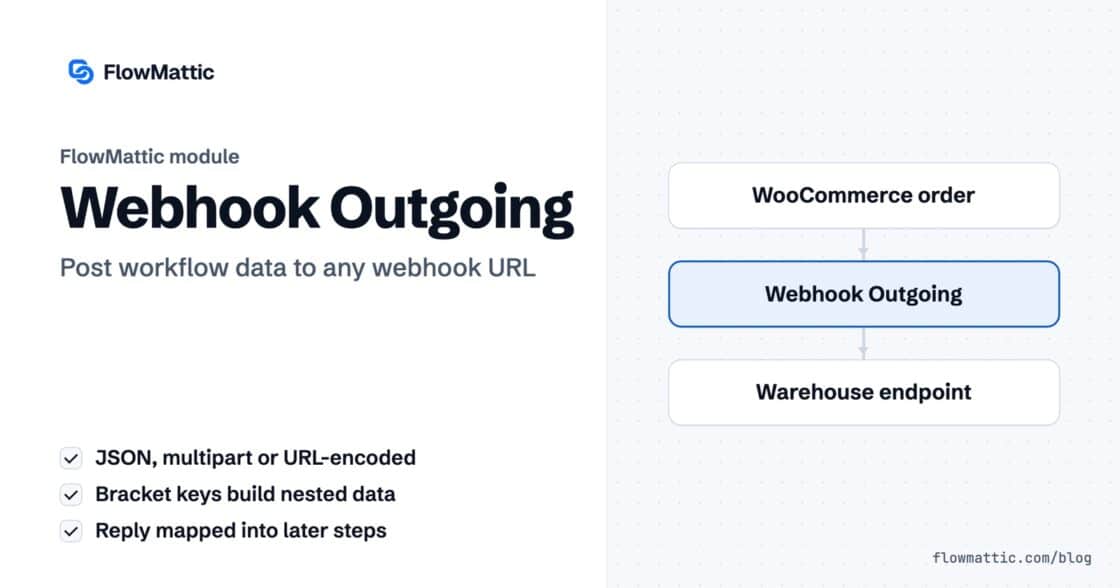
Post workflow data to any webhook URL as JSON, multipart form data or URL-encoded fields, with nested bracket keys and the receiver's…
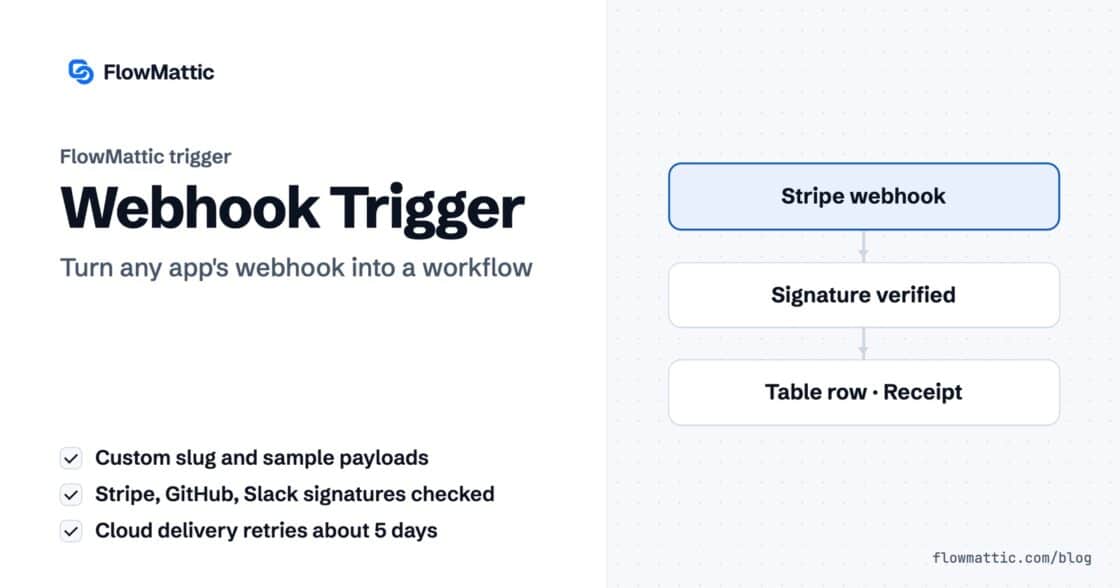
Give any app a URL on your WordPress site and turn each request into a workflow run, with signature checks, sample payloads…