
FTP automation in WordPress: upload, download and watch folders
The FTP app uploads, downloads, moves and deletes files on FTP, FTPS and SFTP servers from any workflow, and starts workflows when…


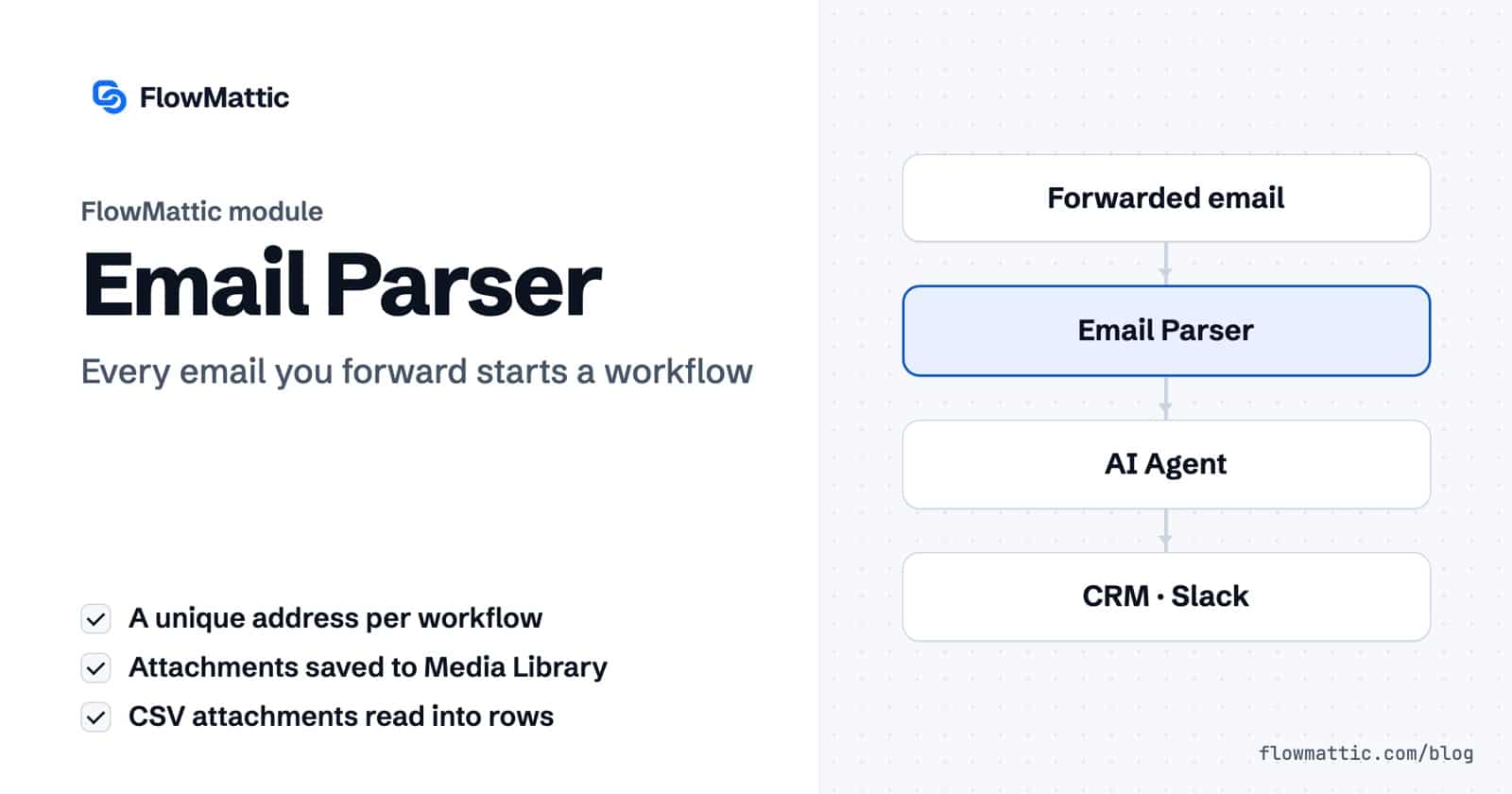
Email parser automation turns an incoming email into structured data your workflow can use: the sender, the subject, the body, any email addresses inside it, and the attachments as files in your Media Library. FlowMattic’s Email Parser gives every workflow its own email address, so anything sent or forwarded there starts a run.
It is built for the mail that keeps landing in someone’s inbox only to be retyped somewhere else: lead notifications, supplier price lists, order confirmations from marketplaces, alerts from tools that can send email but not webhooks. There is no mailbox to connect and no password to store.
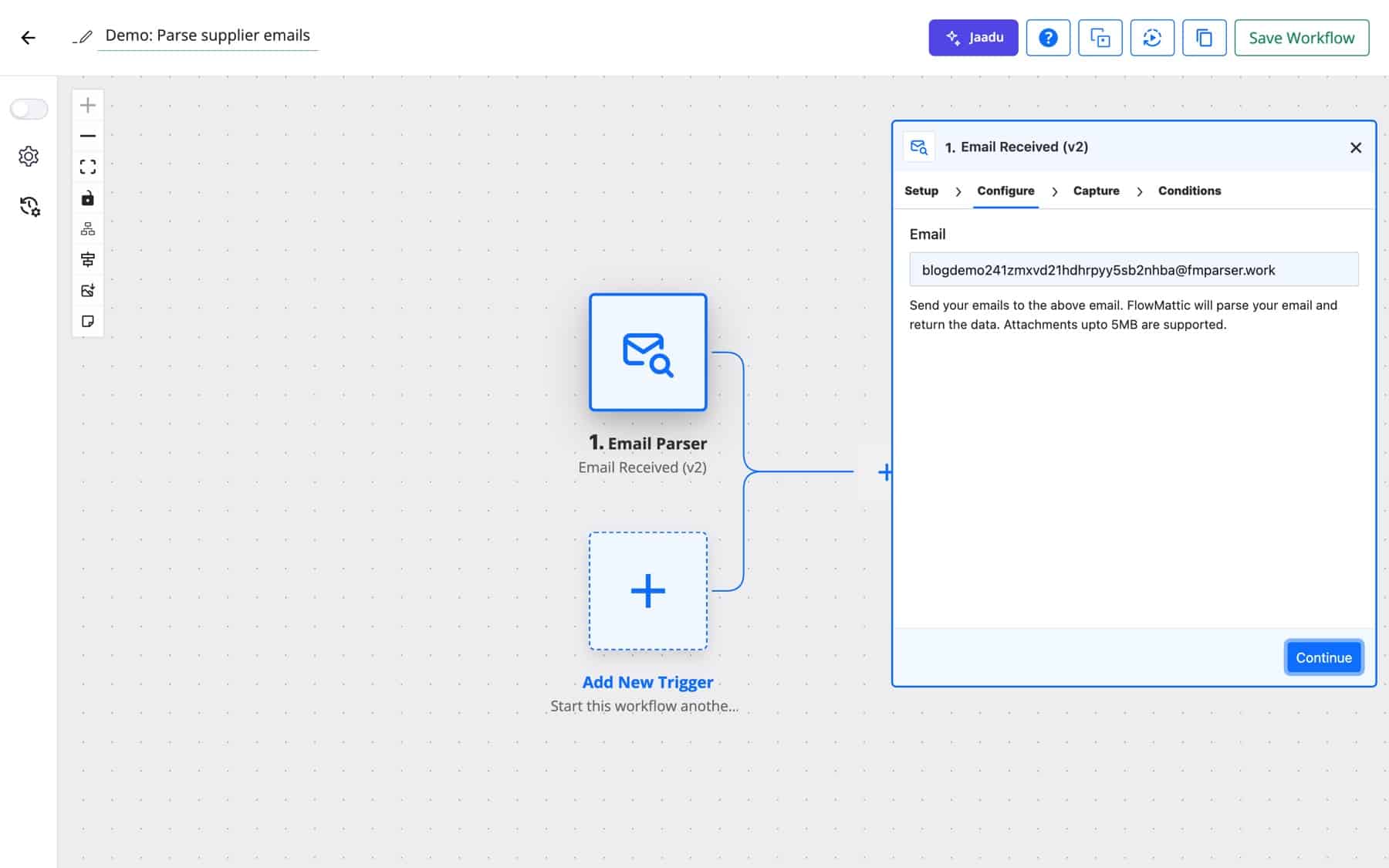
Email Parser by FlowMattic is a built-in trigger app. Its description in the app picker is “Turn incoming emails into workflow data.” It has two trigger events, Email Received and Email Received (v2). Both work the same way and differ in the address they give you: Email Received uses an address at flowmatticmail.com, and the v2 event uses an all-lowercase address at fmparser.work.
Each address is unique to one workflow on one site. It is built from the workflow’s ID and your site’s domain, so you never have to set up an alias or a mail server.
Behind the scenes, FlowMattic’s mail service receives the message, parses it and posts the result to the workflow’s webhook URL on your site. Your site then does the rest: it saves each attachment into the Media Library, reads CSV attachments into rows, and pulls every email address out of the message text.
| Field | What it holds |
|---|---|
from_name, from_email | The sender’s name and address. |
to_email | The parser address the message was delivered to. |
subject | The subject line. |
message_text | The plain-text body. This is the field to parse, search or hand to an AI Agent. |
message_html | The HTML body, HTML-escaped before it reaches the workflow. |
date | The date of the email. |
attachments | A list with each file’s file_id, file_name, file_url and content_type after it was saved to the Media Library. |
csv_0_data, csv_1_data … | For each CSV attachment, its rows as JSON, keyed by the header row. The number is the attachment’s position in the email. |
emails_in_message_list, emails_in_message_array | Every email address found in the message text, as a comma-separated list and as an array. |
Email Received also includes parsed_msg_text, a copy of the body with tags stripped, and to_name. Email Received (v2) includes message_id. Capture a test email and the Capture tab shows exactly which fields your messages produce. If a live email arrives with a shape your test did not have, open that run in Task History and use its trigger data as the captured response in the builder, then map against the real message.
Many listing sites only send leads by email. Forward them to the parser address and let an AI Agent pull the name, phone and request out of message_text, then create the contact with a source tag.
Email Received → AI Agent (extract fields) → FluentCRM: create contact
Northwind emails a CSV of stock levels every morning. The parser turns the file into csv_0_data, an Iterator walks the rows, and each product’s stock is updated by SKU.
Email Received → Iterator (csv_0_data) → WooCommerce: Get Product by SKU → Update Product Stock Quantity
Point vendors, or a mailbox rule, at the parser address. Each PDF lands in the Media Library, the PDF Parser reads the total and due date, and a row goes into a WP Tables ledger.
Email Received → PDF Parser (file_url) → WP Tables: add row
Forward a shared support address to the parser. An AI Agent classifies each message as billing, bug or question, and a Router posts it to the matching Slack channel with a one-line summary.
Email Received → AI Agent → Router → Slack
A SaaS team’s uptime and backup tools notify by email. A Filter passes only subjects that contain “down” or “failed”, and the on-call channel gets the alert straight away.
Email Received → Filter (subject) → Telegram · Slack
An e-commerce team sells on a marketplace that emails each order. A Text Formatter step extracts the order number and total from the body, and Google Sheets keeps the running list next to the store’s own orders.
Email Received → Text Formatter → Google Sheets: add row
These details come straight from how the trigger is built, and they make email parser automation more dependable:
{message_id} on Email Received (v2). If the same message reaches the workflow again within the window (60 minutes by default, up to 30 days), Task History records it as skipped instead of running it twice.message_text for parsing. message_html arrives HTML-escaped, which is safe to store but awkward to search.emails_in_message_list holds each address once, in lowercase.For sending, sequences and approvals by email, see email automation in FlowMattic.
An email parser reads an incoming message and splits it into fields such as sender, subject, body and attachments, so software can act on it. In FlowMattic the parsed email starts a workflow, and each field can be mapped into any later step.
No. Email Parser gives each workflow an address of its own, and you send or forward mail to it. If you would rather watch an existing mailbox directly, use the IMAP Email Parser, which connects with your IMAP details.
Create a forwarding rule in Gmail or Outlook that sends matching messages to the workflow’s parser address. Every forwarded message then starts a run with its fields ready to map.
CSV attachments are read into rows automatically and appear as csv_0_data and so on. Any other file, a PDF included, is saved to the Media Library with its URL, which you can pass to the PDF Parser or another step.
Both turn an email into a workflow run. Email Received gives an address at flowmatticmail.com; Email Received (v2) gives an all-lowercase address at fmparser.work, and the fields differ slightly. Capture a test email to see the exact fields for the event you pick.
The Email Parser works with an active FlowMattic licence. See FlowMattic pricing and give your first workflow its own inbox.
The FTP app uploads, downloads, moves and deletes files on FTP, FTPS and SFTP servers from any workflow, and starts workflows when…
Share Secrets turns a password or API key into a link that expires after a set time, a set number of views,…
Generate Magic Login Link creates single-use sign-in links from any workflow, valid from 1 minute to 30 days, with a confirmation page…

