FTP automation in WordPress: upload, download and watch folders
The FTP app uploads, downloads, moves and deletes files on FTP, FTPS and SFTP servers from any workflow, and starts workflows when…


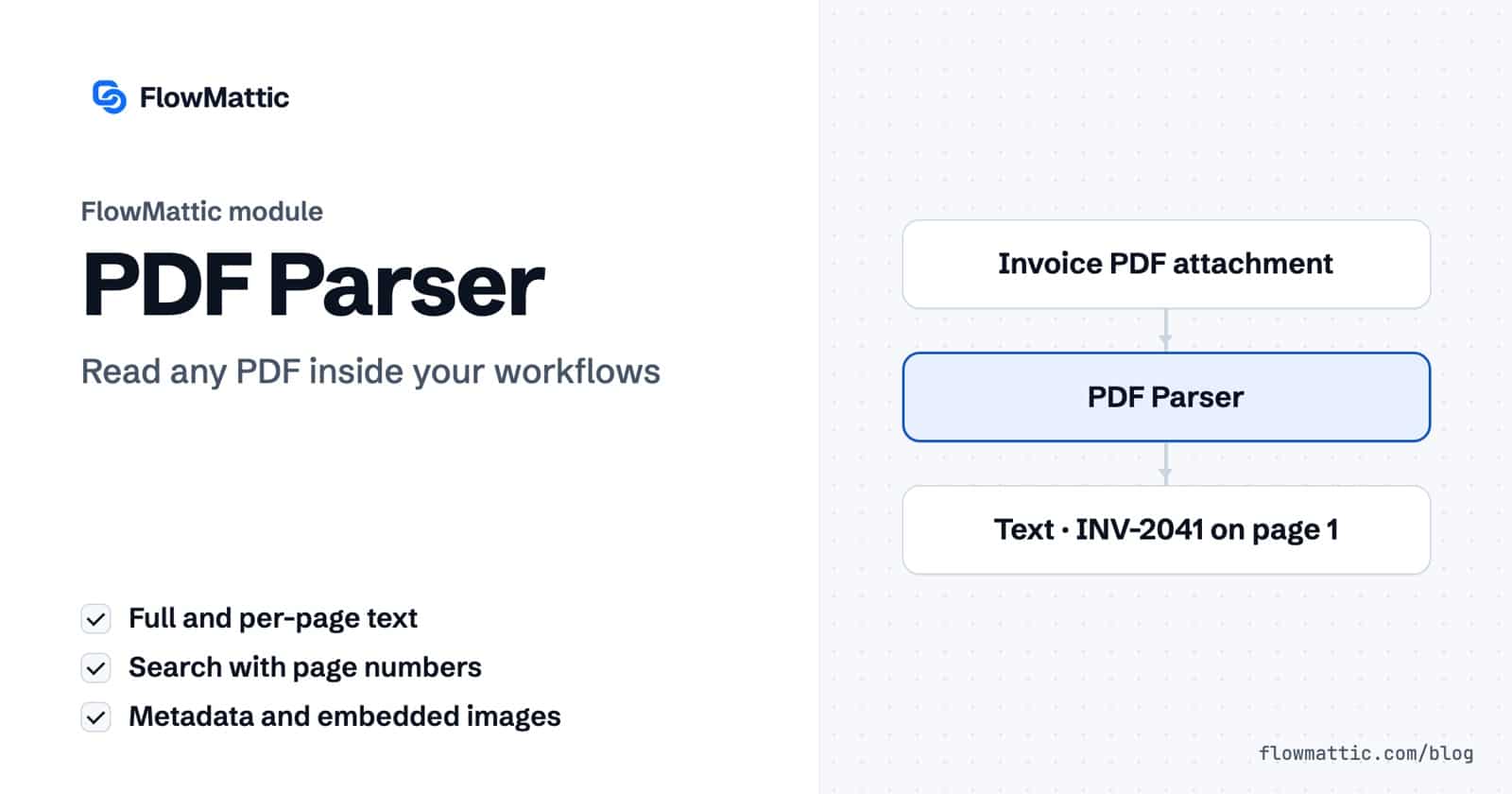
FlowMattic’s PDF Parser lets a workflow extract text from PDF files, page by page, without a separate document service. Point it at a PDF URL or a Media Library ID and it returns the full text, a per-page breakdown and the document metadata. It can also search for a phrase or pattern with page numbers, and pull embedded images into the Media Library.
When you need to extract text from PDF documents as part of a process, this is the step. It suits invoice routing, contract checks, résumé screening and any process where documents arrive as PDFs and the next step needs their contents. This guide covers the four actions, every field, what comes back, and how the module handles scanned and protected files.
PDF Parser by FlowMattic is a built-in action module, added in FlowMattic 7.2.0, that reads “text, metadata and images out of a PDF file in your workflow”. It reads the file on your own WordPress server with a bundled PDF library, next to the other data tools.
1-3,7, and Include Per-Page Text.text, or any page’s text, into the next step.
A successful Parse PDF returns fields like these:
{
  "status": "success",
  "status_code": "parsed",
  "has_text_layer": true,
  "likely_scanned": false,
  "text": "Invoice INV-2041 ... Total due: 1,249.50",
  "character_count": 1834,
  "word_count": 297,
  "page_count": 2,
  "pages_parsed": 2,
  "metadata": { "title": "...", "author": "...", "created_date": "...", ... },
  "pages": [ { "page": 1, "text": "...", "character_count": 1210, "word_count": 196 }, ... ],
  "source": { "type": "media", "attachment_id": 512, "filename": "inv-2041.pdf", ... }
}
When the URL points at a file in this site’s own Media Library, the module reads it from disk instead of downloading it. Other URLs are downloaded with a 30-second timeout and up to five redirects, and the file must really be a PDF, or the step says so.
| Action | Fields | Key output |
|---|---|---|
| Parse PDF | PDF File URL or Media ID, Page Range, Include Per-Page Text (Yes or No) | text, pages, metadata, word_count, likely_scanned |
| Get PDF Metadata | PDF File URL or Media ID | page_count, metadata |
| Search PDF Text | PDF File URL or Media ID, Search For, Match Type (Contains Text or Regular Expression), Case Sensitive, Context Characters, Page Range | found, match_count, pages_matched, first_page, first_match, matches |
| Extract Images from PDF | PDF File URL or Media ID, Page Range, Minimum Width, Minimum Height, Maximum Images | image_urls, first_image, images, skipped, images_saved |
Each match comes back with its page, the matched text, its position on the page and an excerpt of the text around it. Context Characters sets how much surrounding text you get, 120 by default and up to 2,000. With Regular Expression, enter a bare pattern such as INV-[0-9]{4} or a delimited one. The status_code is found or not_found, which is easy to route on.

Images are saved to the Media Library and named after the PDF, page and position, such as inv-2041-p1-1.jpg. JPEGs are kept as stored; RGB, grayscale and palette images are rebuilt as PNG. CMYK, JPEG 2000 and fax-encoded (CCITT or JBIG2) images can’t be converted and are listed under skipped with the reason. Maximum Images defaults to 25 and goes up to 200.
Invoices arrive as email attachments. Import them to the Media Library, search for the invoice number pattern, and route each one to the right approver or record.
Flow: Email with Attachment → Import Email Attachments to Media Library → Search PDF Text → Router
Parse the contract with Include Per-Page Text set to No, then ask an AI agent for the term, renewal date and notice period, and email the summary to the account owner.
Flow: Webhook (Capture Webhook Response) → Parse PDF → AI Agent → Send Email
A legal or operations team can search every incoming agreement for “automatically renew” and send only the matches, with page numbers and excerpts, for review.
Flow: Email with Attachment → Import Email Attachments to Media Library → Search PDF Text → Filter → Send Email
An agency recruiting for clients parses each CV, has an AI agent score it against the role, and stores the result in a table the recruiters review.
Flow: Email with Attachment → Import Email Attachments to Media Library → Parse PDF → AI Agent → WP Tables (New Record)
A scanned receipt has no text to read, but the scan itself is an image. Extract it and send first_image to an image-reading AI action, such as Claude’s Analyze Image with Vision.
Flow: Email with Attachment → Import Email Attachments to Media Library → Extract Images from PDF → Claude (Analyze Image with Vision) → WP Tables (New Record)
After a store generates an invoice PDF, search it for the order total. A Filter sends the email only when the expected figure is on the page.
Flow: WooCommerce new order → PDF Builder (Generate PDF from Template) → Search PDF Text → Filter → Send Email
status_code scanned_pdf and a message pointing you to Extract Images from PDF.likely_scanned is true, so you can branch before trusting the text.1-3,7 reads pages 1, 2, 3 and 7, and pages beyond the end are ignored. Only a range that matches no page at all is an error.match_count still reports the total.skipped, so nothing disappears silently.status_code instead.Add a PDF Parser step with Parse PDF and give it the PDF’s URL or its Media Library ID. The step returns the full text in text and, if you keep Include Per-Page Text on, each page separately in pages.
Not as text, because the module has no OCR. It detects scans and reports them instead of returning empty text. Extract Images from PDF still works on scans, so you can pass the page images to an AI action that reads images.
Yes. Use Search PDF Text with Match Type set to Regular Expression and a pattern such as INV-[0-9]{4}. The first hit is in first_match, with its page number and an excerpt.
Yes. Import the attachment to the Media Library with the IMAP Email Parser first, then pass its URL or attachment ID to the PDF Parser. Files in the Media Library are read straight from disk.
The PDF Parser ships with FlowMattic and reads every document on your own server. See the plans and extract text from PDF files inside your own workflows.
The FTP app uploads, downloads, moves and deletes files on FTP, FTPS and SFTP servers from any workflow, and starts workflows when…
Share Secrets turns a password or API key into a link that expires after a set time, a set number of views,…
Generate Magic Login Link creates single-use sign-in links from any workflow, valid from 1 minute to 30 days, with a confirmation page…