FTP automation in WordPress: upload, download and watch folders
The FTP app uploads, downloads, moves and deletes files on FTP, FTPS and SFTP servers from any workflow, and starts workflows when…


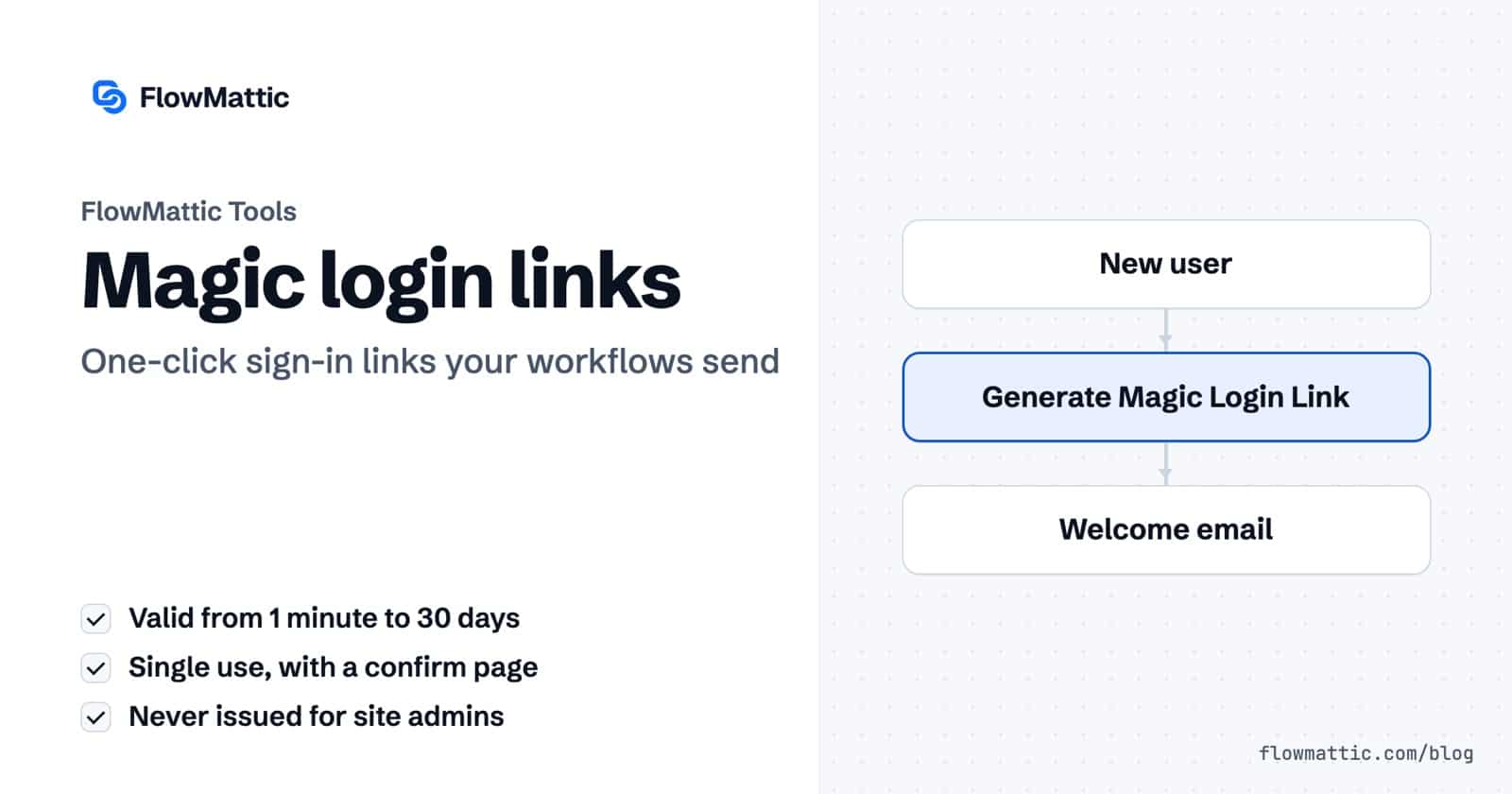
A passwordless login link lets a WordPress user sign in with one click from an email, with no password to type or reset. FlowMattic, the automation plugin for WordPress, creates these links inside a workflow with the Generate Magic Login Link action, so you can send one at the moment it is useful: right after a purchase, a form submission or a new registration.
Each link works once, stays valid for a lifetime you choose between one minute and 30 days, and opens on a confirmation page so email security scanners cannot use it up before your user clicks. This guide covers how the action works, every setting on its panel, and use cases for stores, membership sites, agencies and support teams.
It also covers a separate tool with a similar name, the Magic Link trigger, which puts a link on a page that starts a workflow when someone clicks it.
Generate Magic Login Link is one of the actions in the FlowMattic Tools app, the same app that holds variables, Redirect to URL and Stop and Error. You give it a user ID or an email address, and it returns a URL on your own site: your home address with a magic_login token added. When the user opens that URL and confirms, WordPress signs them in as that user and sends them to the page you picked.
The step does not send anything by itself. The link comes back as step output named magic_link, and you map it into whatever comes next: an email, a CRM field, a chat message or an SMS step. The token is stored as a WordPress transient in your site’s database, not on a FlowMattic server.
The Magic Link app is a different thing. It has one trigger, Magic Link Clicked, and gives you an shortcode for the front end. A click on that link runs the workflow and then redirects the visitor. It never logs anyone in. You will find it in the use cases and tips below.
status, magic_link, expires_at, valid_for_seconds and a message such as “Magic login link generated and is valid for 1 day.”magic_link into it.
Opening the link does not log anyone in straight away. It shows a small page branded with your site’s custom logo, or its name when there is no logo, headed Confirm Your Login. It names the account the user is about to enter and explains that the extra click protects the account from automated link scanners. Only the Confirm and Login button, a form post checked with a WordPress nonce, signs the user in. A scanner that fetches the URL sees the page and nothing more.
After the login the token is deleted, so the same link cannot be used twice. The confirmation page is marked noindex and sent with no-cache headers.
If the step cannot create a link, it returns an error with the reason: the user ID is missing, no user matches the value it received, or the user can manage the site. You see the reason on the run in Task History instead of a success with an empty link, so an email step after it never goes out with a blank button.
| Option | What it does |
|---|---|
| User ID or Email (required) | The account the link signs into. Accepts a user ID or an email address, usually mapped from the trigger. |
| Redirect URL | Where the user lands after confirming. Defaults to your home page. |
| Redirect URL on Expired | Where to send someone whose link is past its lifetime. See the tips below for how this behaves. |
| Link Valid For | A number plus a unit (Minutes, Hours or Days). The range is 1 minute to 30 days; values outside it are pulled back into range, and an empty field means 1 hour. |
| Output: magic_link | The URL to send. Also returned: expires_at (UTC), valid_for_seconds, redirect_to, redirect_on_expired and message. |
For the Magic Link trigger, the shortcode panel lists its parameters: id (the workflow ID), link_text for logged-in users, visitor_link_text for visitors, user_redirect_url, visitor_redirect_url, css_class and css_id. Any other attribute you add, such as product_id="42", arrives in the workflow as a field.
Log in to request a callbackA membership site sends each new member a designed welcome email with one button that signs them in and opens the getting-started page. The link lasts 24 hours, long enough for someone who registers late at night.
Flow: WordPress New User → Generate Magic Login Link (24 hours, redirect to /start/) → Email by FlowMattic: Send Template Email
A WooCommerce store selling digital products adds a “Go to your downloads” link to its order follow-up, so a customer with an account never hits the password reset form. Set the Redirect URL to the account downloads page.
Flow: WooCommerce order → Generate Magic Login Link (billing email, 2 days) → Send Email
An agency onboarding form creates the client’s account and emails a one-click entry to the dashboard. Give the client a role below administrator, because links for users who can manage the site are refused.
Flow: Form submission → WordPress Create User if Not Exists → Generate Magic Login Link (7 days) → Send Email
When Priya Sharma writes in that she is locked out, an agent’s helpdesk macro calls a FlowMattic webhook with her email. The workflow makes a 30-minute link and posts it back to the ticket, so the agent never handles a password.
Flow: Webhooks by FlowMattic → Generate Magic Login Link (30 minutes) → API request to the helpdesk
An online course sends a weekly nudge to every student, each with a personal link that signs them in and lands on the lessons page. The Iterator gives each student their own link.
Flow: Schedule (Every Week) → WordPress Get All Users by Role → Iterator → Generate Magic Login Link → Send Email
A SaaS or membership site finds users whose last-activity meta is old and sends a “your account is waiting” campaign with a sign-in link that opens their dashboard. Keep the lifetime short, a few days, so old emails stop working.
Flow: Schedule (Every Month) → WordPress Get Users by Meta → Iterator → Generate Magic Login Link (3 days) → Send Template Email
This one uses the Magic Link trigger instead. A “Request a callback” shortcode on a pricing page runs a workflow that posts the visitor’s name, email and plan to your sales channel, then sends them to a thank-you page.
Flow: Magic Link Clicked → Slack message (user_email, current_page_url, plan) → visitor redirected
flowmattic_magic_login_block_privileged filter.user_id, user_email and user_name, along with current_page_url and current_page_id for everyone.For the full set of user, post and plugin events that can start these workflows, see WordPress automation with FlowMattic.
It is as safe as the inbox it lands in, with three limits on top. The link works once, expires after the lifetime you set, and needs a button press on a confirmation page, so a scanner that opens links cannot use it. FlowMattic also refuses links for administrators and other users who can manage the site.
As long as the Link Valid For setting says, from 1 minute up to 30 days. Leave the field empty and the link lasts 1 hour. The step’s output includes expires_at, so you can print the expiry time in your email.
No. The token is deleted the moment the user confirms and is signed in. To give someone another way in, run the workflow again or offer a “send me a new link” form that triggers it.
Not for sending links from your workflows. Generate Magic Login Link ships inside FlowMattic Tools and handles the token, the confirmation page and the redirect. It does not replace the WordPress login form; it gives your automations a way to send one-click sign-ins.
Ready to send your first one-click sign-in? See FlowMattic plans and build the welcome workflow in a few minutes.
The FTP app uploads, downloads, moves and deletes files on FTP, FTPS and SFTP servers from any workflow, and starts workflows when…
Share Secrets turns a password or API key into a link that expires after a set time, a set number of views,…
Compress any image from a URL as a workflow step: choose quality, convert to WebP, JPEG or PNG, cap the size, and…