
FTP automation in WordPress: upload, download and watch folders
The FTP app uploads, downloads, moves and deletes files on FTP, FTPS and SFTP servers from any workflow, and starts workflows when…


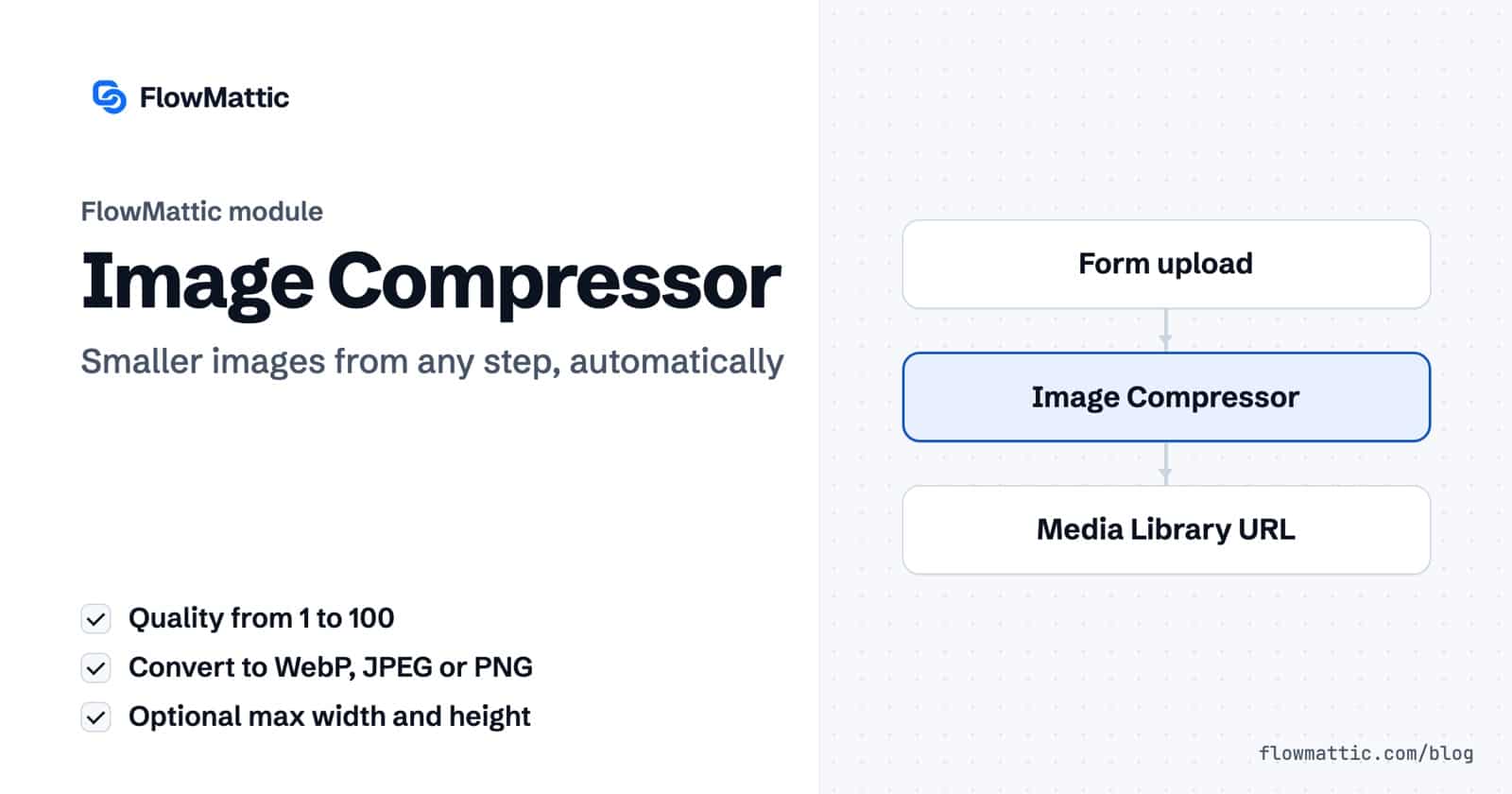
Large images slow pages down, bloat emails and fill your storage. FlowMattic’s Image Compressor module lets you compress images automatically as a workflow step: give it an image URL, choose a quality and an output format, optionally cap the dimensions, and the smaller copy is saved to your Media Library with a URL the next step can use.
It fits wherever images enter your site through a process rather than by hand: form uploads, product imports, generated graphics or files fetched from another app.
Image Compressor is a built-in action app in the FlowMattic workflow builder: “Compress images and store them in WordPress media library.” Its one action, Compress Image, compresses an image and saves it to the Media Library. You will find it with the other data tools.
Here is what happens on each run. Your server downloads the image from the URL, sends it to FlowMattic’s compression service, and saves the compressed result as a new Media Library item. The original image is left as it was. The step needs an active FlowMattic license.
media_url into the next step.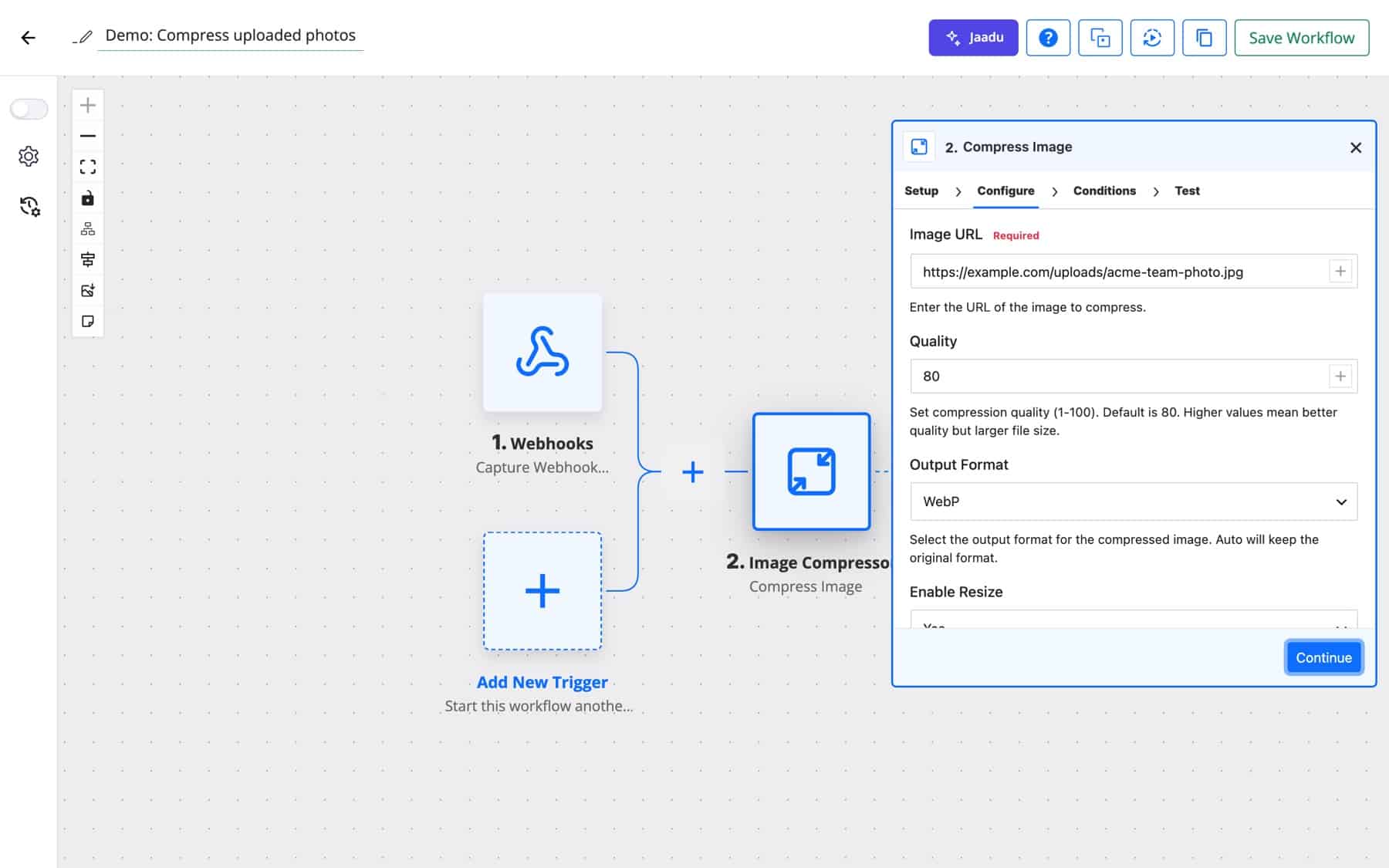
| Option | What it does |
|---|---|
| Image URL | The image to compress. Required. |
| Quality | 1 to 100, default 80. Higher keeps more detail and produces a larger file. |
| Output Format | Auto keeps the original format. JPEG, PNG and WebP convert the image. |
| Enable Resize | Yes or No. Yes shows the two size fields below. |
| Max Width (px) | Maximum width when resizing, default 1920. |
| Max Height (px) | Maximum height when resizing, default 1080. |
A successful run returns media_id, media_url, media_title, media_type, the original_url, the compression_quality and format used, and, when WordPress records them, width, height and file_size.
Phone photos are often several megabytes. Compress each upload to WebP with a 1920 by 1080 cap before it is attached to the support ticket or the gallery entry.
Form submission → Image Compressor → Helpdesk: add attachment
A supplier feed sends full-size product photos. Compress each one before it is set as the product image so category pages load faster.
Scheduler → API request (supplier feed) → Iterator → Image Compressor → WooCommerce: update product
Featured images make heavy email headers. Compress the post’s featured image to JPEG at a lower quality and use the smaller URL in the newsletter.
WordPress: new post → Image Compressor → Email campaign
The Image Template Builder creates a social card for each new post. Compress it before posting so uploads are quick and within size limits.
WordPress: new post → Image Template → Image Compressor → Social post
Agencies delivering photo sets can compress each image and then bundle the results with the ZIP Archive module for one tidy download.
Webhook (image list) → Iterator → Image Compressor → ZIP Archive (Create) → Email
Support teams can convert PNG screenshots to WebP before they go into help articles, keeping pages quick without editing each file.
Form submission (screenshot) → Image Compressor (WebP) → WordPress: create post
Create a FlowMattic workflow with the trigger that brings the image in, add the Image Compressor step, and map the image URL. Every run saves a compressed copy to the Media Library and returns its URL.
Yes. Set Output Format to WebP. You can also convert to JPEG or PNG, or choose Auto to keep the original format.
No. The compressed image is saved as a new Media Library item, and the original stays untouched. Use the returned media_url wherever you want the smaller version.
Start with the default of 80 and check the result. Lower values give smaller files with more visible loss; higher values keep more detail at a larger size.
The Image Compressor is one of many built-in modules that sit alongside nearly 900 integrations in FlowMattic. See the plans and compress images automatically wherever they enter your site.
The FTP app uploads, downloads, moves and deletes files on FTP, FTPS and SFTP servers from any workflow, and starts workflows when…
Share Secrets turns a password or API key into a link that expires after a set time, a set number of views,…
Generate Magic Login Link creates single-use sign-in links from any workflow, valid from 1 minute to 30 days, with a confirmation page…

