Custom Webhook Response: Send Your Own Status, Headers and Data
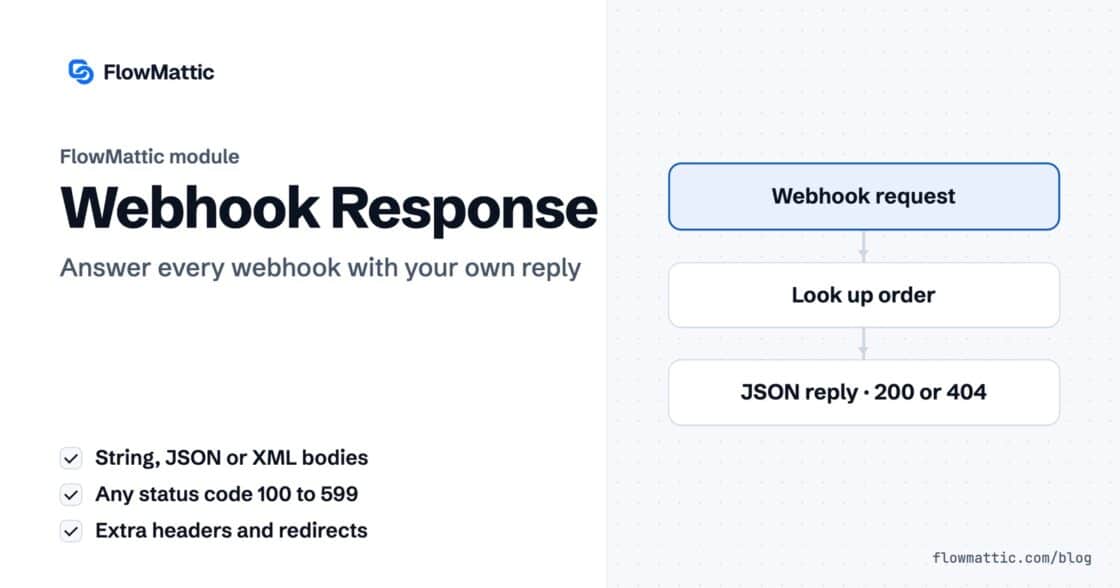
Reply to a webhook with data from the run: String, JSON or XML bodies, any HTTP status from 200 to 599, extra…


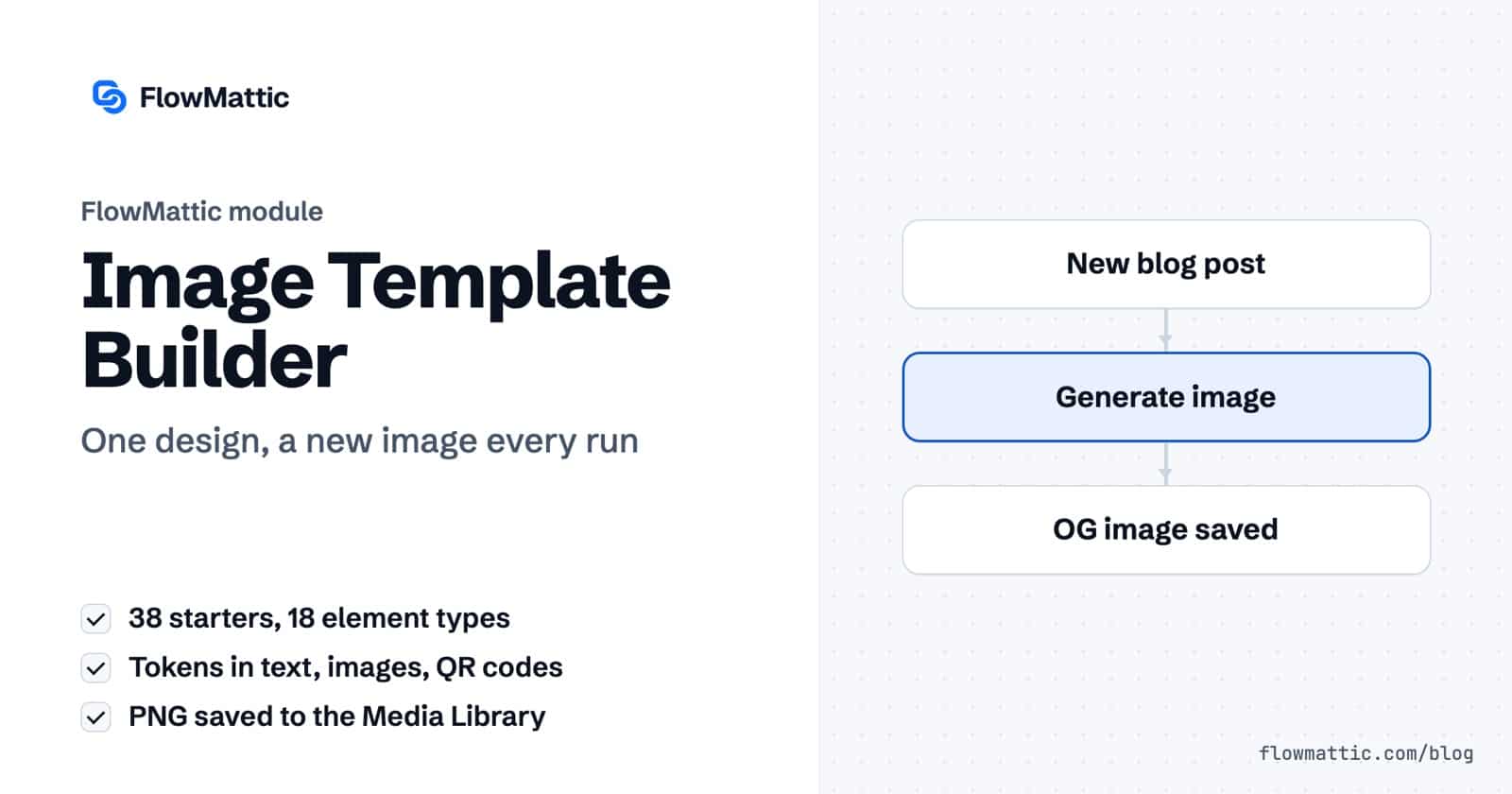
The FlowMattic Image Template Builder is a dynamic image generator for WordPress. You design an image once, put tokens where the data changes, and a workflow renders a fresh PNG for every blog post, order, customer or course completion. Open Graph images, social cards, coupons, stat highlights and certificates all come from the same editor.
It suits content teams who make the same share image every week, stores that want a personal coupon per buyer, and course sites that issue badges. This guide explains the editor, the two Image Builder actions and their settings, what you need to set up first, and seven workflows to copy.
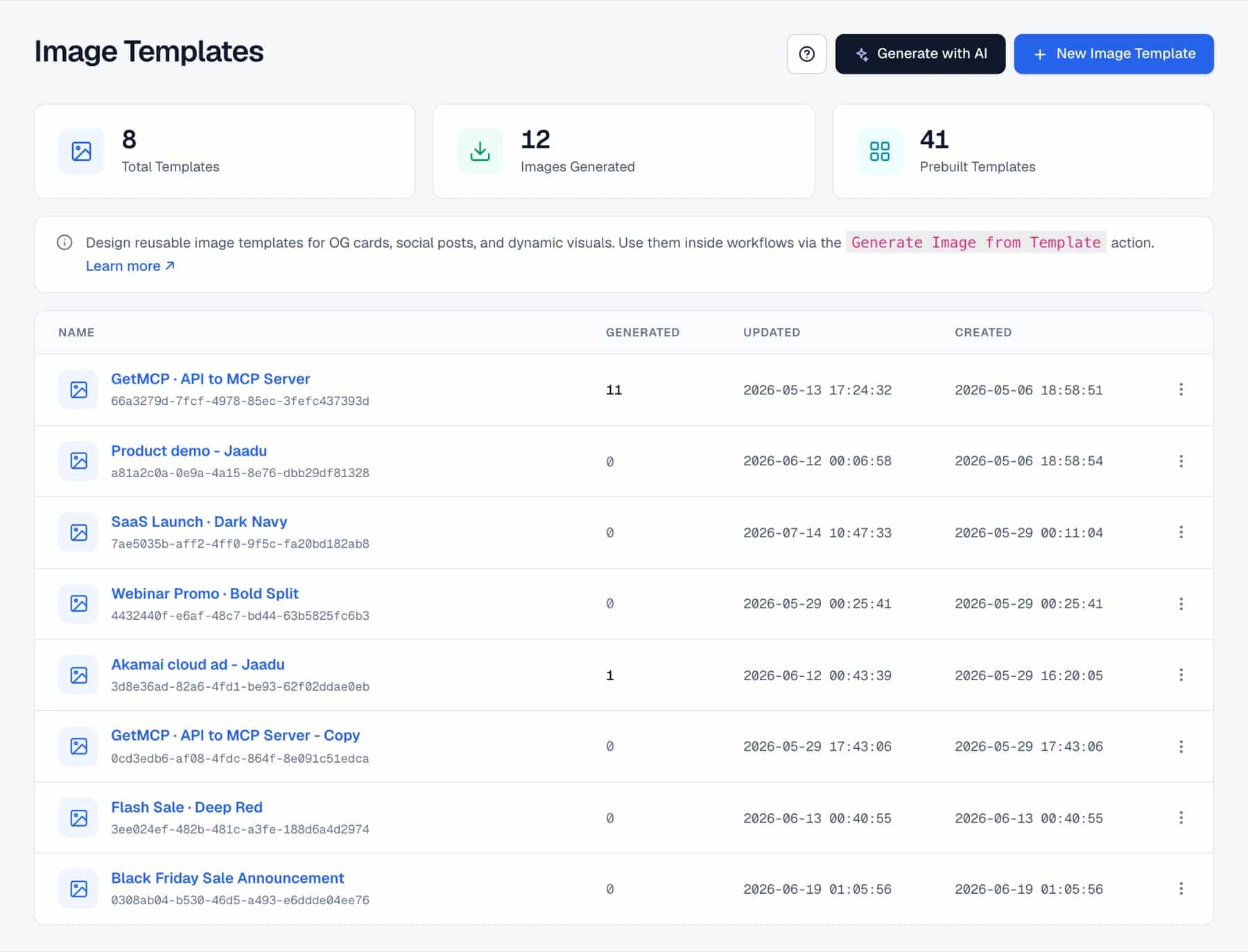
It is a drag-and-drop canvas under FlowMattic → Image Templates, paired with an Image Builder app in the workflow builder. The canvas is where the design lives; the workflow decides when to render it and with whose data, which is what turns a static design into a dynamic image generator.
Rendering runs in headless Chrome through Cloudflare Browser Rendering. Before your first render, add your Cloudflare Account ID and an API token with Browser Rendering edit permission under FlowMattic → Settings. The same credentials also power the PDF Builder’s Cloudflare engine.
The template library holds 38 finished designs, sorted by purpose:
Or start blank at 1200×630, 1080×1080 or 1080×1350. You can also click Generate with AI, write a short brief, and get a template with elements and tokens in place from your own AI provider connection.
Drag elements onto the canvas and position them freely: Heading, Paragraph, Image, Avatar, Button, Icon, Shape, Pattern Shape, Border Shape, Waves, Arrow, Callout Lines, Ribbon, Badge, Coupon, Divider, Logo and QR Code. The template inspector sets the canvas size from five presets (Open Graph 1200×630, Square 1080×1080, Portrait 4:5 1080×1350, Story 9:16 1080×1920, Twitter Header 1500×500) or a custom width and height, plus a solid or gradient background.
A token is a flat placeholder such as {{post_title}}. It can sit in any text, an image source or the content of a QR code. Edit Sample Values lets you give each token a sample value and preview the design with it, so you can check line breaks and overflow before a workflow ever runs.
Add a step, choose Image Builder and Generate Image from Template, and pick the template. The step lists each token as a field you map from the trigger or an earlier step. Each run renders its own PNG at the template’s size, saves it, and returns the url, attachment_id, width and height to the next step.
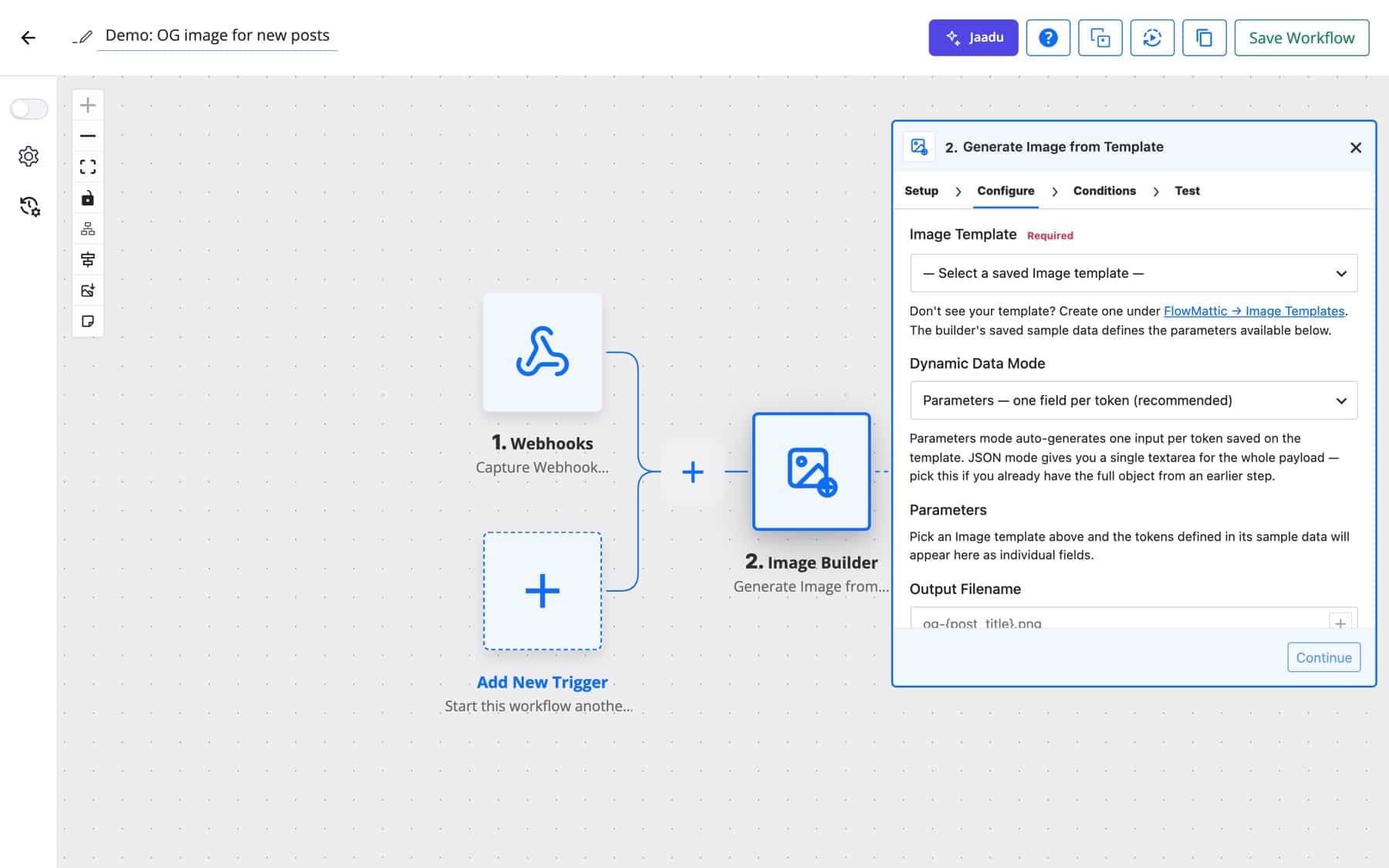
| Field | What it does |
|---|---|
| Image Template | The saved template to render. Required. |
| Dynamic Data Mode | Per-token parameter inputs, or one JSON object with every token. |
| Parameters / Data JSON | The values for each token. In JSON mode, tokens you leave out use the template’s sample values. |
| Output Filename | Defaults to the template name plus a timestamp; .png is added if missing. |
| Save to | Media Library, Media Library — custom folder, or Raw file in uploads/flowmattic-images/ with no Media Library entry. |
| Custom Folder Path | The folder inside uploads when you choose a custom folder. |
For designs the canvas does not cover, this action turns your own HTML and CSS into an image through the same renderer.
| Field | What it does |
|---|---|
| HTML | The markup to render. Required. |
| Width (px) / Height (px) | Viewport size. Defaults to 1200×630, up to 4000 px each way. |
| Capture Full Page | No keeps the fixed size; Yes grows the height to fit all content. |
| Image Format | PNG (lossless, supports transparency) or JPEG (smaller file size). |
| JPEG Quality | 1 to 100, default 85. JPEG only. |
| Output Filename, Save to | Same options as the template action. |
When a post is published, the Blog OG Image template is filled with the title, author and date. The rendered PNG can then be set on the post or used in the share announcement.
WordPress New Post → Generate Image from Template → WordPress Update Post
A store creates a coupon for the next purchase, renders the Coupon Code template with the buyer’s first name and code, and puts the image in the thank-you email.
WooCommerce New Order Created → WooCommerce Create Coupon → Generate Image from Template → Send Template Email
An LMS course-completion trigger fills the Achievement Badge template with the learner’s name and course, such as Yuki Tanaka and “Advanced Workflows”. The badge goes out by email, ready to share.
LMS course completed → Generate Image from Template → Send Email
Every Monday a schedule reads the week’s numbers from WP Tables, renders the Stat Highlight template, and posts the image to the team’s Slack channel.
Schedule → WP Tables Get Rows → Generate Image from Template → Slack
A marketing team asks an AI Agent to pull the strongest quote from a new article, then renders the Social Quote template at 1080×1080 and posts it to the brand’s Facebook Page.
WordPress New Post → AI Agent → Generate Image from Template → Facebook Pages
A form registration renders a ticket image whose QR code holds the attendee’s check-in URL. Amelia Okafor receives it at [email protected] and the door team scans it on the day.
New Form Submission → Generate Image from Template → Send Email
An agency builds a small HTML dashboard per client from API data, converts it with Generate Image from HTML using Capture Full Page, and drops the image into the client’s channel.
Schedule → API request → Generate Image from HTML → Slack
{{author_name}}, not {{author.name}}. A dotted token is left in the image as-is so the mistake is visible.Yes. Images are rendered in headless Chrome through Cloudflare Browser Rendering, so you save a Cloudflare Account ID and API token once under FlowMattic Settings. One setup serves image rendering, the PDF Builder’s Cloudflare engine and the FlowMattic Browser integration.
Start from the Blog OG Image template, map the post title, author and date to its tokens in a Generate Image from Template step, and trigger the workflow on new posts. The step returns the image URL for any later step.
Templates render to PNG at the size you designed, from five presets or a custom size. Generate Image from HTML outputs PNG or JPEG at any size up to 4000 px, or grows to fit the content.
In the Media Library by default, in a custom Media Library folder, or as a raw file in uploads/flowmattic-images/. The step output includes the URL and attachment id.
Ready to replace hand-made images with a dynamic image generator? See the Image Template Builder page, then try FlowMattic and render your first template from a workflow.
Reply to a webhook with data from the run: String, JSON or XML bodies, any HTTP status from 200 to 599, extra…
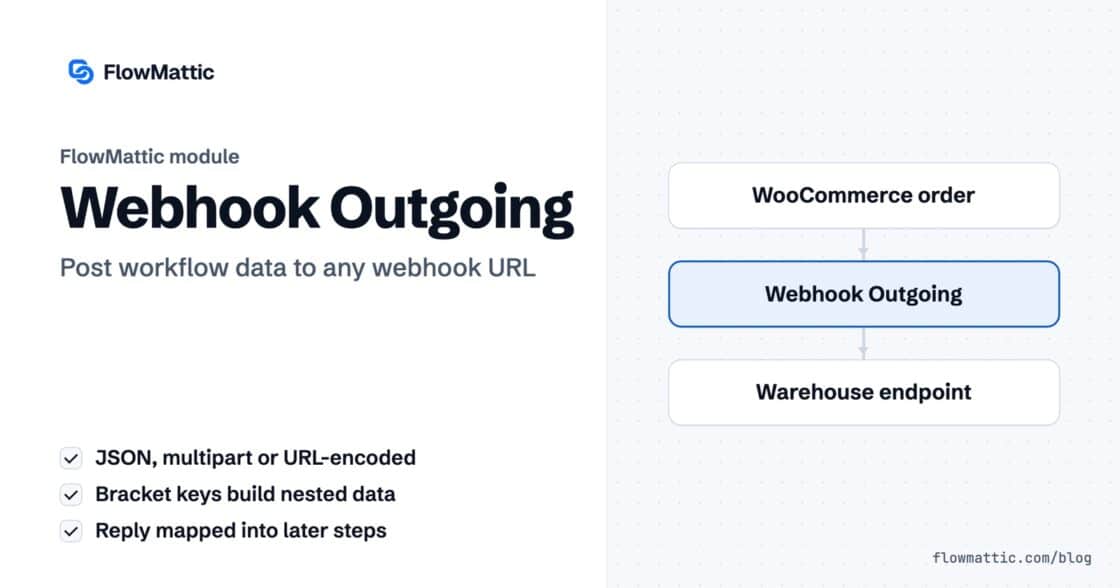
Post workflow data to any webhook URL as JSON, multipart form data or URL-encoded fields, with nested bracket keys and the receiver's…
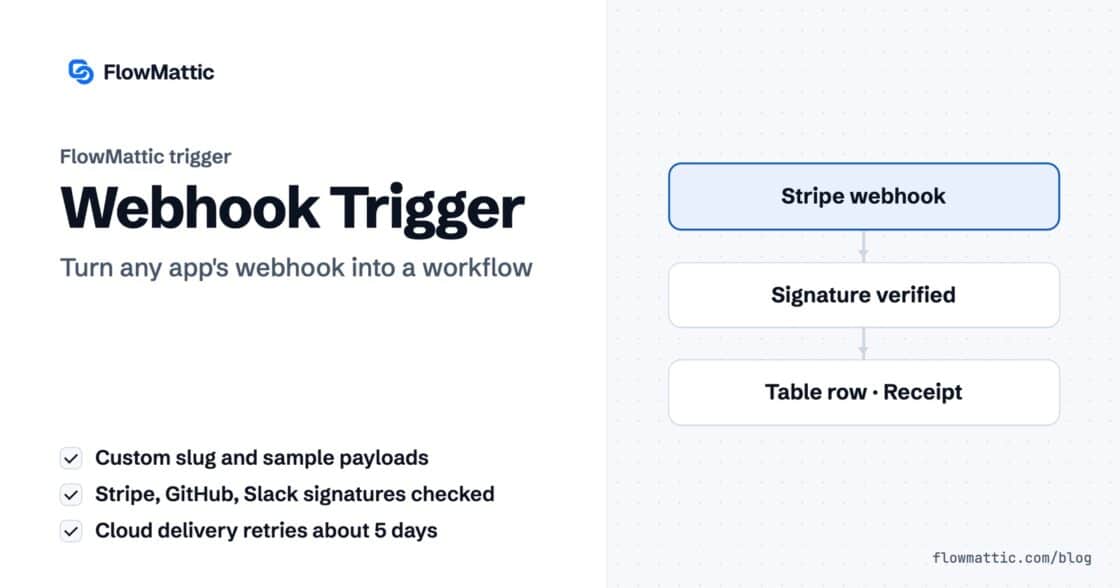
Give any app a URL on your WordPress site and turn each request into a workflow run, with signature checks, sample payloads…