
FTP automation in WordPress: upload, download and watch folders
The FTP app uploads, downloads, moves and deletes files on FTP, FTPS and SFTP servers from any workflow, and starts workflows when…


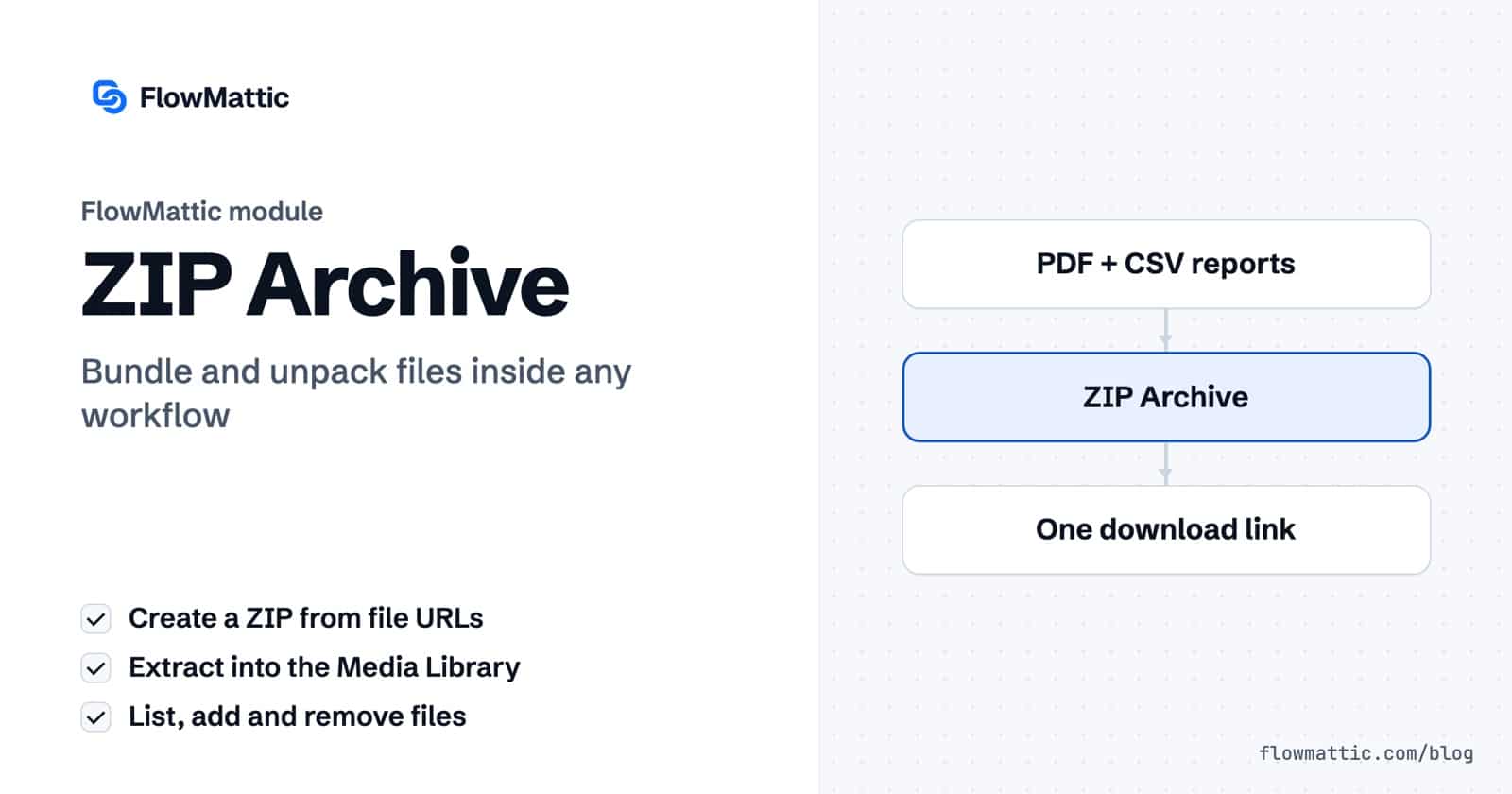
When a workflow produces several files, such as invoices, reports, form uploads or product images, you often want to create ZIP files automatically and send one download instead of many. FlowMattic’s ZIP Archive module does that as a workflow step, and it works the other way too: it can open a ZIP that arrives, list what is inside and put each file in your Media Library.
It suits agencies delivering client packs, shops bundling digital goods, and operations teams that receive archives from suppliers. Everything happens on your WordPress server.
ZIP Archive is a built-in action app in the FlowMattic workflow builder: “Create, extract, and manage ZIP archives. Bundle files from URLs into ZIP archives and save to WordPress media library.” It appears with the other data tools when your server’s PHP includes the ZipArchive class. It has five actions:
url key..zip extension is added if you leave it off.media_url into an email, a download link or the next step.
Each file is downloaded to your server, added to the archive, and the finished ZIP is saved to the Media Library. If a download fails, the rest still go in and the failures are listed in failed_files. Files with the same name are kept apart as report.pdf, report-1.pdf and so on.
| Action | Fields | Returns |
|---|---|---|
| Create ZIP Archive | File URLs, Archive Name, Base Folder (Optional) | media_id, media_url, file_name, file_count, file_size, files_added, failed_files if any |
| Extract ZIP Archive | ZIP File URL, Password (Optional) | total_files and extracted_files, each with file_name, relative_path, media_id and media_url |
| List ZIP Contents | ZIP File URL | files with name, size, compressed size, modified date and whether it is a folder; total_entries, total_size, compression_ratio |
| Add Files to ZIP | ZIP File URL, File URLs to Add, Base Folder (Optional) | A new archive in the Media Library, total_files, files_added |
| Remove Files from ZIP | ZIP File URL, File Names to Remove | A new archive in the Media Library, files_removed, not_found |
An agency generates a PDF report and a CSV export for each client, zips them into a folder named after the month, and emails one link.
Scheduler → PDF Template → CSV Creator → ZIP Archive (Create) → Send email
A quote form accepts several attachments. Zip them into one archive named after the submission so the team downloads one file instead of hunting for each upload.
Form submission → ZIP Archive (Create) → Slack: post the link
A supplier sends a ZIP of product photos. Extract it, and each image lands in the Media Library with its own URL, ready to attach to products.
Webhook (ZIP URL) → ZIP Archive (Extract) → Iterator → WooCommerce: update product
List the contents of an uploaded ZIP and use a Filter to reject it when total_entries is zero or the expected file is missing, before anyone opens it.
Form submission → ZIP Archive (List) → Filter → Email confirmation
Each paid invoice is added to the current archive with Add Files to ZIP; store the latest media_url in a table so the next run adds to it. At the end of the week the bookkeeper gets one file.
WooCommerce: order paid → WP Tables: find record → ZIP Archive (Add) → WP Tables: update record
Zip the day’s generated documents and upload the archive to a backup server over FTP or SFTP.
Scheduler → ZIP Archive (Create) → FTP / SFTP: Upload a file
url key. The help text suggests PHP Array Convert Array to List when you need the comma-separated form. URLs under another key, such as link, are skipped, so reshape those first.media_url.documents/file.pdf.error in extracted_files instead of a URL.Add the ZIP Archive step to a FlowMattic workflow, choose Create ZIP Archive, and map the file URLs from earlier steps. Each run builds the archive and saves it to your Media Library.
Yes. Enter the password in Password (Optional) on the Extract ZIP Archive action. If the password is wrong or the archive is damaged, the step returns an error explaining it couldn’t extract the files.
In your WordPress Media Library, like any other upload. Temporary working files are cleaned up after each run.
The module only registers when PHP’s ZipArchive class is available. Ask your host to enable the PHP zip extension and it will appear in the app list.
ZIP Archive is one of the built-in file tools in FlowMattic. See the plans and create ZIP files automatically instead of downloading and zipping by hand.
The FTP app uploads, downloads, moves and deletes files on FTP, FTPS and SFTP servers from any workflow, and starts workflows when…
Share Secrets turns a password or API key into a link that expires after a set time, a set number of views,…
Generate Magic Login Link creates single-use sign-in links from any workflow, valid from 1 minute to 30 days, with a confirmation page…

