
FTP automation in WordPress: upload, download and watch folders
The FTP app uploads, downloads, moves and deletes files on FTP, FTPS and SFTP servers from any workflow, and starts workflows when…


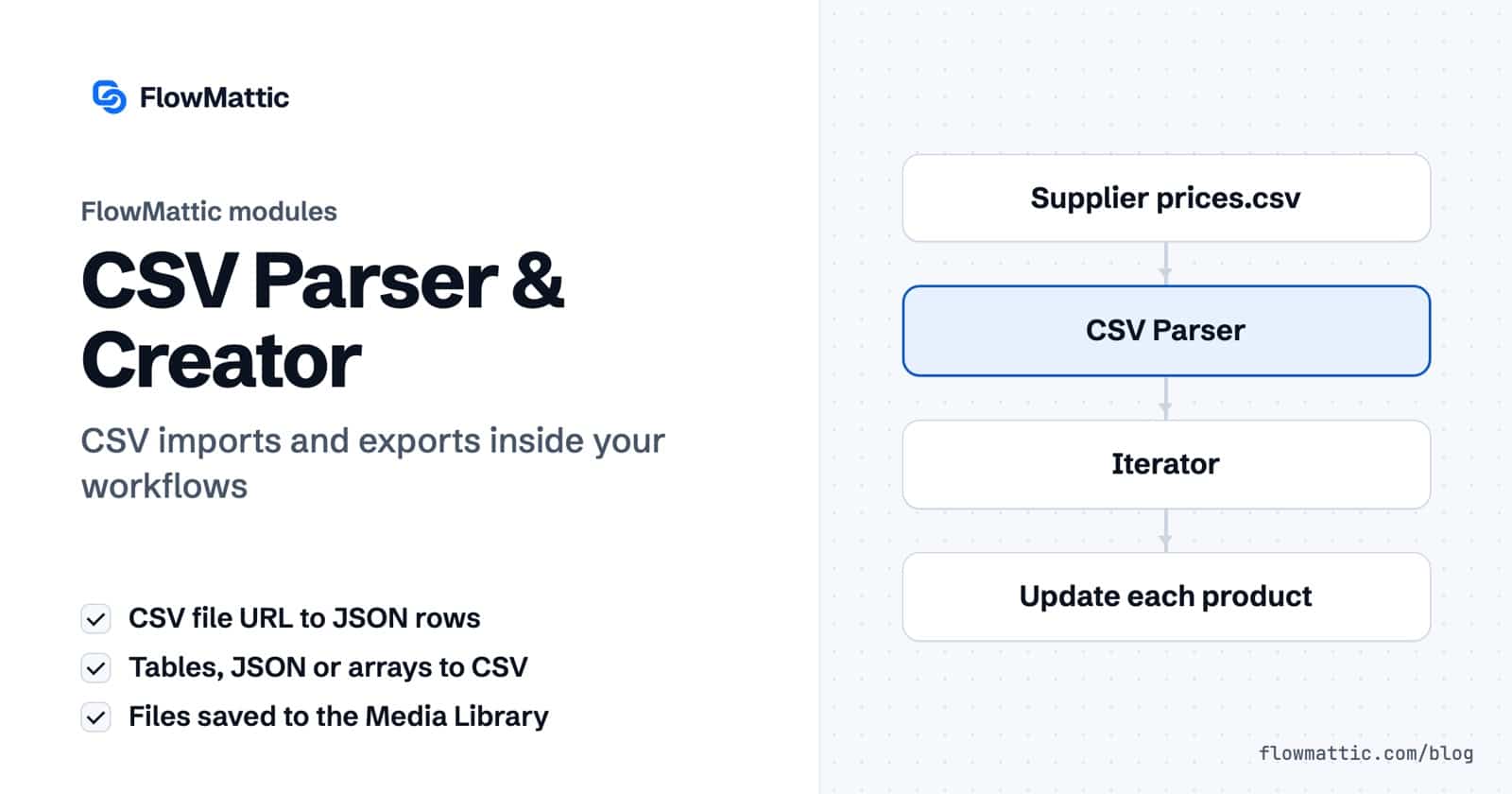
FlowMattic’s CSV Parser reads a CSV file from a URL and hands every row to your workflow as JSON. Its partner, CSV Creator, does the reverse: it writes a CSV file from table data, JSON or an array and saves it to the WordPress Media Library. Together they cover CSV imports and exports without a spreadsheet in the loop.
This is for store owners syncing supplier price lists, agencies sending clients weekly exports, and anyone who still receives data as a .csv. Below you will find every field of both modules, the output they return, real use cases, and the parsing rules that decide whether a file imports cleanly.
Both are built-in action modules listed under Utilities in the step picker, with the rest of the data tools. They run on your own WordPress server.

The step returns status, data and records_count. With Header Row set to Yes, data is a JSON list of objects keyed by column name:
CSV:
sku,name,price
A1,Travel mug,12.50
B2,Desk lamp,39.00

data:
[{"sku":"A1","name":"Travel mug","price":"12.50"},
 {"sku":"B2","name":"Desk lamp","price":"39.00"}]
With Header Row set to No, each row is a plain list of values instead, such as ["A1","Travel mug","12.50"], and the first line is treated as data.
Each CSV Creator action ends the same way: it writes the file, adds it to the Media Library and returns file_url, file_name, file_size, file_size_formatted, record_count and attachment_id. Column headers come from the keys of the first row, and nested values are written as JSON text.
| Field | Used by | What it does |
|---|---|---|
| Database | From FlowMattic Table | Local, or a database connection added in WP Tables |
| Table | From FlowMattic Table | The table to export |
| Record Selection | From FlowMattic Table | All Records, Last X Records, First X Records, or Custom Query (WHERE clause) |
| Number of Records | First X and Last X | How many rows to include, ordered by ID |
| WHERE Condition | Custom Query | A condition without the WHERE keyword, such as status = 'active' |
| Limit Records, Sort Order | Custom Query | Optional cap on rows, and ascending or descending order by ID |
| JSON Data | From JSON | A list of objects; a single object becomes one row |
| Array Data | From Array | Array data from earlier steps, in JSON or array form |
| File Name | All | Optional; .csv is added if missing. Empty means FlowMattic-csv-YYYY-MM-DD-HH-MM-SS.csv |
| Delimiter | All | Comma, Semicolon, Tab, Pipe or Colon |
| Include Headers | All | Yes writes column names as the first row |
The WHERE Condition also understands date shortcuts, so created_at >= 7_DAYS_AGO or created_at >= 1_MONTH_AGO always means relative to the run. Use any number with DAYS, MONTHS or YEARS.

A supplier publishes a price list at a fixed URL. Parse it each morning and update the matching product for every row.
Flow: Schedule (Every Day) → Parse CSV File → Iterator → WooCommerce (update product)
A team keeps a list in a spreadsheet app that can publish a sheet as a CSV link. Parse that link on a schedule and add each row to a WP Tables table on your site.
Flow: Schedule → Parse CSV File → Iterator → WP Tables (New Record)
An agency stores form leads in WP Tables. Every Monday, export the last seven days with created_at >= 7_DAYS_AGO and attach the file to the client’s report email.
Flow: Schedule (Every Week) → Create CSV from FlowMattic Table → Send Email (Attachments)
A SaaS billing API returns a JSON list of invoices. Turn it into a semicolon-separated CSV that opens cleanly in European spreadsheet settings.
Flow: Schedule (Every Month) → API Request (GET) → Create CSV from JSON → Send Email
A fulfilment partner collects orders as a pipe-delimited file from their FTP server. Build the file from your order table and upload it.
Flow: Schedule (Every Day) → Create CSV from FlowMattic Table → FTP (Upload a file)
Support receives a CSV of order numbers by email. Import the attachment, parse it, and give the rows to an AI agent that drafts a summary of what needs attention.
Flow: Email with Attachment → Import Email Attachments to Media Library → Parse CSV File → AI Agent → Send Email
Price (£) becomes Price with a trailing space.records_count counts the lines read after the header, and a blank last line counts too.response_code, which helps when a link has expired or needs a login.data is a JSON string, which the Iterator’s Loop Through Array action accepts directly.7_DAYS_AGO is calculated from the current UTC time.Add a step with the Parse CSV File action, enter the file’s public URL and set Header Row. The rows come back as JSON in data, and an Iterator runs your next steps once per row.
Yes. Use CSV Creator’s Create CSV from FlowMattic Table with a Schedule trigger. Choose all records, the first or last X, or a WHERE condition, and the file lands in the Media Library with its URL in file_url.
CSV Creator lets you pick Comma, Semicolon, Tab, Pipe or Colon. Parse CSV File reads comma-separated files.
Rows whose number of columns differs from the header row are skipped, and so are rows broken apart by a line break inside a quoted cell. Check the source file for multi-line cells and stray delimiters.
Both CSV modules ship with FlowMattic and run on your own server, next to nearly 900 integrations. See the plans and automate your next import or export.
The FTP app uploads, downloads, moves and deletes files on FTP, FTPS and SFTP servers from any workflow, and starts workflows when…
Share Secrets turns a password or API key into a link that expires after a set time, a set number of views,…
Generate Magic Login Link creates single-use sign-in links from any workflow, valid from 1 minute to 30 days, with a confirmation page…

