
FTP automation in WordPress: upload, download and watch folders
The FTP app uploads, downloads, moves and deletes files on FTP, FTPS and SFTP servers from any workflow, and starts workflows when…


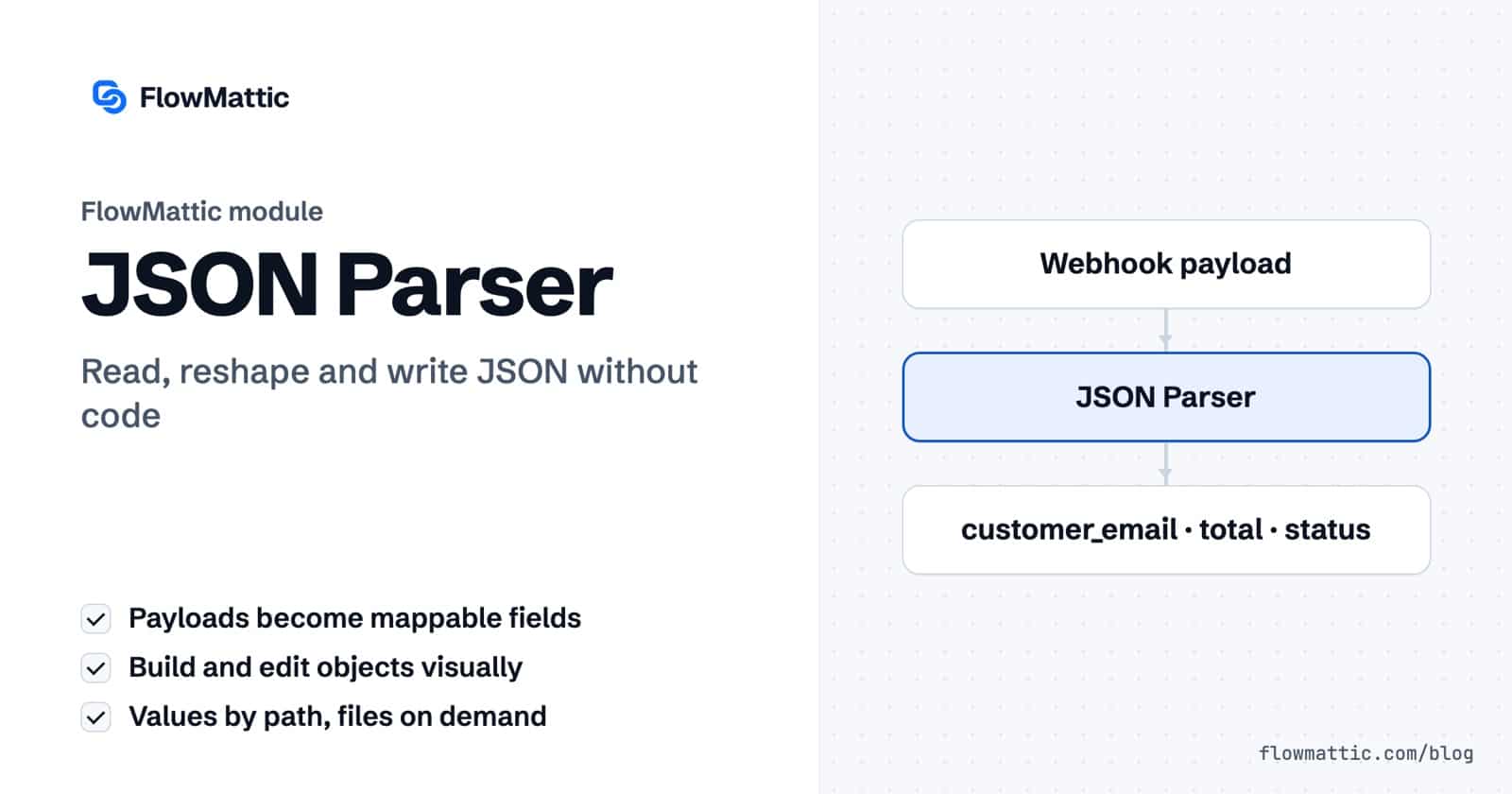
The JSON Parser in FlowMattic reads, checks, reshapes and writes JSON inside a workflow. It turns an API response or webhook payload into fields you can map, pulls one value out of a deep object, builds a request body from form fields, and saves JSON as a file, all without code.
If you connect WordPress to APIs, webhooks or AI agents, JSON is the format in the middle. This guide walks through all eleven actions, including the newer Build JSON Object and Edit JSON Fields, with real input and output and the details that matter in production.
JSON Parser by FlowMattic is a built-in action module. The step picker lists it under Utilities as “Parse and extract values from raw JSON”, and it is one of the apps offered on the picker’s home view. It runs on your own WordPress server, next to the other data tools.
Its eleven actions fall into four groups:

Parse JSON is the action most people start with. It takes the payload in JSON Data to Parse and returns every key as its own field, joining nested keys with underscores:
Input:
{"order_id": 1042,
 "customer": {"name": "Priya Sharma", "email": "[email protected]",
              "address": {"city": "Pune"}},
 "tags": ["vip", "new"]}

Output fields:
order_id               1042
customer_name          Priya Sharma
customer_email         [email protected]
customer_address_city  Pune
tags_0                 vip
tags_1 new| Action | Fields | Returns |
|---|---|---|
| Parse JSON | JSON Data to Parse | Each key as a field |
| Validate JSON | JSON String to Validate | is_valid, json_type, items_count, message |
| Stringify JSON | Data to Convert to JSON String | json_string |
| Minify JSON | JSON to Minify | minified_json, original_size, minified_size, saved_bytes |
| Prettify JSON | JSON to Prettify | prettified_json |
| Get JSON Value by Path | JSON Data, JSON Path | path, value, type |
| Build JSON Object | Fields (key and value rows), Value Types | json plus each top-level key |
| Edit JSON Fields | JSON Object, Rename Keys, Keep Only These Keys, Remove These Keys | json plus each top-level key |
| Merge JSON Objects | First JSON Object, Second JSON Object | merged_json |
| JSON to Query String | JSON Data | query_string |
| Create File from JSON | JSON Data, File Name | file_url, attachment_id, file_name, file_size, records |
JSON Path accepts dot or slash notation, so user.address.city and user/address/city are the same. For list items, use the index: items.0.sku. The step returns the value and its type; an object or list comes back as a JSON string. A path that doesn’t exist returns “Path not found in JSON.”
Added in FlowMattic 7.3.0, Build JSON Object makes an object from key and value rows. A dotted key such as customer.email creates a nested object. Value Types has two options: “Convert numbers, true/false, null and JSON” and “Keep every value as text”.
Rows:                         Output (json):
customer.email  [email protected]   {"customer": {"email": "[email protected]",
customer.name   Yuki Tanaka                      "name": "Yuki Tanaka"},
total           49.90               "total": 49.9,
zip             01234               "zip": "01234",
paid            true                "paid": true,
meta            {"a":1}             "meta": {"a": 1}}
Also new in 7.3.0, Edit JSON Fields changes the top-level keys of an object in a fixed order. Rename Keys runs first and each renamed key keeps its place. Keep Only These Keys then drops every key not in its comma-separated list, and Remove These Keys deletes the keys you name. All three are optional.
A SaaS signup API wants {"customer": {"email": …, "name": …}, "plan": …}. Build JSON Object turns flat form fields into that nested body, ready to map into the request.
Flow: Form submission → Build JSON Object → API Request (POST)
An agency relays leads to a client’s system but must not pass on internal notes or IDs. Edit JSON Fields removes them and renames keys to match the client’s naming.
Flow: Webhook (Capture Webhook Response) → Edit JSON Fields → Webhook Outgoing (Submit Data to Webhook)
A shipping API returns a deep response and you only care about one status. Get JSON Value by Path with data.shipments.0.status pulls it out, and a Router sends each status down its own path.
Flow: Schedule → API Request (GET) → Get JSON Value by Path → Router
Check a raw body before anything is stored. Validate JSON with Ignore Errors switched on reports is_valid, and a Filter continues only when it is true.
Flow: Webhook → Validate JSON → Filter → Parse JSON → WP Tables (New Record)
Ask an AI agent to classify a support email and reply in JSON with category, urgency and summary. Parse JSON splits the reply into fields you can save or route on.
Flow: Email received → AI Agent → Parse JSON → WP Tables (New Record)
Marketing builds utm_source, utm_medium and utm_campaign as an object, converts it to utm_source=newsletter&utm_medium=email… and appends it to the landing page URL before shortening.
Flow: Form submission → Build JSON Object → JSON to Query String → Link Shortener
Pull data from an API each night and save it as a dated .json file in the Media Library, then copy the file to an off-site server.
Flow: Schedule (Every Day) → API Request (GET) → Create File from JSON → FTP (Upload a file)
customer_address_city. A list at the top level becomes indexed fields like items_0_sku, while a list of objects nested deeper comes back as one JSON string. Loop over that string with an Iterator.is_valid, switch on Ignore Errors in the step’s settings.["a","b","c"] merged with ["x"] gives ["x","b","c"].+ and nested lists become bracketed keys, such as tags%5B0%5D=a.json-export-{date}.json, and appends -1, -2 when a name is taken. Files in the Media Library are reachable by URL, so think before saving personal data there.Add a step, choose Parse JSON and map the JSON from an earlier step into JSON Data to Parse. Each key becomes a field, with nested keys joined by underscores. Test the step to see the fields before mapping them.
Use Get JSON Value by Path. Enter a path such as data.items.0.name or data/items/0/name in JSON Path. The value comes back in the value field with its type.
Yes. Build JSON Object takes key and value rows, nests dotted keys and converts numbers, booleans and null when Value Types is set to convert. Map the json output into your API Request body.
Invalid JSON is returned with status error, which flags the run in Task History. Turn on Ignore Errors for that step and branch on is_valid with a Filter or Router instead.
The JSON Parser ships with FlowMattic and works alongside nearly 900 integrations and the rest of the data tools. See the plans and start shaping JSON inside your workflows.
The FTP app uploads, downloads, moves and deletes files on FTP, FTPS and SFTP servers from any workflow, and starts workflows when…
Share Secrets turns a password or API key into a link that expires after a set time, a set number of views,…
Generate Magic Login Link creates single-use sign-in links from any workflow, valid from 1 minute to 30 days, with a confirmation page…

