
FTP automation in WordPress: upload, download and watch folders
The FTP app uploads, downloads, moves and deletes files on FTP, FTPS and SFTP servers from any workflow, and starts workflows when…


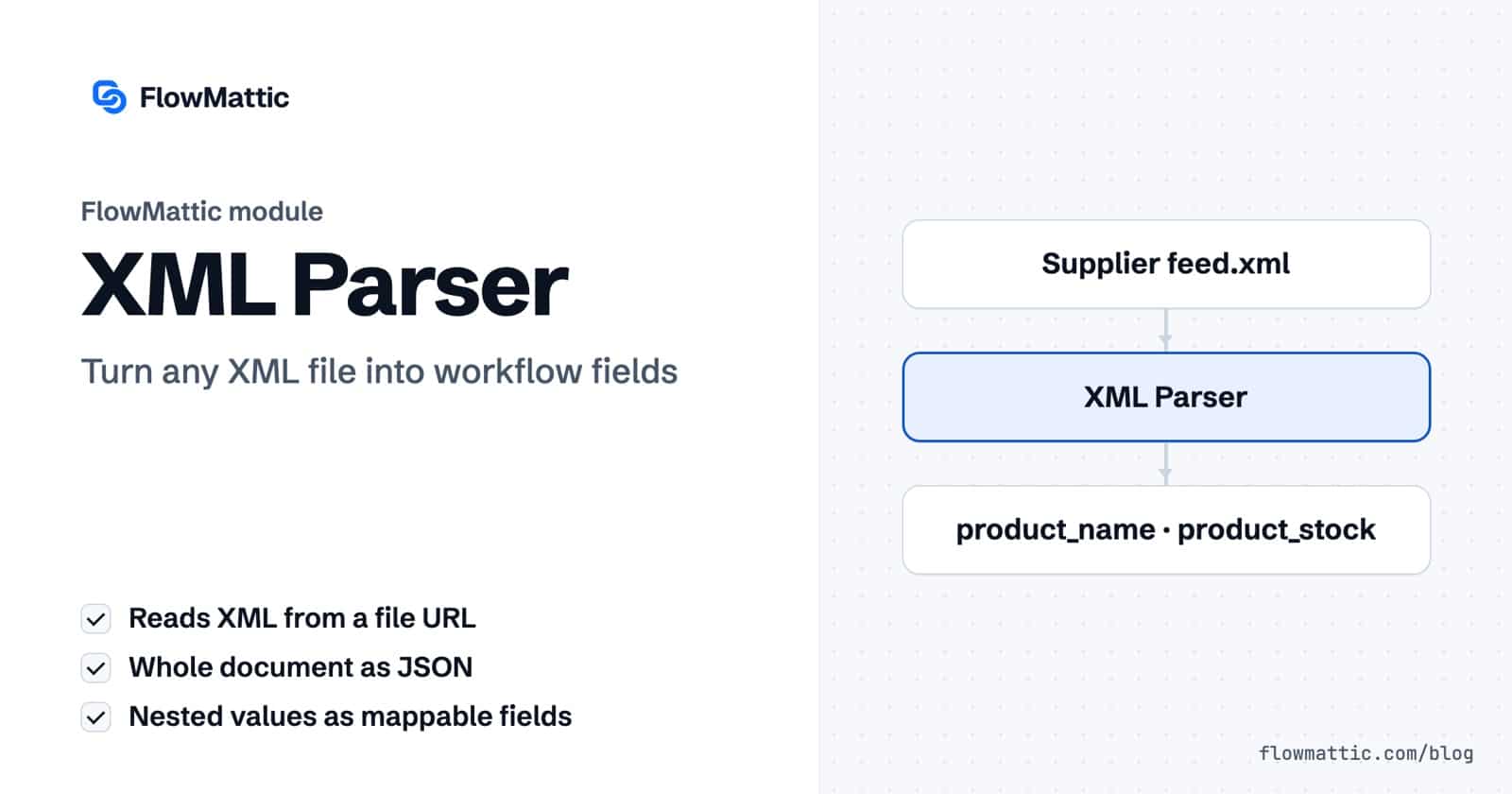
FlowMattic’s XML Parser converts XML to JSON inside a workflow. Point it at an XML file URL, such as a supplier product feed, a sitemap or a partner export, and it returns the whole document as JSON plus individual fields you can map into the next step.
Plenty of systems still publish XML, while most modern APIs, AI agents and WordPress tools expect JSON or plain fields. This guide shows how the step works, what the output looks like, and the XML quirks to plan for.
XML Parser by FlowMattic is a built-in action module with one action, Parse XML File, described as “Parse any XML file URL into JSON data.” It sits under Utilities in the step picker (“Parse and extract values from XML”) with the other data tools, and it runs on your own WordPress server.
The step has a single field, XML File URL, for a publicly accessible XML file. You can type the address or map it from an earlier step.
result and loop over it with an Iterator.
The step downloads the file, converts it, and returns two things: result, which holds the whole document as a JSON string, and a flattened field for each value, with nested names joined by underscores. The root element itself is not part of the names.
XML:
<catalog>
  <supplier>Northwind</supplier>
  <updated>2026-10-11</updated>
  <product sku="A1">
    <name>Travel mug</name>
    <stock>42</stock>
  </product>
</catalog>

Fields:
supplier                 Northwind
updated                  2026-10-11
product_attributes_sku   A1
product_name             Travel mug
product_stock 42| XML | In the output |
|---|---|
| Nested elements | Field names joined with underscores, such as product_name |
| Attributes | An attributes key, such as product_attributes_sku |
| Repeated elements | Numbered fields, such as tag_0 and tag_1 or url_0_loc; repeated elements with children that sit two or more levels down become one JSON string field instead |
| CDATA sections | Read as plain text |
| Empty elements | An empty object |
| The whole document | result, as a JSON string |
A supplier publishes stock levels as XML each night. Parse the feed, pick the product list out of result, and update each product in your store.
Flow: Schedule (Every Day) → Parse XML File → JSON Parser (Get JSON Value by Path) → Iterator → WooCommerce (update product)
An agency can check that a client’s sitemap still lists the pages it should. Pull the list of URLs out of result, count them, and alert the team if the number drops below what you expect.
Flow: Schedule (Every Week) → Parse XML File → JSON Parser (Get JSON Value by Path) → PHP Array (Get Array Count) → Filter → Send Email
Some exchange-rate and pricing services publish a daily XML file. Read the value you need and save it as a variable that other workflows use for price calculations.
Flow: Schedule (Every Day) → Parse XML File → FlowMattic Tools (Set Variable Value)
A property portal or job board hands you an XML export. Turn each listing into a WordPress post on your site.
Flow: Schedule → Parse XML File → JSON Parser (Get JSON Value by Path) → Iterator → WordPress (New Post)
An older ERP posts the URL of each order file to a webhook. Parse the file and store the order in a table your team can search.
Flow: Webhook (Capture Webhook Response) → Parse XML File → WP Tables (New Record)
Hand the JSON in result to an AI agent and ask for a short digest of what changed, then email it to the people who need it.
Flow: Schedule (Every Week) → Parse XML File → AI Agent → Send Email
result. Put a Filter on result before steps that depend on it.<rss><channel><item>, a single item gives fields such as channel_item_title, while two or more give one channel_item field holding a JSON list. Design for both if the count varies, or read from result.<g:price> in shopping feeds or <content:encoded> in blog feeds, don’t appear in the output.<price currency="USD">9.50</price>, keeps the text 9.50 and loses the attribute.result, or reshape it.Add an XML Parser step to a FlowMattic workflow, choose Parse XML File and enter the file’s URL. The step returns the document as JSON in result and as individual fields named after the elements.
Yes. Start the workflow with a Schedule trigger set to Every Day and put the feed URL in Parse XML File. Read the product list out of result with Get JSON Value by Path, and an Iterator runs your update steps once per product.
Elements with a namespace prefix, such as g:price, are not included, and an attribute is dropped when its element also has text. Check result after a test run to see exactly what was read.
The step has only the XML File URL field, with no authentication options. It needs a publicly accessible file, so use a URL that doesn’t require a login.
The XML Parser ships with FlowMattic and runs on your own server with the rest of the data tools. Try FlowMattic and turn your first XML feed into workflow data.
The FTP app uploads, downloads, moves and deletes files on FTP, FTPS and SFTP servers from any workflow, and starts workflows when…
Share Secrets turns a password or API key into a link that expires after a set time, a set number of views,…
Generate Magic Login Link creates single-use sign-in links from any workflow, valid from 1 minute to 30 days, with a confirmation page…

