FTP automation in WordPress: upload, download and watch folders
The FTP app uploads, downloads, moves and deletes files on FTP, FTPS and SFTP servers from any workflow, and starts workflows when…


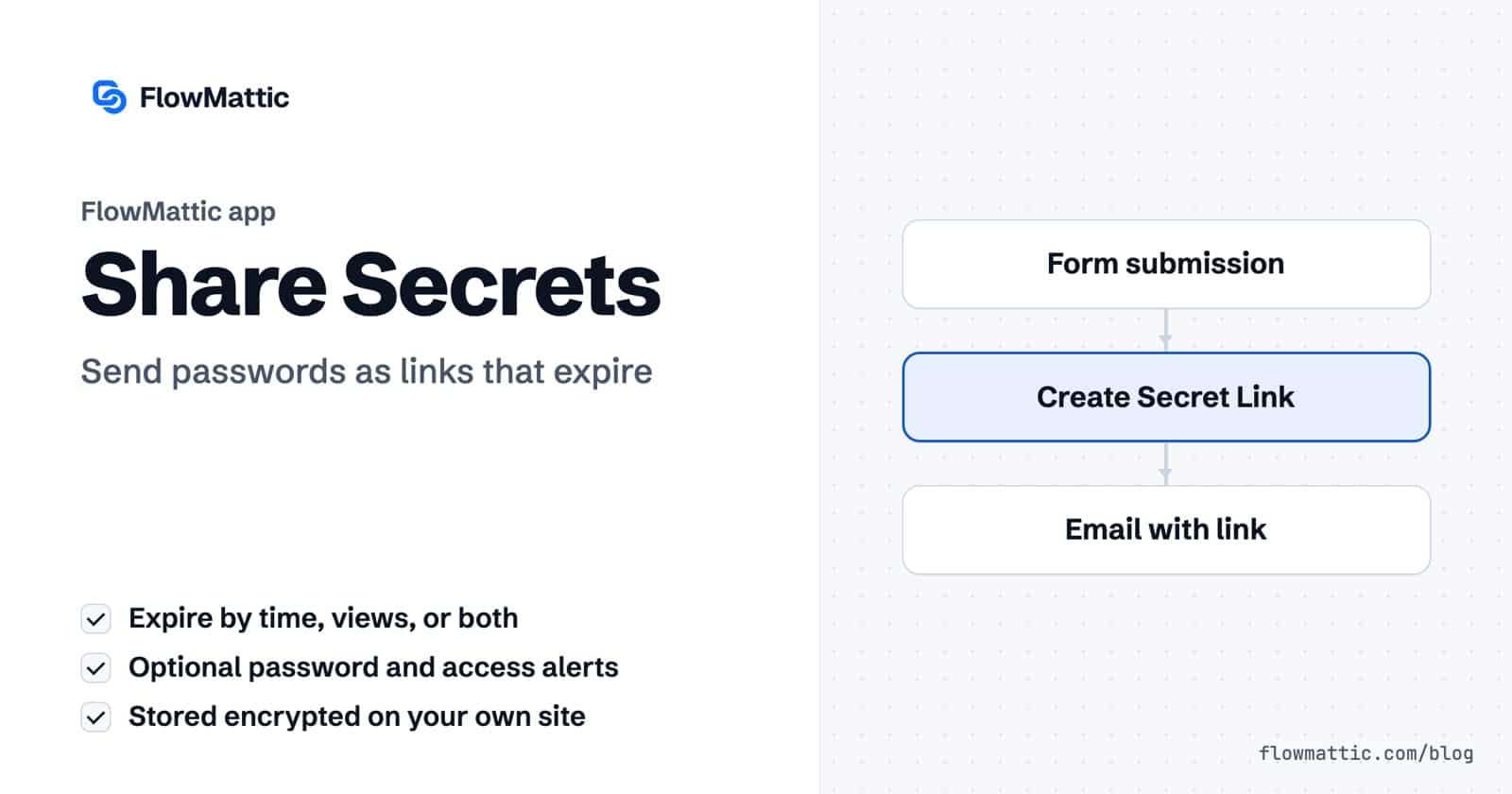
If you need to share passwords securely with a client, a new hire or a contractor, a plain email or chat message is the wrong place for them: it sits in inboxes, archives and backups for years. Share Secrets, a built-in app in FlowMattic, the automation plugin for WordPress, turns a password, an API key or any sensitive note into a link that stops working after a set time, a set number of views, or both.
Because it is a workflow step, the link is created at the moment it is needed and sent through whatever channel the workflow uses. This guide explains what Share Secrets does, how the link and the reveal page behave, each setting on the step, and practical use cases for agencies, HR, SaaS teams and support.
Share Secrets is an app in the workflow builder with three actions: Create Secret Link, Delete Secret and Get Secret Info. Create Secret Link takes the secret content and returns a unique URL on your own site. The person who opens it presses a button to reveal the content, copies it, and the link expires by the rules you set.
Everything stays in your WordPress site. The secret content is encrypted with AES-256-CBC before it is saved as a WordPress option, using a key derived from your site’s AUTH_KEY and site URL. An optional password is stored as a WordPress password hash, not in plain text. That encryption is specific to Share Secrets; it is not how Connects stores app credentials.
The link is served from your site’s REST API, in the form /wp-json/flowmattic/v1/secret/{id}, where the ID is 32 random hexadecimal characters.
secret_id, secret_url, expires_at, max_views and has_password.secret_url in the next step. Store secret_id as well if you may want to delete the secret or check on it later.
The link opens a reveal page with your title, how many views remain and when it expires. The content is not on that page yet. It is fetched only when the recipient presses the reveal button, so a link preview or a crawler that loads the URL does not use up a view. The page is sent with a noindex, nofollow header.
If you set a password, the page asks for it first (“Password Required”) and the reveal fails with “Incorrect password.” until it matches. After the reveal, a copy button puts the content on the clipboard. On the final allowed view the page says: “This was the last view. The secret has been permanently deleted and cannot be accessed again.”
An expired link shows a “Secret Expired” page with your Expired Message, or redirects to your Expired Redirect URL. A link that never existed or was deleted shows “Secret Not Found”. The button on those error pages is set under FlowMattic Settings in the Share Secrets Settings card (Error Page Button Text and Error Page Button URL).
| Option | What it does |
|---|---|
| Secret Content (required) | The password, key or note to share. Encrypted before it is stored. |
| Title (Optional) | A label shown on the reveal page and in notification emails. |
| Expiration Type | Time-based, View-based, or Both (time and views). |
| Expires After | A number plus Minutes, Hours, Days or Weeks. Defaults to 24 hours. |
| Maximum Views | Views allowed before the secret is deleted. Defaults to 1 for one-time viewing. |
| Password (Optional) | Asked for before the content is revealed. Send it by a different channel than the link. |
| Notification Email and Notify on Access | Emails you each time the secret is revealed, with the time, IP address, the viewer if they were logged in, and the view count. |
| Reveal Button Text, Button Style, Show Copy Button, Copy Button Text | The reveal page’s buttons. Styles are Primary, Secondary, Success and Danger. |
| Branding Logo URL, Branding Text | Your logo and a footer line on the reveal page. |
| Expired Message, Expired Redirect URL | What someone sees after expiry, or where they are sent instead. |
| Custom CSS | Extra styles for the reveal page. |
Get Secret Info takes a Secret ID and returns the title, created and expiry times, maximum views, view count, views remaining, whether it has a password, whether it has expired, and the access log, all without revealing the content. Each log entry records the timestamp, IP address, user agent and, for a logged-in viewer, their user details. Delete Secret removes a secret at once, and its link stops working.
An agency’s project handoff form carries the hosting credentials. The workflow wraps them in a one-view link with a password and emails the link, while the project manager reads the password to the client on the handoff call.
Flow: Form submission → Create Secret Link (View-based, 1 view, password) → Send Email
When HR adds Yuki Tanaka to the onboarding table, the workflow sends her a link that works once within 48 hours and alerts IT when she opens it. If the alert never comes, IT knows to follow up.
Flow: WP Tables new record → Create Secret Link (Both: 48 hours, 1 view, Notify on Access) → Send Email
A SaaS product sold through WooCommerce creates the customer’s API key in its own backend, then delivers it through a secret link instead of printing it in the order email. The key never sits in the customer’s inbox in readable form.
Flow: WooCommerce order → API request (create key) → Create Secret Link → Send Template Email
A support team needs to give an outside developer a temporary password. A helpdesk macro calls a FlowMattic webhook, which returns a two-hour link the agent pastes into the ticket.
Flow: Webhooks by FlowMattic → Create Secret Link (2 hours, password) → Webhook Response with secret_url
Store each secret’s ID in a WP Tables row next to the person it was sent to. A “Revoke” button column runs a workflow that deletes the secret and posts a confirmation to the team.
Flow: WP Tables button clicked → Delete Secret (secret_id from the row) → Slack message
A daily check reads every stored secret ID, asks for its status and writes the views remaining back to the table, so operations can chase links that were never opened.
Flow: Schedule (Every Day) → WP Tables rows → Iterator → Get Secret Info → WP Tables update record
AUTH_KEY and the site URL, changing your salts or moving the site to another domain means existing secrets can no longer be decrypted. Create new links after a migration.max_views in the step output and confirm it is what you expect.For how FlowMattic handles credentials, roles and signatures across the plugin, see FlowMattic security.
To share passwords securely, send a link that expires instead of the password itself, and add a second factor. With Share Secrets, use View-based or Both with one view, set a password, and give the password over a different channel, such as a phone call. Turn on Notify on Access so you know when it was opened.
Yes. Every reveal is logged with the time, IP address and browser user agent, plus the user’s name and email when they were logged in to your site. Read the log with Get Secret Info, or get it by email each time with Notify on Access.
The secret is deleted from your database and the link shows your Expired Message, or the default “This secret link has expired and is no longer accessible.” If you set an Expired Redirect URL, visitors are sent there instead. The content cannot be recovered.
No. The encrypted secret is stored in your own WordPress database and served from your own domain. Nothing about it is sent to FlowMattic.
Share Secrets is a core app in the workflow builder, with nothing extra to install. Compare FlowMattic plans and add expiring secret links to your next onboarding workflow.
The FTP app uploads, downloads, moves and deletes files on FTP, FTPS and SFTP servers from any workflow, and starts workflows when…
Generate Magic Login Link creates single-use sign-in links from any workflow, valid from 1 minute to 30 days, with a confirmation page…
Compress any image from a URL as a workflow step: choose quality, convert to WebP, JPEG or PNG, cap the size, and…