

Add LiveChat visitors to a Mailchimp audience after each chat
When a LiveChat conversation ends and the visitor left an email, FlowMattic adds them to your Mailchimp audience and tags them as a chat lead. Sales and support teams can follow up with a nurture email instead of losing the contact. After import, pick your audience, set the tag and keep the opt-in wording on your pre-chat form clear.
 LiveChat
 Filter
 Mailchimp
4 steps Setup ~8 min Used on 1.0k sites Marketing Free to import
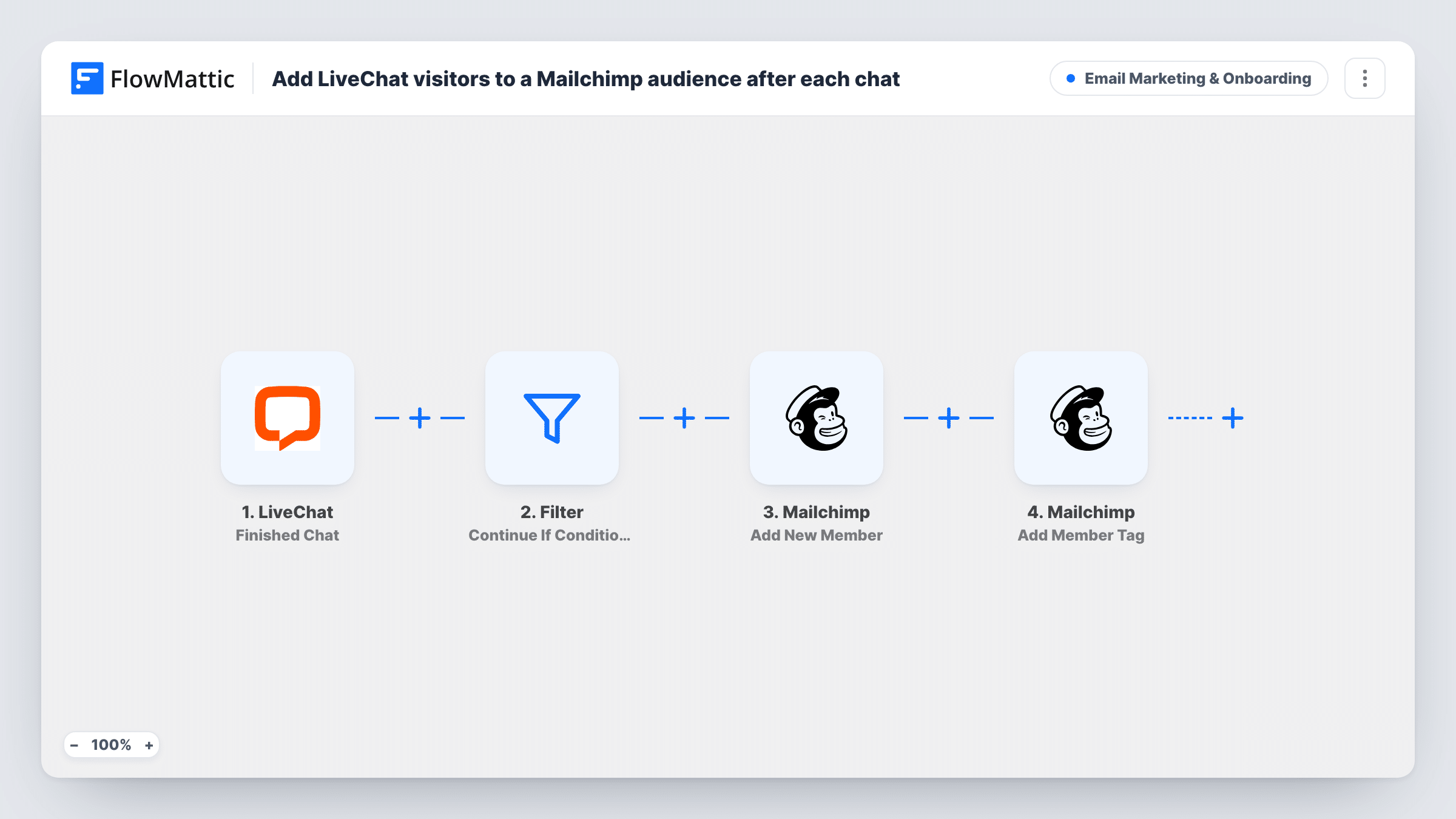
How this workflow runs
What happens at each step once the workflow is on, and what you need before you import it.
 LiveChat Finished Chat
The workflow starts automatically when the chat is ended in LiveChat. FlowMattic captures that data for the steps below.
- Filter Continue If
The Filter only lets a run continue when your conditions are met, stopping everything else before it goes any further.
- Mailchimp Add New Member
Mailchimp — add a new member to the list, or update them if they already exist. Data is mapped from earlier steps; connect your Mailchimp account on import.
- Mailchimp Add Member Tag
Mailchimp — add a new tag to the existing member. New tags will be added if they are not exist. Data is mapped from earlier steps; connect your Mailchimp account on import.
What you need
- FlowMatticCore
- LiveChat AccountAccount
- Mailchimp AccountAccount
After importing, map your own data. To keep the template universal, not every step is pre-filled. Open each step in the builder and connect your accounts and fields (channels, lists, sheets, recipients) before you switch the workflow on.
More Email Marketing & Onboarding workflows
Other ready-to-import templates from the same category.






Import this workflow into your WordPress site
Download the JSON, import it from the Workflows screen and connect your accounts. Every run stays on your server, with no per-task fees.
30-day money-back guarantee Unlimited workflows and runs Self-hosted