Custom Webhook Response: Send Your Own Status, Headers and Data
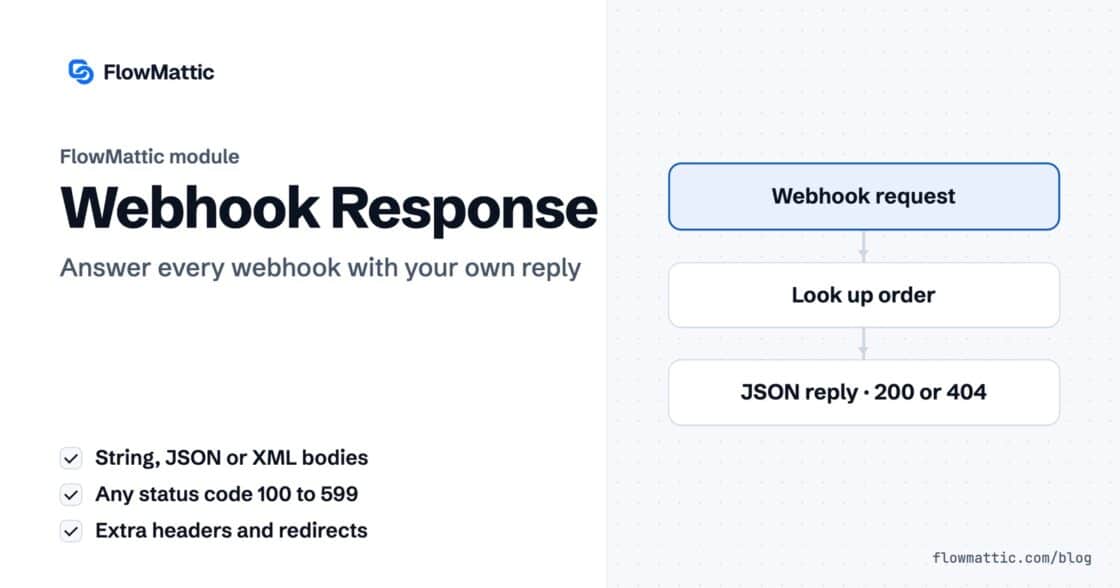
Reply to a webhook with data from the run: String, JSON or XML bodies, any HTTP status from 200 to 599, extra…


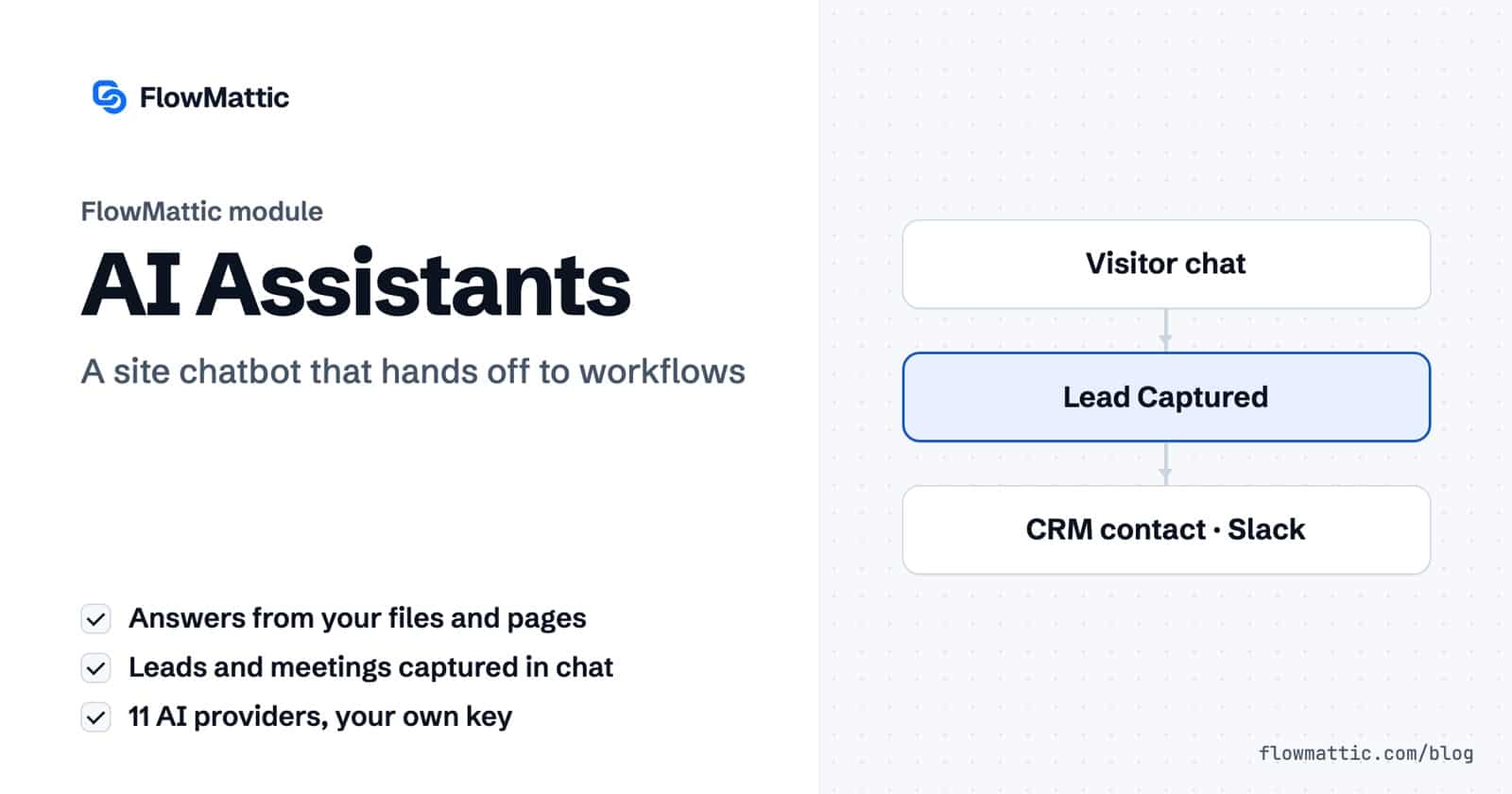
FlowMattic AI Assistants give you a WordPress AI chatbot you build, train and place yourself. Each assistant answers visitors from the content you add, can collect leads and meeting requests in the chat, and starts a FlowMattic workflow when something happens in the conversation. It runs on an AI connection you own, chosen from eleven providers.
It suits support teams who want common questions answered on the site, marketers who want leads captured mid-conversation, and agencies running a different assistant for each client. This guide covers the assistant editor tab by tab, how the knowledge base works, how chats start workflows, and where the limits are.
AI Assistants is a FlowMattic screen at FlowMattic → AI Assistants. Click Create New Assistant, give it an Assistant Name, pick an AI Connection and save. The editor then opens full screen with five tabs, Setup, Content, Actions, Theme and Conversations, and a live preview on the right that you can switch between Desktop Preview and Widget Preview.
You can create as many assistants as you need, each with its own connection, model, instructions, content and look.
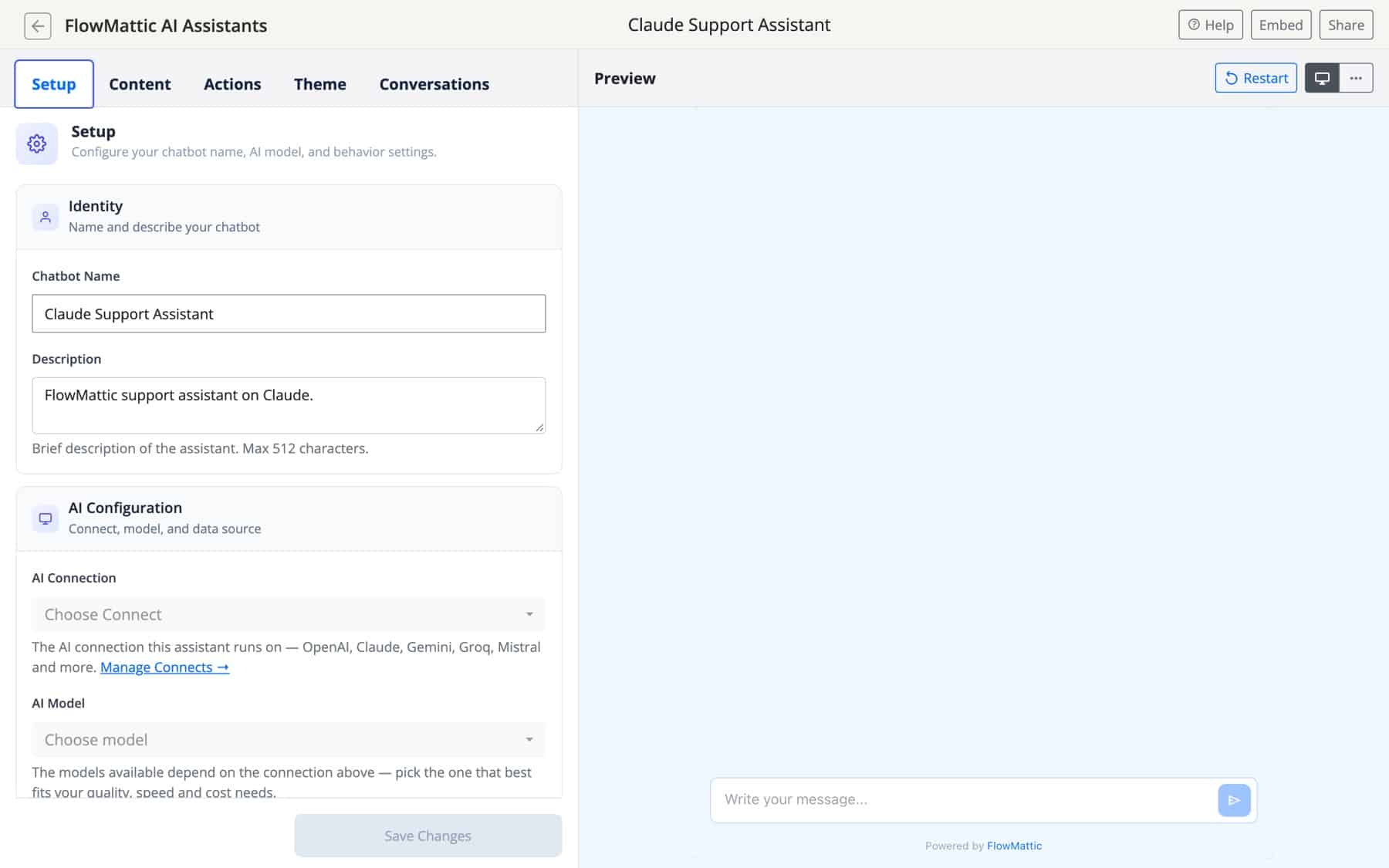
On the Setup tab, set the Chatbot Name and Description, choose the AI Connection and AI Model, and write the Instructions (up to 32,768 characters) that shape how it answers. Add a Welcome Message and an Input Placeholder. Temperature is optional; left blank, the provider’s default applies. Load User Session Chats decides whether a returning visitor sees their earlier conversation.
Connections come from Connects, and the assistant can run on OpenAI, Anthropic (Claude), Google (Gemini), Groq, Mistral, xAI (Grok), Perplexity, DeepSeek, OpenRouter, Straico or AWS Bedrock.
The Content tab holds the assistant’s knowledge sources:
With an OpenAI connection, sources go into an OpenAI vector store, shown as the Vector Store ID on the Setup tab. With any other provider, uploaded files and crawled pages are split into chunks and embedded into an index stored in your uploads folder, using an OpenAI, Google, Mistral or Voyage AI embeddings connection on your site. When a visitor asks something, the closest chunks are passed to the model as context.
The Actions tab connects the chat to the rest of your site:
The Theme tab offers 14 presets plus Custom, light or dark mode, a Brand Color, a background image, Widget Position, Loading Animation, launcher icon, Bot Avatar and Button Label, with fonts, bubble styles and colours under Advanced Appearance. Then click Embed for three options: a shortcode for any post or page, an iFrame for any web page, or a Popup Widget script for a floating chat button.
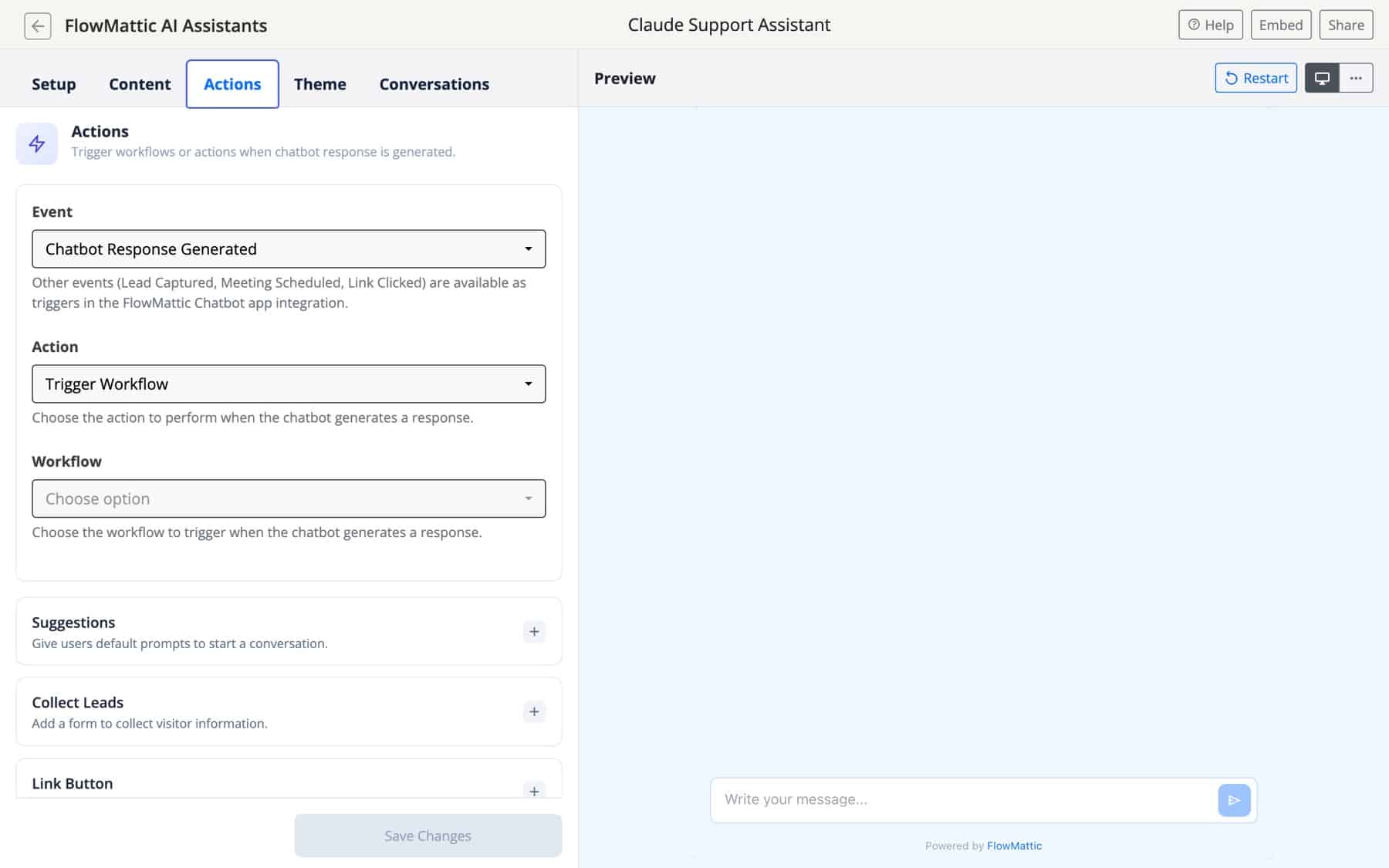
There are two ways to connect a chat to a workflow. The first is the Actions tab’s Trigger Workflow action, which runs the chosen workflow when the assistant replies. The second is the FlowMattic Chatbot trigger app in the builder, with the events AI Response Received, Lead Captured, Meeting Scheduled and Chat Started.
The workflow receives the visitor’s latest message, the assistant’s reply, the conversation and chatbot IDs, the visitor’s email when they are logged in, and lead or meeting details for those events. Click Capture Response on the trigger and send a test message in the chat to map them. The workflow runs after the reply has been sent, so it acts on the conversation rather than changing the answer.
Collect Leads asks for a name and email when the chatbot cannot answer. The workflow creates the contact, tags the source and tells sales in Slack.
Lead Captured → FluentCRM create contact → Slack message
A visitor picks a built-in time slot. The workflow adds the event to your calendar and sends the confirmation email with the booker’s name and time.
Meeting Scheduled → Google Calendar create event → Send email
When a visitor mentions a refund, a Filter lets the run continue, a ticket is opened with the transcript and the support team is alerted.
AI Response Received → Filter (message contains "refund") → Help desk create ticket → Email
Log every question and answer to a table. Once a week, an AI Agent reads the log and lists topics the assistant struggled with, so you know which page to write next.
AI Response Received → WP Tables new record, then Schedule → AI Agent → Send email
An agency runs an Acme support bot on Claude and a Northwind pre-sales bot on Gemini, each with its own instructions, content and theme, and routes their leads to each client’s inbox by chatbot ID.
Lead Captured → Router (by chatbot ID) → Email to the right client
Sync your help articles, add Suggestions such as “How do I invite my team?”, and a Link Button to pricing when someone asks about plans.
Visitor question → Assistant answers from synced docs → Link Button to /pricing/
Use Send to Webhook to post each reply to an outside system that already accepts webhooks, with no workflow in between.
Chatbot Response Generated → Send to Webhook → External system
flowmattic_chatbot_retry_delay_seconds filter, and the same request is then sent once more, which helps with short rate limits.OpenAI, Anthropic (Claude), Google (Gemini), Groq, Mistral, xAI (Grok), Perplexity, DeepSeek, OpenRouter, Straico and AWS Bedrock, each through a connection saved in Connects. Every assistant picks its own connection and model.
Yes. Add files and web pages on the Content tab, plus post types and tables when the assistant uses OpenAI. The closest passages are found for each question and given to the model as context.
Choose Trigger Workflow on the Actions tab, or use the FlowMattic Chatbot trigger in the builder. The workflow receives the message, the reply and any lead or meeting details.
Yes. The Embed dialog gives you an iFrame and a Popup Widget script, both served from your WordPress site, which work on any web page.
Ready to put an assistant on your site? Try FlowMattic, connect a provider, add your content and embed the widget.
Reply to a webhook with data from the run: String, JSON or XML bodies, any HTTP status from 200 to 599, extra…
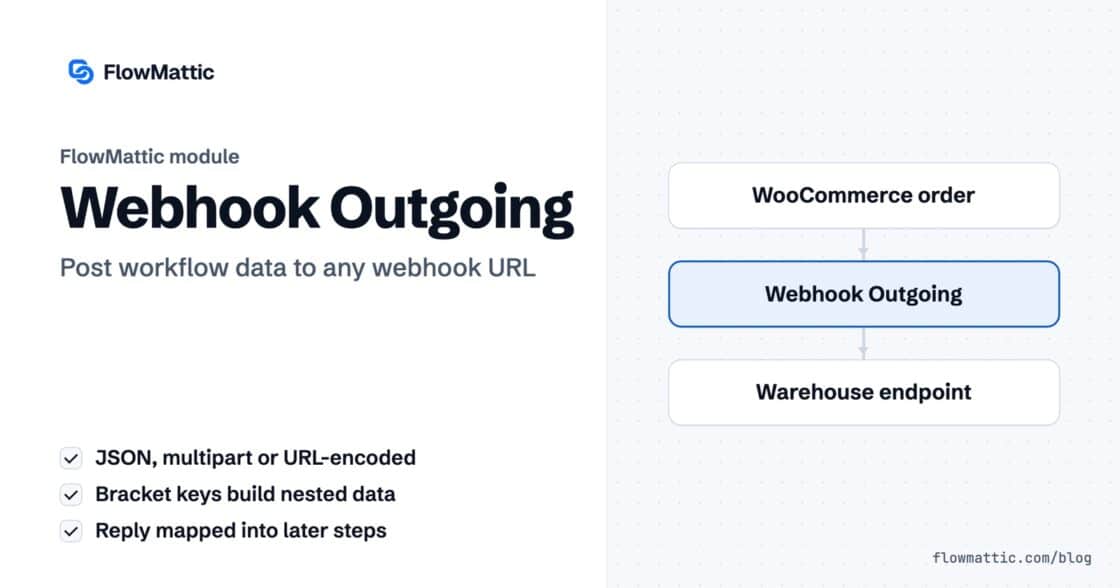
Post workflow data to any webhook URL as JSON, multipart form data or URL-encoded fields, with nested bracket keys and the receiver's…
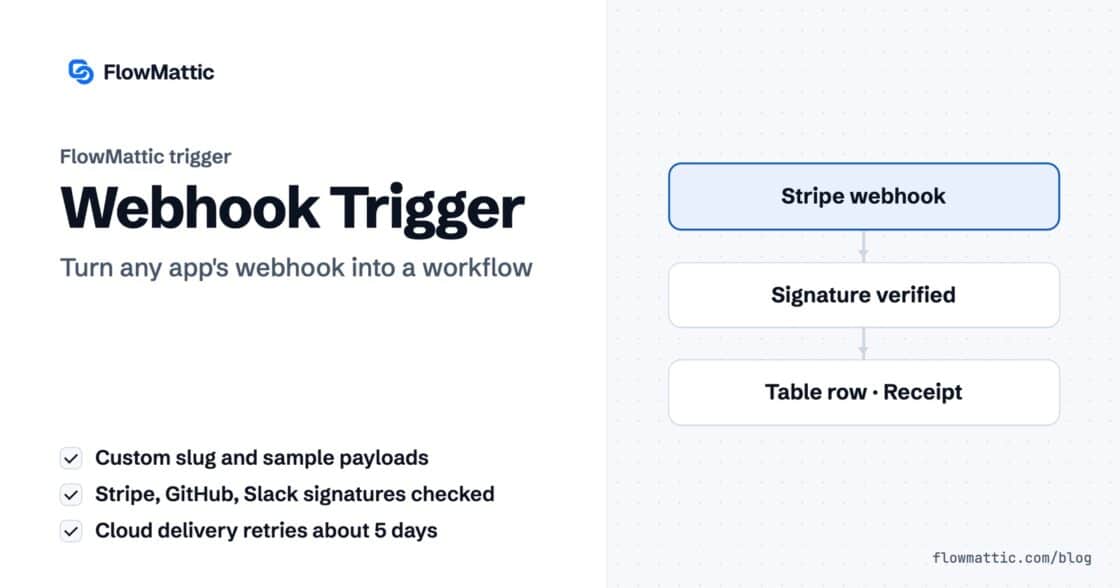
Give any app a URL on your WordPress site and turn each request into a workflow run, with signature checks, sample payloads…