
FTP automation in WordPress: upload, download and watch folders
The FTP app uploads, downloads, moves and deletes files on FTP, FTPS and SFTP servers from any workflow, and starts workflows when…


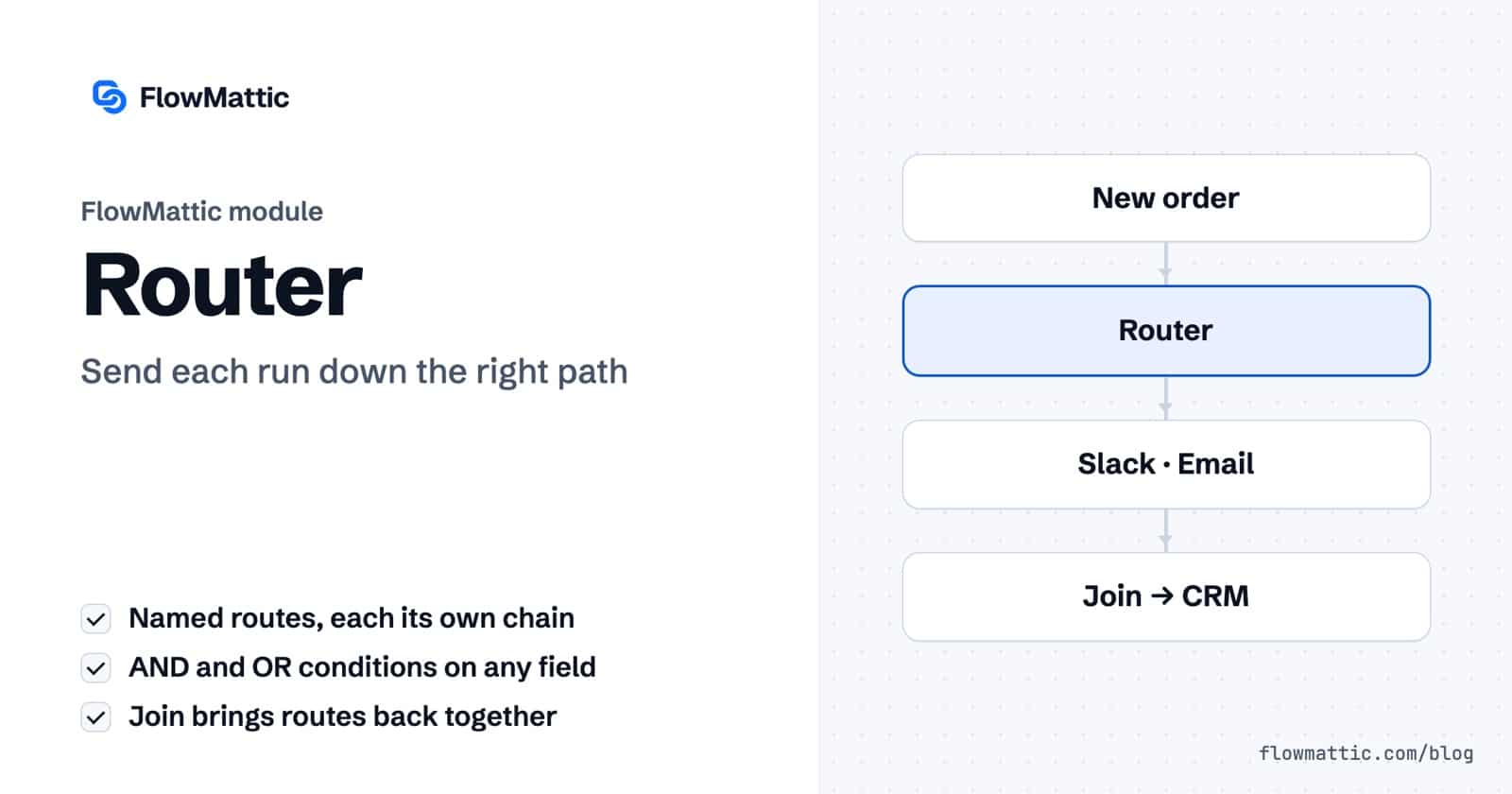
Conditional workflow routing sends each run down the path that fits it: a large order one way, a small order another, a VIP customer somewhere else again. In FlowMattic, the Router module does this on the canvas. It splits a workflow into named routes, each with its own conditions and its own chain of steps.
Use it whenever one event needs more than one kind of handling. Store owners route orders by value or country, agencies route leads by service, support teams route tickets by topic, and AI workflows route on an agent’s answer.
Router by FlowMattic is a built-in action with one event, Conditionally run…. On the canvas it appears as a step labelled “Split tasks by conditions”, with routes fanning out below it. Each route has three parts:
It sits alongside the other logic modules: Filter stops a run, Branch takes a yes or no path, and Join Paths brings routes back together.
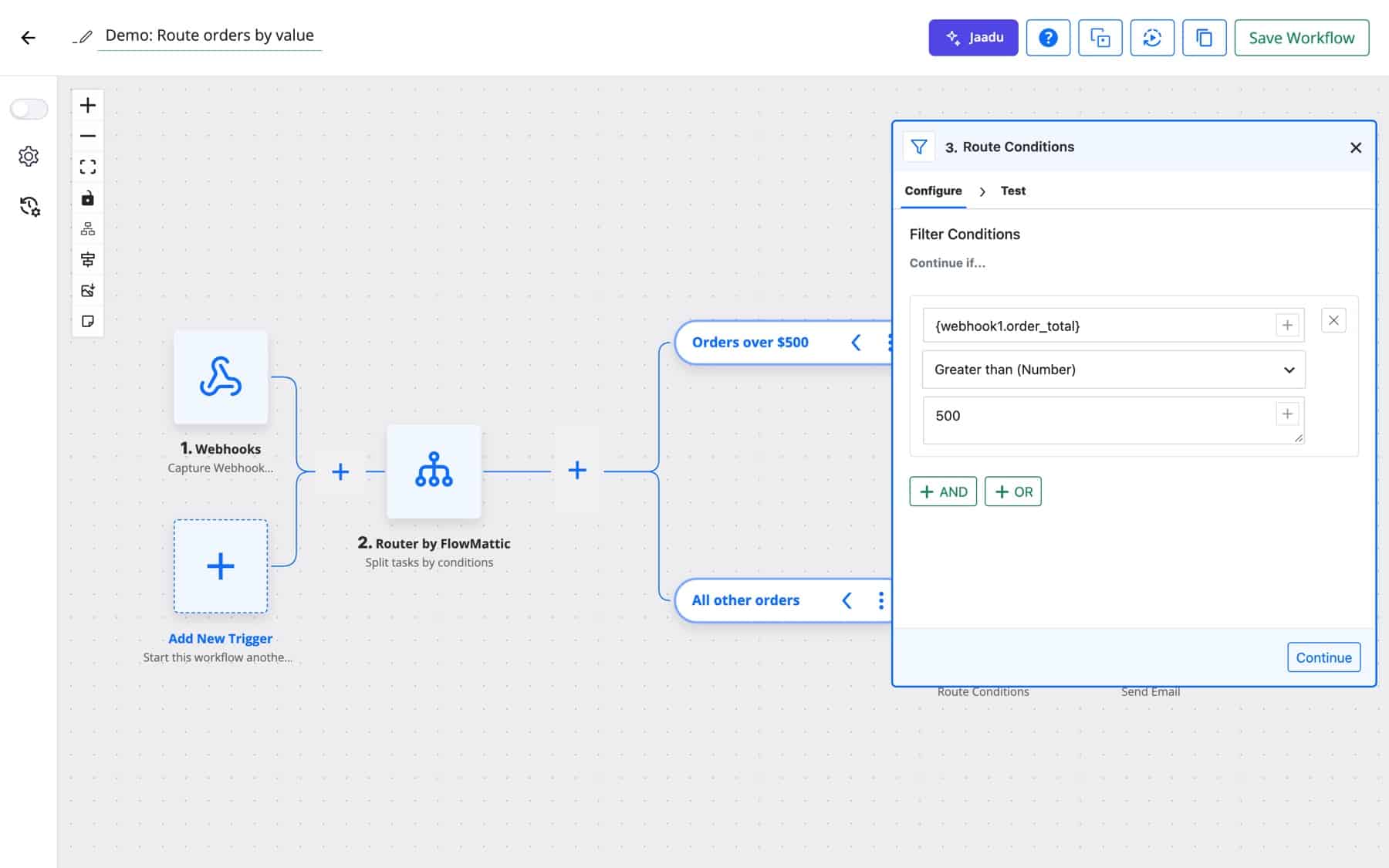
Routes are checked in order, Route A first. When a route’s conditions are met, its steps run, and then the next route is checked. When they are not met, the route is skipped and the next one is checked. Every route whose conditions match runs, so a run can take more than one route.
Task History records each decision as “Route Condition: route name“, with “Conditions meet. This route will be executed.” or a note that the route was skipped, plus the conditions that were evaluated. You can always see why a run went where it did.
| Type | Operators |
|---|---|
| Text | Contains, Does not contain, Exactly matches, Does not exactly match, Is in, Is not in, Starts with, Does not start with, Ends with, Does not end with |
| Number | Greater than, Less than, Equal to, Not equal to, Greater than or equal to, Less than or equal to |
| Date/time | After, Before, Equals, Does not equal |
| Boolean | Is true, Is false |
| Presence | Exists, Does not exist, Is empty, Is not empty, Is blank, Is not blank |
| Format | Is Valid Email Format, Is Valid JSON, Is Valid URL Format, Is Numeric |
Is in takes a comma-separated list of values. Presence and format operators need no value.
Orders of 500 or more alert the team in Slack and get a personal thank-you email; smaller orders get the standard confirmation. A Join brings both back for the CRM update.
New Order Created → Router (total ≥ 500 | total < 500) → Slack · Email → Join Paths → FluentCRM
An AI Agent labels each message billing, bug or question. Each label has its own route: billing to the finance inbox, bugs to the issue tracker, questions to the help channel.
Email Received → AI Agent → Router (label exactly matches …) → Email · Webhook · Slack
A form asks which service a prospect needs. Routes for SEO, design and development each notify a different person and add a matching CRM tag.
Form Builder submission → Router (service) → Slack · FluentCRM
A Router uses Is in with a list of country codes. Domestic orders go to the local fulfilment sheet, EU orders to the EU partner’s webhook, and everything else to manual review.
Order Paid → Router (country is in … | is not in …) → Google Sheets · Webhook · Email
A webhook from the billing system carries the plan name. Free sign-ups get the onboarding email series; paid plans also get a welcome call booked by the account team.
Webhook → Router (plan) → Send Template Email · Slack
An AI Agent scores each comment. Clean comments are approved, doubtful ones go to a person, and spam is deleted.
New Comment → AI Agent → Router → Update Comment · Slack · Delete Comment
Internal ops teams use the format operators as a gate. A route with Is Valid Email Format adds the contact; a route with the opposite check logs the bad record in WP Tables for a person to fix.
Webhook → Router (email is valid | email does not contain @) → FluentCRM · WP Tables
These come from how the Router evaluates routes, and they save a lot of head-scratching in conditional workflow routing:
See how every logic module fits together on the workflow logic page.
A Branch evaluates one condition and takes the yes path or the no path. A Router has as many named routes as you add, each with its own conditions, and every route whose conditions match runs.
Yes. Routes are checked in order and each matching route runs its steps before the next route is checked. To get exactly one path, write conditions that cannot be true at the same time.
Not automatically: a route without conditions is skipped. Create a last route whose conditions are the opposite of the others, for example “country is not in” the list your other routes use.
Yes. A route can contain another Router or a Branch when a decision has a second level. If the nested decision should meet the outer path again, give it its own Join first.
Open the run in Task History. Each route has a “Route Condition” entry that says whether it ran or was skipped, along with the conditions that were checked.
Build the decision once and let every run find its own way. See FlowMattic pricing and add a Router to your next workflow.
The FTP app uploads, downloads, moves and deletes files on FTP, FTPS and SFTP servers from any workflow, and starts workflows when…
Share Secrets turns a password or API key into a link that expires after a set time, a set number of views,…
Generate Magic Login Link creates single-use sign-in links from any workflow, valid from 1 minute to 30 days, with a confirmation page…

