Workflow logs in WordPress: Task History, re-execute and debug
Task History records every run and every step, with inputs and responses, and lets you re-execute a run, a single step or…


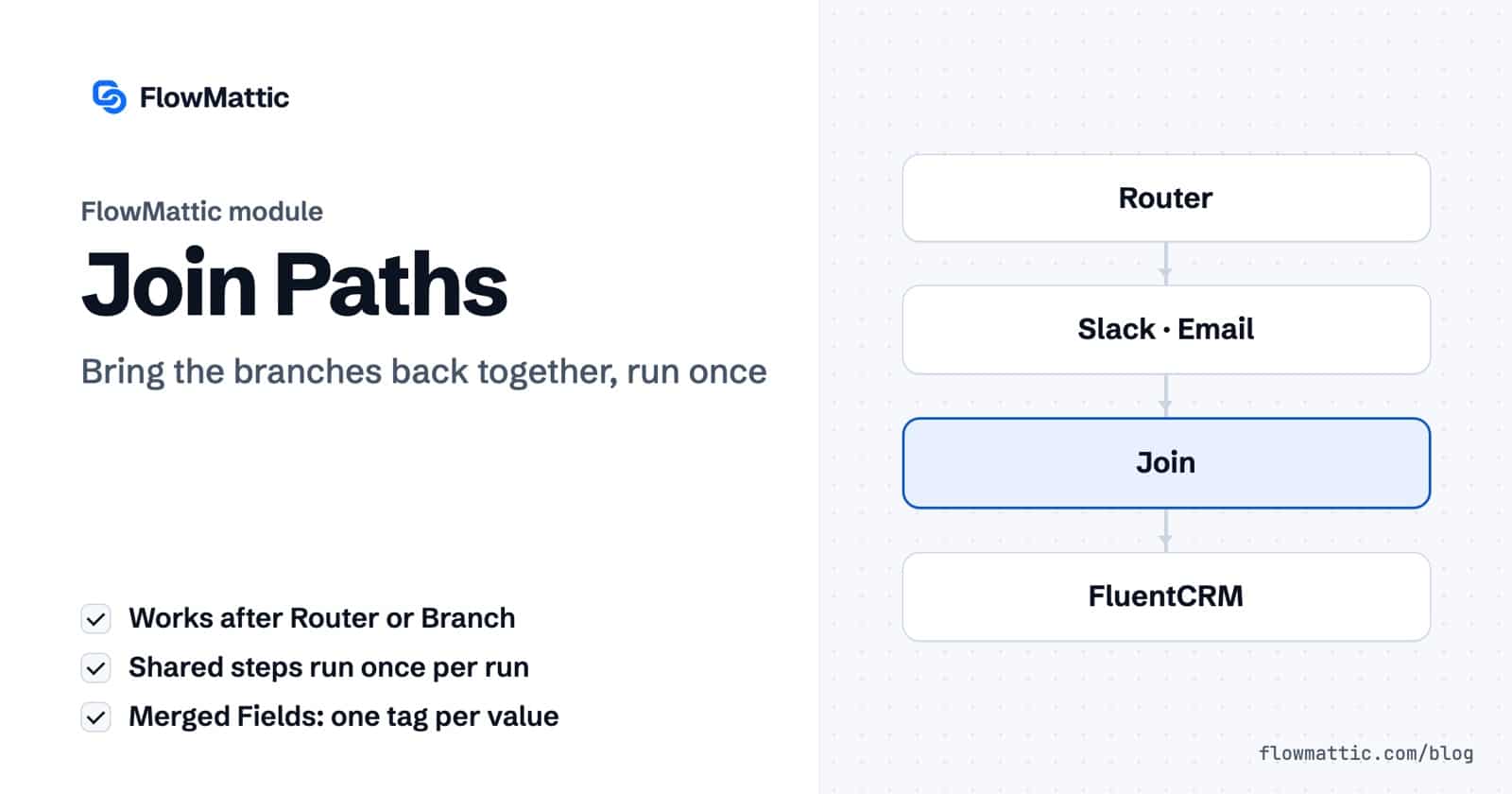
When you merge workflow paths, the steps that every outcome shares only need to be built once. FlowMattic’s Join step does exactly that: after a Router or a Branch splits a run, the Join brings the routes back into one chain, and the steps after it run once, whichever route the run took.
Without it, every route ends on its own, so a CRM update or a log row that should follow every outcome has to be copied into each route. With a Join, you build that tail once. It is for anyone whose workflows branch and then need to finish the same way.
Join by FlowMattic is a built-in step with one action event, Join Paths: “Continue the workflow with common steps after a Router or Branch.” FlowMattic selects that action for you when you add the step. It arrived in FlowMattic 7.2.0 and works with Router routes, Branch Yes/No paths and nested structures.
A Join is a convergence point, not a calculation. It doesn’t evaluate anything: the run reaches it when the route that executed finishes. Its one setting, Merged Fields, solves the problem that comes with merging: later steps can’t know which route ran, so they need one place to read a value from. It sits with the other workflow logic modules in the builder.
The builder checks placement as you add the step. If the Join can’t go where you dropped it, a “Join Paths cannot go here” message explains why:
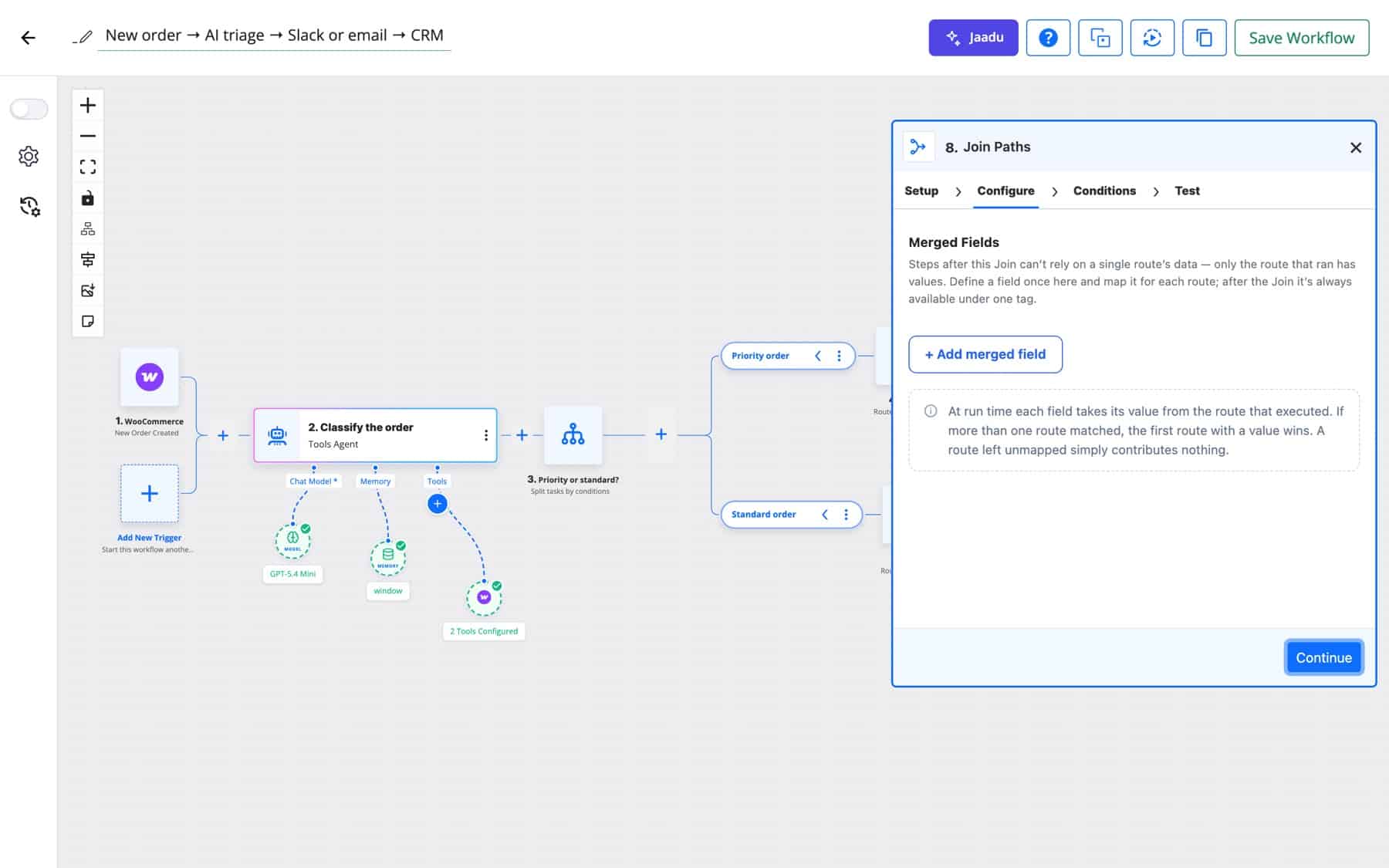
After a merge, a step can’t safely map a value from inside one route, because that route may not have run. Merged Fields fix this. You define a field once, map a value for each route, and every step after the Join reads a single tag, {joinN.key}, where N is the Join’s step number.
| Setting | What it does |
|---|---|
| Field | The key later steps use, for example user_email. |
| One input per route | The value to use when that route ran: a dynamic tag from that route’s steps or static text. |
| + Add merged field | Adds another field. |
| Review & add | Appears when FlowMattic finds fields common to every route’s test data. You pick which to add; each value is taken from the route’s step closest to the Join. Generic keys such as status and message are left out. |
At run time, each field takes its value from the route that executed. If more than one Router route matched, the first route with a value wins, and a route you left unmapped contributes nothing. After a Join, the dynamic tag picker lists the Join’s merged fields instead of the routes’ internal steps, so you can’t accidentally map a value from a route that didn’t run.
In Task History, the Join’s entry records “Paths joined — the workflow continues with the common steps.”, the executed_route (the route’s name, or Yes/No for a Branch), and, as its input, the per-route mapping of each merged field.
Priority orders alert the team in Slack, standard orders get an email, and every order is tagged in the CRM once.
WooCommerce new order → Router (Priority / Standard) → Slack / Send Email → Join → FluentCRM tag
Business emails go to HubSpot, personal ones to Mailchimp. A merged field contact_id maps each tool’s ID, so the log row has one column for both.
Form submission → Branch (email Ends with a free-mail domain) → Yes: Mailchimp / No: HubSpot Create Contact → Join (merged field contact_id) → Google Sheets row
Support tickets from paying customers get a detailed AI draft, others a short one. A merged field reply_text feeds one review step.
Fluent Support Ticket Created → Branch (plan Exactly matches pro) → Yes: AI Agent (detailed) / No: AI Agent (short) → Join (merged field reply_text) → Send Email to the support lead for review
A SaaS billing webhook either confirms a payment or reports a failure. Both outcomes end in the same record in your own database.
Webhook (billing event) → Branch (type Exactly matches invoice.paid) → Yes: Send Email receipt / No: Send Email payment reminder → Join → WP Tables New Record
An agency pulls different metrics for clients on different plans, then sends every client the same report.
Schedule (monthly) → Router (Basic / Growth) → API request per plan → Join (merged field visits) → Generate PDF from Template → Send Email
Without a Join, a Router whose routes all fail their conditions ends the run. With a Join, the run still reaches the common steps, so a summary or audit step always happens.
Webhook (return request) → Router (Refund / Exchange) → Send Email to finance / Fluent Support ticket → Join → Slack summary to #orders
Add a Join by FlowMattic step at the end of any one route. The builder connects every route of that Router into it, and the steps you add below the Join run once per run.
No. They run once per run, whichever route or path executed. If a step should repeat per route, keep it inside the routes, above the Join.
Through Merged Fields. Define a field on the Join, map a value per route, and read it later as {joinN.key}. The value comes from the route that ran.
Join is included in every FlowMattic plan, with unlimited workflows and runs on your own server. See the plans and pricing and start building workflows that branch and merge cleanly.
Task History records every run and every step, with inputs and responses, and lets you re-execute a run, a single step or…
DNS / Domain Tools adds seven checks to any workflow: DNS, reverse DNS, MX, email domain, SSL certificate, HTTP headers and open…
The FTP app uploads, downloads, moves and deletes files on FTP, FTPS and SFTP servers from any workflow, and starts workflows when…