
FTP automation in WordPress: upload, download and watch folders
The FTP app uploads, downloads, moves and deletes files on FTP, FTPS and SFTP servers from any workflow, and starts workflows when…


A reusable sub-workflow lets you build a sequence of steps once and call it from any other workflow. In FlowMattic, the Sub-Workflow app does this with a trigger and two actions: the parent workflow passes in parameters, the sub-workflow does its work, and it hands a response back that the parent’s next steps can map.
If several of your workflows repeat the same ten steps (create the customer, tag them, log the event), every change means editing each copy. A sub-workflow puts that logic in one place. It is for anyone whose automation library has grown past a handful of workflows, and for agencies that rebuild the same building blocks for many clients.
A sub-workflow is an ordinary FlowMattic workflow that starts with the Start Sub-Workflow trigger instead of a webhook or an app event. It runs only when another workflow calls it. The Sub-Workflow app provides three events:
| Event | Type | Where it goes |
|---|---|---|
| Start Sub-Workflow | Trigger | First step of the sub-workflow. Fires when a parent calls it. |
| Call Sub-Workflow | Action | In the parent. Runs the sub-workflow and receives its response. |
| Return Response | Action | Last step of the sub-workflow. Sends data back to the parent. |
Workflows with the Start Sub-Workflow trigger are marked automatically when saved, and carry a SUB badge in the workflow list and in Task History. In the app picker, the Sub-Workflow app sits in Flow Controls: “Build and call reusable workflow components.” It belongs with the other workflow logic modules.
In a parent workflow, add a Call Sub-Workflow step and click Create New Sub-Workflow (or + Create New Sub-Workflow if you already have some). A new workflow opens with the Start Sub-Workflow trigger and a Return Response step already in place. Add your shared steps between them.
Back in the parent, the Call Sub-Workflow step has two parts. Select Sub-Workflow lists only workflows that use the Start Sub-Workflow trigger. Parameters to Pass is a list of key and value pairs, each value typed or mapped from earlier steps. A value that contains JSON is passed as structured data, not text.
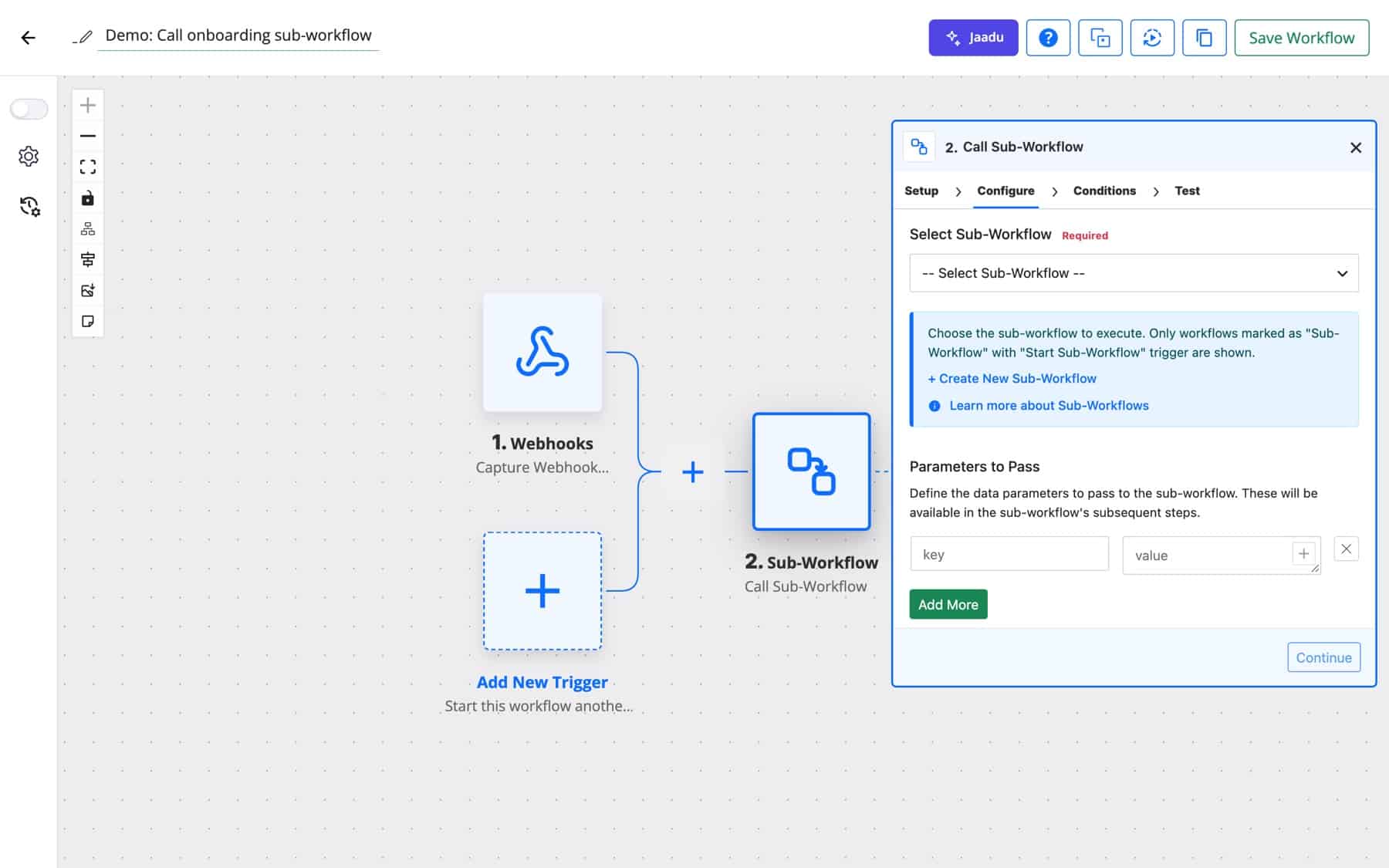
To map the parameters inside the sub-workflow, it needs sample data. Put the sub-workflow’s trigger into capture mode, then test the Call Sub-Workflow step in the parent. Instead of running the sub-workflow, FlowMattic stores the parameters as the trigger’s sample and replies “Sub-workflow trigger data captured successfully.” Each key you passed is now a field in the sub-workflow.
In the sub-workflow’s Return Response step, fill Response Data with the keys the parent needs, such as a customer ID or a status. This should be the last step of the sub-workflow.
When the parent runs, Call Sub-Workflow runs the sub-workflow and returns each Response Data key, plus sub_workflow_id and sub_workflow_name. Map those into the parent’s next steps like any other step output. If the sub-workflow has no Return Response, the step reports “Sub-workflow executed successfully but returned no response.”
Orders from the store, bookings and form sign-ups all need the same onboarding. Build it once, call it from three parents.
WooCommerce new order → Call Sub-Workflow (email, name) → Sub-workflow: FluentCRM contact → Send Template Email → Return Response (contact_id)
An AI Agent scores leads the same way wherever they come from. The parent decides what to do with the score.
Form submission → Call Sub-Workflow (company, message) → Sub-workflow: AI Agent (score 1–10) → Return Response (score) → back in parent: Branch (score Greater than 7) → HubSpot Create Deal
Each client has its own scheduled workflow with its own settings, but the report itself is built in one sub-workflow, so a design change applies to every client.
Schedule (monthly, per client) → Call Sub-Workflow (client_id, site_url) → Sub-workflow: API requests → Generate PDF from Template → Send Email → Return Response (sent)
Failed payments, angry reviews and urgent tickets all escalate the same way: a Slack alert and a ticket. One sub-workflow keeps the format consistent.
Any trigger → Call Sub-Workflow (reason, customer_email) → Sub-workflow: Slack Send Channel Message → Fluent Support ticket → Return Response (ticket_id)
Internal ops normalise names, phone numbers and dates in many workflows. A formatter sub-workflow returns clean values that every parent can map.
Webhook → Call Sub-Workflow (raw fields) → Sub-workflow: Text Formatter → Date/Time Formatter → Return Response (clean fields) → back in parent: Google Sheets Add New Row
New accounts arrive from Stripe and from manual sign-ups. One provisioning sub-workflow creates the WordPress user and records the account.
Stripe New Customer → Call Sub-Workflow (email, plan) → Sub-workflow: WordPress Create User if Not Exists → WP Tables New Record → Return Response (user_id)
Add key and value pairs under Parameters to Pass in the Call Sub-Workflow step. Each key becomes a field of the Start Sub-Workflow trigger, which the sub-workflow’s steps can map.
With a Return Response step as its last step. The keys under Response Data appear as outputs of the Call Sub-Workflow step in the parent.
Yes, as long as the chain never loops back to a workflow that is already running in it. FlowMattic detects that circular dependency and stops the call with an error.
Only workflows whose trigger is Start Sub-Workflow are listed. Set that trigger, save the workflow, and it appears with the SUB badge.
Sub-workflows are included in every FlowMattic plan, with unlimited workflows and runs on your own server. Try FlowMattic on a live demo site and turn your most repeated steps into a reusable sub-workflow.
The FTP app uploads, downloads, moves and deletes files on FTP, FTPS and SFTP servers from any workflow, and starts workflows when…
Share Secrets turns a password or API key into a link that expires after a set time, a set number of views,…
Generate Magic Login Link creates single-use sign-in links from any workflow, valid from 1 minute to 30 days, with a confirmation page…

