

Email a weekly renewal reminder to every member in a Google Sheet
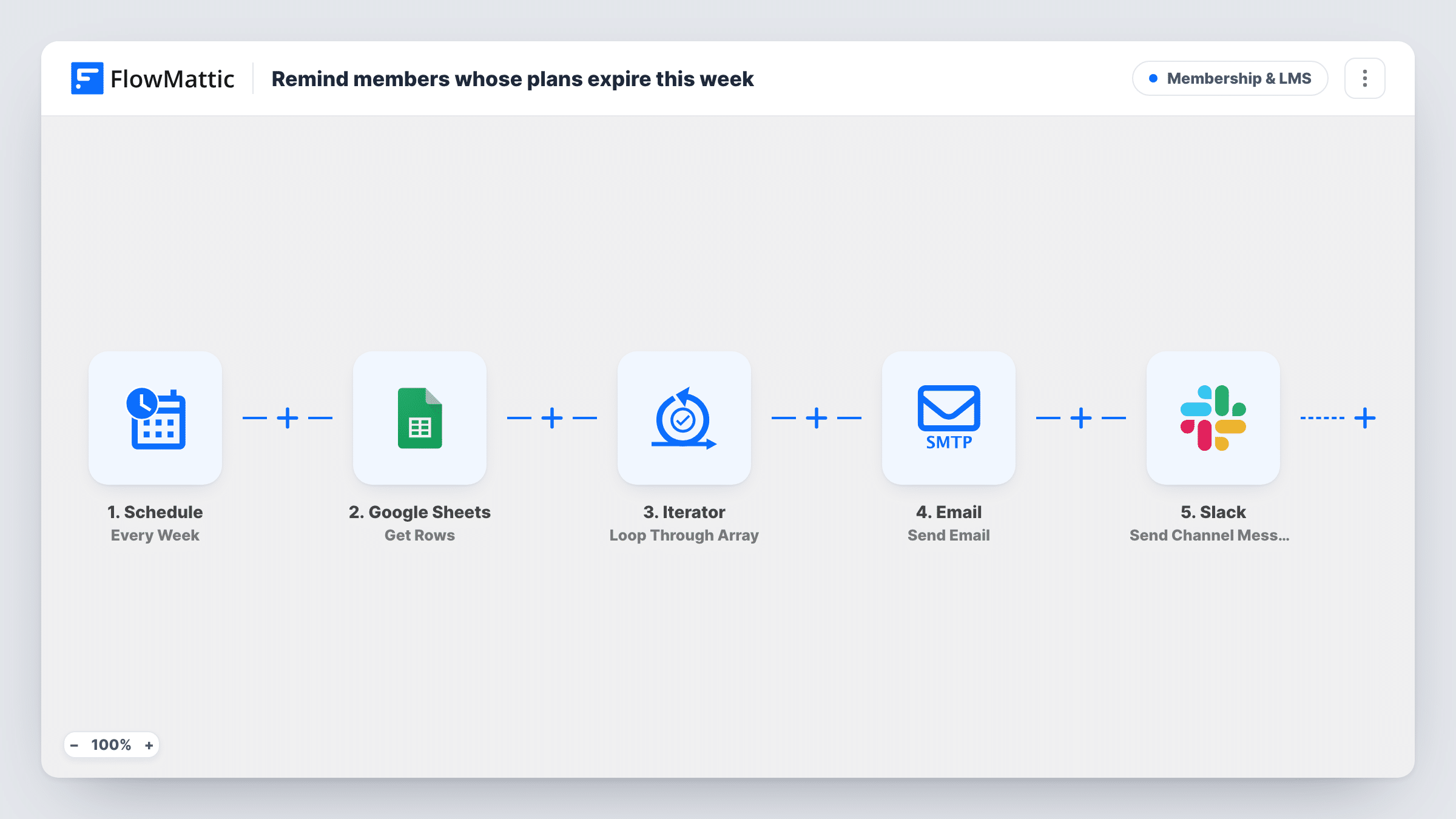
Once a week FlowMattic reads the rows of your Google Sheets member list, posts a note to Slack, then emails every member on the list a reminder to renew, addressed by first name.
 Schedule
 Google Sheets
 Slack
Slack
 Iterator
 Email
Email5 steps Setup ~8 min Used on 2.2k sites Community Free to import
What this workflow does
If you track renewals in a spreadsheet rather than a membership plugin, reminding people is a weekly chore of copying addresses into an email tool. This workflow takes the list as it stands each week and sends every person on it the same short renewal reminder, while your team gets a heads-up in Slack.
Each week, the Schedule trigger begins a run. The Google Sheets Get Rows step then reads the rows. It ships unmapped, so after import you pick the spreadsheet and sheet that hold the members to remind. Before any emails go, a Slack message tells your channel that this week's reminders are going out. It posts once per run.
An Iterator then loops through the rows one by one. For each row, FlowMattic's Email module sends a message with the subject "Your membership expires soon", greeting the person by the first_name column and sent to the email column. Name your sheet columns email and first_name, or remap them in the email step.
Nothing in the workflow checks dates or remembers who was emailed. Every run emails every row it reads, week after week, so the sheet must hold only the members who should get a reminder now. Remove people once they renew.
Club memberships kept in a sheet
A sports club's treasurer keeps unpaid renewals in a Google Sheet and lets the weekly run remind each person until their row is removed after payment.
Annual association dues
A professional association copies members whose dues fall due this month into a reminder sheet, and the team sees the Slack note each week as the emails go out.
Coworking desk renewals
A coworking space lists members whose monthly desk pass is ending, and each one gets a reminder to renew at the front desk or online.
How this workflow runs
What happens at each step once the workflow is on, and what you need before you import it.
 Schedule Every Week
Begins a run every week, on the day and time you choose for the Schedule trigger.
- Google Sheets Get Rows
Reads the rows from your Google Sheet as a list the Iterator can loop over. The step ships unmapped: connect Google and choose the spreadsheet and sheet with the members to remind.
- Slack Send Channel Message
Posts "Weekly renewal reminders are going out." to the Slack channel you pick. It sits before the Iterator, so it posts once per run, not once per member.
- Iterator Loop Through Array
Loops through the rows from Google Sheets and runs the email step once for each row.
 Email Send Email
Emails the person in the current row, using the email column as the address and the first_name column in the greeting. Add a renewal link to the body before going live.
What you need
- FlowMatticCore
- Google Sheets AccountAccount
- Slack AccountAccount
After importing, map your own data. To keep the template universal, not every step is pre-filled. Open each step in the builder and connect your accounts and fields (channels, lists, sheets, recipients) before you switch the workflow on.
Make it yours
Changes worth making after you import it.
- Keep a dedicated tab with only the members to remind this week, and point the Get Rows step at that tab instead of your full member list.
- Add a Filter between the Iterator and the Send Email step that checks a status column, such as renewed equals no, so a member marked as renewed is skipped. The column is yours to add and name.
- Add a column such as expiry_date to your sheet and map it into the email body, so each member sees their own renewal date. The column name is yours to choose.
- Put your renewal page link in the email body, since the template's text only asks members to renew.
Questions about this workflow
Will a member get the reminder again next week?
Yes, if their row is still in the sheet. The workflow reads every row on each run and doesn't record who was emailed, so remove or move a row once the member renews.
Does this workflow work out who is about to expire?
No. It emails everyone in the sheet it reads. Keep that sheet limited to members due for renewal, or add a Filter on a status column between the Iterator and the email step.
What columns does my Google Sheet need?
The email step reads columns named email and first_name. Use those headers, or change the mapping in the Send Email step to match your own columns.
Can the team get the Slack note after the emails are sent?
Yes. Add an Iterator End step after Send Email, then move the Slack step from between Get Rows and the Iterator to just after the Iterator End step. It then posts once, when every row has been emailed.
More Membership & LMS workflows
Other ready-to-import templates from the same category.



Import this workflow into your WordPress site
Download the JSON, import it from the Workflows screen and connect your accounts. Every run stays on your server, with no per-task fees.
30-day money-back guarantee Unlimited workflows and runs Self-hosted