

Follow up automatically when a resolved ticket gets a low rating
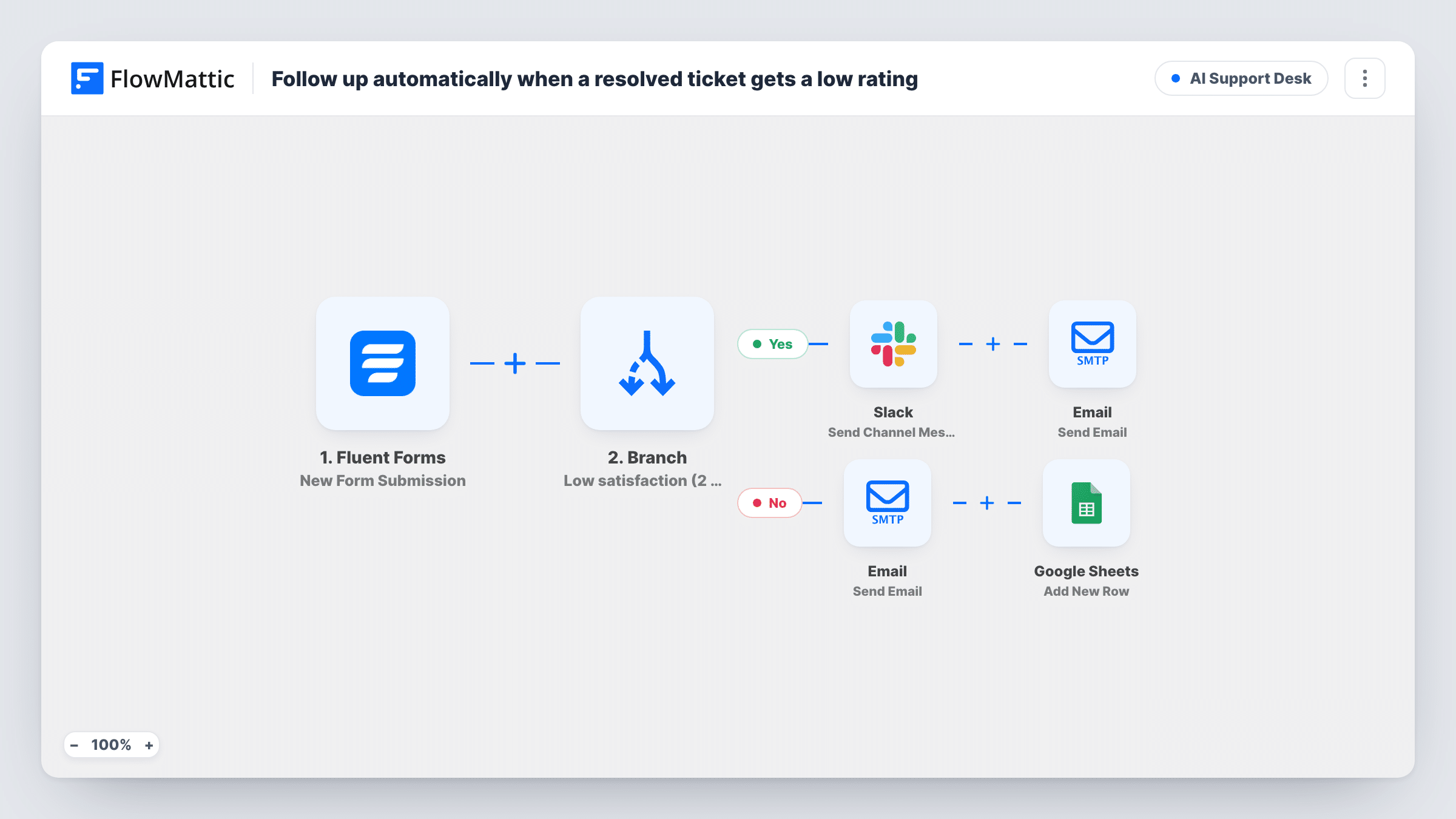
A Fluent Forms satisfaction survey sent after a ticket is resolved sorts each rating. Scores below 3 alert your team in Slack and send the customer an apology, while higher scores get a thank-you and a sheet row.
 Fluent Forms
 Branch
 Slack
Slack
 Email
Email
 Google Sheets
6 steps Setup ~12 min Used on 536 sites Agentic Support Free to import
What this workflow does
A low rating right after a ticket closes is your best chance to save the relationship. Wait a week and the customer may already be gone. This workflow reads each rating from your satisfaction form and reacts straight away, with different handling for unhappy and happy customers.
The customer fills in a Fluent Forms survey with their name, email, the ticket ID and a rating. A Branch checks whether the rating is less than 3. On the Yes path, Slack posts Unhappy customer with the ticket number and score, and then the Email module sends the customer a message titled We want to make this right, saying a manager will be in touch. On the No path, the customer gets a thank-you email that mentions their star rating, and Google Sheets adds a row.
The workflow does not know when a ticket is resolved. It runs whenever the survey form is submitted, so send the form link in your resolution message or closing email. The apology email promises a manager will reach out, so make sure someone acts on the Slack alert.
Help desk closing note with a survey link
Your closing reply links to the Fluent Forms survey. A 1 or 2 puts the ticket number in front of the support lead in Slack, and the customer hears back right away.
Agency support for client websites
Clients rate each fixed issue. Low scores reach the account manager before the client raises it on the next call, and good scores build a record in the sheet.
Collecting testimonials from happy customers
Ratings of 3 and above fill a Google Sheets list of satisfied customers, which you can use when asking for reviews.
How this workflow runs
What happens at each step once the workflow is on, and what you need before you import it.
 Fluent Forms New Form Submission
Runs when your satisfaction survey is submitted in Fluent Forms. The sample carries name, email, rating and ticket_id, which the later steps use.
- Branch Low satisfaction (2 or below)?
Checks whether the rating is less than 3, so scores of 2 and below go to the Yes path. A rating of 3 or more follows the No path.
- Slack Send Channel Message
On the Yes path, posts Unhappy customer on ticket followed by the ticket number and the rating. Connect Slack and test that it reaches your support managers.
 Email Send Email
On the Yes path, emails the customer with the subject We want to make this right and a short apology saying a manager will reach out. Edit the wording to match your process.
- Email Send Email
On the No path, emails the customer the subject Thanks for your feedback, greeting them by name and thanking them for their star rating.
- Google Sheets Add New Row
On the No path, after the thank-you, adds a row to Google Sheets. Nothing is mapped yet, so map the name, email, ticket ID and rating into the row.
What you need
- FlowMatticCore
- Fluent Forms PluginPlugin
- Slack AccountAccount
- Google Sheets AccountAccount
After importing, map your own data. To keep the template universal, not every step is pre-filled. Open each step in the builder and connect your accounts and fields (channels, lists, sheets, recipients) before you switch the workflow on.
Make it yours
Changes worth making after you import it.
- Use a rating field with fixed number options in your Fluent Forms survey. The less-than check then compares clean numbers instead of free text.
- Add a Google Sheets step to the Yes path too, so low scores are logged next to the good ones and you can track the trend.
- Map the customer's name and email into the Slack message, so the manager can reply without looking anything up.
Questions about this workflow
Does Fluent Forms know which support ticket was rated?
Only if the form includes it. The template expects a ticket_id field. Fill it from a hidden field or a link parameter, or ask the customer to enter it.
Does a rating of 3 trigger the Slack alert?
No. The Branch looks for ratings below 3, so 3 counts as satisfied and gets the thank-you. Change the value to 4 if you want 3 treated as low.
Are low ratings saved to the Google Sheets log?
Not as imported. Only the No path has a Google Sheets step. Add one to the Yes path if you want every rating in the sheet.
Which helpdesk does the survey work with?
Any. The trigger is a Fluent Forms submission, so it works wherever you can send the customer a link to the form after closing their ticket.
More AI Support Desk workflows
Other ready-to-import templates from the same category.



Import this workflow into your WordPress site
Download the JSON, import it from the Workflows screen and connect your accounts. Every run stays on your server, with no per-task fees.
30-day money-back guarantee Unlimited workflows and runs Self-hosted