

Email each new event registrant their join details
When a new registrant row is added to your Google Sheets list, FlowMattic emails that person a confirmation with their name, personal join link and the event start time.
 Google Sheets
 Email
Email2 steps Setup ~5 min Used on 3.3k sites Marketing Free to import
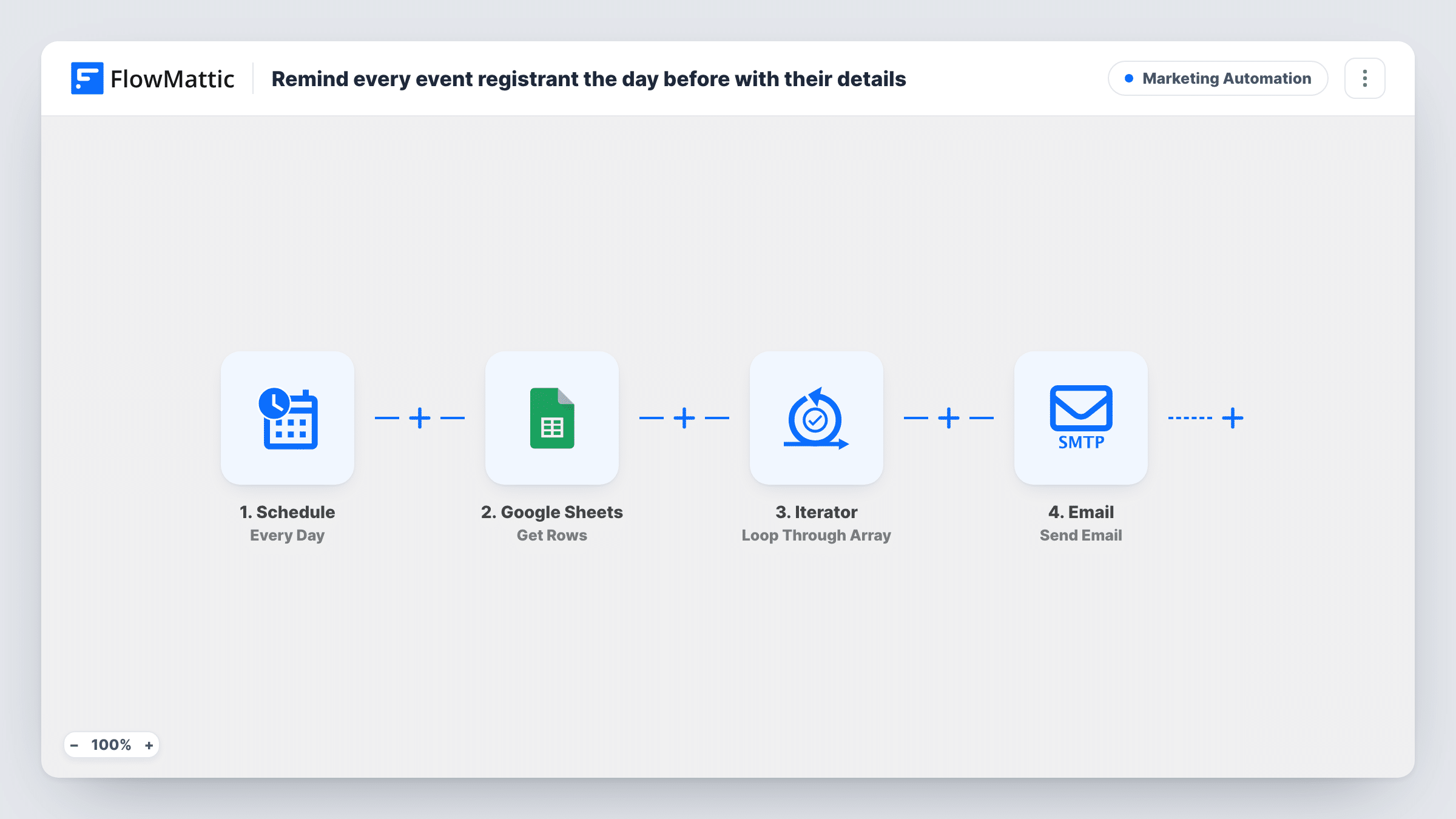
What this workflow does
If your event sign-ups end up in a spreadsheet, whether a form writes them there or you paste them in, sending each person their join link is a chore that slips on busy days. This workflow emails every new registrant as soon as their row appears.
The Google Sheets trigger fires when a new row is added to the sheet you choose. The template expects four columns: email, name, join_url and start_time. Each new row's values are passed on to the email.
The Email step sends a message to the address in the email column. The subject reads You're registered, followed by the person's name, and the body gives their join link and start time. Delivery uses FlowMattic's Email module, which sends through WordPress mail or the SMTP account you set up. Edit the wording, add your event name or a calendar note, then test with a row of your own.
One row means one email. The workflow doesn't send reminders closer to the start time, and editing a row that is already in the sheet doesn't send it again.
Webinar links for registrants
A software company collects webinar sign-ups in Google Sheets and each registrant receives the meeting link and start time in their inbox right away.
Unique links per attendee
A training provider generates a personal join URL for each participant in the sheet, so every learner gets their own link rather than a shared one.
Manually added guests
An event organiser adds VIP guests to the sheet by hand, and each one is sent the same confirmation email as people who signed up online.
How this workflow runs
What happens at each step once the workflow is on, and what you need before you import it.
 Google Sheets New Spreadsheet Row
Starts a run whenever a new row is added to your Google Sheets registrant list. Connect Google and pick the sheet; it needs email, name, join_url and start_time columns for the email to fill in.
 Email Send Email
Emails the registrant at the address in the row. The subject greets them by name, and the body gives their join link and start time. Edit the text before going live.
What you need
- FlowMatticCore
- Google Sheets AccountAccount
After importing, map your own data. To keep the template universal, not every step is pre-filled. Open each step in the builder and connect your accounts and fields (channels, lists, sheets, recipients) before you switch the workflow on.
Make it yours
Changes worth making after you import it.
- Fill join_url and start_time when the row is created, for example by having your form write all columns at once. A row whose join link is added later may be emailed without it.
- For a reminder before the event, add a Delay step and a second Email step after the confirmation email, and set the Delay to suit your start time.
- Write the start time with its time zone in the sheet, such as 3:00 PM CET, so registrants in other regions read it correctly.
- Set up an SMTP account in FlowMattic's Email settings if WordPress mail from your host tends to land in spam.
Questions about this workflow
What columns must my Google Sheets registrant list have?
Four columns named email, name, join_url and start_time. The email step reads them by those names, so rename yours to match or remap the step after import.
Will registrants already in the sheet get the join email?
No. The trigger reacts to rows added while the workflow is on. Email existing registrants by hand, or add them to the sheet again as new rows.
Does the email go out through Gmail?
It goes through FlowMattic's Email module, using WordPress mail or the SMTP account you configure. To send from a Gmail address, put Gmail's SMTP settings into that module, or replace this step with Send Email from the Gmail app.
Can I add the event name to the join email?
Yes. Type it into the subject or body, or add an event column to the sheet and map it in. The template's text is a starting point.
More Marketing Automation workflows
Other ready-to-import templates from the same category.







Import this workflow into your WordPress site
Download the JSON, import it from the Workflows screen and connect your accounts. Every run stays on your server, with no per-task fees.
30-day money-back guarantee Unlimited workflows and runs Self-hosted