

Take different actions based on quiz pass, borderline, or fail
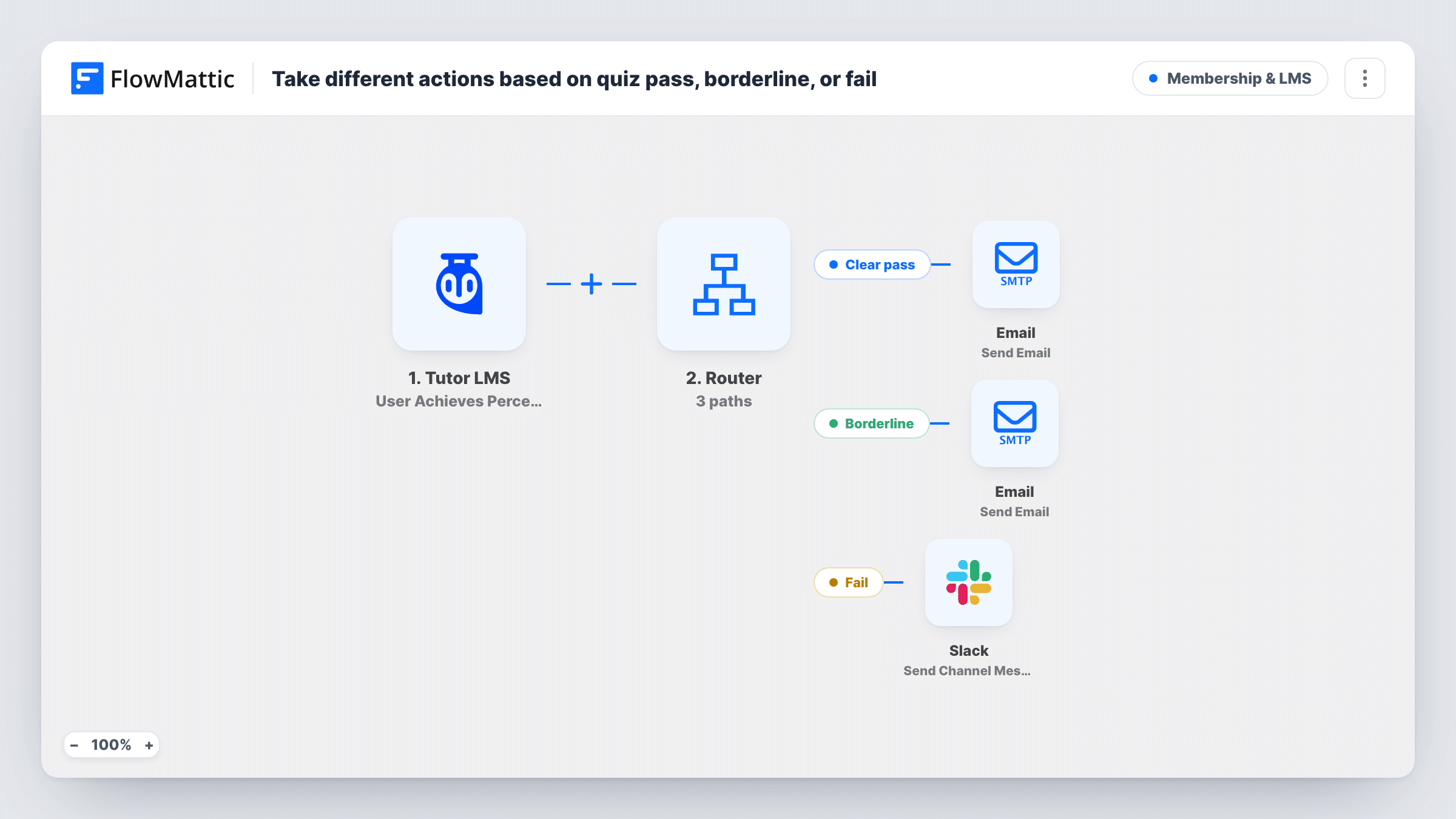
Every time a student attempts a Tutor LMS quiz, a Router looks at the percentage scored: 75% and above gets a congratulation email, 50% to 74% a retake nudge, and below 50% alerts an instructor in Slack. Routes are exclusive, so each attempt takes one.
 Tutor LMS
 Router
 Email
Email
 Slack
Slack5 steps Setup ~8 min Used on 2.8k sites Community Free to import
What this workflow does
A quiz score tells you what a student needs next. Someone who scored well wants to move on, someone just short of passing needs encouragement to try again, and someone who struggled may need a person to step in. This workflow handles all three from the Tutor LMS result.
The Tutor LMS trigger runs when a user achieves a percentage in a quiz, and passes on the score, the quiz name and the student's email. Next, a Router holds three routes with a condition on each. Clear pass continues when the percentage is greater than 75 and emails the student that they are cleared to move on. Borderline continues when it is greater than 50 and emails a suggestion to retake the quiz. Fail posts to a Slack channel naming the student and quiz.
Read the conditions closely before you turn it on. The Fail route only checks that the student has an email address, not the score, and the Borderline route has no upper limit. As imported, a score of 90 meets all three conditions. Add a score check to Fail (percentage less than or equal to 50) and a cap to Borderline (75 or lower) so each result follows one route.
Certification prep courses
Students who clear the practice quiz move on with a short note, while those just under the mark are prompted to retake before the real exam.
Instructor follow-up in a cohort course
Your teaching team sees low scorers in a Slack channel and can reach out with extra help the same day.
Compliance training for staff
Employees who pass are told they're done, and HR hears in Slack about anyone who needs to repeat the module.
How this workflow runs
What happens at each step once the workflow is on, and what you need before you import it.
 Tutor LMS User Attempts a Quiz
The workflow starts automatically when user attempts and pass or fail the quiz in Tutor LMS. FlowMattic captures that data for the steps below.
- Router 3 paths
The Router checks your conditions and sends each run down the matching path of 3 — Clear pass, Borderline, Fail — so different cases get different actions.
 Email Send Email
On the “Clear pass” path — Email — send an email using built-in WP mail function or custom SMTP. Data is mapped from earlier steps; connect your Email account on import.
- Email Send Email
On the “Borderline” path — Email — send an email using built-in WP mail function or custom SMTP. Data is mapped from earlier steps; connect your Email account on import.
- Slack Send Channel Message
On the “Fail” path — Slack — post or Schedule a new message to a specific #channel. Data is mapped from earlier steps; connect your Slack account on import.
What you need
- FlowMatticCore
- Tutor LMS PluginPlugin
- Slack AccountAccount
After importing, map your own data. To keep the template universal, not every step is pre-filled. Open each step in the builder and connect your accounts and fields (channels, lists, sheets, recipients) before you switch the workflow on.
Make it yours
Changes worth making after you import it.
- Add percentage less than or equal to 50 to the Fail route. Without it, the Slack alert goes out for every quiz result, including clear passes.
- Cap the Borderline route at 75 or lower so a student who clears the quiz doesn't also get the retake email.
- Change 75 and 50 to fit your own passing mark, keeping the three ranges from overlapping.
Questions about this workflow
Will a passing student be reported as failed?
As imported, yes, because the Fail route only checks for an email address. Add a score condition to that route, as shown in the tips, before switching the workflow on.
Where do the score thresholds come from?
They are written into the route conditions: greater than 75 for Clear pass and greater than 50 for Borderline. You can change both in the Router.
Which apps and settings does this rely on?
Tutor LMS on the same WordPress site as FlowMattic, working email settings for the two student emails, and a Slack workspace for the instructor alert.
Does the student see the Slack message?
No. It goes to a Slack channel for your team. Students only receive the emails on the Clear pass and Borderline routes.
More Membership & LMS workflows
Other ready-to-import templates from the same category.





Import this workflow into your WordPress site
Download the JSON, import it from the Workflows screen and connect your accounts. Every run stays on your server, with no per-task fees.
30-day money-back guarantee Unlimited workflows and runs Self-hosted