

Route new tasks into the right lane by estimated effort
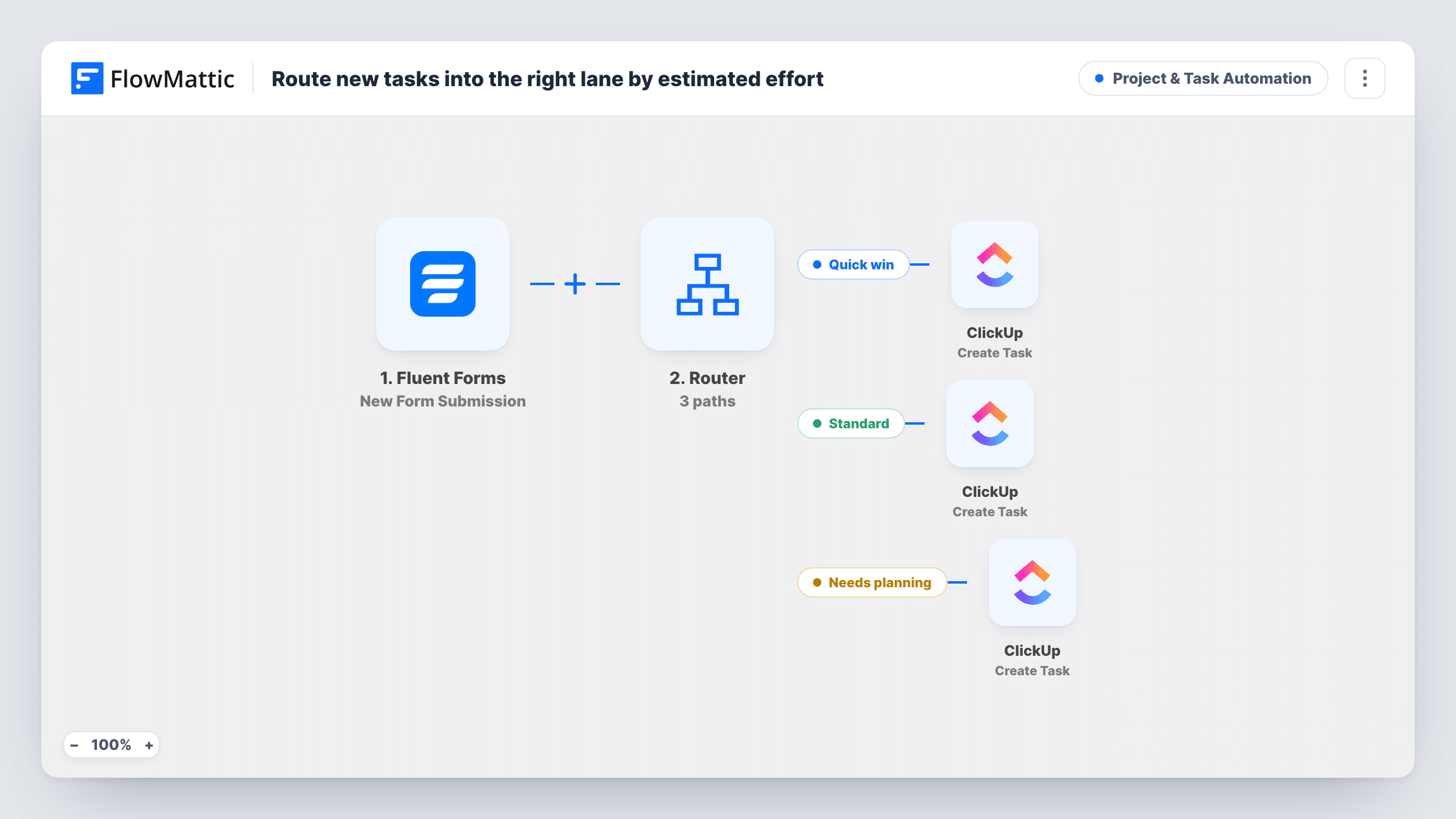
A Fluent Forms task request is sorted by its effort answer: small, medium or large. A Router then creates the ClickUp task with a Quick, Standard or Planning prefix in the place you set for that lane.
 Fluent Forms
 Router
 ClickUp
5 steps Setup ~8 min Used on 2.8k sites Productivity Free to import
What this workflow does
When anyone can request work through a form, the triage meeting fills up with sorting: is this a ten-minute fix or a project that needs a plan? If the requester picks an effort size on the form, this workflow does that first sort for you and files each request with a clear prefix in ClickUp.
The Fluent Forms trigger starts a run for each new submission. A Router then checks the form's effort field. The Quick win route runs when that answer contains small, Standard when it contains medium, and Needs planning when it contains large. Each route has its own ClickUp Create Task step that names the task after the form's subject field, adds Quick:, Standard: or Planning: in front, and puts the message field in the description.
The Router runs every route whose condition matches, so the three answers must not overlap. With a dropdown whose values are exactly small, medium and large, each submission matches one route and creates one task. Upper and lower case don't count in this check, so an option saved as Small or SMALL still takes the Quick win route. An answer that contains none of the three words creates no task at all.
The field names effort, subject and message are examples from the template. After import, match them to your own form, and point each Create Task step at the ClickUp list you use for that lane.
Internal IT requests sized by the requester
Staff fill in a Fluent Forms request and choose small, medium or large. Quick fixes land with a Quick: prefix, and big asks go to the list the IT lead reviews before planning.
Agency change requests
Clients pick an effort size when they ask for website changes. Large requests become Planning: tasks in a list the account manager quotes from, and small ones go straight to the production list.
Product feedback triage
A feedback form asks how big the change feels. Each answer creates a ClickUp task in its own list, so the team can work through quick wins between bigger pieces of work.
How this workflow runs
What happens at each step once the workflow is on, and what you need before you import it.
 Fluent Forms New Form Submission
Starts a run each time the Fluent Forms form you choose receives a submission. Every field, including the effort, subject and message answers the Router and ClickUp steps use, is passed on.
- Router 3 paths
Checks the effort field against three routes: Quick win when it contains small, Standard for medium, and Needs planning for large. Every route whose condition matches runs, and the effort check ignores capitals. The field is an example to change to your own.
- ClickUp Create Task
On the Quick win route, creates a ClickUp task named Quick: plus the form's subject, with the message as its description. Choose the ClickUp list for quick wins when you set up this step.
- ClickUp Create Task
On the Standard route, creates a ClickUp task whose name puts Standard: before the subject, and whose description holds the form's message. Point it at the list where your team keeps regular-sized work.
- ClickUp Create Task
On the Needs planning route, creates a ClickUp task named Planning: plus the subject and the message as its description. Send it to the list where large requests wait for scoping.
What you need
- FlowMatticCore
- Fluent Forms PluginPlugin
- ClickUp AccountAccount
After importing, map your own data. To keep the template universal, not every step is pre-filled. Open each step in the builder and connect your accounts and fields (channels, lists, sheets, recipients) before you switch the workflow on.
Make it yours
Changes worth making after you import it.
- Build the effort question as a dropdown or radio field with the values small, medium and large, so every answer matches exactly one route. A free-text field invites answers like small to medium that match two.
- If your form's fields are named differently, edit the Router conditions and the task name and description mappings to use them. The template's effort, subject and message names are only examples.
- Map the requester's name or email into each task's description along with the message, so whoever picks it up in ClickUp knows who to ask.
Questions about this workflow
What happens if the effort answer is blank or says something else?
No route matches, so no ClickUp task is created for that submission. Make the effort field required in Fluent Forms, or add a fourth route with its own Create Task step for answers that match none of the three.
Can one Fluent Forms submission create two ClickUp tasks?
Yes, if the answer contains two of the words, because the Router runs every route that matches. Fixed dropdown values of small, medium and large avoid that.
Do the three routes have to use different ClickUp lists?
No. Each route has its own Create Task step, so you can send all three to one list and rely on the Quick:, Standard: and Planning: prefixes, or give each lane its own list.
Does it matter if the effort option is written as Large instead of large?
No. The Router ignores upper and lower case when it compares the effort answer, so Large, LARGE and large all take the Needs planning route. What counts is that the answer contains one of the three words, so keep the option labels free of the other two.
More Project & Task Automation workflows
Other ready-to-import templates from the same category.





Import this workflow into your WordPress site
Download the JSON, import it from the Workflows screen and connect your accounts. Every run stays on your server, with no per-task fees.
30-day money-back guarantee Unlimited workflows and runs Self-hosted