

Build a weekly support log with one spreadsheet row per open ticket
Every week, this workflow pulls the open tickets from Fluent Support and writes each one to its own Google Sheets row, giving you a dated snapshot of the support backlog to review or share.
 Schedule
 Fluent Support
 Iterator
 Google Sheets
4 steps Setup ~8 min Used on 400 sites Agentic Support Free to import
What this workflow does
A helpdesk shows you what is open right now. It is less good at showing how the backlog changed from one week to the next, or at giving a manager without a WordPress login a view of it. A spreadsheet that collects the open tickets each week answers both, as long as nobody has to build it by hand.
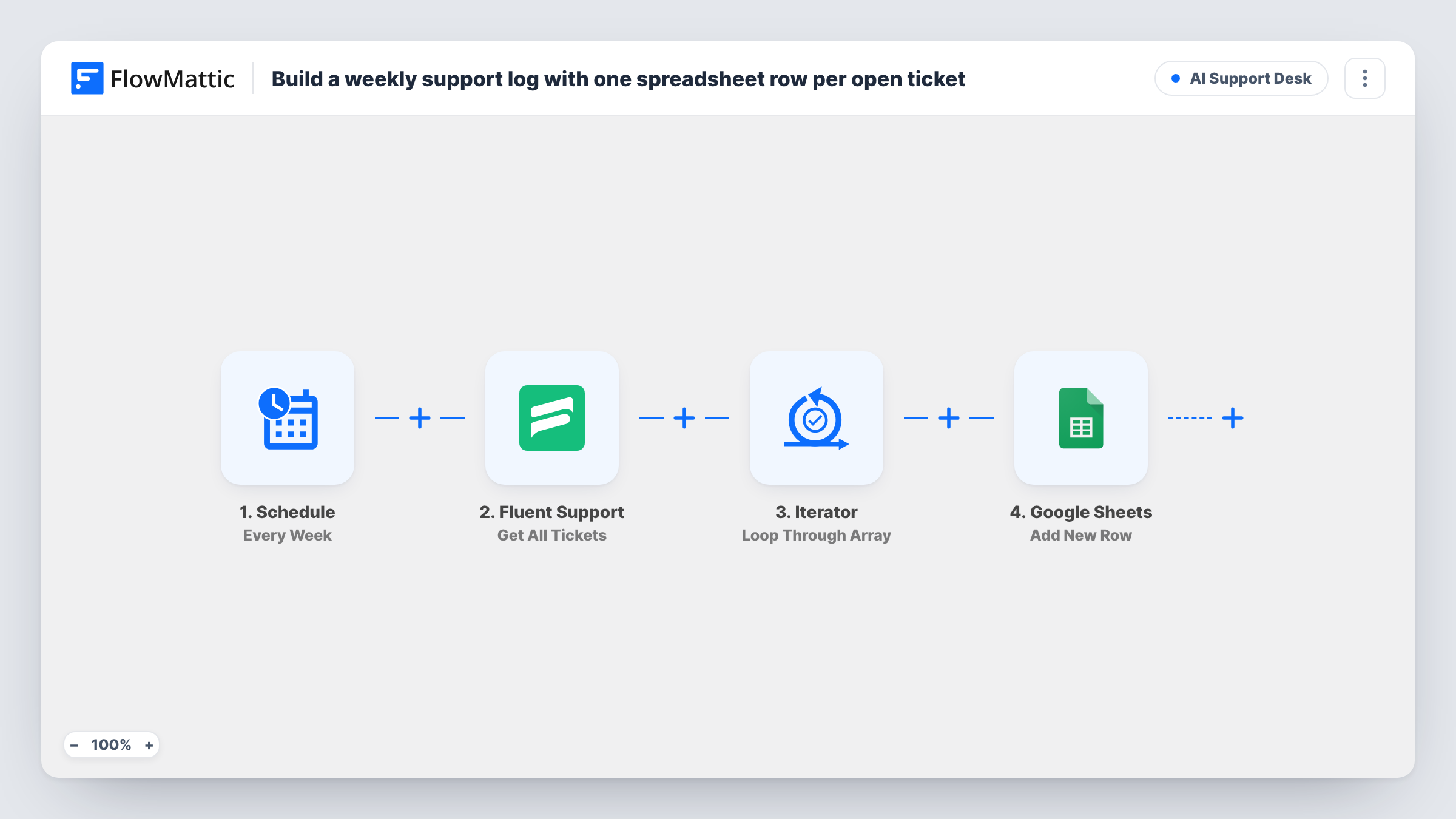
Once a week the Schedule trigger starts the workflow. The Fluent Support step runs Get All Tickets with its filter set to open, and returns them as a list. An Iterator walks that list and hands one ticket at a time to the last step. Google Sheets then adds a row for that ticket, holding whatever ticket values you map to the sheet's columns.
Rows are added, never replaced. A ticket that is still open next week gets a second row, which is what makes the sheet useful as a weekly log of how long tickets stay open. Your tickets stay in Fluent Support as they are; the workflow only reads them. Task History lists each weekly run and each pass of the loop.
Monday backlog review
The support lead opens the sheet at the start of the week and sees every ticket that was open at the last run, without logging in to WordPress.
Spotting tickets that drag on
Because a ticket gets a new row each week it stays open, a ticket number that shows up across several weekly runs stands out as one to escalate.
Reporting to a client or owner
An agency running support for a client shares the Google Sheet, so the client sees the open workload each week without access to the helpdesk.
How this workflow runs
What happens at each step once the workflow is on, and what you need before you import it.
 Schedule Every Week
Kicks off a run on a weekly timer. Change the day or interval in the Schedule trigger if your review happens on a different cycle.
- Fluent Support Get All Tickets
Fetches tickets from Fluent Support with the filter set to open, and returns them as a list for the Iterator to loop through.
- Iterator Loop Through Array
Loops through the tickets returned by Fluent Support. The Google Sheets step after it runs once for every ticket in the list.
- Google Sheets Add New Row
Adds a row to the Google Sheets spreadsheet you connect for the current ticket. Map the ticket values you want, such as its number and subject, to your columns after a test run.
What you need
- FlowMatticCore
- Fluent Support PluginPlugin
- Google Sheets AccountAccount
After importing, map your own data. To keep the template universal, not every step is pre-filled. Open each step in the builder and connect your accounts and fields (channels, lists, sheets, recipients) before you switch the workflow on.
Make it yours
Changes worth making after you import it.
- Switch the Schedule trigger to Every Day if a weekly view is too coarse. Expect one row per open ticket per day, so the sheet grows faster.
- Place a Filter between the Iterator and Google Sheets if you only want some of the open tickets logged, for example ones whose priority or product matches a value you choose.
- Run the workflow once by hand after import. The Iterator then shows the exact ticket values Fluent Support returns, which makes mapping the Google Sheets columns easier.
Questions about this workflow
Does the sheet get cleared before each weekly run?
No. The Google Sheets step only adds rows, so earlier weeks stay in place. A ticket that remains open is logged again on each run, which builds the week-by-week history.
Are closed Fluent Support tickets included?
No. The Get All Tickets step is set to fetch open tickets. If you want a different set, change that filter in the Fluent Support step after import.
Does this change anything in Fluent Support?
No. The workflow reads tickets and writes to Google Sheets only. Ticket status, assignment and replies in your helpdesk are left as they are.
Can I log the tickets to FlowMattic Tables instead of Google Sheets?
Yes. Replace the Google Sheets step with a FlowMattic Tables action and map the same ticket values, if you would rather keep the log on your own site.
More AI Support Desk workflows
Other ready-to-import templates from the same category.






Import this workflow into your WordPress site
Download the JSON, import it from the Workflows screen and connect your accounts. Every run stays on your server, with no per-task fees.
30-day money-back guarantee Unlimited workflows and runs Self-hosted