

Post each new FlowMattic Forms submission to Slack
Every submission to the FlowMattic form you choose is posted to a Slack channel, with the sender’s name in bold, their email and their message, so your team reads new enquiries where it already talks.
 Form Builder
 Slack
2 steps Setup ~5 min Used on 2.6k sites Ops Free to import
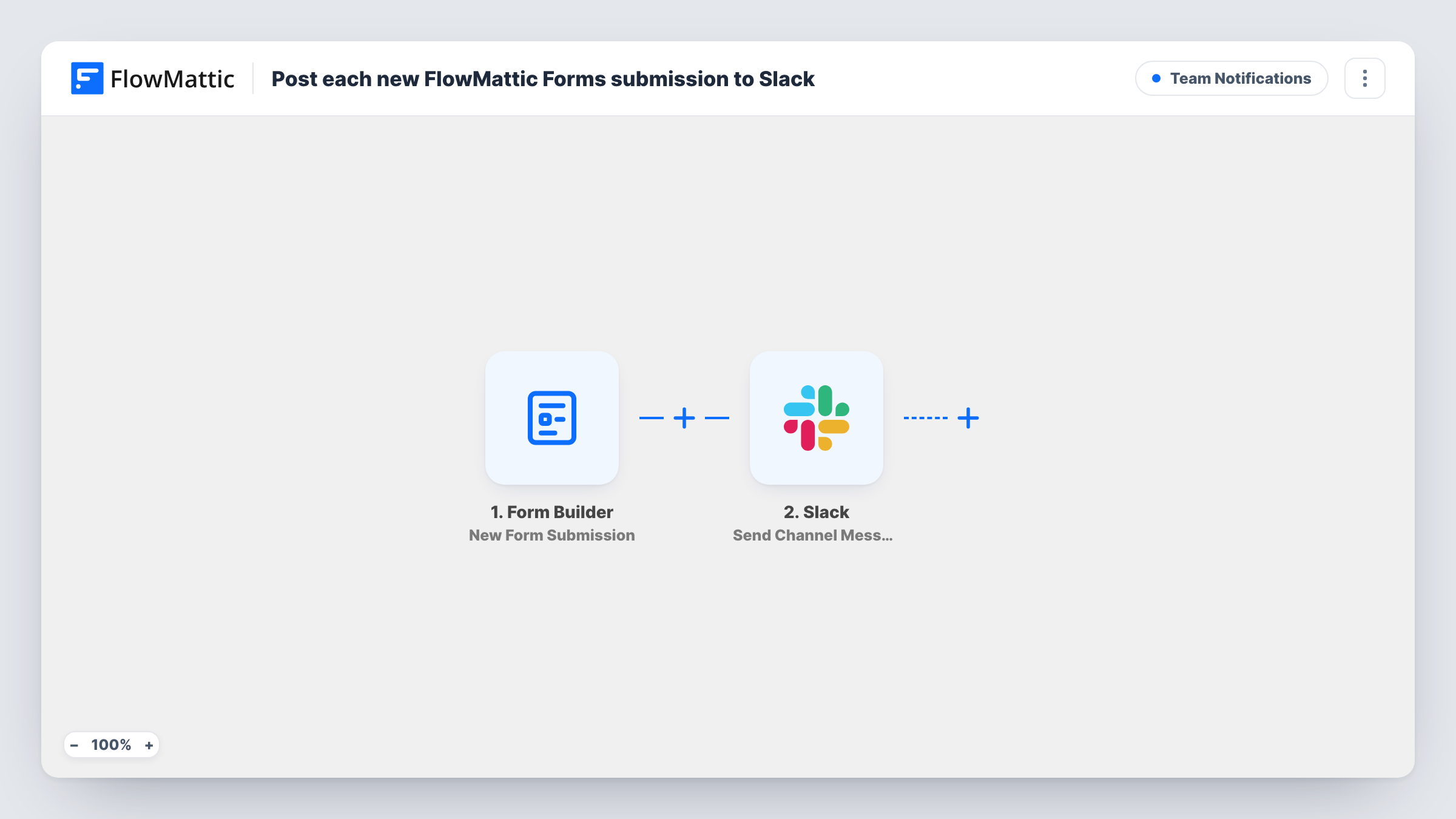
What this workflow does
Form notifications sent by email end up in one person's inbox and wait there. Posting them to a Slack channel lets the whole team see new enquiries and decide who picks each one up. This workflow does that for a form built with FlowMattic's form builder.
The Form Builder trigger fires whenever the selected FlowMattic form receives a new submission, with every field available as a variable.
The Slack step is Send Channel Message, with its text already written. It opens with an inbox emoji, then says there is a new submission from the person's name in bold, followed by their email in brackets and the message field. If your form uses different field names, those parts come out blank until you remap them. Pick the destination channel while connecting your Slack workspace.
Shared sales inbox in Slack
A small team posts every quote request from its FlowMattic contact form into a sales channel, and whoever is free replies first.
Support requests from a help page
A help-page form built with FlowMattic Forms drops each request into the support channel, so nothing waits in one person's email.
Event enquiries for organisers
Organisers watch one Slack channel for questions sent through the event site's FlowMattic form.
How this workflow runs
What happens at each step once the workflow is on, and what you need before you import it.
 Form Builder New Form Submission
Runs whenever your selected FlowMattic form gets a new submission. Each field value, such as name, email and message, becomes a variable for the Slack text.
- Slack Send Channel Message
Posts the submission to the Slack channel you choose: the name in bold, the email in brackets and the message. Connect Slack and remap any field your form names differently.
What you need
- FlowMatticCore
- Slack AccountAccount
After importing, map your own data. To keep the template universal, not every step is pre-filled. Open each step in the builder and connect your accounts and fields (channels, lists, sheets, recipients) before you switch the workflow on.
Make it yours
Changes worth making after you import it.
- Submit a test entry after import and compare the captured field names with the Slack text, then swap in your own fields where name, email or message differ.
- Add extra fields, such as a phone number or topic, to the Slack message so the team has what it needs without opening the entry.
- Want submissions in a private Slack channel? Replace Send Channel Message with the Send Private Channel Message action.
Questions about this workflow
Which FlowMattic form sends submissions to Slack?
The form you select in the trigger. Each copy of the workflow watches one selected form, so import another copy for each extra form you want posted.
What if my FlowMattic form has no message field?
That part of the Slack text is left empty. Replace it with a field your form does have, using the variables captured from a test submission.
Can I remove the emoji from the Slack alert?
Yes. The message text is editable in the Slack step, so delete the emoji or rewrite the line to suit your channel.
More Team Notifications workflows
Other ready-to-import templates from the same category.



Import this workflow into your WordPress site
Download the JSON, import it from the Workflows screen and connect your accounts. Every run stays on your server, with no per-task fees.
30-day money-back guarantee Unlimited workflows and runs Self-hosted