

Back up a Grist table to Google Drive as a CSV whenever a record is added
Each time a record is added in Grist, FlowMattic downloads your Grist data as a CSV file and uploads it to a Google Drive folder, so a recent off-site copy is always on hand.
 Grist
Grist
 Google Drive
3 steps Setup ~5 min Used on 2.4k sites Databases & Sync Free to import
What this workflow does
Grist holds data your team edits every day, and a bad import or an accidental delete can undo hours of work. A CSV in Google Drive gives you a copy you can open in any spreadsheet tool, stored away from Grist itself. This workflow makes that copy each time the table grows, with no export to remember.
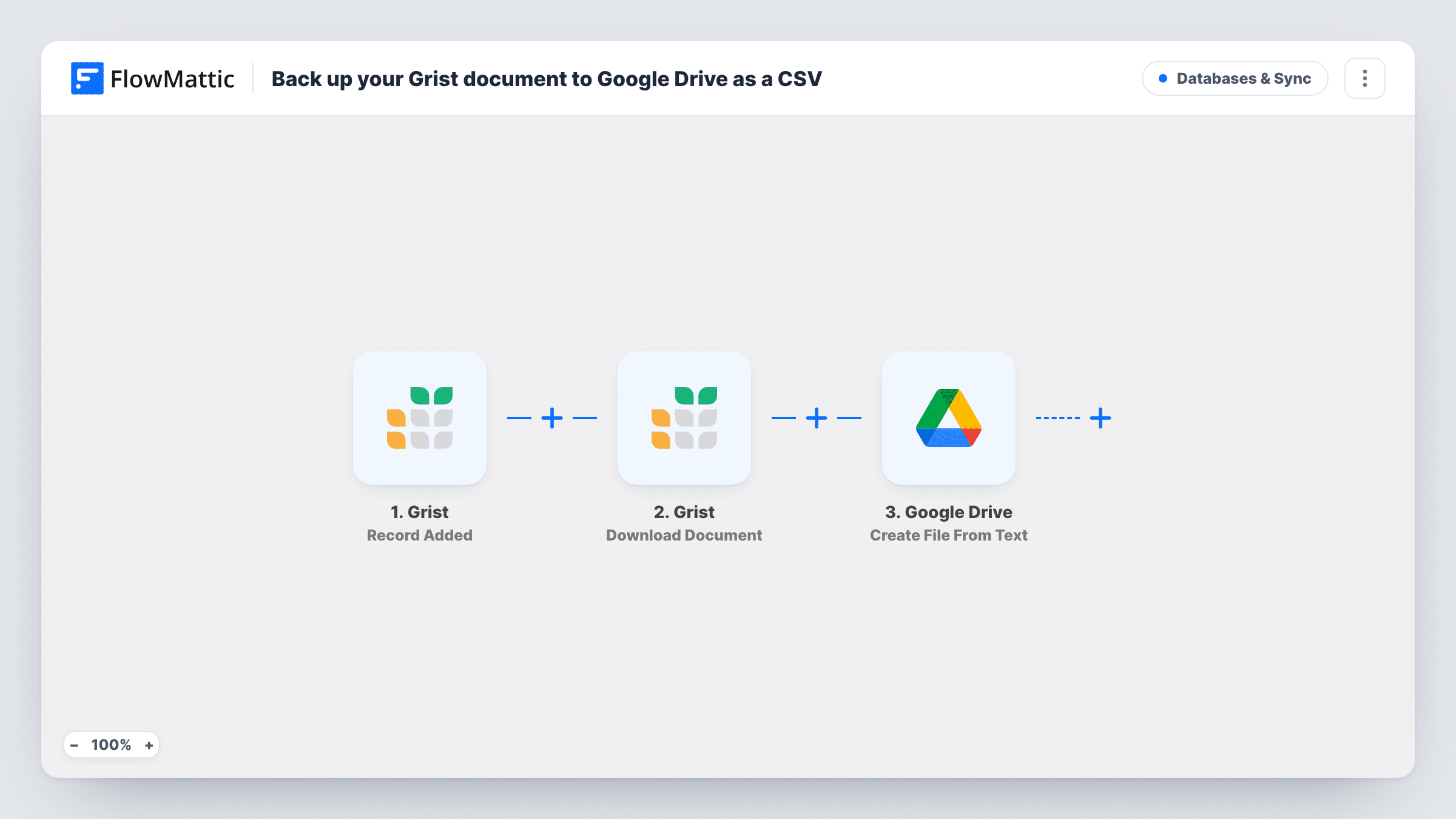
The Grist Record Added trigger starts a run when a new record appears. The next step, Download Document, exports from Grist in CSV format under the name grist-backup. After import, point it at the Grist document whose table you want saved, then check the file from a test run to confirm it holds the rows you expect.
The Google Drive step, Upload a File, takes the file link returned by the download step and saves it to the Drive folder you select, named grist-backup.csv. Connect your Google account and choose the folder after import.
Keep in mind that every new record starts a full backup. A day with fifty new records means fifty uploads, all with the same file name. Look at the folder after two test records to see how Drive stores them, and change the file name if you want each copy to be easy to tell apart.
Off-site copy of a team tracker
An operations team that logs orders in a Grist table keeps a CSV of it in Google Drive, so the data survives a mistaken bulk delete in Grist.
Hand the data to people without Grist
A finance colleague opens the latest grist-backup.csv from a shared Drive folder in Excel or Google Sheets, without needing a Grist login.
Snapshots for audits
A small nonprofit stores a CSV of its donor table in Drive each time a gift is recorded, giving it earlier copies to compare when questions come up later.
How this workflow runs
What happens at each step once the workflow is on, and what you need before you import it.
 Grist Record Added
Starts a run each time a new record is added in Grist. The record's data is passed on, though the next step exports the whole table rather than only the new row.
- Grist Download Document
Downloads your Grist data as a CSV file named grist-backup. After import, select the document to export and look at a test run to confirm the file contains the table you want to keep.
- Google Drive Upload a File
Uploads the CSV to Google Drive as grist-backup.csv, using the file link from the download step. Connect your Google account and pick the folder where the backups should go.
What you need
- FlowMatticCore
- Grist AccountAccount
- Google Drive AccountAccount
After importing, map your own data. To keep the template universal, not every step is pre-filled. Open each step in the builder and connect your accounts and fields (channels, lists, sheets, recipients) before you switch the workflow on.
Make it yours
Changes worth making after you import it.
- Put a Date/Time Formatter step using Modify Current Date between the Download Document step and the Google Drive step, then map its result into the Drive file name, so each copy has a distinct name.
- If records arrive in bursts and one copy a day is enough, swap Record Added for the Every Day trigger from Schedule by FlowMattic, so the same two backup steps run once a day.
- Use a Drive folder that only the people who need the backup can open, since the CSV contains every row from the table.
Questions about this workflow
Does the CSV contain only the new Grist record?
No. The new record only starts the run. The Download Document step exports your Grist data as a whole, so each file is a full copy rather than a single row.
Will Google Drive keep every backup or replace the old one?
Each run uploads a file named grist-backup.csv to the folder you choose. Add two test records, then look at the folder to see how the files appear, and put a date in the file name if you want separate copies.
How many backups does a busy Grist table create?
One per new record. If many records are added in a day, that many CSV files are uploaded. Swap the trigger for a schedule if you prefer fewer, regular copies.
Do edits to existing Grist records start a backup?
No. The template uses the Record Added trigger, which runs on new records. Grist's Record Updated trigger also exists in FlowMattic if you want edits to start a backup too.
More Databases & Sync workflows
Other ready-to-import templates from the same category.






Import this workflow into your WordPress site
Download the JSON, import it from the Workflows screen and connect your accounts. Every run stays on your server, with no per-task fees.
30-day money-back guarantee Unlimited workflows and runs Self-hosted