

Copy new FlowMattic Tables rows into Supabase to keep both databases in sync
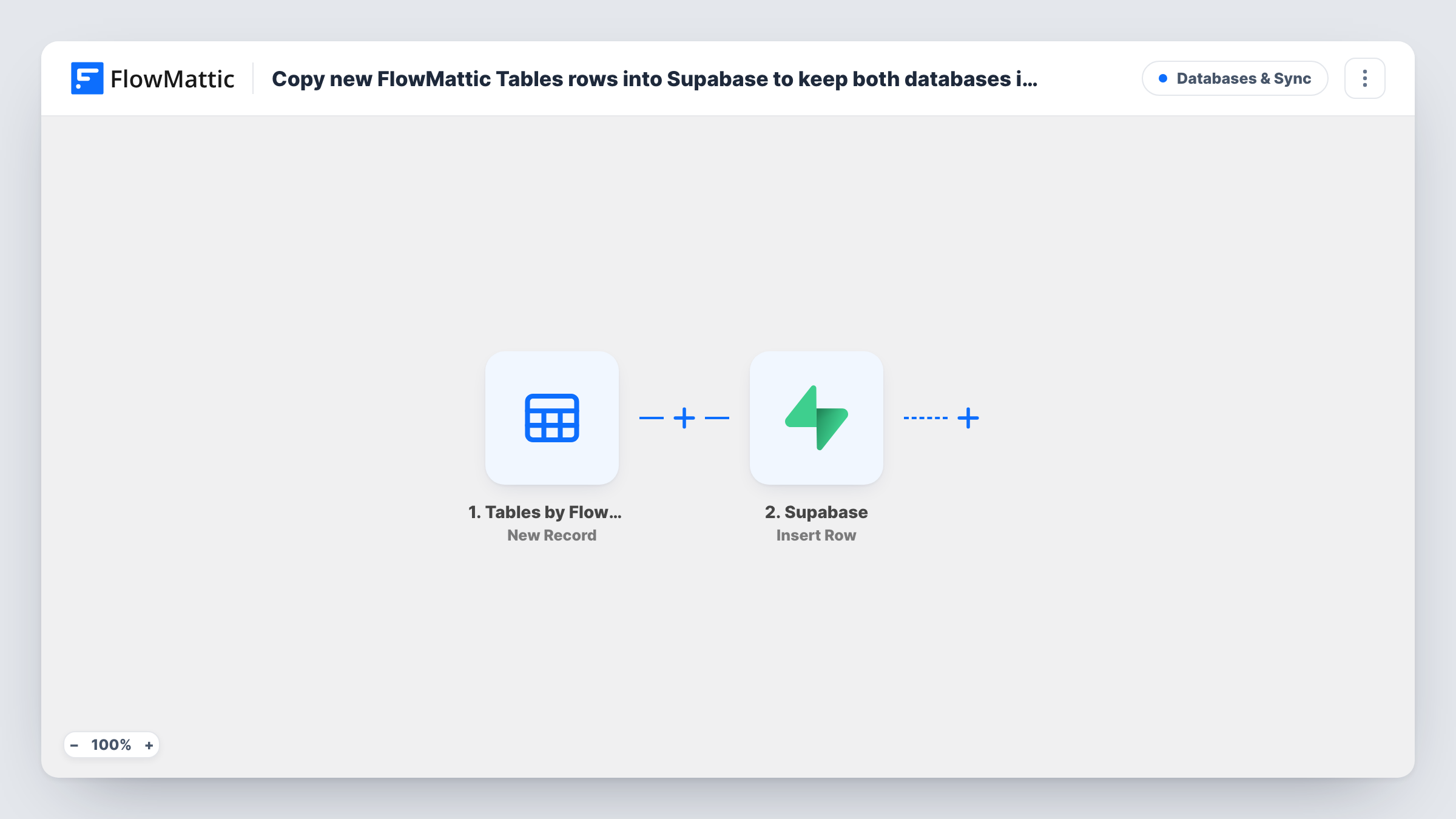
Each new row added to a FlowMattic Tables table is copied into a Supabase customers table, with its name, email and plan, so the same records are available in Postgres.
 Tables by FlowMattic
 Supabase
2 steps Setup ~5 min Used on 993 sites Databases & Sync Free to import
What this workflow does
FlowMattic Tables is handy for collecting data inside WordPress, but analytics tools, apps and other services often expect a Postgres database. Supabase gives you one. This workflow copies each new Tables row across, so you can keep entering data where you already do.
The FlowMattic Tables trigger fires when a new row is added to the table you pick. FlowMattic then runs Insert Row in Supabase on a table called customers. The row's Name, Email and Plan columns go into Supabase columns named name, email and plan.
Only new rows are copied. If you later edit or delete a row in FlowMattic Tables, the Supabase copy stays as it was, so the two stay matched only while rows aren't changed. FlowMattic Tables also has Updated Record and Deleted Record triggers if you want to extend this. Each copied row shows up as a run in Task History.
Customer sign-ups for a product database
A form workflow writes new customers into FlowMattic Tables, and this copy puts them in the Supabase customers table your app reads from.
Reporting on plans in SQL
An analyst queries the Supabase copy to count customers by plan, while the site team keeps working in FlowMattic Tables.
Moving to Supabase gradually
A business starting to move data into Supabase copies every new Tables row there, while older rows are imported once by hand.
How this workflow runs
What happens at each step once the workflow is on, and what you need before you import it.
 Tables by FlowMattic New Record
Fires when a new row is added to your chosen FlowMattic Tables table. The row's values, including Name, Email and Plan, are passed to Supabase.
- Supabase Insert Row
Inserts a row into the Supabase table customers, filling name, email and plan from the Tables row. Create those columns first, or change the table name and mapping to yours.
What you need
- FlowMatticCore
- Supabase AccountAccount
After importing, map your own data. To keep the template universal, not every step is pre-filled. Open each step in the builder and connect your accounts and fields (channels, lists, sheets, recipients) before you switch the workflow on.
Make it yours
Changes worth making after you import it.
- To carry edits across too, build a second workflow on FlowMattic Tables' Updated Record trigger with Supabase's Upsert Row action, matching on email.
- Add a unique constraint on email in Supabase if each customer should appear once. A repeat insert is then refused, and Task History shows the error.
- If your Tables columns aren't called Name, Email and Plan, add one test row after import and remap the fields from what the trigger captures.
Questions about this workflow
Do edits in FlowMattic Tables reach Supabase?
Not with this template. It runs on new rows only. Use the Updated Record trigger in a second workflow with an update or upsert action if you need edits copied.
Are rows already in my FlowMattic Tables table copied to Supabase?
No. Only rows added after you turn the workflow on are copied. Export older rows and import them into Supabase once if you need the full set.
What Supabase table does this expect?
A table called customers with name, email and plan columns. You can point the Insert Row step at a different table and change the mapping.
More Databases & Sync workflows
Other ready-to-import templates from the same category.




Import this workflow into your WordPress site
Download the JSON, import it from the Workflows screen and connect your accounts. Every run stays on your server, with no per-task fees.
30-day money-back guarantee Unlimited workflows and runs Self-hosted