

Save every WooCommerce order to a Grist table
Each new WooCommerce order adds a record to a Grist table with the customer’s name, email, order total and order number, so you can sort, filter and report on sales in Grist.
 WooCommerce
 Grist
Grist2 steps Setup ~5 min Used on 975 sites Databases & Sync Free to import
What this workflow does
WooCommerce keeps orders inside WordPress, which is fine for fulfilment but awkward when you want to slice sales your own way, join them with other data or share them with someone outside the shop. Grist gives you a spreadsheet-style database for that. This workflow copies the key details of every order into it.
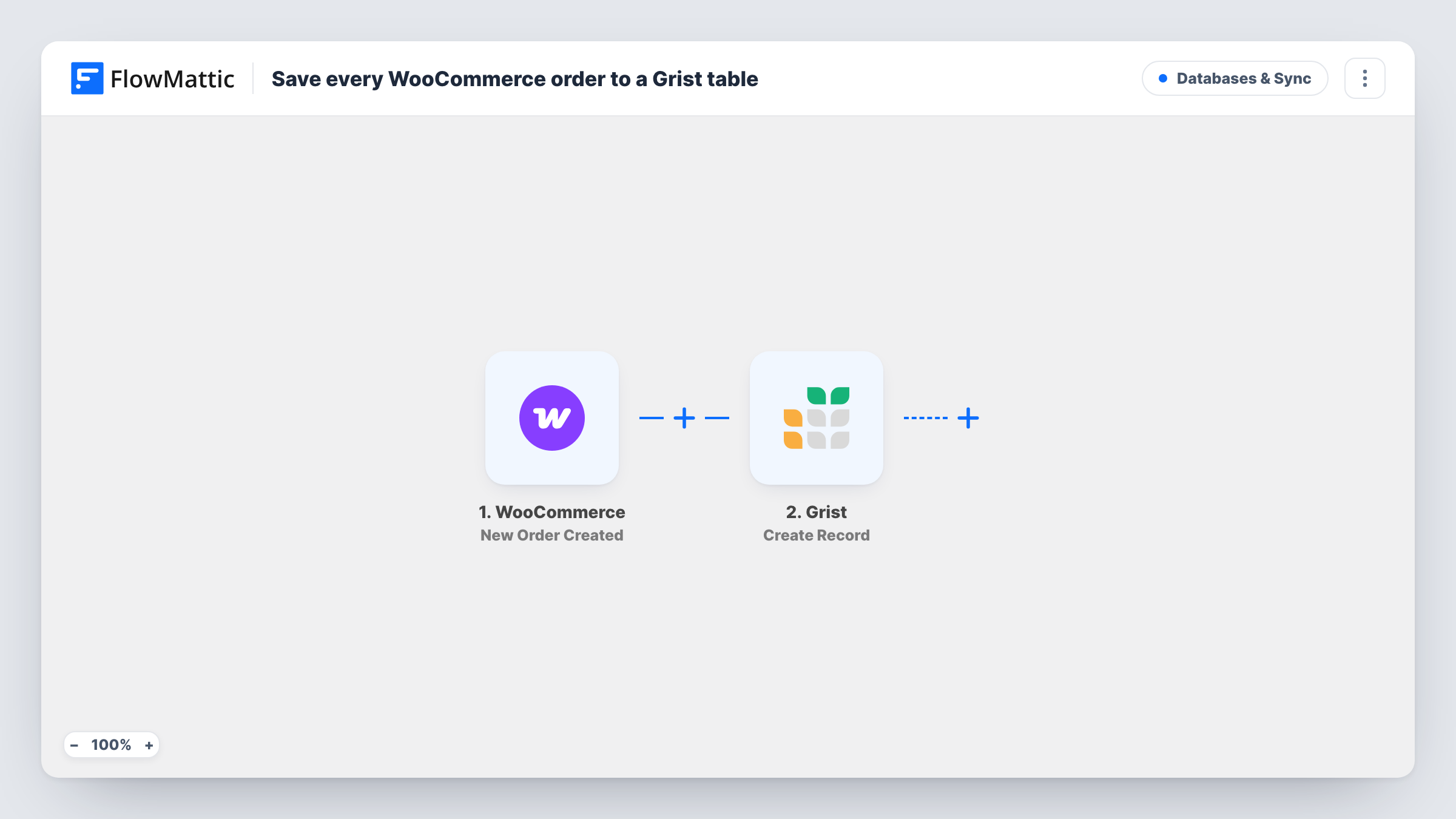
The WooCommerce trigger starts a run for each order your store receives. FlowMattic then runs Create Record in Grist. As shipped, the step fills four columns: Customer gets the billing first and last name, Email gets the billing email, Total gets the order total and Order gets the order number.
Your Grist table needs columns with those names, or you change the mapping to match the columns you have. Products and quantities are not mapped in the template; add them if you want them. One record is added per order, and Task History keeps a run for each one.
Sales reporting outside WordPress
A shop owner builds summary tables and charts in Grist from the order records, without giving anyone access to the WooCommerce admin.
Order lookups for a support team
Support staff search the Grist table by customer email to find an order number quickly when a buyer gets in touch.
Combining orders with other data
A small business keeps marketing costs in another Grist table and compares them with the order totals arriving from WooCommerce.
How this workflow runs
What happens at each step once the workflow is on, and what you need before you import it.
 WooCommerce New Order Created
Starts each time a customer places an order in WooCommerce. The order's billing details, totals and number are passed on for the Grist step to use.
- Grist Create Record
Adds one record to your Grist table. The template maps Customer to the billing name, Email to the billing email, Total to the order total and Order to the order number. Rename or extend these to fit your columns.
What you need
- FlowMatticCore
- WooCommerce PluginPlugin
- Grist AccountAccount
After importing, map your own data. To keep the template universal, not every step is pre-filled. Open each step in the builder and connect your accounts and fields (channels, lists, sheets, recipients) before you switch the workflow on.
Make it yours
Changes worth making after you import it.
- Place a test order after import and open the run in Task History to see every WooCommerce field you could add, such as payment method or order status.
- Want only paid orders in Grist? Add a Filter after the trigger on the order status, continuing only when it equals processing or completed. A test order shows the exact values.
- Make the Total column numeric in Grist, so sums and averages work on the order values as they arrive.
Questions about this workflow
Which Grist columns does the template expect?
Customer, Email, Total and Order. Create those columns in your table, or edit the Create Record step so its field names match the columns your Grist table already has.
Are the products in each WooCommerce order saved to Grist?
Not as imported. The template maps the customer name, email, total and order number only. Add the line item data to the Grist step if you want it, and test with a real order to see its format.
Does a Grist record change when the WooCommerce order is updated later?
No. The trigger fires when the order is created, and the record is written once. Status changes and refunds in WooCommerce don't edit it.
Do failed or pending WooCommerce orders reach Grist?
They can. The trigger fires when an order is created, whatever its payment status. Add a Filter on the order status if you want only paid orders recorded.
More Databases & Sync workflows
Other ready-to-import templates from the same category.





Import this workflow into your WordPress site
Download the JSON, import it from the Workflows screen and connect your accounts. Every run stays on your server, with no per-task fees.
30-day money-back guarantee Unlimited workflows and runs Self-hosted