

Generate an image for each post and add it to the media library
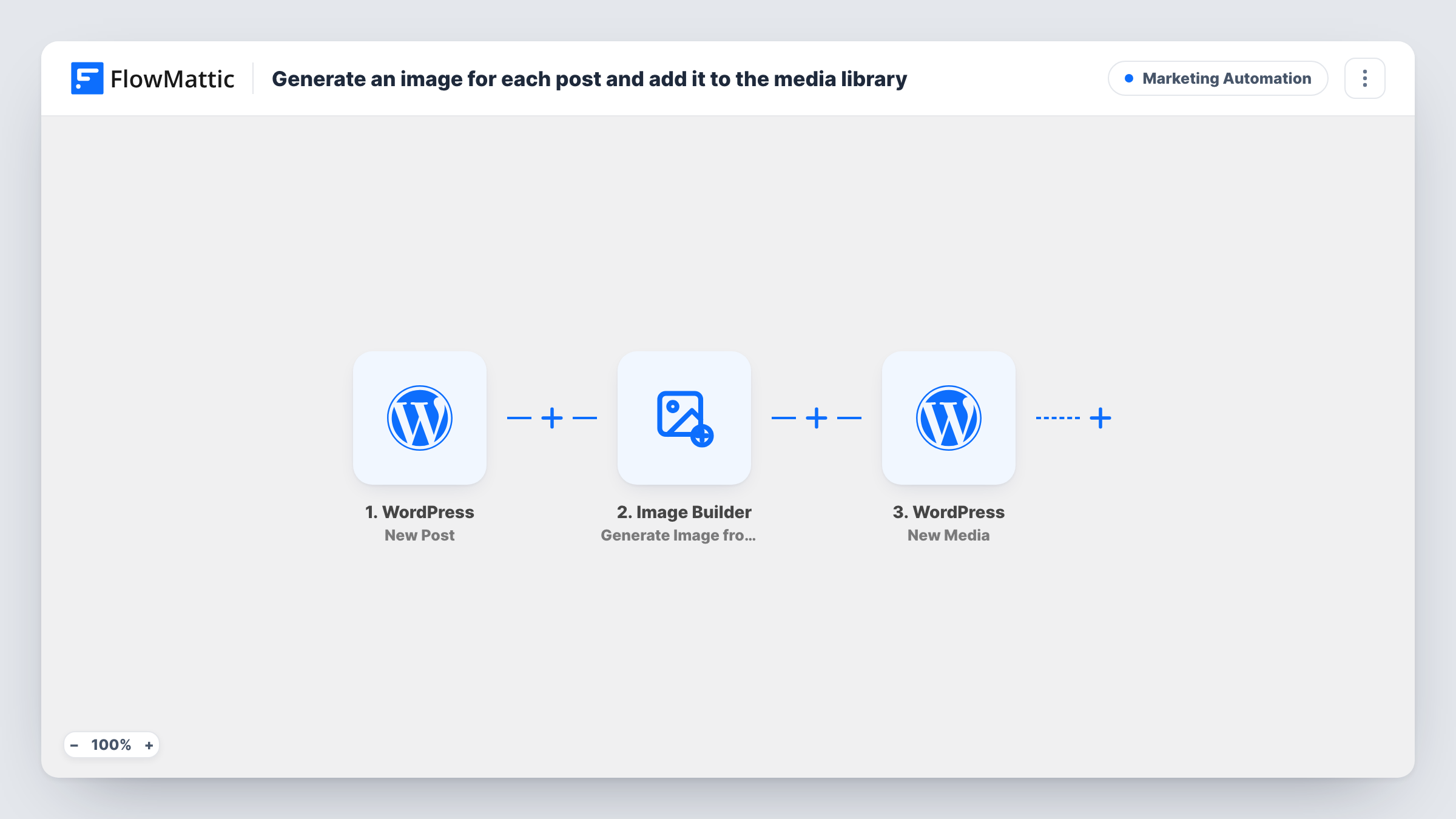
When a post is first published, Image Builder renders an image for it from your template, and a WordPress step then adds that image to the Media Library under the post’s title.
 WordPress
 Image Builder
3 steps Setup ~5 min Used on 603 sites Marketing Free to import
What this workflow does
Posts often need a matching image, for sharing or for the post itself, and building one per article by hand adds up. With a saved Image Builder template, the image can be made from the post's own details. This workflow does that each time a post goes live and files the result in your Media Library.
The WordPress trigger runs once per post, when it first moves to published. Image Builder fills your template with the post details you map, renders it through Cloudflare Browser Rendering and saves the PNG as og- plus the post ID. The last step, WordPress New Media, takes that image's URL and creates a media item titled with the post title.
Image Builder already saves its PNG to the Media Library, so as imported you end up with two entries per post: Image Builder's file and the copy titled after the post. Keep both, or remove the New Media step if one is enough. The template doesn't set the image as the featured image; the tips show how. Choose your own template too, since ID 8 comes from the author's site.
Open Graph images for a blog
Every article gets a branded share image with its headline, stored in the Media Library where your SEO plugin can pick it as the social image.
Featured images for a news feed
A site publishing many short news posts adds a set-thumbnail step, so each one shows a headline image without anyone designing it.
A library of post graphics
A marketing team wants every post's graphic in the Media Library under the post's title, so it is easy to find again by searching.
How this workflow runs
What happens at each step once the workflow is on, and what you need before you import it.
 WordPress New Post
Fires once per post, when it is first published; later edits and WordPress pages don't trigger it. The post ID, title and other details go to Image Builder.
- Image Builder Generate Image from Template
Renders a PNG from your saved Image Builder template with the post details mapped in, and saves it to the Media Library as og- plus the post ID. Select your own template instead of ID 8.
- WordPress New Media
Creates a new item in the WordPress Media Library from the Image Builder file's URL, titled with the post title. This adds a second entry next to the one Image Builder saved.
What you need
- FlowMatticCore
After importing, map your own data. To keep the template universal, not every step is pre-filled. Open each step in the builder and connect your accounts and fields (channels, lists, sheets, recipients) before you switch the workflow on.
Make it yours
Changes worth making after you import it.
- To make the image the post's featured image, add WordPress' Set Post Thumbnail action after the last step, mapping the post ID from the trigger and the image's media ID, which a test run shows in the New Media or Image Builder output.
- Map the post's category or author into the Image Builder template data as well as the title, after a test publish shows the field names.
- If you only want one copy per post, delete the New Media step and use the file Image Builder already saves to the Media Library.
Questions about this workflow
Why do I see two images in the Media Library for each post?
Image Builder saves its PNG to the Media Library, and the New Media step then creates another item from that file's URL with the post title. Remove the last step if you need just one.
Does this set the generated image as the WordPress featured image?
No, not as imported. Add WordPress' Set Post Thumbnail action, which sets a post's featured image, and map the post ID and the new media item into it.
What does Image Builder need to make the post image?
A saved Image template of your own and Cloudflare Browser Rendering credentials in FlowMattic Settings, which Image Builder uses to render the template.
More Marketing Automation workflows
Other ready-to-import templates from the same category.







Import this workflow into your WordPress site
Download the JSON, import it from the Workflows screen and connect your accounts. Every run stays on your server, with no per-task fees.
30-day money-back guarantee Unlimited workflows and runs Self-hosted