

Accept Payment through any payment gateway using WooCommerce checkout
When a shopper clicks Pay Now on your Voxel cart page, FlowMattic generates a WooCommerce checkout URL for the purchase and sends them to it, so they can pay with any gateway you have enabled in WooCommerce.
 Voxel
Voxel2 steps Setup ~5 min Used on 2.5k sites Free to import
What this workflow does
Voxel has its own checkout, but many site owners already run WooCommerce with the payment gateways their customers expect, from local card processors to bank transfers. Rather than set up payments twice, this workflow hands Voxel product purchases over to the WooCommerce checkout you already trust.
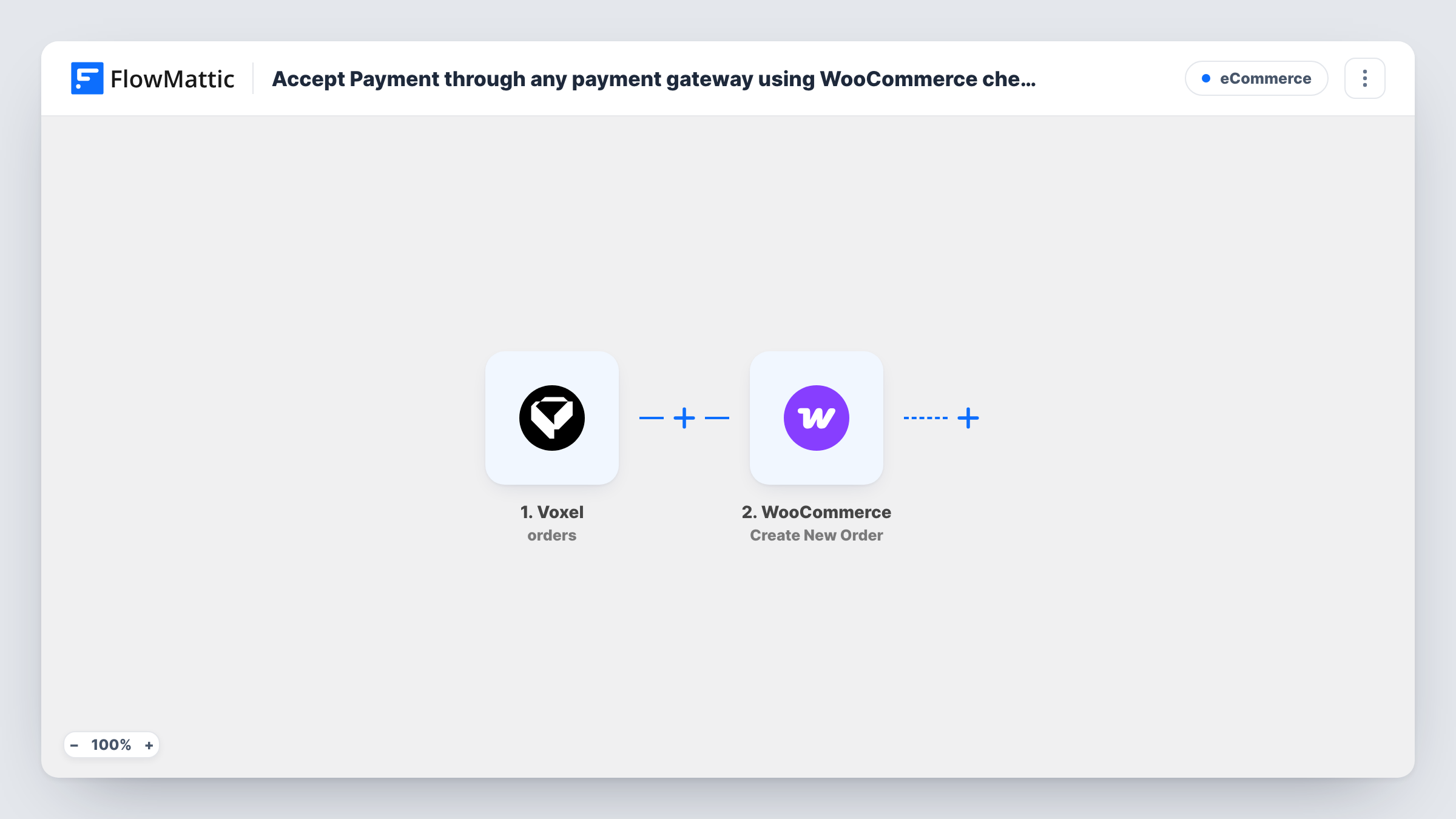
The Voxel Regular Product Checkout trigger fires when someone clicks the Pay Now button on the cart page, and passes the cart details to FlowMattic. The second step, Checkout Products with WooCommerce, also from the Voxel integration, generates a checkout URL and redirects the shopper to it to complete the purchase. Payment then happens on the WooCommerce checkout page, through whichever gateways are active there.
The action step ships unmapped. After import you map the cart details from the trigger into it, so the checkout holds the right products. Place a test purchase and check Task History to confirm what the trigger passed and which URL the step generated.
You need WooCommerce installed on the same site as Voxel and FlowMattic, with at least one payment gateway turned on. The workflow handles the hand-off to checkout only; what happens after payment depends on your WooCommerce and Voxel order settings.
Local payment methods for a directory shop
A Voxel directory that sells featured placements sends buyers to WooCommerce, where the regional card gateway and bank transfer the owner already uses are available.
One payment setup for two systems
A site that sells both WooCommerce merchandise and Voxel products keeps a single set of gateways and payment reports instead of configuring Voxel payments separately.
One checkout page for the whole store
A marketplace owner routes Voxel cart purchases to the WooCommerce checkout, so shoppers see the same payment page whether they buy a listing upgrade or merchandise.
How this workflow runs
What happens at each step once the workflow is on, and what you need before you import it.
 Voxel Regular Product Checkout
Fires when a shopper clicks Pay Now on the Voxel cart page. The cart details are passed on so the next step can build the WooCommerce checkout.
- Voxel Checkout Products with WooCommerce
Generates a WooCommerce checkout URL and redirects the shopper there to pay. The step ships unmapped, so map the cart details from the Voxel trigger into it after import.
What you need
- FlowMatticCore
- Voxel AccountAccount
After importing, map your own data. To keep the template universal, not every step is pre-filled. Open each step in the builder and connect your accounts and fields (channels, lists, sheets, recipients) before you switch the workflow on.
Make it yours
Changes worth making after you import it.
- Turn on and test the WooCommerce payment gateways you want before going live, since the shopper only sees what WooCommerce checkout offers.
- Place a test purchase with a low-priced product and follow it all the way through payment, so you can see how the order appears in both WooCommerce and Voxel.
- Add a short note on the Voxel cart page that payment is completed on the next screen, so shoppers aren't surprised when the WooCommerce checkout opens.
Questions about this workflow
Do I need WooCommerce installed to use this Voxel workflow?
Yes. The checkout URL the action generates is a WooCommerce checkout, so WooCommerce has to be active on the same WordPress site, with at least one payment gateway enabled.
Which payment gateways can my Voxel shoppers use?
Whichever ones you have enabled in WooCommerce. The workflow sends the shopper to the WooCommerce checkout, and the gateways shown there are the ones they can pay with.
Does this workflow handle Voxel membership or promotion purchases?
No. The trigger is Regular Product Checkout, for the cart page. FlowMattic's Voxel integration has separate checkout triggers and actions for memberships, promotions and paid listings.
What happens if the shopper leaves the WooCommerce checkout without paying?
The workflow has already done its part by sending them to checkout. Whether an unpaid order remains depends on your WooCommerce setup, so test it with an abandoned checkout.
More E-Commerce workflows
Other ready-to-import templates from the same category.







Import this workflow into your WordPress site
Download the JSON, import it from the Workflows screen and connect your accounts. Every run stays on your server, with no per-task fees.
30-day money-back guarantee Unlimited workflows and runs Self-hosted