

Add a new Qualtrics mention or case as a HubSpot CRM contact for follow-up
Each new mention or case that comes in through Qualtrics creates a contact in HubSpot CRM, so the person behind the feedback is in your CRM and your team can reach out, assign an owner or log the follow-up.
 Qualtrics
 HubSpot CRM
2 steps Setup ~5 min Used on 567 sites Free to import
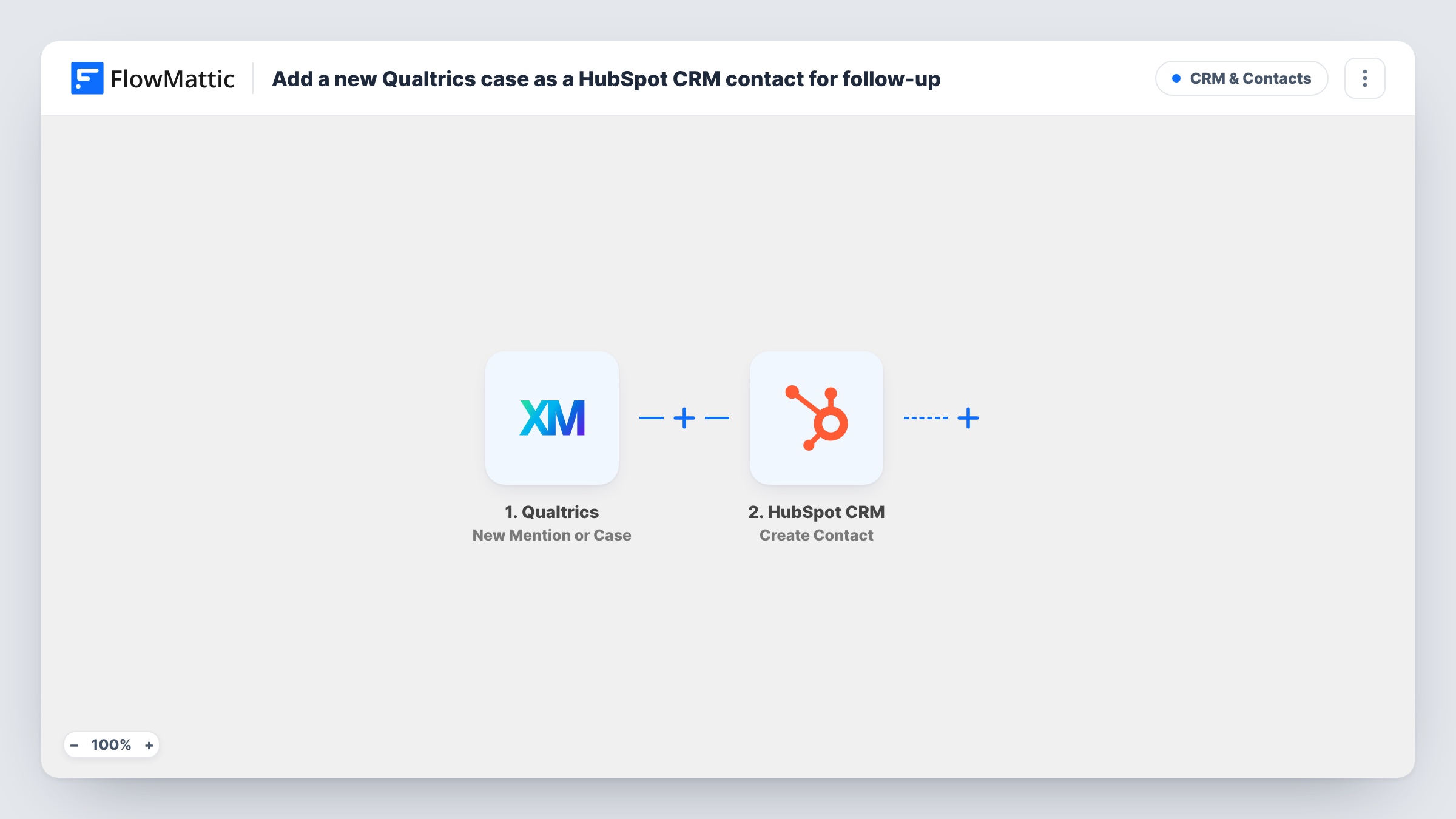
What this workflow does
Feedback in Qualtrics is most useful when someone acts on it. If your sales, success or support teams work in HubSpot, they need the person as a contact there before they can call, email or track the conversation. This workflow creates that contact for every new mention or case.
The Qualtrics trigger runs for each new mention or case, so both kinds create a contact. The fields Qualtrics sends depend on the item: a case tied to a customer may include an email and name, while a mention may carry less. Run a test with a real item to see what you get.
Next, HubSpot CRM gets a new contact record. That step ships unmapped, so after import you connect HubSpot and map the Qualtrics values, such as email and name, into the contact properties. The action creates new records only, so HubSpot may refuse a contact whose email it already holds; check Task History for its response.
If some items have no email, HubSpot may reject them or create contacts that are hard to follow up. A Filter on the email, placed as the tips explain, keeps those out.
Follow up on detractor cases
A customer success team gets a HubSpot contact for each new Qualtrics case, then assigns an owner to call the customer back.
Sales leads from positive mentions
A B2B company adds the people behind new Qualtrics mentions to HubSpot so account executives can see who is talking about the product.
One CRM record for feedback outreach
A service business keeps everyone who raised a case in HubSpot, so its follow-up emails and calls are logged against a single contact.
How this workflow runs
What happens at each step once the workflow is on, and what you need before you import it.
 Qualtrics New Mention or Case
Starts a run for every new Qualtrics mention and every new case. The item's data, which may include the person's email and name, is passed to HubSpot.
- HubSpot CRM Create Contact
Creates a contact in HubSpot CRM from the values you map. The step ships unmapped: connect HubSpot and map the Qualtrics email, name and any other fields you want on the contact.
What you need
- FlowMatticCore
- Qualtrics AccountAccount
- HubSpot CRM AccountAccount
After importing, map your own data. To keep the template universal, not every step is pre-filled. Open each step in the builder and connect your accounts and fields (channels, lists, sheets, recipients) before you switch the workflow on.
Make it yours
Changes worth making after you import it.
- Put a Filter between the Qualtrics trigger and the HubSpot step that continues only when the email field is not empty, so mentions without an address don't create empty contacts.
- Map a Qualtrics detail such as the case ID or topic into a custom HubSpot property, so your team can see what the feedback was about from the contact record.
- If you only want cases in HubSpot, check a test run for a field that separates cases from mentions and add that condition to the same Filter before the HubSpot step.
Questions about this workflow
Do Qualtrics mentions create HubSpot contacts as well as cases?
Yes. The trigger fires for both new mentions and new cases, and each one runs the HubSpot step. Add a Filter between the trigger and the HubSpot step if you want only one kind.
What if someone from a Qualtrics case is already in HubSpot?
This step only creates records and doesn't merge into an existing one, so HubSpot may turn down a second contact with the same email. The response for that run is in Task History.
Which Qualtrics fields does the HubSpot contact get?
Only the ones you map. The template leaves the HubSpot step empty, so run a test to see the fields Qualtrics sends and match them to contact properties.
More CRM & Contacts workflows
Other ready-to-import templates from the same category.





Import this workflow into your WordPress site
Download the JSON, import it from the Workflows screen and connect your accounts. Every run stays on your server, with no per-task fees.
30-day money-back guarantee Unlimited workflows and runs Self-hosted