

Add a Todoist follow-up task when a Kixie voicemail is left
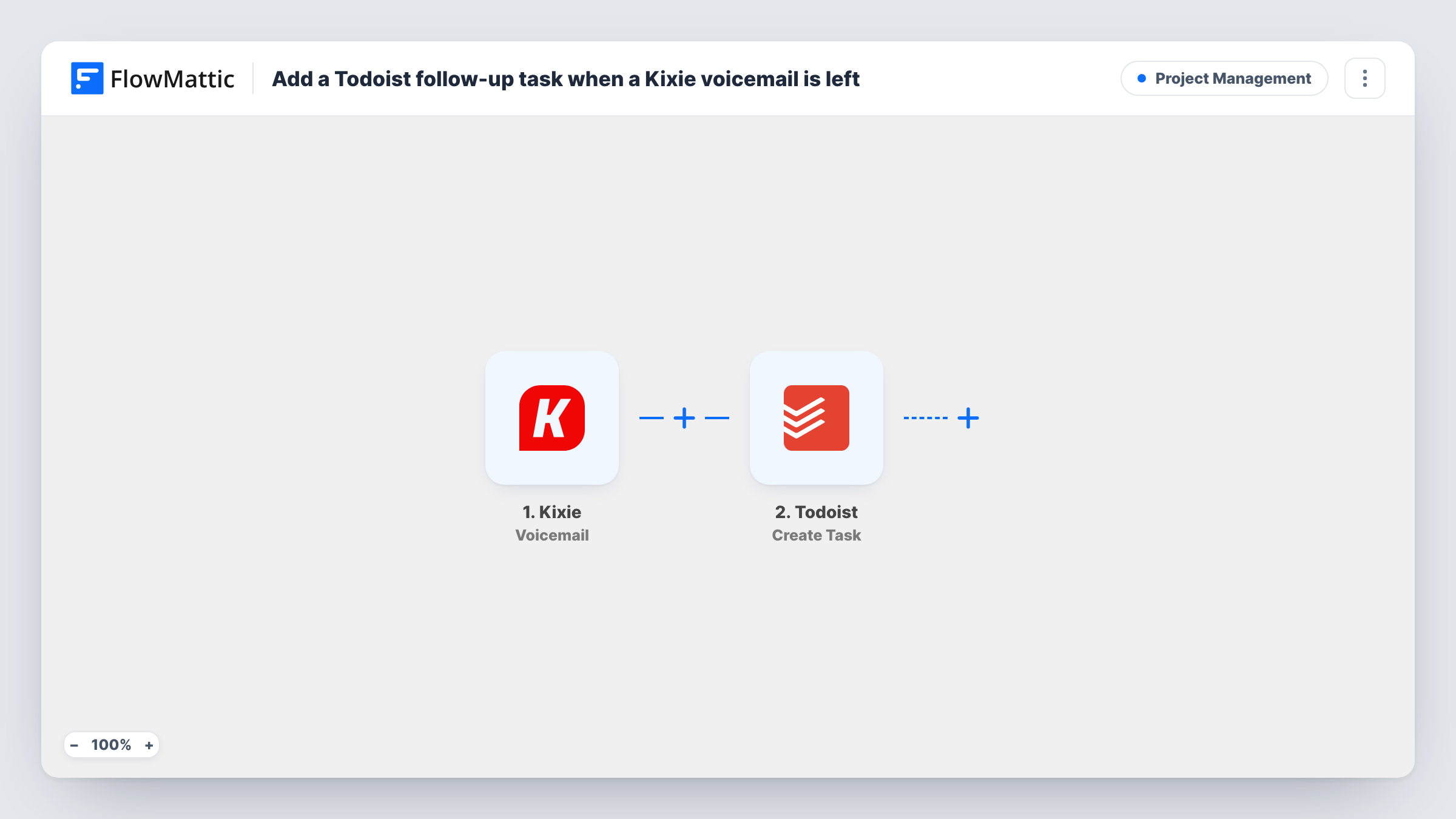
When a caller leaves a voicemail on your Kixie line, this workflow creates a Todoist task to follow up, with call details you map into it, so each message becomes an item on your list to call back.
 Kixie
Kixie
 Todoist
2 steps Setup ~5 min Used on 1.2k sites Productivity Free to import
What this workflow does
Voicemails sit in a phone app that nobody checks on a schedule. A caller who left a message expects a call back, and the message is easy to miss between live calls. This workflow turns every inbound voicemail on Kixie into a task in the list you already work from.
The Kixie Voicemail trigger fires when an inbound voicemail is received. FlowMattic takes the data Kixie sends with it and passes it to Todoist, whose Create Task action adds a new task. You write the task text once, for example "Call back" followed by the caller's number, and the values fill in for each voicemail.
Every voicemail creates one task, since the template has no conditions. A caller who leaves two messages gets two tasks. What the task can show depends on what Kixie includes with the event, so run a test and look at the data in Task History before you decide what goes in the task name.
Sales reps who miss calls between demos
A prospect calls while a rep is on another call and leaves a message. The Todoist task to call back is waiting when the rep checks their list.
Small office with a shared callback list
Voicemails on the main Kixie number become tasks in a shared Todoist project, and whoever is free picks the next one.
After-hours messages
Messages left overnight turn into tasks, so the morning starts with a list of people to call back instead of a voicemail inbox.
How this workflow runs
What happens at each step once the workflow is on, and what you need before you import it.
 Kixie Voicemail
Fires when an inbound voicemail is received on your Kixie account. The call data Kixie sends with it, such as who called, becomes available for the Todoist step.
- Todoist Create Task
Creates a Todoist task for that voicemail. Connect Todoist on import, write the task text, and map voicemail values into it so each task shows who to call. A test run shows which options the step gives you.
What you need
- FlowMatticCore
- Kixie AccountAccount
- Todoist AccountAccount
After importing, map your own data. To keep the template universal, not every step is pre-filled. Open each step in the builder and connect your accounts and fields (channels, lists, sheets, recipients) before you switch the workflow on.
Make it yours
Changes worth making after you import it.
- Put the caller's number in the task name if a test run shows Kixie sends it, so you can call back from the task without opening Kixie.
- Add a Filter after the trigger if only one line or one rep's voicemails should create tasks. Check a test run for the value that tells them apart.
- If your team works from a chat tool, add a Slack step after Todoist with the same caller details, so the person on duty sees the voicemail as well.
Questions about this workflow
Does every Kixie voicemail create a Todoist task?
Yes. The Voicemail trigger fires for each inbound voicemail, and the template has no conditions, so each one adds a task.
Can the Todoist task include the Kixie voicemail recording?
Only if Kixie sends a link to it with the event. Run a test, and if a recording link is in the data, map it into the task description.
Does this work for outbound calls or missed calls without a message?
No. This trigger fires on inbound voicemails only. Kixie in FlowMattic has other triggers, such as End Call, if you want tasks for other call events.
Will Kixie voicemails left before I import this become tasks?
No. The trigger only reacts to voicemails received after the workflow is turned on. Older messages stay in Kixie for you to handle there.
More Project Management workflows
Other ready-to-import templates from the same category.





Import this workflow into your WordPress site
Download the JSON, import it from the Workflows screen and connect your accounts. Every run stays on your server, with no per-task fees.
30-day money-back guarantee Unlimited workflows and runs Self-hosted