

Add a Todoist reminder when a Worksection task is edited
Every time someone edits an existing task in Worksection, this workflow creates a new task in Todoist from the details you map, so changes to shared work land in your personal to-do list as a reminder to check them.
 Worksection
 Todoist
2 steps Setup ~5 min Used on 2.3k sites Productivity Free to import
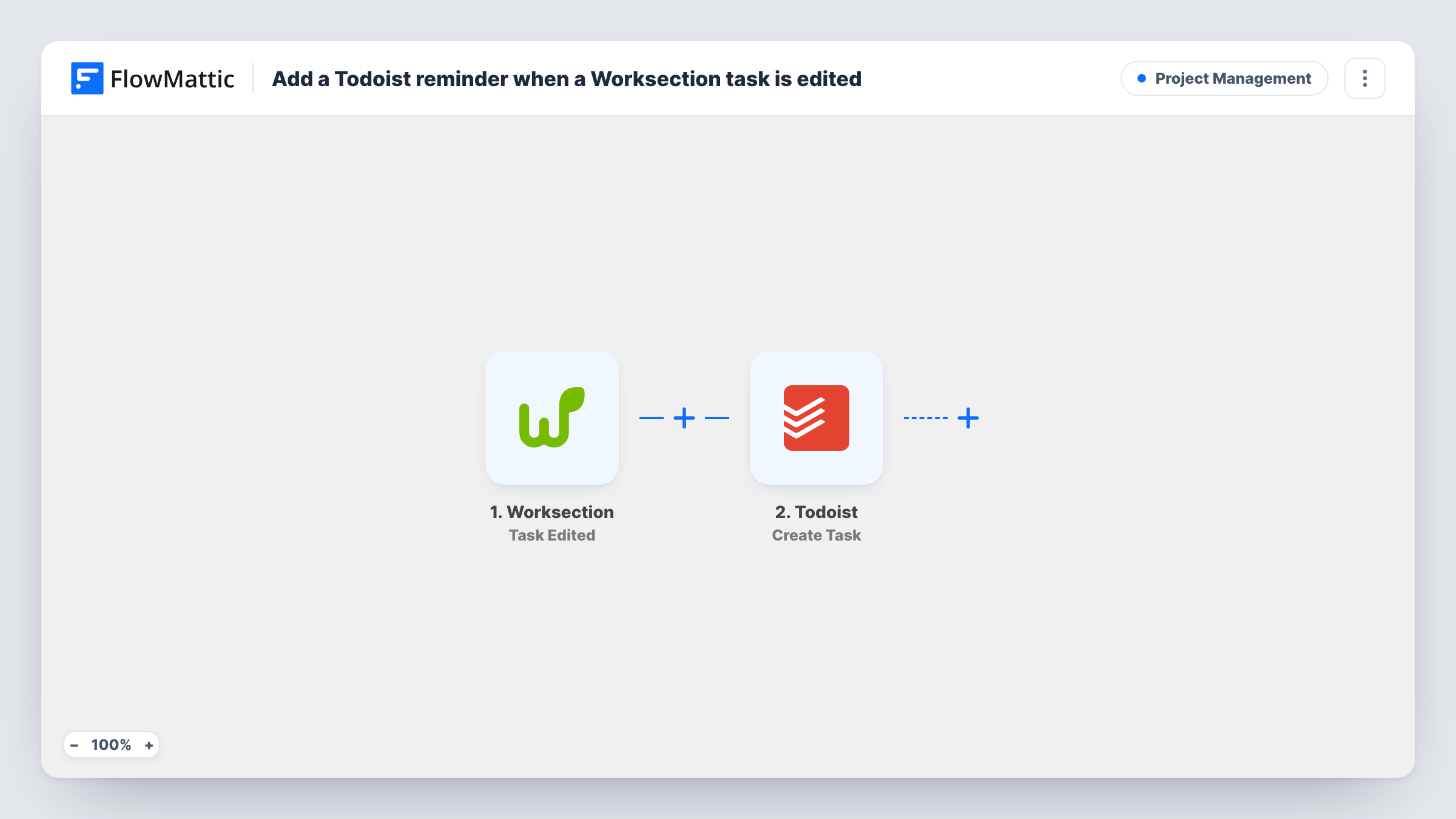
What this workflow does
When a shared Worksection task changes, the person affected doesn't always notice. A new deadline or a rewritten brief can slip past until it is too late. If you plan your own day in Todoist, this workflow drops a to-do there each time a Worksection task is edited, so you remember to look.
The Worksection trigger fires when a user edits an existing task. FlowMattic passes the task data from that event to Todoist and runs Create Task. You build the Todoist task from the values you map, for example the Worksection task name in the title and its link or new due date in the description, as far as the trigger includes them.
Each edit creates its own Todoist task. Nothing checks for an earlier one, so a Worksection task changed five times gives you five Todoist tasks. Task History logs each run and Todoist's reply.
Freelancer tracking client changes
A freelance copywriter works on tasks in a client's Worksection. Each time the client edits one, a Todoist to-do reminds the writer to review the change.
Manager watching key deliverables
A project manager gets a Todoist task whenever a Worksection task is edited, giving a checklist of changes to review at the end of the day.
Personal follow-up on reassigned work
A developer who plans in Todoist sees a new to-do when a Worksection task is edited, which is often the first sign that work has been handed to them.
How this workflow runs
What happens at each step once the workflow is on, and what you need before you import it.
 Worksection Task Edited
Fires when a user edits an existing task in Worksection. The task's details from that event become available for the Todoist step.
- Todoist Create Task
Creates a new task in Todoist built from the Worksection values you map, such as the task name. Connect your Todoist account on import and check a test run to see where the task lands.
What you need
- FlowMatticCore
- Worksection AccountAccount
- Todoist AccountAccount
After importing, map your own data. To keep the template universal, not every step is pre-filled. Open each step in the builder and connect your accounts and fields (channels, lists, sheets, recipients) before you switch the workflow on.
Make it yours
Changes worth making after you import it.
- Add a Filter after the trigger so only edits that matter create a Todoist task, for example when the task is assigned to you, using a value Worksection sends.
- Edit a test task in Worksection after import and review Task History to learn which fields the trigger passes before you map the Todoist task.
- If you'd rather get one Todoist task per new Worksection task, switch the trigger to Worksection's Task Created event.
Questions about this workflow
Will every Worksection task edit create a Todoist task?
Yes. As imported, each edit to any task starts a run and makes a new Todoist task. Add a Filter if you only want edits to certain tasks.
Does Todoist update the earlier to-do when the same Worksection task changes again?
No. The step always creates a fresh Todoist task. Repeated edits give you repeated tasks, which you can tick off as you review them.
Does this set a Todoist reminder alert?
The workflow creates a Todoist task, which acts as your reminder in the list. It doesn't set a separate reminder notification.
Can the Todoist task show what changed in Worksection?
It can show any values the Task Edited trigger includes, mapped into the task. Run a test edit to see whether Worksection sends the changed fields.
More Project Management workflows
Other ready-to-import templates from the same category.





Import this workflow into your WordPress site
Download the JSON, import it from the Workflows screen and connect your accounts. Every run stays on your server, with no per-task fees.
30-day money-back guarantee Unlimited workflows and runs Self-hosted