

Add each new Wisepops sign-up to a Mailchimp audience
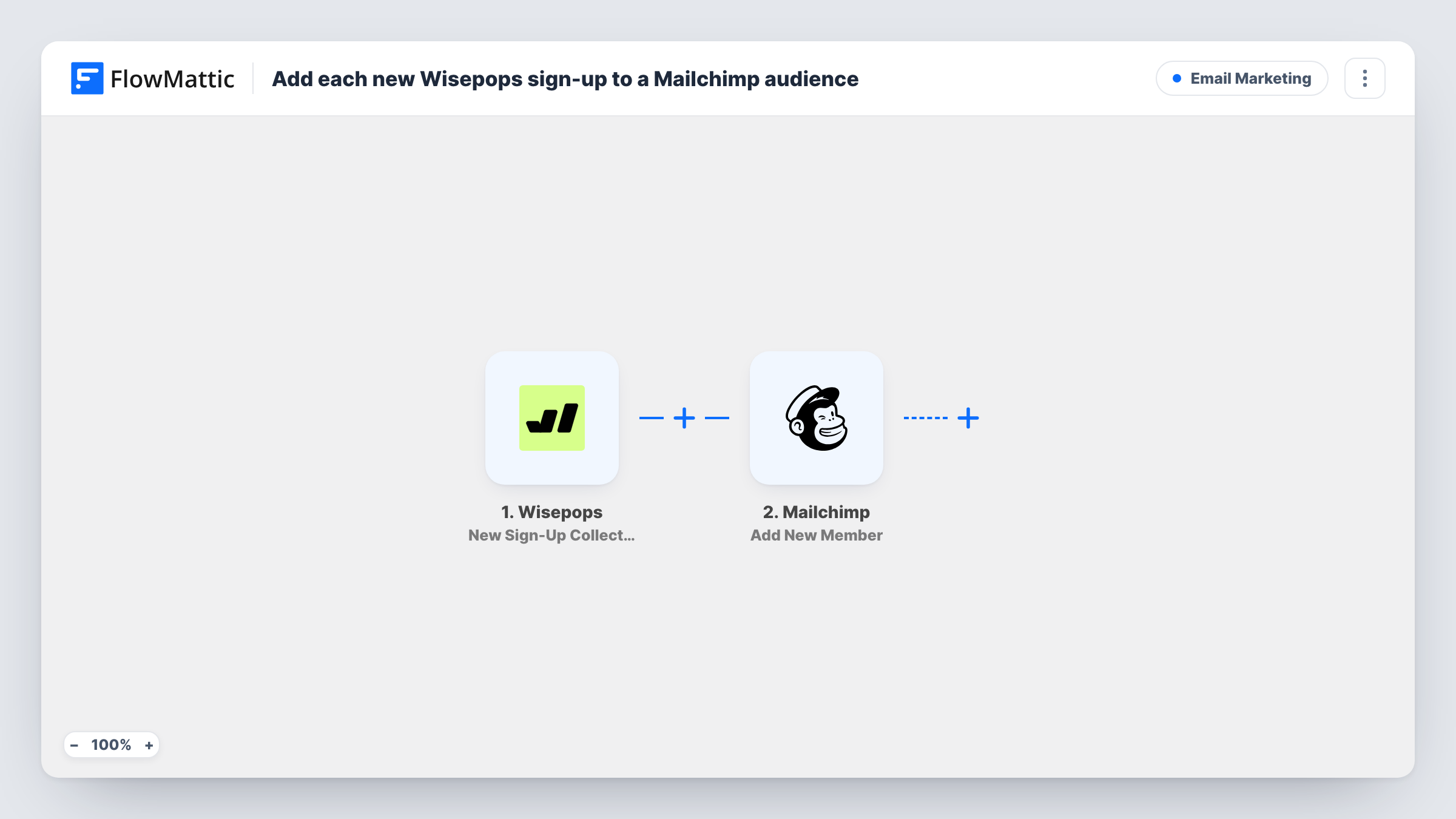
When a Wisepops popup collects a new sign-up email, this workflow adds that person to your Mailchimp audience, or updates them if they are already on it, so popup subscribers reach your list without a CSV export.
 Wisepops
 Mailchimp
2 steps Setup ~5 min Used on 1.6k sites Free to import
What this workflow does
A Wisepops popup can collect addresses all day, but they do nothing until they reach the list you send campaigns from. Exporting sign-ups from Wisepops and importing them into Mailchimp is slow, and anyone who joins between imports waits for your next batch. This workflow moves each address as it is collected.
The Wisepops trigger fires when a new sign-up email is collected. FlowMattic passes the sign-up data to Mailchimp and runs Add New Member on the audience you choose. That action adds a new member, or updates the existing member when the address is already on the list.
Only email sign-ups start this flow. Wisepops survey answers and phone numbers have their own triggers and don't run it. Each run is listed in Task History, so you can see the address that was sent and Mailchimp's response.
Discount popup on an online shop
A store offers a first-order code in a Wisepops popup. Each address goes to the Mailchimp audience that receives the store's welcome emails.
Exit-intent newsletter offer on a blog
Readers who leave their email in an exit popup are added to the blog's Mailchimp list in time for the next weekly issue.
Waitlist for a product launch
A Wisepops popup on a pre-launch page collects interest, and each address joins a Mailchimp audience used for the launch announcement.
How this workflow runs
What happens at each step once the workflow is on, and what you need before you import it.
 Wisepops New Sign-Up Collected
Fires when a Wisepops popup collects a new sign-up email. The address, plus any other data Wisepops sends with the sign-up, is ready to map.
- Mailchimp Add New Member
Adds the sign-up to the Mailchimp audience you select, or updates the member if that address is already there. Map the Wisepops email to the member's address and connect your Mailchimp account.
What you need
- FlowMatticCore
- Wisepops AccountAccount
- Mailchimp AccountAccount
After importing, map your own data. To keep the template universal, not every step is pre-filled. Open each step in the builder and connect your accounts and fields (channels, lists, sheets, recipients) before you switch the workflow on.
Make it yours
Changes worth making after you import it.
- Do a test sign-up through your popup after import, then check Task History to see which Wisepops fields arrive before you map anything beyond the email.
- Running several popups for different offers? Add a Filter on a value that tells the popups apart, if Wisepops sends one, so only sign-ups from the right popup reach this audience.
- To collect phone numbers too, build a second workflow on Wisepops's New Phone Collected trigger and send those to the tool you use for SMS.
Questions about this workflow
What if the Wisepops sign-up is already in my Mailchimp audience?
Add New Member updates the existing member instead of adding a duplicate, so the address stays on your list once.
Do Wisepops survey responses reach Mailchimp too?
No. This template uses the New Sign-Up Collected trigger, which covers sign-up emails only. Surveys have a separate Wisepops trigger.
Which Mailchimp audience do new members join?
You set the audience when you configure Add New Member, and every Wisepops sign-up joins that same list. For a second audience, duplicate the workflow, pick the other audience in the copy, and give each copy a Filter that passes only its own popup's sign-ups.
Are sign-ups collected before import added to Mailchimp?
No. Only addresses Wisepops collects while the workflow is on are sent. Export older sign-ups from Wisepops and import them into Mailchimp once.
More Email Marketing workflows
Other ready-to-import templates from the same category.



Import this workflow into your WordPress site
Download the JSON, import it from the Workflows screen and connect your accounts. Every run stays on your server, with no per-task fees.
30-day money-back guarantee Unlimited workflows and runs Self-hosted