

Add GMass contacts who reply to a HubSpot CRM deal pipeline
When someone replies to an email from one of your GMass campaigns, this workflow creates a deal in HubSpot CRM, so replies turn into pipeline items your sales team can work.
 GMass
 HubSpot CRM
2 steps Setup ~5 min Used on 475 sites Free to import
What this workflow does
In cold outreach, a reply is the moment a prospect becomes worth tracking. If replies only live in your Gmail inbox, it's easy to lose sight of them once the thread goes quiet. This workflow puts each reply into HubSpot as a deal.
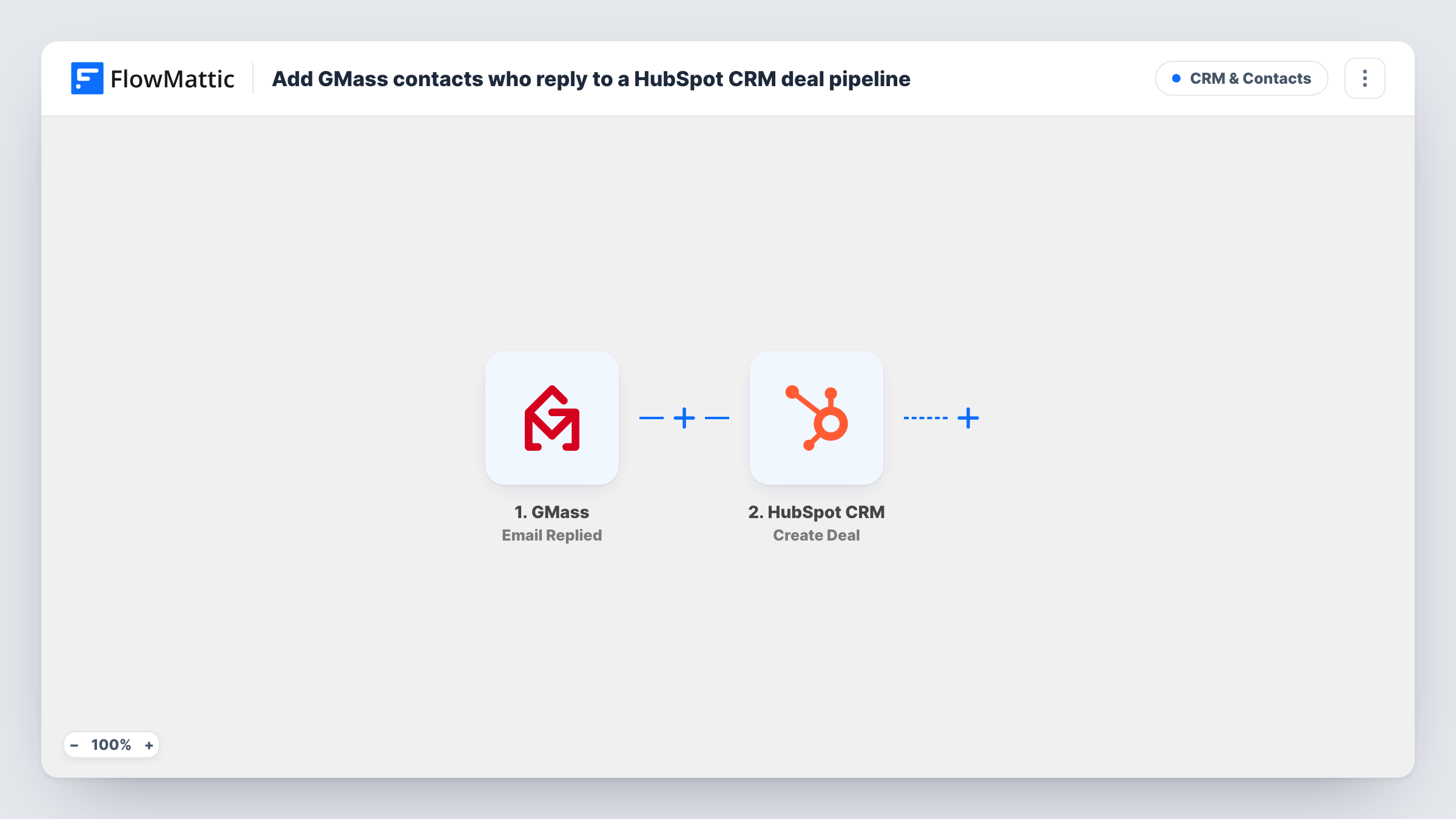
The GMass trigger fires when an email sent as part of a GMass campaign receives a reply. FlowMattic receives the reply data, such as the recipient's address, and passes it to HubSpot CRM. The Create Deal action then creates a new deal. You map reply details into the deal so it's clear who it relates to.
Every reply creates a deal, including a one-line "not interested" or an out-of-office answer, and a second reply from the same person creates another one. The workflow does not read the reply or judge whether it is positive. Check in a test whether the deal is linked to a HubSpot contact in your setup, and use Task History to see HubSpot's response.
Cold outreach for a B2B service
You send a GMass campaign to a list of prospects. Each reply opens a deal in HubSpot, so the account owner can qualify it in the pipeline.
Agency new-business campaigns
An agency emails potential clients through GMass. Replies become HubSpot deals the team reviews in its weekly pipeline meeting.
Re-engaging past customers
A GMass campaign goes to lapsed customers, and anyone who writes back appears as a HubSpot deal for the account manager.
How this workflow runs
What happens at each step once the workflow is on, and what you need before you import it.
 GMass Email Replied
Fires when a reply arrives to an email sent in one of your GMass campaigns. The reply data is passed to HubSpot for mapping.
- HubSpot CRM Create Deal
Creates a deal in HubSpot CRM from the reply. Connect HubSpot, map the replier's details into the deal, and check with a test reply which pipeline and stage the deal lands in.
What you need
- FlowMatticCore
- GMass AccountAccount
- HubSpot CRM AccountAccount
After importing, map your own data. To keep the template universal, not every step is pre-filled. Open each step in the builder and connect your accounts and fields (channels, lists, sheets, recipients) before you switch the workflow on.
Make it yours
Changes worth making after you import it.
- Add a Filter after the GMass trigger to leave out replies you don't want as deals, for example ones whose subject contains out of office, if that text is in the trigger data.
- Put the replier's email address and the campaign name in the deal name, so deals from different campaigns are easy to tell apart in HubSpot.
- Add a HubSpot contact step before Create Deal if every replier should also exist as a HubSpot contact.
Questions about this workflow
Does every GMass reply create a HubSpot deal?
Yes, as imported. Auto-replies and negative answers count as replies too. A Filter can keep some of them out.
What if the same GMass recipient replies twice?
Each reply runs the workflow, so a second deal is created. Nothing checks HubSpot for an existing deal first.
Is the HubSpot deal linked to the contact?
That depends on what the Create Deal step lets you set in your account. Run a test reply and open the deal in HubSpot to see whether a contact is attached.
Which accounts does the GMass to HubSpot workflow need?
A GMass account sending your campaigns and a HubSpot CRM account that can create deals, both connected in FlowMattic.
More CRM & Contacts workflows
Other ready-to-import templates from the same category.





Import this workflow into your WordPress site
Download the JSON, import it from the Workflows screen and connect your accounts. Every run stays on your server, with no per-task fees.
30-day money-back guarantee Unlimited workflows and runs Self-hosted