

Add Google Sheets rows for new Smartsheet rows
Every time a row is added to your Smartsheet sheet, this workflow adds a matching row to a Google Sheets spreadsheet, so people who work in Google Sheets get the new entries without a Smartsheet login.
 Smartsheet
 Google Sheets
2 steps Setup ~5 min Used on 1.8k sites Free to import
What this workflow does
Your project team may plan in Smartsheet while finance, clients or another department live in Google Sheets. Copying new rows from one to the other by hand is slow, and the copy soon falls behind. This workflow adds each new Smartsheet row to Google Sheets as it is created.
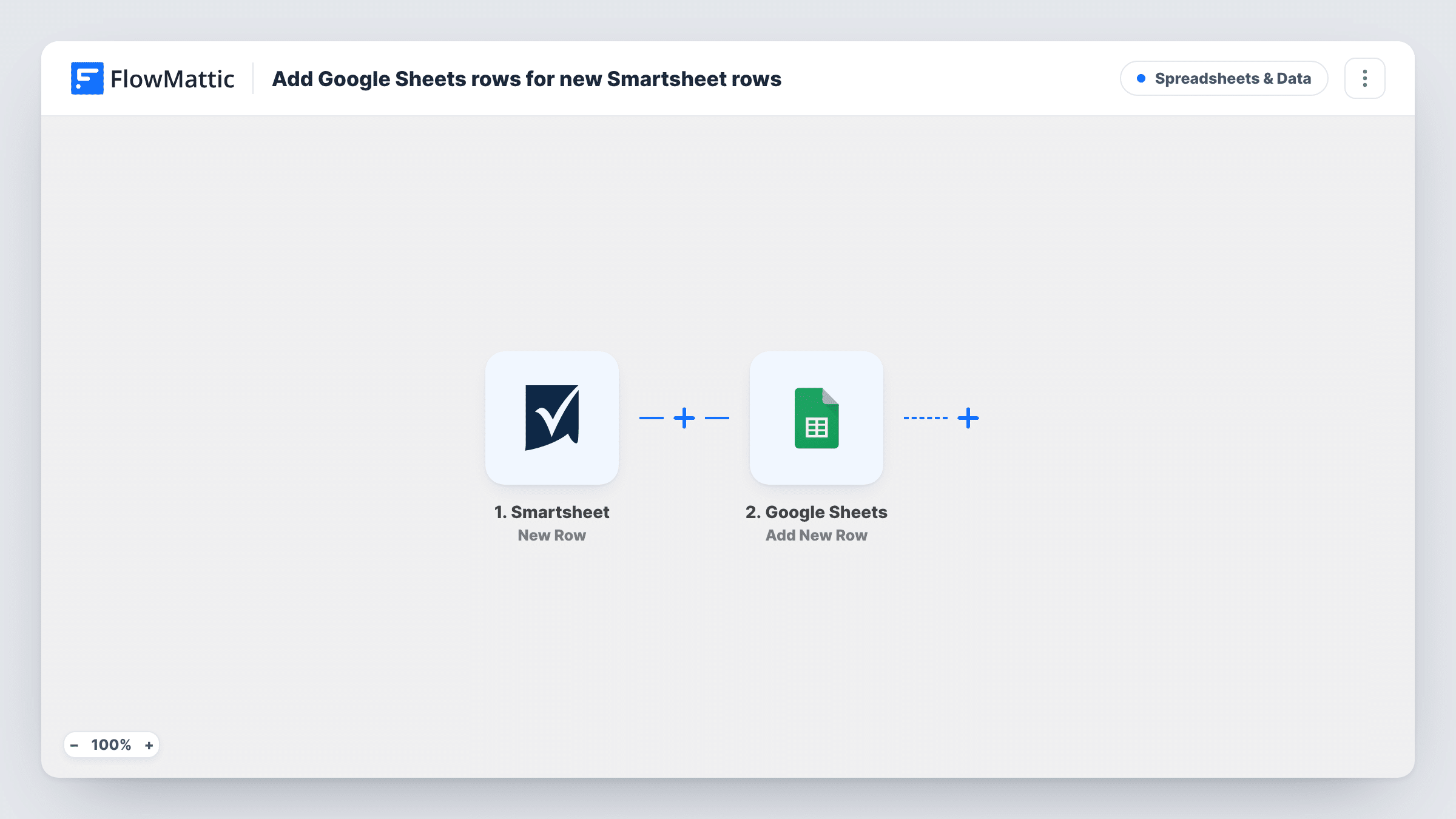
The Smartsheet trigger, New Row, fires when a row is added in Smartsheet. FlowMattic captures the row's cell values. The Google Sheets step then adds a new row to the spreadsheet you choose, with each column mapped to a Smartsheet column.
The copy is one way and happens once per new row. If someone later edits that row in Smartsheet, the Google Sheets row keeps the values it was created with, and deleted Smartsheet rows stay in Google Sheets. Task History lists each run, so you can see which rows were copied.
Sharing new tasks with a client
Your team adds work items in Smartsheet, and the client follows the new items in a Google Sheet you shared with them.
Feeding a Google Sheets report
New intake rows in Smartsheet appear in a Google spreadsheet where your formulas and charts already live.
Keeping a backup log of entries
Each new Smartsheet row is also stored in Google Sheets, giving you a second record of what was added and when.
How this workflow runs
What happens at each step once the workflow is on, and what you need before you import it.
 Smartsheet New Row
Fires when someone adds a row in Smartsheet. The row's values are captured so you can map them column by column.
- Google Sheets Add New Row
Creates the matching Google Sheets row in the spreadsheet you select. Connect your Google account and match each column to the Smartsheet value it should hold.
What you need
- FlowMatticCore
- Smartsheet AccountAccount
- Google Sheets AccountAccount
After importing, map your own data. To keep the template universal, not every step is pre-filled. Open each step in the builder and connect your accounts and fields (channels, lists, sheets, recipients) before you switch the workflow on.
Make it yours
Changes worth making after you import it.
- Set up the same column headers in Google Sheets as in Smartsheet before you map, so each value goes to the column you expect.
- Add a row in Smartsheet after import to capture a sample, then map every column you need from it in the Google Sheets step.
- To copy only some rows, add a Filter after the trigger on a Smartsheet column, for example a status or owner value.
Questions about this workflow
Do edits to a Smartsheet row update the Google Sheets copy?
No. A run starts only when a row is added. Smartsheet's Updated Row trigger is separate, and this template doesn't use it.
Are existing Smartsheet rows copied to Google Sheets?
No. Rows already in the sheet when you turn the workflow on are not copied. Only rows added afterwards are.
What if a new Smartsheet row is added with some cells empty?
The Google Sheets row is created with whatever values the row had when it was added. Cells filled in later in Smartsheet are not copied.
If I delete a row in Smartsheet, does it disappear from Google Sheets?
No. The workflow never removes anything from your Google spreadsheet. Delete the matching row there yourself if you need to.
More Spreadsheets & Data workflows
Other ready-to-import templates from the same category.




Import this workflow into your WordPress site
Download the JSON, import it from the Workflows screen and connect your accounts. Every run stays on your server, with no per-task fees.
30-day money-back guarantee Unlimited workflows and runs Self-hosted