

Add new Airtable records to Notion databases
Every record created in your Airtable table is copied into a Notion database as a new item, so people who work in Notion see the same entries without logging into Airtable.
 Airtable
 Notion
2 steps Setup ~5 min Used on 751 sites Free to import
What this workflow does
Teams often split across tools. Operations may run a structured base in Airtable while the wider company plans and writes in Notion. When the two don't talk, someone copies records over by hand, or the Notion side falls behind.
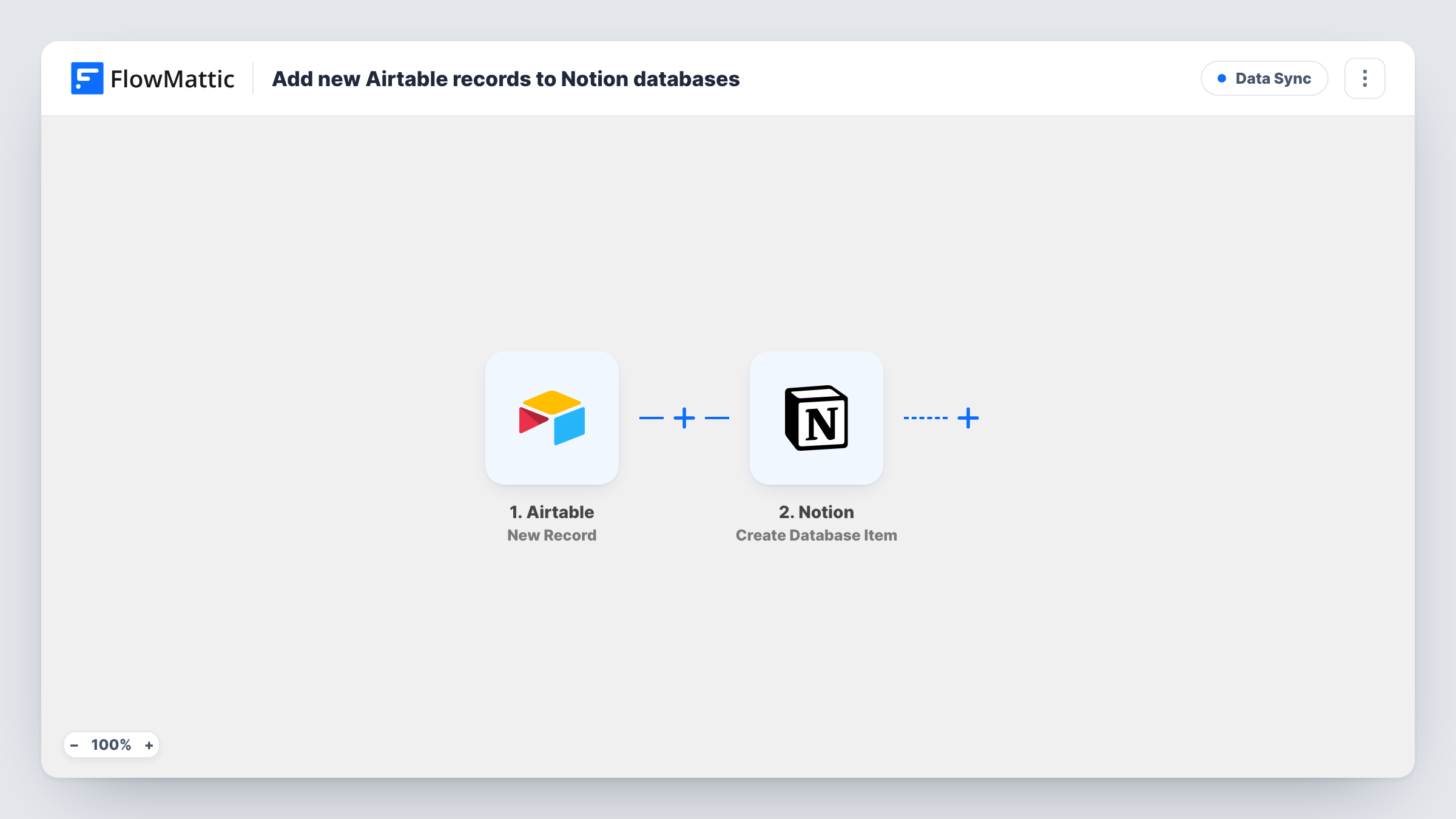
Adding a record to the Airtable table you choose starts the run. FlowMattic receives that record's fields and hands them to Notion. The Create Database Item step then adds an item to the Notion database you choose, with each Airtable field mapped to a Notion property.
This is a one-way copy of new records. Later edits in Airtable don't change the Notion item, and changes in Notion don't go back to Airtable. Plan for the Notion database to receive new items while Airtable stays the place you edit. Each run is visible in Task History, so you can check what reached Notion.
Content ideas collected in Airtable
Your team logs article ideas in an Airtable form view. Each idea appears in the editorial Notion database where writers plan and draft.
Client onboarding tracker
Sales adds a new client record in Airtable. The delivery team gets a matching item in their Notion projects database to start onboarding.
Bug reports from a support base
Support records issues in Airtable. Product managers see each new report as an item in the Notion database they triage from.
How this workflow runs
What happens at each step once the workflow is on, and what you need before you import it.
 Airtable New Record
Starts a run whenever a record is added to the Airtable table you select. All of its fields become available for mapping into Notion.
- Notion Create Database Item
Adds an item to your chosen Notion database. Map each Airtable field to the matching Notion property, such as a title, a select or a date.
What you need
- FlowMatticCore
- Airtable AccountAccount
- Notion AccountAccount
After importing, map your own data. To keep the template universal, not every step is pre-filled. Open each step in the builder and connect your accounts and fields (channels, lists, sheets, recipients) before you switch the workflow on.
Make it yours
Changes worth making after you import it.
- Add a Filter after the Airtable trigger so only records with a certain value, for example Type equals Client, are copied to Notion.
- Match field types when you map: send Airtable dates to a Notion date property and plain text to a text property, then check one test item for anything that came through blank.
- Create one test record in Airtable after import so FlowMattic captures its fields, then map them and confirm the item looks right in Notion.
Questions about this workflow
Do Airtable edits update the Notion item?
No. The template only copies new records. It has no step that finds and updates the Notion item, so later changes in Airtable stay in Airtable.
Will my existing Airtable records be copied into Notion?
No. Only records created after you turn the workflow on are copied. Move older ones over separately if you need them.
Can one Airtable record go to two Notion databases?
Yes. Add a second Create Database Item step pointed at the other database. Both steps run for each new record.
What if the Notion database is missing a property for an Airtable field?
Add the property in Notion first, then map the field to it. Fields you leave unmapped are simply not copied.
More Data Sync workflows
Other ready-to-import templates from the same category.




Import this workflow into your WordPress site
Download the JSON, import it from the Workflows screen and connect your accounts. Every run stays on your server, with no per-task fees.
30-day money-back guarantee Unlimited workflows and runs Self-hosted