

When data received from n8n.io, update post meta in WordPress
When your n8n.io workflow sends data to FlowMattic, a post meta value on your WordPress site is set from it. Use it to let n8n write prices, scores, stock or status into custom fields on posts.
 n8n.io
 WordPress
2 steps Setup ~5 min Used on 805 sites Free to import
What this workflow does
Custom fields on WordPress posts often hold values that come from somewhere else: a price from a supplier feed, a rating from a review service, a status from a project tool. If n8n.io already gathers that data, this workflow gives it a way to write the value straight into the post.
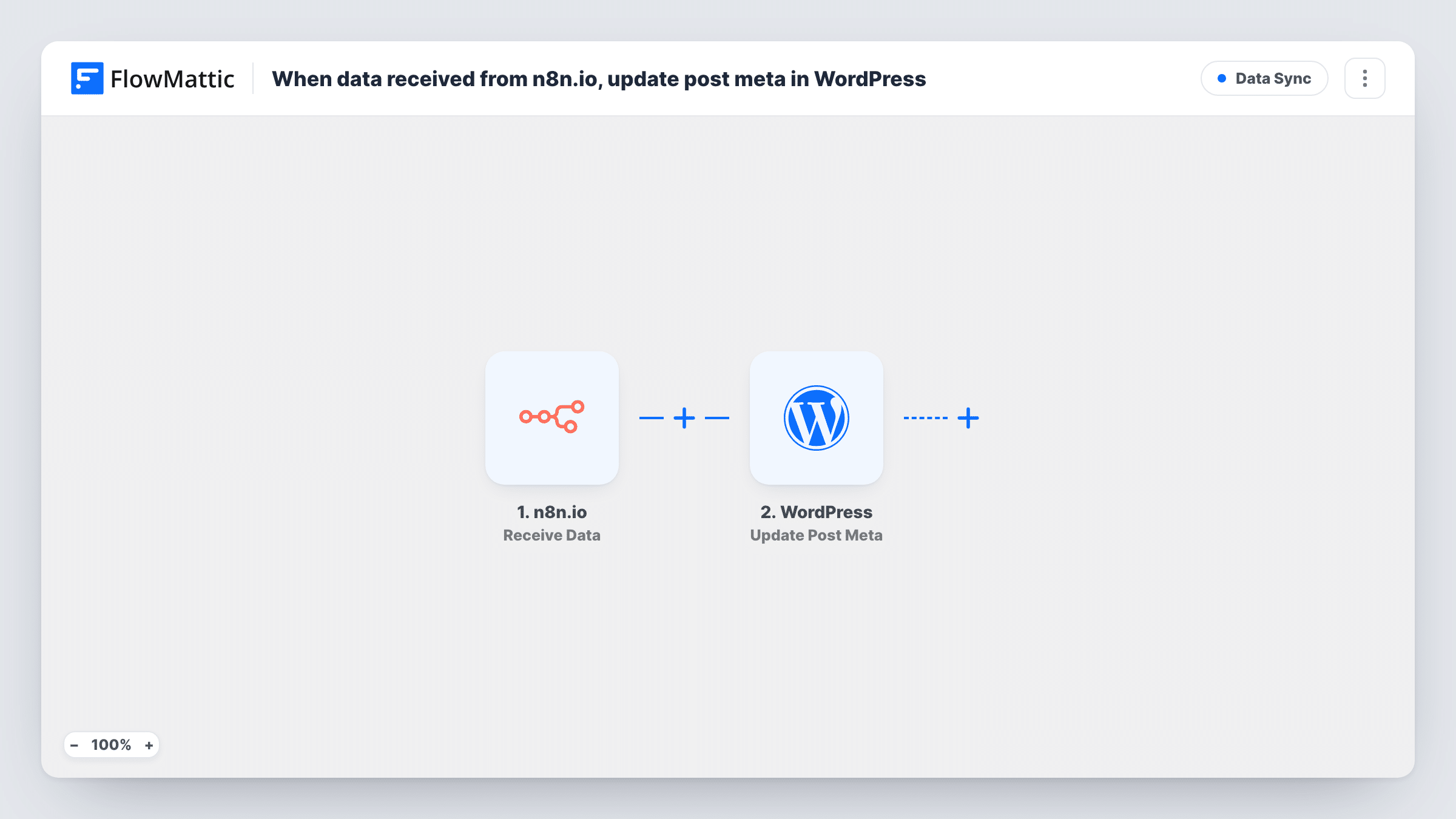
The n8n.io trigger, Receive Data, gives you a URL in FlowMattic. Your n8n workflow sends a request to it, typically with an HTTP Request node, and every field in that payload becomes data you can map. The WordPress step, Update Post Meta, then updates a specific meta key on a post with a new value.
The WordPress step has to know which post to change, and n8n is the only source of that. Include the post ID in the payload n8n sends, alongside the value, and map both. Test with a post you know before you send real data, and check Task History to see the payload each run received.
Syncing product prices to post fields
An n8n workflow reads a supplier's price list each morning and sends each item's post ID and new price, so the price custom field on your listing posts stays current.
Writing review scores onto posts
n8n collects ratings from an outside review service and sends the score with the matching post ID, which fills a rating meta field your theme displays.
Marking content status from a project tool
When an editorial task changes in the tool n8n watches, n8n sends the post ID and a status, and the workflow sets a status meta key you use in your admin views.
How this workflow runs
What happens at each step once the workflow is on, and what you need before you import it.
 n8n.io Receive Data
Receives data that your n8n.io workflow sends to the URL this trigger gives you. Every field in the payload, including the post ID you include, becomes available to map.
 WordPress Update Post Meta
Updates one meta key on a WordPress post with a new value. Map the post ID and the value from the n8n payload, then confirm on a test post that the right field changed.
What you need
- FlowMatticCore
- n8n.io AccountAccount
After importing, map your own data. To keep the template universal, not every step is pre-filled. Open each step in the builder and connect your accounts and fields (channels, lists, sheets, recipients) before you switch the workflow on.
Make it yours
Changes worth making after you import it.
- Send a sample request from n8n right after import so FlowMattic captures the payload fields. Mapping the post ID and value is much easier once they show up.
- To set several meta keys from one request, add more Update Post Meta steps after the first, each mapped to its own key and value from the n8n payload.
- Add a Filter after the trigger that stops the run when the post ID in the payload is empty, so a malformed request from n8n doesn't reach WordPress.
Questions about this workflow
Where does the post ID for the n8n.io update come from?
From the post ID in the data n8n sends. Add it to the payload in your n8n workflow and map it in the Update Post Meta step. Nothing in the template looks posts up by title.
What if the meta key doesn't exist on the post yet?
WordPress usually adds the key when it's updated on a post that doesn't have it. Check one test post in your setup to confirm the field appears where your theme or plugin reads it.
Can n8n.io update ACF or custom post type fields this way?
Post meta is where custom fields on posts and custom post types are stored, so it can reach them by meta key. Use the exact key the field is saved under, and test on one post first.
How do I send data from n8n.io to FlowMattic?
Copy the URL from the Receive Data trigger and add a node in n8n, such as HTTP Request, that posts your data to it. Each request starts one run of this workflow.
More Data Sync workflows
Other ready-to-import templates from the same category.






Import this workflow into your WordPress site
Download the JSON, import it from the Workflows screen and connect your accounts. Every run stays on your server, with no per-task fees.
30-day money-back guarantee Unlimited workflows and runs Self-hosted