

Add new row to Google Sheet when a new feedback received in FeedLetter
Each time someone submits feedback in FeedLetter, FlowMattic adds it as a new row in the Google Sheets spreadsheet you pick, giving you one running log of every piece of feedback.
 FeedLetter
 Google Sheets
2 steps Setup ~5 min Used on 2.7k sites Free to import
What this workflow does
Feedback is easier to act on when you can sort, count and share it. Keeping it only inside FeedLetter makes it hard to compare with other data or hand to someone who doesn't use the tool. This workflow copies every new submission into a spreadsheet as it arrives, so the log builds itself.
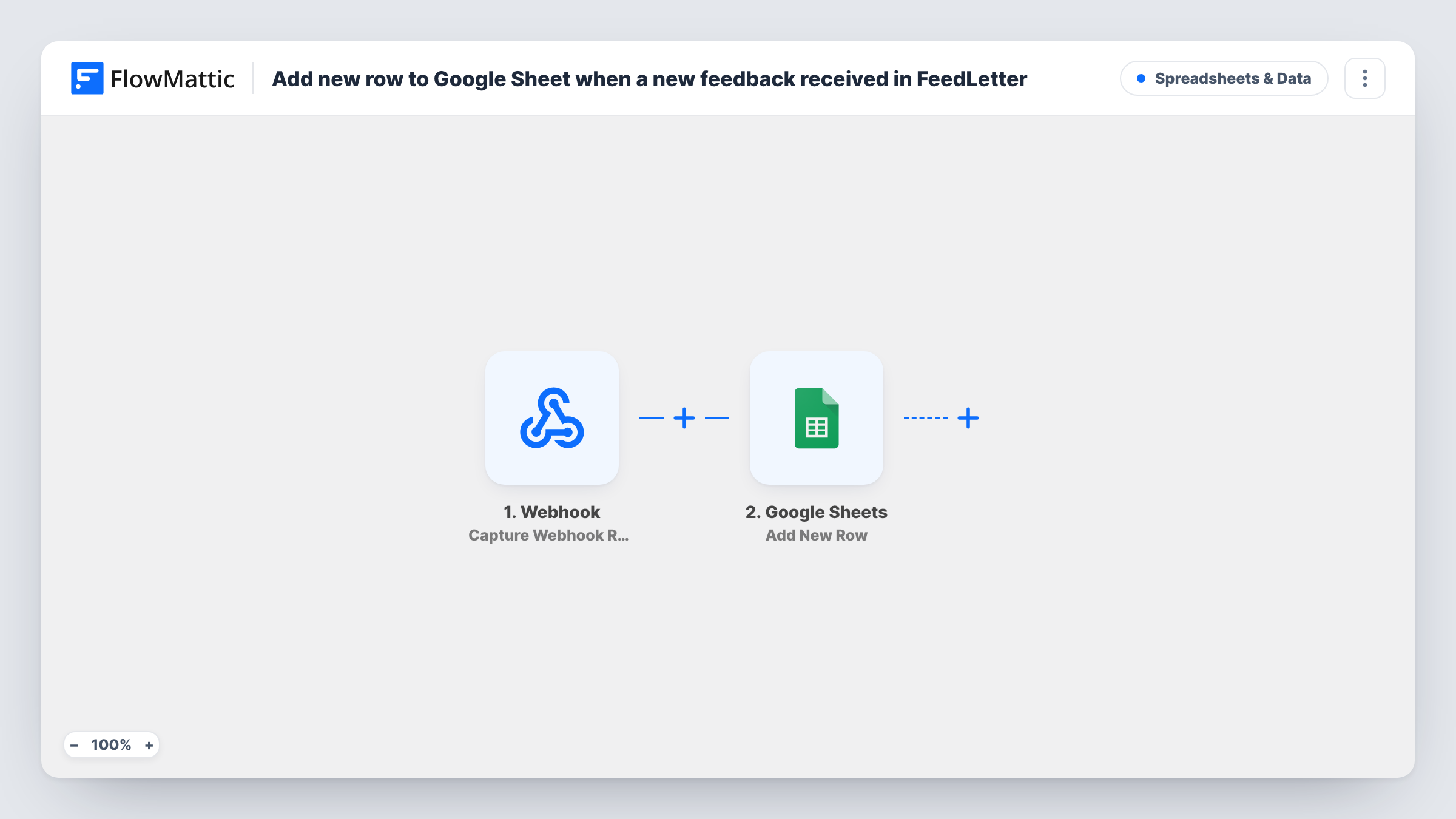
The FeedLetter trigger starts a run whenever new feedback is submitted and passes that submission on. The Google Sheets step then adds a single row for it. There are no other steps, so nothing is changed in FeedLetter itself.
The Add New Row step ships unmapped. After import you connect your Google account, choose the spreadsheet and sheet, and decide which feedback fields fill which columns. Set up your column headers first, then submit a test piece of feedback so the trigger has real data to map from.
Each submission becomes exactly one row. Task History lists every run with the data FeedLetter sent and the response from Google Sheets, which helps when a column comes out blank.
Weekly feedback review in a shared sheet
A product manager filters the sheet by date every Monday to read last week's FeedLetter submissions with the team, without giving everyone a FeedLetter login.
Tagging and scoring feedback by hand
A founder adds their own columns next to the mapped ones to mark each submission as bug, idea or praise and rank it for the roadmap.
Charts of feedback volume
A support lead builds a chart on the sheet that counts rows per week, to see whether a release brought in more feedback than usual.
How this workflow runs
What happens at each step once the workflow is on, and what you need before you import it.
 FeedLetter New Feedback Received
Starts the workflow each time new feedback is submitted in FeedLetter. The submission's details are passed on for mapping; run a test submission to see which fields arrive.
- Google Sheets Add New Row
Writes one new row per submission to the spreadsheet you select. The template maps no columns, so connect Google, pick the sheet and match the FeedLetter fields to your headers.
What you need
- FlowMatticCore
- FeedLetter AccountAccount
- Google Sheets AccountAccount
After importing, map your own data. To keep the template universal, not every step is pre-filled. Open each step in the builder and connect your accounts and fields (channels, lists, sheets, recipients) before you switch the workflow on.
Make it yours
Changes worth making after you import it.
- Add a column for the submission date and map it from the trigger, so you can sort the sheet by when feedback came in.
- Freeze the header row in Google Sheets before the first run, so the column names stay visible as the log grows.
- Put a Filter between the FeedLetter trigger and the Google Sheets step if you only want certain feedback logged, such as entries with a message. Pick the FeedLetter field after a test run, since the condition is yours to set.
Questions about this workflow
Will feedback already in FeedLetter be copied to the sheet?
No. The FeedLetter trigger reacts to new submissions only, so the sheet starts filling from the moment the workflow is on. Export older feedback separately if you need it in the same sheet.
Which FeedLetter fields can I put in the Google Sheet?
Any field the trigger receives. Submit one piece of test feedback after import, then the mapping list in the Add New Row step shows the fields you can place in each column.
Does the workflow change anything in FeedLetter?
No. FlowMattic only reads the new submission from FeedLetter and writes a row to Google Sheets. The feedback stays in FeedLetter as it was.
More Spreadsheets & Data workflows
Other ready-to-import templates from the same category.





Import this workflow into your WordPress site
Download the JSON, import it from the Workflows screen and connect your accounts. Every run stays on your server, with no per-task fees.
30-day money-back guarantee Unlimited workflows and runs Self-hosted