

Add newly-captured Razorpay payments to rows in Google Sheets
Every payment captured in Razorpay adds a new row to a Google Sheets spreadsheet, with the payment details you map, so you have a running log of collected payments to sort, total and share.
 Razorpay
 Google Sheets
2 steps Setup ~5 min Used on 2.4k sites Free to import
What this workflow does
Razorpay's dashboard shows your payments, but many teams work out of a spreadsheet: reconciling with invoices, sharing totals with an accountant, or tracking sales by product. Exporting from Razorpay every few days means the sheet is always behind. This workflow writes each captured payment to the sheet when it happens.
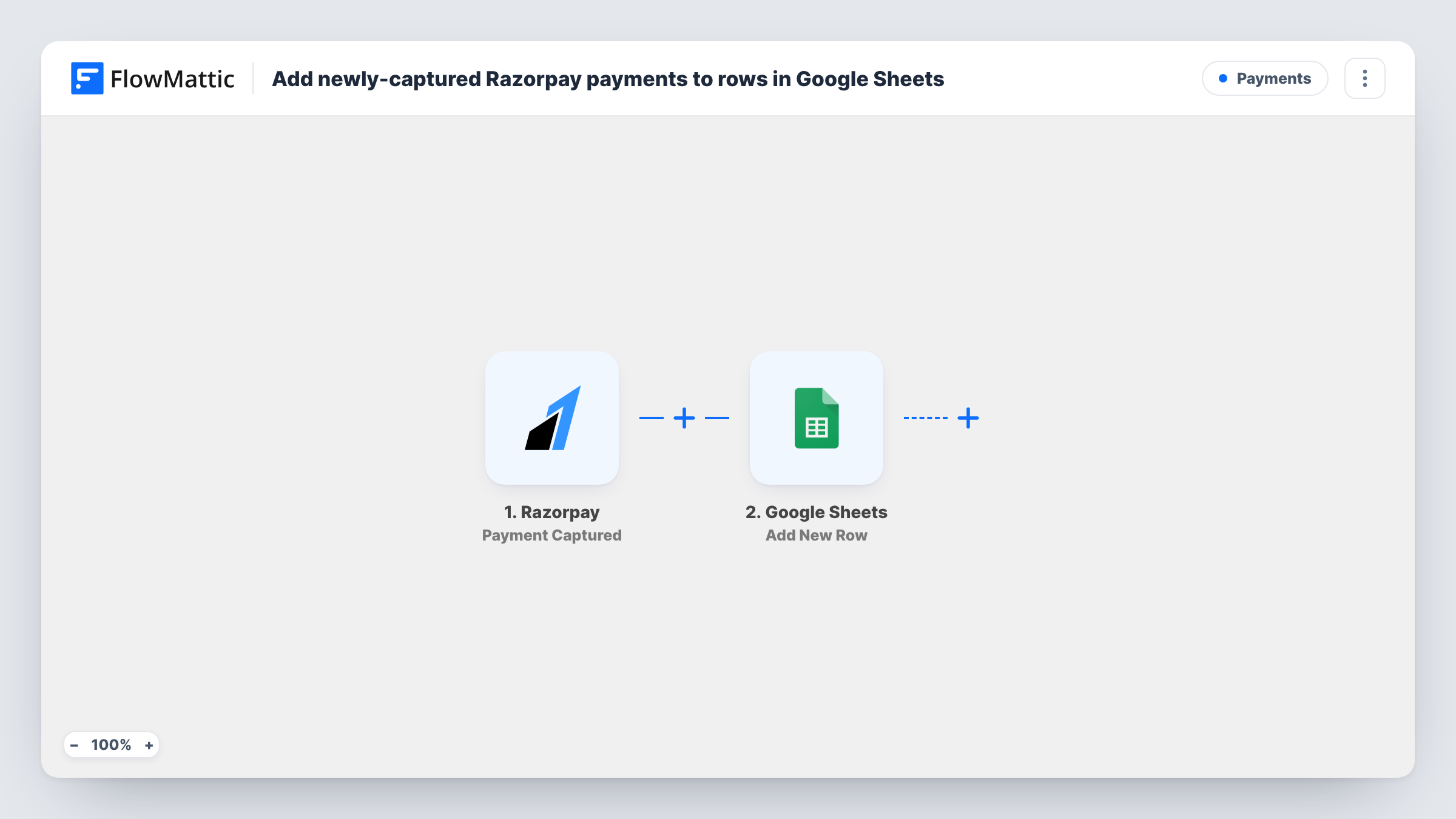
The Razorpay trigger fires when a payment is captured. FlowMattic passes the payment data to Google Sheets, where Add New Row writes a row to the spreadsheet you choose. Map payment details to your columns, such as the payment ID, amount, currency and customer email, based on what Razorpay sends.
Only captured payments start a run, so authorised but uncaptured or failed payments do not appear. Task History records every run and the response from Google.
Reconciliation sheet for an accountant
Each captured Razorpay payment lands in a shared Google Sheet, which your accountant uses to match payments against invoices.
Daily sales tally
A small online store sums the amount column in the sheet to see the day's collected payments without logging in to Razorpay.
Course or event payments
Payments for a workshop are logged row by row, giving you a list of who has paid to check against registrations.
How this workflow runs
What happens at each step once the workflow is on, and what you need before you import it.
 Razorpay Payment Captured
Fires when a payment is captured in Razorpay. The payment details are passed on for mapping into the sheet's columns.
- Google Sheets Add New Row
Appends one row per captured payment to the spreadsheet you pick in Google Sheets. Connect your Google account and map Razorpay payment details to the matching columns.
What you need
- FlowMatticCore
- Razorpay AccountAccount
- Google Sheets AccountAccount
After importing, map your own data. To keep the template universal, not every step is pre-filled. Open each step in the builder and connect your accounts and fields (channels, lists, sheets, recipients) before you switch the workflow on.
Make it yours
Changes worth making after you import it.
- Set up the header row in your sheet before mapping, with columns such as Payment ID, Amount and Email, so each value has a clear place.
- Check the amount format in a test run before you total the column. Razorpay reports amounts in the smallest currency unit, such as paise for INR, so you may want a formula column that divides by 100.
- Add a Filter after the trigger if you only want certain payments logged, for example those in one currency.
Questions about this workflow
Are failed Razorpay payments added to the sheet?
No. The trigger fires on captured payments only, so failed attempts never start a run.
Will refunds show up in the Google Sheet?
No. A refund is a different Razorpay event. This workflow only reacts when a payment is captured.
Are past Razorpay payments added when I import?
No. Only payments captured after the workflow is turned on create rows.
Can I log Razorpay payments to a sheet that already has data?
Yes. Add New Row writes a new row in the spreadsheet you pick, so existing rows stay as they are.
More Payments workflows
Other ready-to-import templates from the same category.





Import this workflow into your WordPress site
Download the JSON, import it from the Workflows screen and connect your accounts. Every run stays on your server, with no per-task fees.
30-day money-back guarantee Unlimited workflows and runs Self-hosted