

Announce new SocialBu posts to your Telegram subscribers
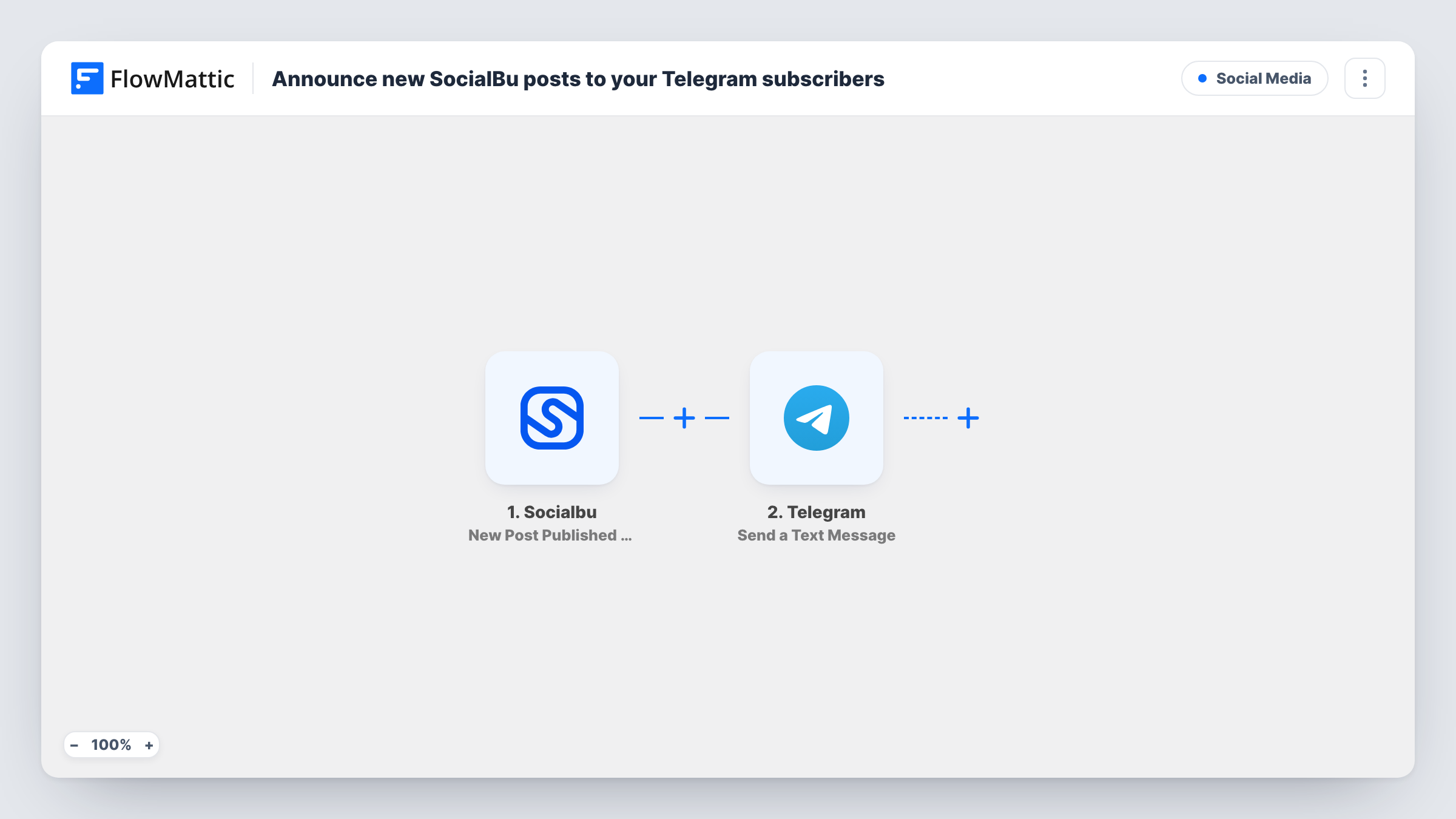
When SocialBu publishes a post from one of your connected accounts, this workflow sends a Telegram text message about it to the chat or channel you choose.
 Socialbu
 Telegram
2 steps Setup ~5 min Used on 2.3k sites Free to import
What this workflow does
You schedule social posts in SocialBu, but your Telegram audience only hears about them if you remember to share each one. This workflow posts an announcement to Telegram whenever SocialBu reports a newly published post.
The SocialBu trigger fires when a new post is published by an account you connect. The details SocialBu sends about that post become available to map. The Telegram step then sends a text message, and you decide what it says: a short intro line followed by whichever post details you insert. The action supports markup, so you can format the announcement.
Every published post triggers a run, so your Telegram followers get one message per post. Task History lists each run with the data SocialBu sent and the message that went to Telegram.
Brand channel that mirrors your feeds
A shop runs a Telegram channel for loyal buyers. Each post SocialBu publishes to its social accounts also appears there as a short announcement.
Team chat for the marketing crew
Send the message to a private Telegram group so colleagues see what just went live and can share or reply to it.
Creator updates for subscribers
A creator publishes clips through SocialBu, and subscribers in their Telegram channel get a note with the text of each new post.
How this workflow runs
What happens at each step once the workflow is on, and what you need before you import it.
 Socialbu New Post Published by Account
Fires when a post is published through your SocialBu account. The post details are passed on so you can use them in the Telegram message.
- Telegram Send a Text Message
Sends a text message to the Telegram chat or channel you set. Write the message and insert the SocialBu post fields where you want them to appear.
What you need
- FlowMatticCore
- Socialbu AccountAccount
- Telegram AccountAccount
After importing, map your own data. To keep the template universal, not every step is pre-filled. Open each step in the builder and connect your accounts and fields (channels, lists, sheets, recipients) before you switch the workflow on.
Make it yours
Changes worth making after you import it.
- Add a Filter after the SocialBu trigger if you only want posts from some accounts announced and the post data identifies the account. Run a test to see which fields arrive.
- Add a Delay before the Telegram step if you prefer your Telegram audience to hear about a post a little after it goes live elsewhere.
- Publish a test post after import so FlowMattic captures the SocialBu data, then map it in the Telegram message and check how it looks in the chat.
Questions about this workflow
Can the Telegram bot post to a channel?
Yes, when the bot you connect is an admin of that channel with permission to post. Add it to the channel in Telegram first, then pick the chat in the step.
Will scheduled SocialBu posts be announced when they go live?
The trigger fires when a post is published, so a scheduled post is announced once SocialBu publishes it, not when you schedule it.
Does every SocialBu account trigger a Telegram message?
As imported, every published post the trigger reports starts a run. Add a Filter if you want to limit announcements to particular accounts or kinds of post.
Can I send the post image to Telegram as well?
This template sends a text message only. If SocialBu's post data includes a link, which a test run will show, you can map it into the text; for a different kind of message, add another Telegram step after import.
More Social Media workflows
Other ready-to-import templates from the same category.







Import this workflow into your WordPress site
Download the JSON, import it from the Workflows screen and connect your accounts. Every run stays on your server, with no per-task fees.
30-day money-back guarantee Unlimited workflows and runs Self-hosted