

Automatically send order confirmation via WhatsApp when customers place orders on WooCommerce
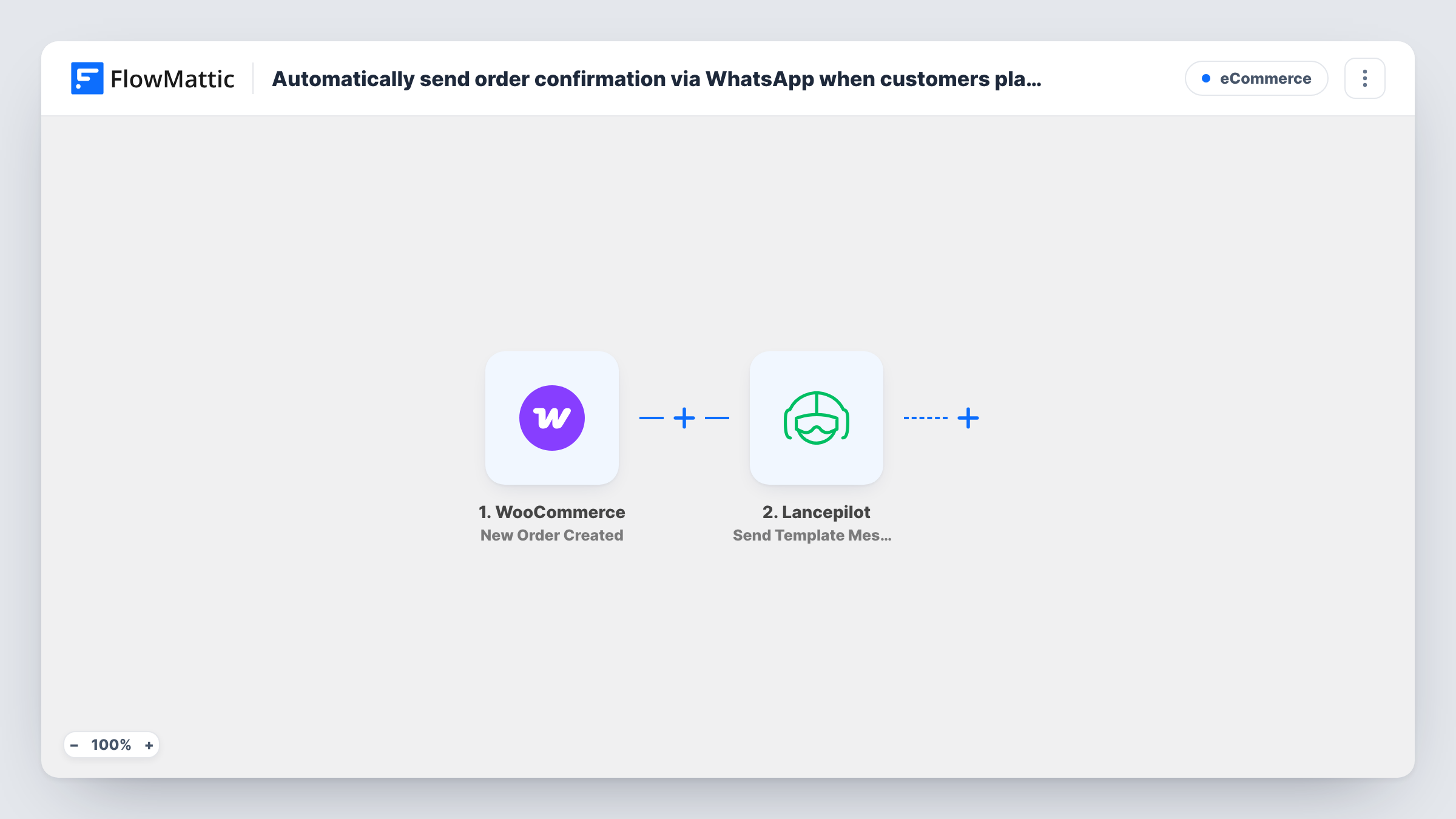
When a WooCommerce order is created, this workflow sends the customer a WhatsApp template message through Lancepilot to the phone number on the order, so buyers get an order confirmation in the chat app they check.
 WooCommerce
 Lancepilot
2 steps Setup ~5 min Used on 2.7k sites Free to import
What this workflow does
Order emails from your shop can land in spam or go unread. Many buyers look at WhatsApp first, so a short message there confirms that the order went through. Sending those by hand isn't practical once orders arrive at all hours.
The WooCommerce trigger picks up every order the moment WooCommerce creates it. The order details, such as the order number, total and billing phone, become data you can map. The Lancepilot step then uses Send Template Message, which sends a template message to a contact by WhatsApp number. You map the customer's phone from the order into it and pick which of your Lancepilot templates goes out.
As imported, the flow messages every new order, whatever its status. WooCommerce doesn't require a phone number at checkout on every store, and numbers come in as customers type them, so check a few test orders in Task History to confirm Lancepilot accepted the number before you rely on it.
Food or bakery orders
A customer orders a cake for pickup, and a WhatsApp message with the order number reaches them right away, so they know which order to quote at the counter.
Shops in markets where WhatsApp is the norm
Your buyers rarely open email but answer WhatsApp quickly. The confirmation goes where they are already chatting with businesses.
Cash-on-delivery stores
Each new order triggers a WhatsApp message with its total, giving the buyer a written record of what they agreed to pay on delivery.
How this workflow runs
What happens at each step once the workflow is on, and what you need before you import it.
 WooCommerce New Order Created
Starts the workflow each time your shop creates an order. The order's details, including the billing phone, items and total, are passed on for mapping.
- Lancepilot Send Template Message
Sends a WhatsApp template message through your Lancepilot account to the number you map, usually the billing phone from the order. Run a test order to confirm the right template arrives.
What you need
- FlowMatticCore
- WooCommerce PluginPlugin
- Lancepilot AccountAccount
After importing, map your own data. To keep the template universal, not every step is pre-filled. Open each step in the builder and connect your accounts and fields (channels, lists, sheets, recipients) before you switch the workflow on.
Make it yours
Changes worth making after you import it.
- Swap the trigger for WooCommerce's Order Paid trigger if you only want to message buyers whose payment went through, instead of every order as it is created.
- Add a Filter after the trigger that continues only when the billing phone is not empty, which skips the Lancepilot step for orders placed without a number.
- Build a second workflow on the Order Status Set to Completed trigger with a different Lancepilot template, so customers also hear from you when the order is fulfilled.
Questions about this workflow
Which phone number does the WhatsApp message go to?
The number you map into the Lancepilot step. Usually that is the billing phone from the WooCommerce order. Make sure it includes the country code in the form Lancepilot expects, and test with your own number first.
Does this replace WooCommerce's order confirmation email?
No. The workflow adds a WhatsApp message alongside it. Your WooCommerce email settings stay as they are.
Why a template message rather than free text in Lancepilot?
The action in this template is Send Template Message, which sends one of the templates in your Lancepilot account. Set up the confirmation template there before you turn the workflow on.
Do failed or pending WooCommerce orders get a message too?
As imported, yes. The trigger fires when an order is created and nothing checks its status. Add a Filter on the order status to limit it.
More E-Commerce workflows
Other ready-to-import templates from the same category.



Import this workflow into your WordPress site
Download the JSON, import it from the Workflows screen and connect your accounts. Every run stays on your server, with no per-task fees.
30-day money-back guarantee Unlimited workflows and runs Self-hosted