

Create a Lancepilot contact for each new Google Sheets row and send them a WhatsApp template message
Each new row in your Google Sheets spreadsheet becomes a contact in your Lancepilot workspace, and Lancepilot then sends that contact an approved WhatsApp template message.
 Google Sheets
 Lancepilot
3 steps Setup ~5 min Used on 2.5k sites Free to import
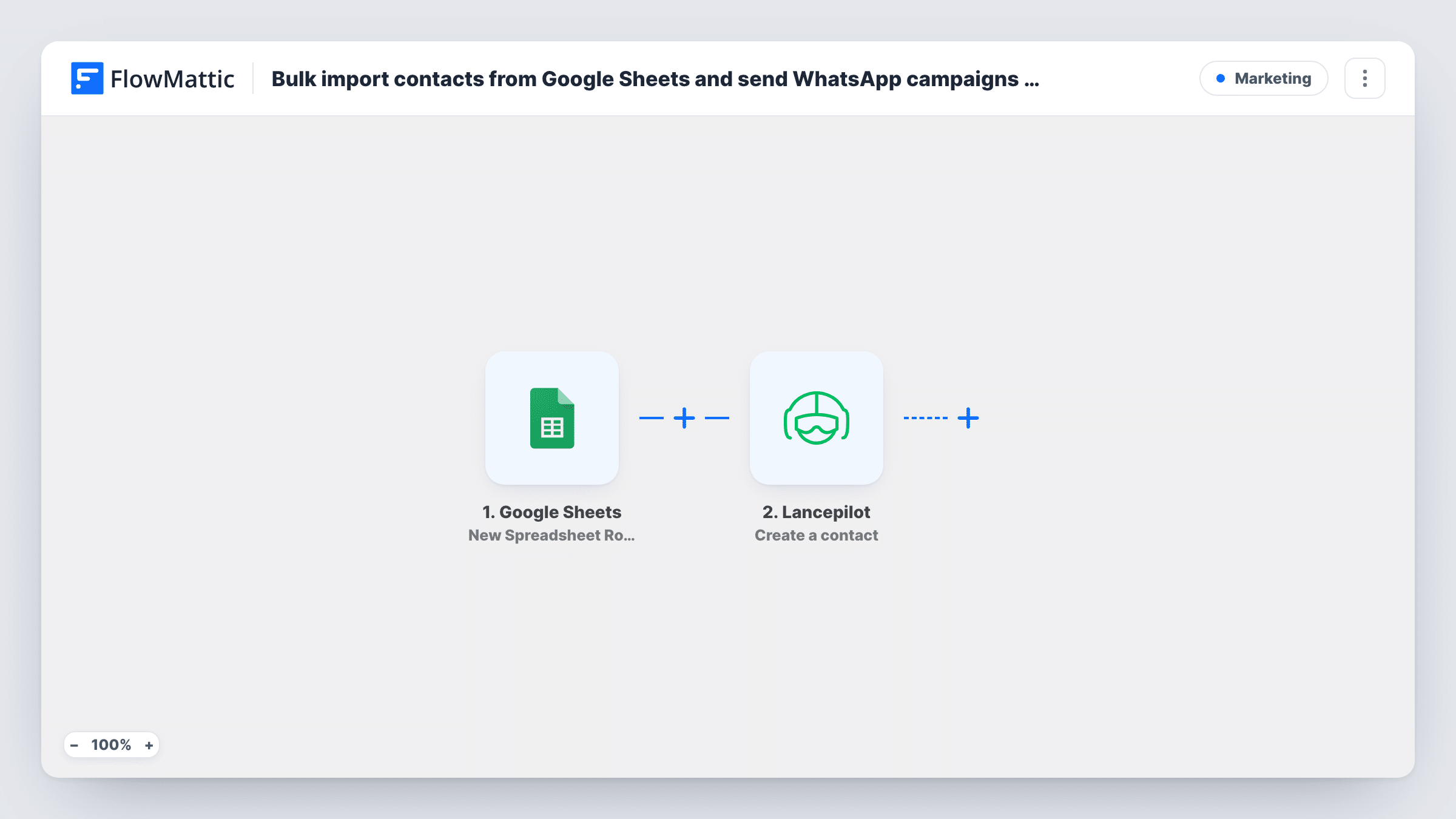
What this workflow does
A spreadsheet is often where leads, event sign-ups or customer lists collect before anyone contacts them. This workflow turns each new row into a Lancepilot contact and opens the WhatsApp conversation with a template message, so you don't add people to Lancepilot one at a time.
The Google Sheets trigger watches one sheet of your choosing and starts a run for every row that appears in it. Its columns, such as name and phone number, become values you can map into the next steps.
The first Lancepilot step creates a contact in your workspace from that row. The second sends a template message to the contact by contact ID, which you map from the contact step 2 just created. Both Lancepilot steps ship unmapped: after import you map the row's name and WhatsApp number into the contact, then choose the template and map the new contact's ID.
Template messages are the ones WhatsApp allows you to send first, so the person doesn't need to have written to you. The template must already be approved in Lancepilot. Add a test row and check Task History to see the contact ID and the send result.
Event registrations collected in a sheet
A workshop organiser exports sign-ups to Google Sheets, and each new row gets a WhatsApp template with the date and venue through Lancepilot.
Leads from a trade show
A sales team types booth leads into a shared sheet on a tablet, and each person receives a follow-up template on WhatsApp after their row is saved.
Store pickup notices from a staff sheet
A shop adds a row when an order is ready for collection, and the customer gets a pickup template message from the business number.
How this workflow runs
What happens at each step once the workflow is on, and what you need before you import it.
 Google Sheets New Spreadsheet Row
Starts a run for each row added to the sheet you select in Google Sheets. Every column of that row can be mapped into the two Lancepilot steps.
- Lancepilot Create a contact
Creates a contact in your Lancepilot workspace. The step ships unmapped: after import, map the name and WhatsApp number columns from the row.
- Lancepilot Send Template Message
Sends a WhatsApp template message to the contact by contact ID. Map the ID returned by step 2, pick your approved template and map any values it needs from the row.
What you need
- FlowMatticCore
- Google Sheets AccountAccount
- Lancepilot AccountAccount
After importing, map your own data. To keep the template universal, not every step is pre-filled. Open each step in the builder and connect your accounts and fields (channels, lists, sheets, recipients) before you switch the workflow on.
Make it yours
Changes worth making after you import it.
- Keep phone numbers in the sheet with the country code, so Lancepilot gets a complete WhatsApp number for each contact.
- Put a Filter between the Google Sheets trigger and the Create a contact step that continues only when the phone column is not empty, so rows without a number create no contact and get no message. Use your own column.
- Add a Delay between Create a contact and Send Template Message if the message should arrive a while after the row is added, for example a few hours later.
Questions about this workflow
Does the Lancepilot template need to be approved first?
Yes. WhatsApp only sends template messages that have been approved for your number. Create or sync the template in Lancepilot before you pick it in the Send Template Message step.
What if a phone number from the sheet is already a Lancepilot contact?
The template creates a contact for every new row without checking first. Lancepilot may return an error for a number it already has; Task History shows what the Create a contact step returned.
Can I paste many rows into the Google Sheet at once?
Each new row is meant to start its own run. Test with a few rows first and watch Task History before you paste a long list.
Which Google Sheets columns does Lancepilot receive?
Only those you map. Neither Lancepilot step has fields set in the template, so after import you match columns to the contact and to whatever the chosen WhatsApp template needs.
More Marketing workflows
Other ready-to-import templates from the same category.





Import this workflow into your WordPress site
Download the JSON, import it from the Workflows screen and connect your accounts. Every run stays on your server, with no per-task fees.
30-day money-back guarantee Unlimited workflows and runs Self-hosted