

Predict the likely nationality of each new Google Sheets lead from their name
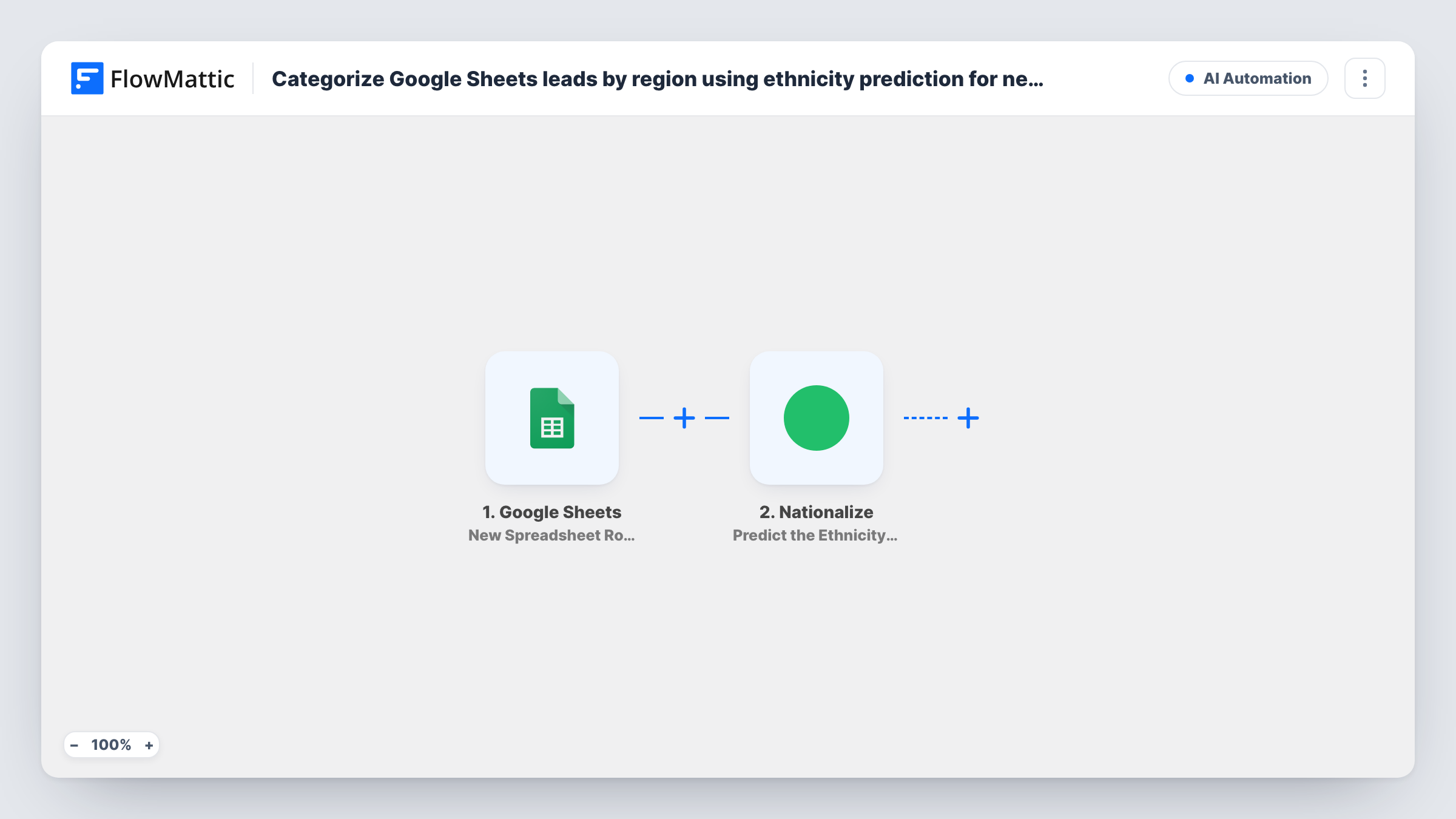
When a new lead row is added to your Google Sheets spreadsheet, FlowMattic sends the lead’s name to Nationalize, which returns a guess at the countries the name is most common in.
 Google Sheets
 Nationalize
2 steps Setup ~5 min Used on 1.1k sites Free to import
What this workflow does
Lead sheets often hold little more than a name and an email. If you want a rough idea of where a lead may be from, for example to pick a language for a first email or to spread leads across regional reps, Nationalize can make a guess from the name alone. This workflow asks it for one each time a lead row arrives.
The Google Sheets New Spreadsheet Row trigger starts a run for each lead row that lands in your chosen sheet. The row's columns, such as the lead's name, are passed on.
The Nationalize step then predicts nationality from that name. FlowMattic labels the action Predict the Ethnicity of a Name and describes it as working from a last or full name, so map the full name column if you have one. The step ships unmapped: connect Nationalize after import and map the name from the row.
Nothing comes after that step in the template. The prediction sits in the step's output and nothing saves or uses it until you add a step that does. The result is a statistical guess based on how common a name is in each country, not a fact about the person, so treat it as a hint. Task History shows what Nationalize returned for each lead.
Choosing a language for the first email
An export business collects trade-show leads in a sheet and uses the predicted country as a hint for which language to try in the first follow-up.
Rough regional split of a lead list
A sales manager wants a quick sense of how leads might divide between European and Asian reps before setting up proper territories.
Testing Nationalize before building more
A marketer runs a few rows through the step and reads the predictions in Task History before deciding whether to store them anywhere.
How this workflow runs
What happens at each step once the workflow is on, and what you need before you import it.
 Google Sheets New Spreadsheet Row
Starts a run each time a lead row is appended to the spreadsheet you link. That row's columns, including the lead's name, become available to the Nationalize step.
- Nationalize Predict the Ethnicity of a Name
Sends the lead's name to Nationalize, which returns the countries where that name is most common, with a likelihood for each. Map the full or last name column after import; the result isn't saved by any later step yet.
What you need
- FlowMatticCore
- Google Sheets AccountAccount
- Nationalize AccountAccount
After importing, map your own data. To keep the template universal, not every step is pre-filled. Open each step in the builder and connect your accounts and fields (channels, lists, sheets, recipients) before you switch the workflow on.
Make it yours
Changes worth making after you import it.
- Add a step after Nationalize that keeps the result, such as an Add New Row step writing to a different spreadsheet. Avoid adding rows to the sheet that triggers this workflow, since each new row starts another run.
- Map a full name rather than a first name only, since FlowMattic describes the action as working from a last or full name.
- If some rows have no name, put a Filter between the Google Sheets trigger and the Nationalize step that continues only when your name column is not empty.
Questions about this workflow
Where does the Nationalize prediction for each Google Sheets lead go?
Nowhere yet. The template ends with the Nationalize step, so the prediction appears only in Task History until you add a step that saves or uses it.
Does Nationalize tell me a lead's actual nationality?
No. It guesses from the name which countries the person could be from, based on how often that name appears in each. Many names are common in several countries, so use it as a rough hint.
Which column should the Nationalize step read?
The one holding the lead's name. FlowMattic says the action works from a last or full name, so pick a full name column if your sheet has one.
More AI Automation workflows
Other ready-to-import templates from the same category.






Import this workflow into your WordPress site
Download the JSON, import it from the Workflows screen and connect your accounts. Every run stays on your server, with no per-task fees.
30-day money-back guarantee Unlimited workflows and runs Self-hosted