

Create a HubSpot CRM contact for each new Retainr client
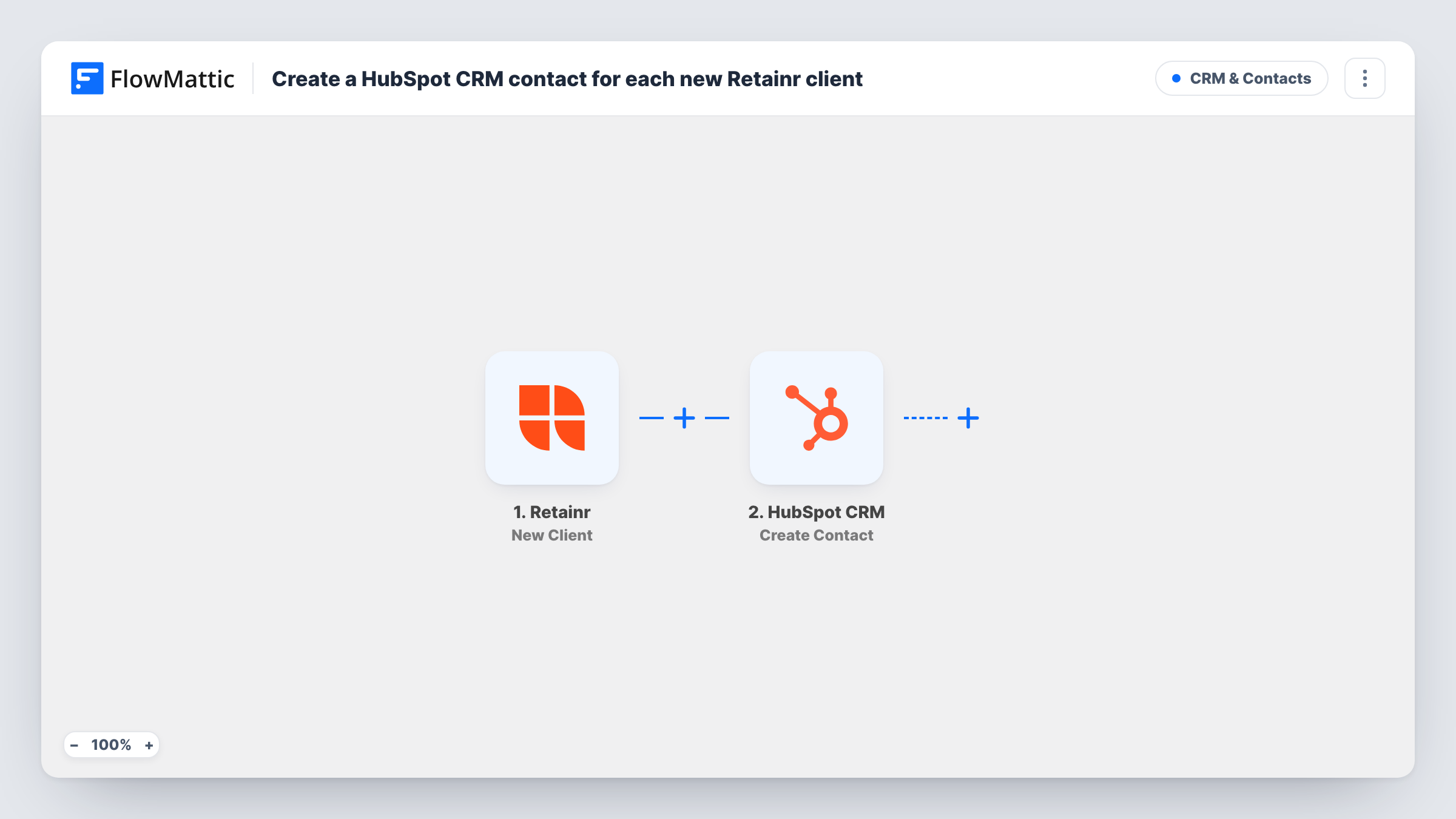
When a new client is created in Retainr, this workflow creates a matching contact in HubSpot CRM, so the people buying your services also show up in the CRM your team uses for sales and follow-up.
 Retainr
 HubSpot CRM
2 steps Setup ~5 min Used on 1.8k sites Free to import
What this workflow does
Retainr handles your client portal, orders and support, while HubSpot holds your contacts and sales history. Without a link, each new Retainr client has to be added to HubSpot by hand. Here, each new Retainr client is copied across as soon as it exists.
The Retainr trigger fires when a new client is created, and the client's details become data you can map. FlowMattic then runs the HubSpot CRM Create Contact action. You map the client's email and name, and any other details Retainr sends, into the new HubSpot contact.
Create Contact only makes new contacts. If the client's email already belongs to a HubSpot contact, for example a lead you added earlier, HubSpot may refuse the duplicate, and Task History shows the response on that step. Nothing is written back to Retainr.
Agencies selling productized services
Each client who signs up through your Retainr portal appears in HubSpot, where your account managers already track renewals and upsells.
Freelancers keeping one contact list
You send newsletters from HubSpot. New Retainr clients are added as contacts, so they're in the same list as your other customers.
Handing clients to a sales team
Your sales team works only in HubSpot. New Retainr clients become contacts they can see and assign without logging in to Retainr.
How this workflow runs
What happens at each step once the workflow is on, and what you need before you import it.
 Retainr New Client
Fires when a new client is created in Retainr. The client's details are passed on so you can map them into the HubSpot contact.
- HubSpot CRM Create Contact
Creates a contact in HubSpot CRM from the Retainr client. Map the email and name, connect your HubSpot account, and run a test with a new client to check the contact appears.
What you need
- FlowMatticCore
- Retainr AccountAccount
- HubSpot CRM AccountAccount
After importing, map your own data. To keep the template universal, not every step is pre-filled. Open each step in the builder and connect your accounts and fields (channels, lists, sheets, recipients) before you switch the workflow on.
Make it yours
Changes worth making after you import it.
- Add a HubSpot Add Contact To List step after Create Contact so Retainr clients land in a list you can use for onboarding emails.
- Add a Filter after the Retainr trigger that continues only when the client's email is not empty, so HubSpot never receives a contact without an address.
- Build a second workflow on Retainr's New Order trigger if you also want each order recorded in HubSpot, for example as a deal.
Questions about this workflow
What if the Retainr client is already a HubSpot contact?
Create Contact doesn't update existing records, so HubSpot may refuse a contact with the same email. The reply HubSpot sent is logged on that step in Task History. Your existing contact is not changed.
Are existing Retainr clients copied to HubSpot?
No. Only clients created after the workflow is turned on run the HubSpot step. Import older clients into HubSpot separately.
Does this create a HubSpot deal for the Retainr client?
No. A contact record is the only thing this template makes in HubSpot. HubSpot's Create Deal action is available if you want to add one in a later step.
Which Retainr client details can I send to HubSpot?
Whatever the New Client trigger delivers. Create a test client after import and map the fields you see into the HubSpot step.
More CRM & Contacts workflows
Other ready-to-import templates from the same category.






Import this workflow into your WordPress site
Download the JSON, import it from the Workflows screen and connect your accounts. Every run stays on your server, with no per-task fees.
30-day money-back guarantee Unlimited workflows and runs Self-hosted