

Create a HubSpot CRM contact when a guest connects through AiWifi
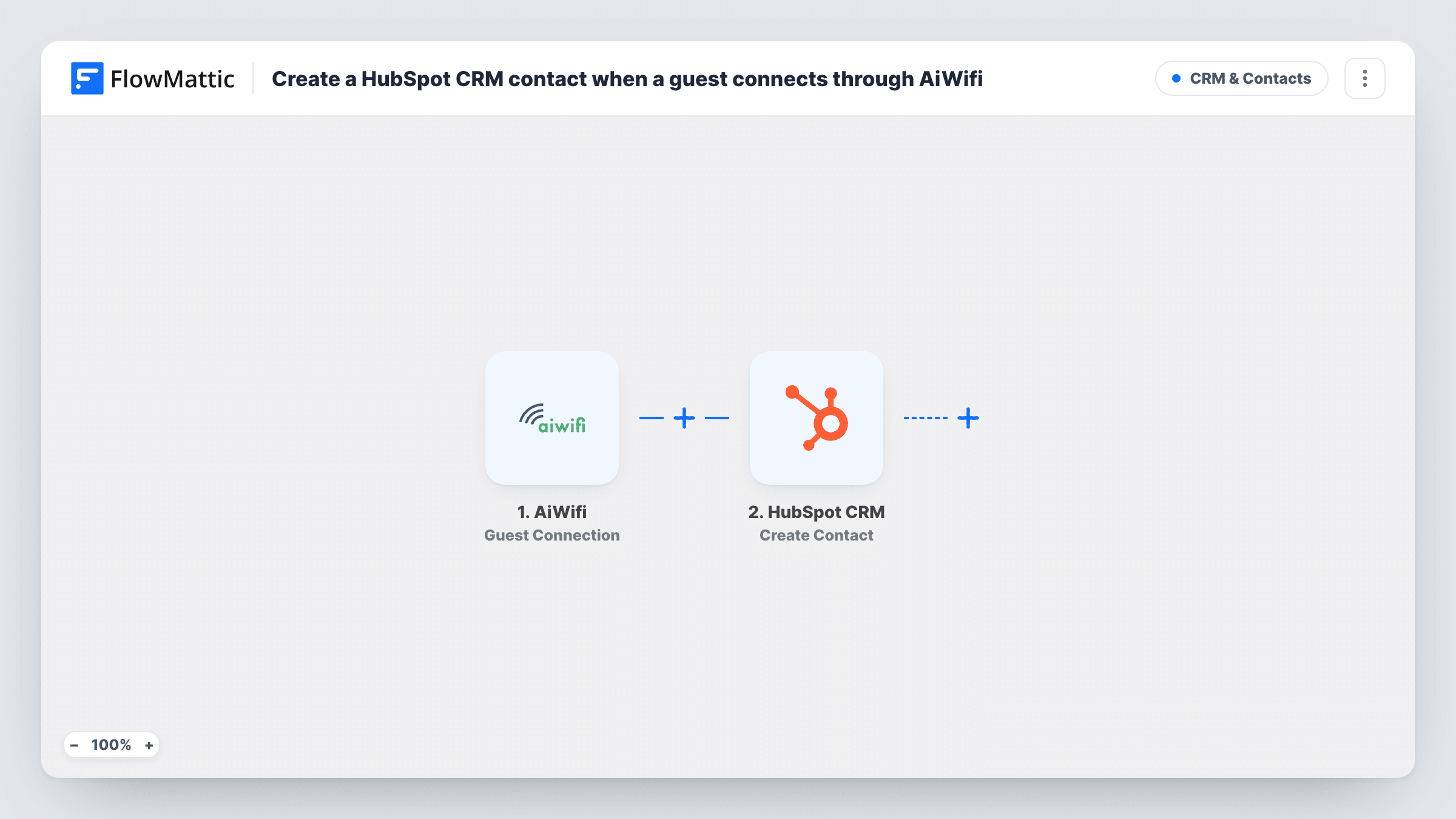
When a guest logs in to your AiWifi captive portal, this workflow creates a contact in HubSpot CRM from the details they gave, so venue visitors join your marketing and sales records.
 AiWifi
 HubSpot CRM
2 steps Setup ~5 min Used on 868 sites Free to import
What this workflow does
A WiFi login page at a cafe, hotel or shop collects real contact details from people who walked in. Left in the WiFi dashboard, those details rarely reach the CRM where your follow-up happens. This workflow sends each guest to HubSpot.
The AiWifi trigger fires when a new guest connects through your captive portal. FlowMattic passes the guest's data to HubSpot CRM, where Create Contact adds a contact. You map whatever your portal collects, such as the email and name, into the contact.
The HubSpot step only adds contacts and never edits one. If a guest already in HubSpot connects again and the trigger fires, HubSpot may refuse the repeat email, and Task History shows the response. Only collect and store guest data your portal's consent wording allows.
Hotel guest follow-up
Guests who log in to the hotel WiFi become HubSpot contacts, so the marketing team can send a thank-you and a return-stay offer to those who opted in.
Restaurant loyalty list
Diners who connect to the WiFi land in HubSpot, where the restaurant segments them for event and menu announcements.
Retail footfall to CRM
A shop with several branches sees which customers visited in person, because each WiFi login creates a HubSpot record.
How this workflow runs
What happens at each step once the workflow is on, and what you need before you import it.
 AiWifi Guest Connection
Starts a run each time a new guest logs in through your AiWifi captive portal. Whatever the guest typed on the portal becomes data you can map into HubSpot.
- HubSpot CRM Create Contact
Creates a contact in HubSpot CRM from the guest's details. Connect your HubSpot account and map the guest's email and any other portal fields into the contact.
What you need
- FlowMatticCore
- AiWifi AccountAccount
- HubSpot CRM AccountAccount
After importing, map your own data. To keep the template universal, not every step is pre-filled. Open each step in the builder and connect your accounts and fields (channels, lists, sheets, recipients) before you switch the workflow on.
Make it yours
Changes worth making after you import it.
- Ask for an email address on your AiWifi portal, since HubSpot needs a way to identify each new contact and your follow-up depends on it.
- Add a Filter after the trigger that continues only when the guest ticked your marketing consent box, if your portal has one.
- Connect to the WiFi yourself after import to capture a real login, then map the HubSpot fields from that sample.
Questions about this workflow
What if the AiWifi guest is already a HubSpot contact?
The step adds contacts and has no update mode. HubSpot may turn down an email it already holds, which you can see in Task History, and the guest's existing HubSpot record is left untouched.
Which details from the AiWifi portal reach HubSpot?
Whatever the portal collects and you map into the Create Contact step. Test a login after import to see the fields AiWifi sends.
Are guests who connected before import added to HubSpot?
No. Only connections made after the workflow is switched on start a run. Earlier guests stay in AiWifi unless you export them.
More CRM & Contacts workflows
Other ready-to-import templates from the same category.







Import this workflow into your WordPress site
Download the JSON, import it from the Workflows screen and connect your accounts. Every run stays on your server, with no per-task fees.
30-day money-back guarantee Unlimited workflows and runs Self-hosted