

Create a new row in Google Sheets as a backup when a new row is inserted into your remote SQL database
Each time a row is inserted into a table in your remote MySQL database, this workflow copies it to a new Google Sheets row, giving you a readable spreadsheet copy of new records.
 Remote SQL
 Google Sheets
2 steps Setup ~5 min Used on 2.2k sites Free to import
What this workflow does
Data in a remote MySQL database is hard for most of your team to see. Opening it needs credentials and a client, and nobody wants to hand those out to read a few rows. This workflow writes a spreadsheet copy of every new record, so the sheet becomes a second, easy-to-share home for that data.
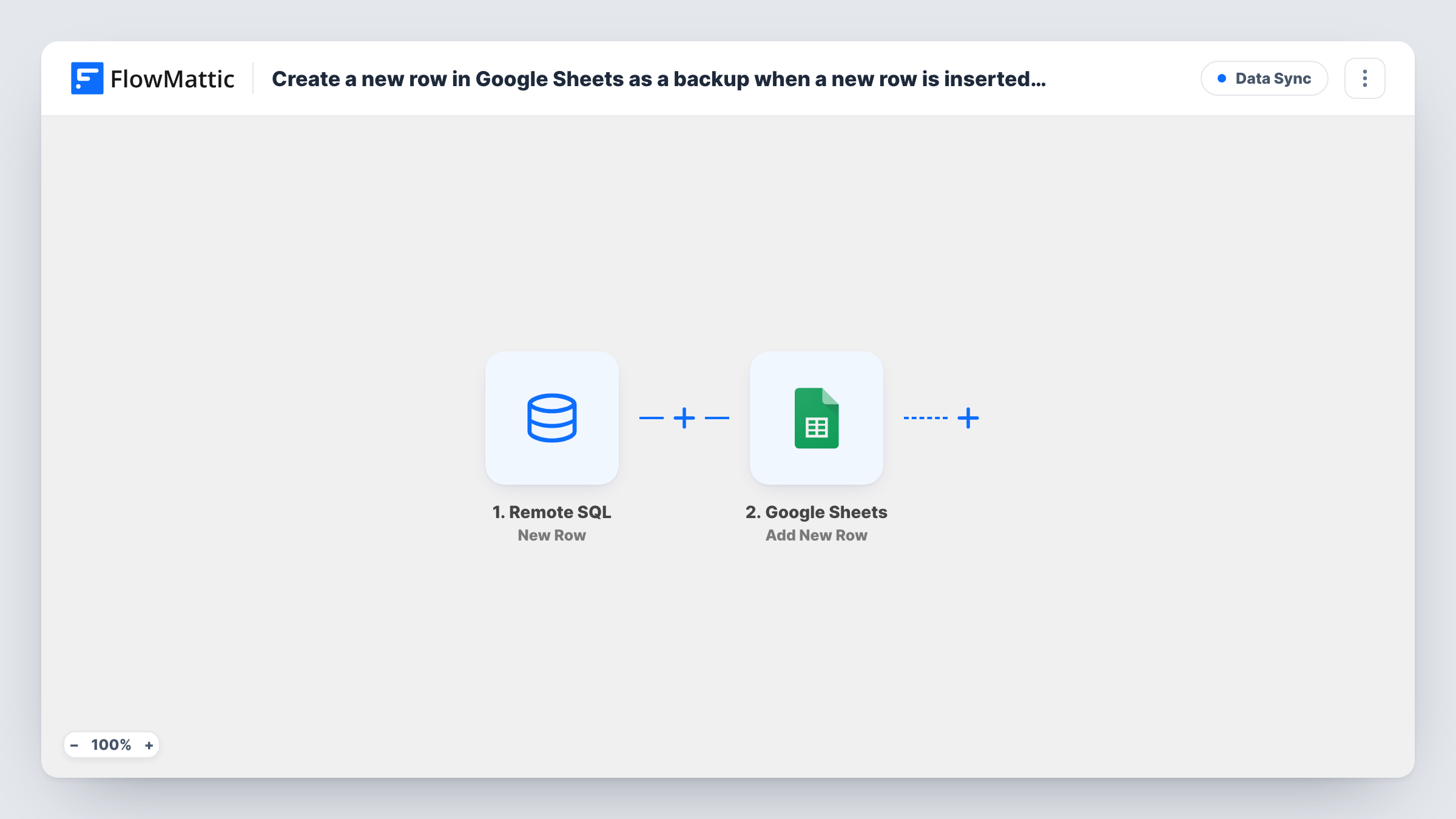
The Remote SQL trigger watches the table you select and fires when a new row is inserted into it. The row's columns are passed to Google Sheets, where the Add New Row action writes them to the spreadsheet and sheet you choose. You decide which database column goes into which sheet column.
Only inserts start the workflow. Rows that are later updated or deleted in the database stay as they were first copied, so treat the sheet as a log of new records rather than a live mirror. You can review every copied row's run in Task History.
Sign-ups from a custom app
A web app outside WordPress writes users to a MySQL table. Each new user row also appears in a sheet the marketing team can read without database access.
Order log from an external shop database
New order rows from a separate store database are copied to a spreadsheet that the accounts team filters and totals in Google Sheets.
Spreadsheet copy of sensor or form readings
A script inserts readings into a remote table. The sheet gives you a second copy you can chart without querying the database.
How this workflow runs
What happens at each step once the workflow is on, and what you need before you import it.
 Remote SQL New Row
Fires when a new row is inserted into the table you select in your remote MySQL database. The values in that row become available to map in the next step.
- Google Sheets Add New Row
Adds a row to the Google Sheets spreadsheet you pick with the mapped data. Match each sheet column to a database column and connect your Google account.
What you need
- FlowMatticCore
- Remote SQL AccountAccount
- Google Sheets AccountAccount
After importing, map your own data. To keep the template universal, not every step is pre-filled. Open each step in the builder and connect your accounts and fields (channels, lists, sheets, recipients) before you switch the workflow on.
Make it yours
Changes worth making after you import it.
- Add a header row to the sheet that matches the database columns before you map, so the copy stays easy to read and compare with the table.
- Put a Filter before the Google Sheets step if only some rows belong in the sheet, for example rows where a status column equals a value you choose.
- Insert a test row into the table after import so FlowMattic captures the column names, then map them and check the result in the sheet.
Questions about this workflow
Does a row updated in the remote SQL table change the Google Sheets copy?
No. The trigger fires only on new rows. Edits and deletions in the database are not sent, so the sheet keeps each row as it looked when it was inserted.
Will rows already in the database be copied to Google Sheets?
No. Only rows inserted after the workflow is active are sent. Export the existing rows once and paste them into the sheet if you need them.
Which databases does the Remote SQL trigger connect to?
The Remote SQL app connects to remote MySQL databases. You add the connection details when you set up the account in FlowMattic.
Is the Google Sheets copy a full backup of my database?
No. It holds new rows from the one table you select, written as they are inserted. Keep your normal database backups as well.
More Data Sync workflows
Other ready-to-import templates from the same category.






Import this workflow into your WordPress site
Download the JSON, import it from the Workflows screen and connect your accounts. Every run stays on your server, with no per-task fees.
30-day money-back guarantee Unlimited workflows and runs Self-hosted