

Create a Zoho CRM lead from each new Formdesk submission
Each new Formdesk submission becomes a lead in Zoho CRM, with the answers you choose mapped onto the lead, so your sales team works from the CRM instead of a list of form entries.
 Formdesk
 Zoho CRM
2 steps Setup ~5 min Used on 3.0k sites Free to import
What this workflow does
Forms collect interest, but leads only get worked once they are in your CRM. Moving each Formdesk entry into Zoho CRM by hand takes time and invites typos. This workflow does that copy for every new entry.
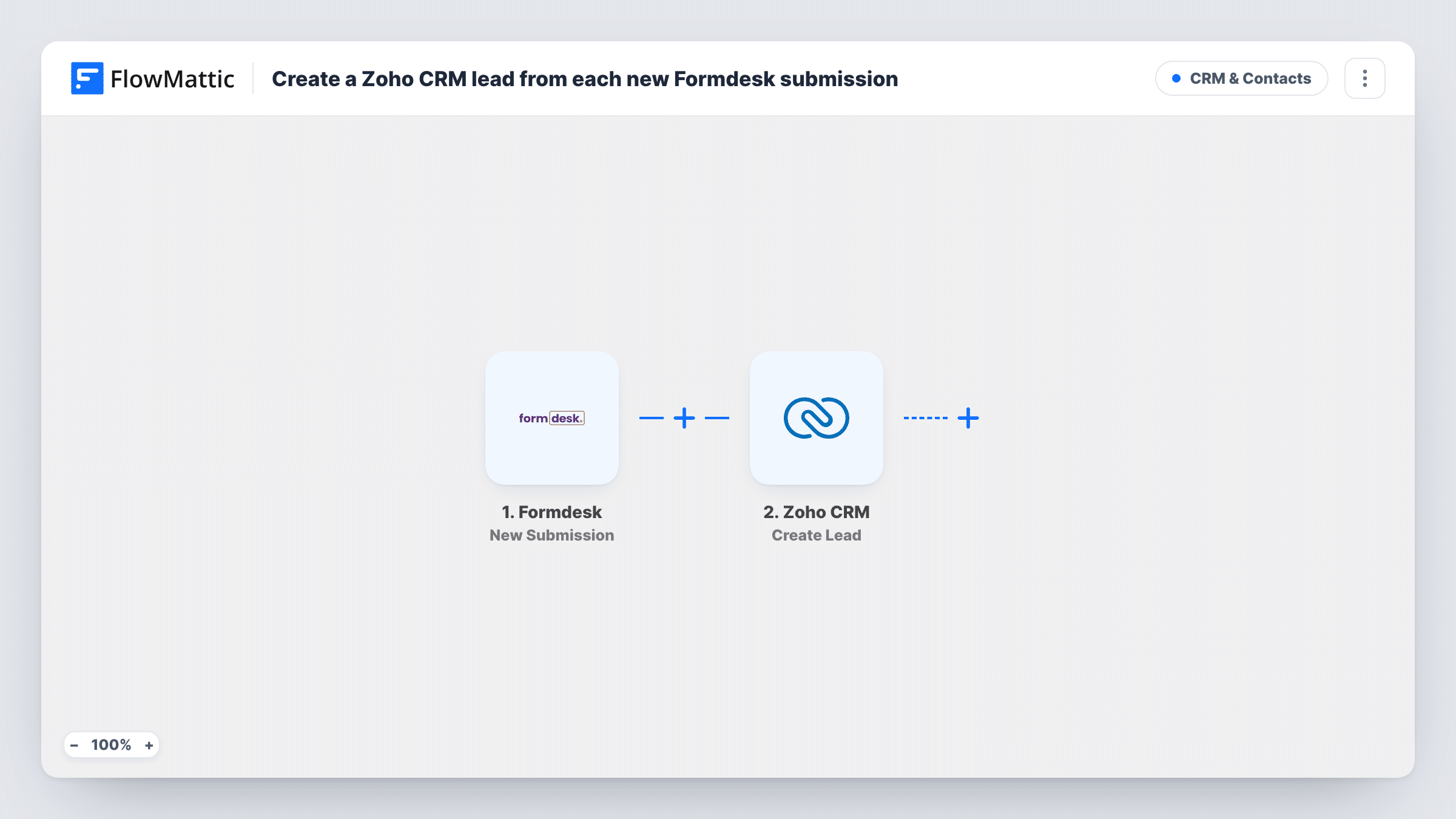
The Formdesk New Submission trigger fires for each new form submission. FlowMattic passes the submitted answers to Zoho CRM, where the Create Lead action adds a new lead. You decide which answers fill which parts of the lead.
Create Lead always makes a new lead. If the same person fills in your form twice, Zoho CRM may end up with two leads for them. The Zoho CRM app in FlowMattic also offers Find or Create Lead, which you can swap in if repeat submissions are common.
Demo request forms
Prospects ask for a product demo on a Formdesk form. Each request lands in Zoho CRM as a lead your sales reps can call and track.
Trade show sign-ups on a tablet
Visitors fill in a Formdesk form at your stand. By the time the show ends, every visitor who signed up is already a Zoho CRM lead.
Partner referral forms
Partners refer new prospects through a Formdesk form. The referral becomes a lead in Zoho CRM, and you can map the partner's name into a lead field to credit them.
How this workflow runs
What happens at each step once the workflow is on, and what you need before you import it.
 Formdesk New Submission
Fires for each new Formdesk form submission. FlowMattic receives each Formdesk answer for the Zoho step. Submit a test entry so FlowMattic picks up the form's fields for mapping.
- Zoho CRM Create Lead
Adds a new lead to Zoho CRM. Connect your Zoho account and map the Formdesk answers to the lead fields. Check the step after a test run to see which fields it offers.
What you need
- FlowMatticCore
- Formdesk AccountAccount
- Zoho CRM AccountAccount
After importing, map your own data. To keep the template universal, not every step is pre-filled. Open each step in the builder and connect your accounts and fields (channels, lists, sheets, recipients) before you switch the workflow on.
Make it yours
Changes worth making after you import it.
- Replace Create Lead with Zoho CRM's Find or Create Lead action if people may submit the form more than once, so a returning person isn't added as a second lead.
- To keep Formdesk entries with no email address out of Zoho CRM, place a Filter right after the trigger that requires the email answer to be filled in.
- If you run several Formdesk forms, type the form's name into a lead field your team reads, so each lead shows where it came from.
Questions about this workflow
What happens if the person is already a lead in Zoho CRM?
Create Lead adds a new lead each time, so you may get a duplicate. Zoho CRM's response for each run appears in Task History. Use Find or Create Lead instead if that matters to you.
Are older Formdesk entries sent to Zoho CRM?
No. Only submissions made after you turn the workflow on create leads.
Can the Formdesk entry go to Zoho CRM as a contact instead of a lead?
Yes. Swap the Create Lead step for Zoho CRM's Create Contact action and map the same answers to it.
Does every Formdesk form on my account start this workflow?
Check the trigger settings after import to see how the form is chosen, then send a test entry from the form you want to use.
More CRM & Contacts workflows
Other ready-to-import templates from the same category.






Import this workflow into your WordPress site
Download the JSON, import it from the Workflows screen and connect your accounts. Every run stays on your server, with no per-task fees.
30-day money-back guarantee Unlimited workflows and runs Self-hosted