

Create a HubSpot CRM contact from every Funnelforms submission
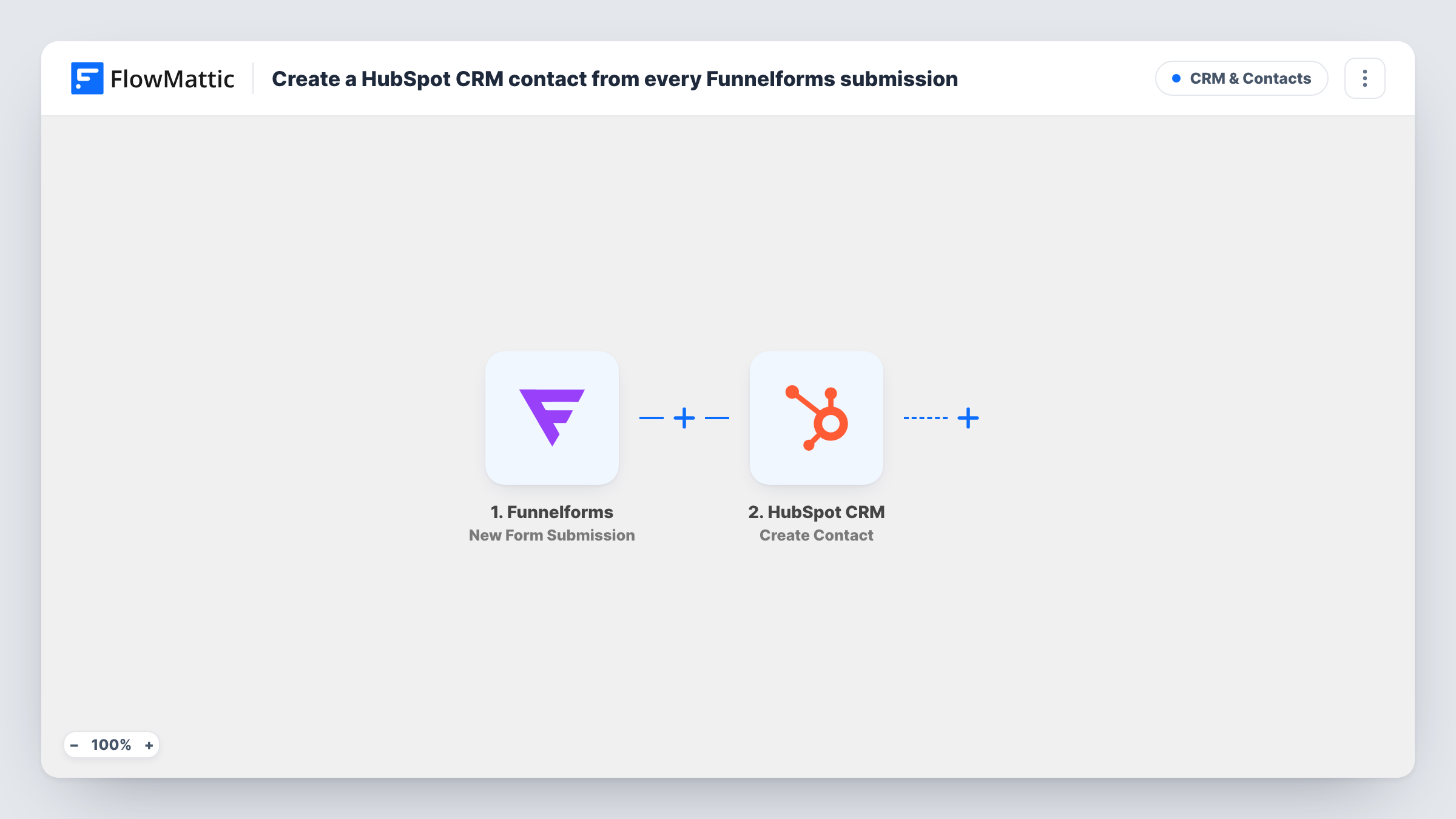
Every time a visitor completes a Funnelforms form, this workflow creates a contact in HubSpot CRM from their answers, so new leads from your funnels are ready for follow-up there.
 Funnelforms
 HubSpot CRM
2 steps Setup ~5 min Used on 520 sites Free to import
What this workflow does
Funnelforms builds multi-step forms that qualify visitors as they answer. The answers are only useful once your sales or marketing team can act on them, and for many teams that happens in HubSpot. This workflow sends each lead across when the form is completed.
The Funnelforms trigger is New Form Submission, which fires when data is captured from a form. FlowMattic hands the answers to HubSpot CRM, and Create Contact adds a contact with the fields you map, such as email, name and phone, plus any answers you want stored in contact properties.
Every submission tries to create a contact. The HubSpot step doesn't look for the person first, so if someone fills in a funnel twice, HubSpot may turn the second one away as a duplicate email. Task History shows each attempt and HubSpot's answer.
Quote funnel for a home services business
Visitors pick a service, size and timeframe in Funnelforms. Each lead becomes a HubSpot contact, with the answers in properties your sales team can filter by.
Course or coaching application
Applicants answer qualifying questions in a funnel. Their HubSpot contact holds the answers, so you can sort who to call first.
Product finder quiz
A Funnelforms quiz recommends a product. HubSpot stores the contact and their choice for later marketing emails.
How this workflow runs
What happens at each step once the workflow is on, and what you need before you import it.
 Funnelforms New Form Submission
Fires when Funnelforms captures data from a form. The visitor's answers are passed on so you can map them into the HubSpot contact.
- HubSpot CRM Create Contact
Adds a new contact to HubSpot CRM using the Funnelforms answers. Map the email field at least, add names and other properties, and connect your HubSpot account.
What you need
- FlowMatticCore
- Funnelforms AccountAccount
- HubSpot CRM AccountAccount
After importing, map your own data. To keep the template universal, not every step is pre-filled. Open each step in the builder and connect your accounts and fields (channels, lists, sheets, recipients) before you switch the workflow on.
Make it yours
Changes worth making after you import it.
- Create HubSpot contact properties for the funnel answers you care about, such as budget or service type, before you map the step, so each answer has a place to go.
- Make the email question in your funnel mandatory, since HubSpot contacts are matched and deduplicated by email address.
- Add a Filter after the trigger if only some answers, such as a minimum budget, should become HubSpot contacts.
Questions about this workflow
What if the Funnelforms lead is already a HubSpot contact?
The step only ever adds new records. HubSpot may decline the duplicate email, and Task History shows its reply, while the HubSpot contact you already have stays as it was.
Can every Funnelforms answer go into HubSpot?
Yes, as long as there is a HubSpot property to map it to. Use HubSpot's default properties for email and name, and custom properties for the rest.
Does this work with all my Funnelforms forms?
Check the trigger settings after import to see whether it is tied to one form. If it is, import a copy of the template for each funnel.
More CRM & Contacts workflows
Other ready-to-import templates from the same category.






Import this workflow into your WordPress site
Download the JSON, import it from the Workflows screen and connect your accounts. Every run stays on your server, with no per-task fees.
30-day money-back guarantee Unlimited workflows and runs Self-hosted