

Create an Airtable record for every new Givecloud contributions
Each paid contribution in Givecloud, one-time or recurring, becomes a new record in the Airtable base and table you choose, so your donation data is ready to sort, group and report on.
 Givecloud
 Airtable
2 steps Setup ~5 min Used on 557 sites Free to import
What this workflow does
Givecloud handles giving, but many charities plan, report and thank donors from a shared Airtable base. Exporting contributions and pasting them in leaves the base out of date. This workflow adds each paid contribution to Airtable as it is recorded.
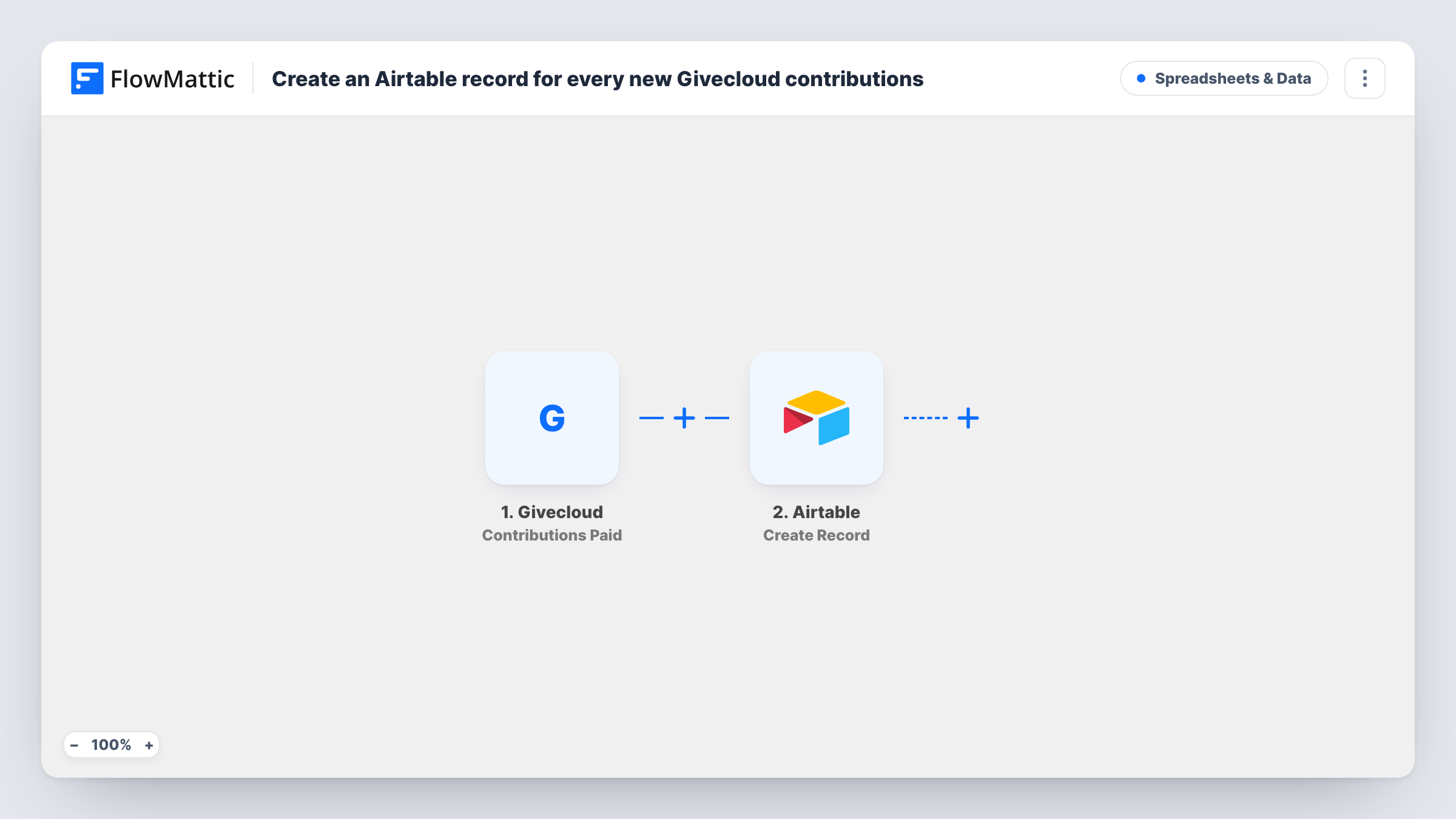
The Givecloud Contributions Paid trigger fires for one-time and recurring contribution transactions. FlowMattic passes the contribution details to Airtable, where Create Record adds a new record to the table you pick. You map each detail to a field in that table.
Each transaction is its own record, so a monthly donor adds a new one every month. That makes the table a log of payments rather than a list of donors. If you want one row per supporter as well, Givecloud's Supporter Created trigger can feed a separate table. Task History shows each run and what Airtable returned.
Monthly giving reports
A development officer groups the Airtable records by month and campaign to report giving totals to the board.
Thank-you call lists
Volunteers work from an Airtable view of recent contributions, marking each donor once they have called to say thanks.
Tracking recurring gifts
Each recurring payment adds a record, so you can see a supporter's monthly gifts listed one after another in Airtable.
How this workflow runs
What happens at each step once the workflow is on, and what you need before you import it.
 Givecloud Contributions Paid
Runs for each paid one-time or recurring contribution transaction in Givecloud. The contribution details are passed on for mapping into Airtable.
- Airtable Create Record
Adds a new record to the Airtable base and table you select, with the contribution details mapped to its fields. Connect your Airtable account and test with a real contribution.
What you need
- FlowMatticCore
- Givecloud AccountAccount
- Airtable AccountAccount
After importing, map your own data. To keep the template universal, not every step is pre-filled. Open each step in the builder and connect your accounts and fields (channels, lists, sheets, recipients) before you switch the workflow on.
Make it yours
Changes worth making after you import it.
- Add a single-select field in Airtable for follow-up status, such as thanked or receipted, that your team updates by hand.
- Build a second workflow on Givecloud's Supporter Created trigger that writes to a donors table, so you keep people and payments apart.
- Make a test contribution in Givecloud after import so FlowMattic captures the transaction fields, then map them to your Airtable fields.
- Match field types before mapping: send amounts into a number or currency field and dates into a date field, so Airtable can total and sort them.
Questions about this workflow
Do recurring Givecloud donations create a record each time?
Yes. The Contributions Paid trigger covers one-time and recurring transactions, so every paid instalment adds its own Airtable record.
Does the Airtable step check for an existing donor record?
No. Every paid contribution gets a fresh Airtable row, whoever the donor is. It does not look for the supporter in your table first.
Are past Givecloud contributions copied to Airtable?
No. Only contributions paid after you turn the workflow on create records.
Which Givecloud details can go into my Airtable table?
Whatever the Contributions Paid event includes. Make a test contribution to see the fields, then map them to the columns in your table.
More Spreadsheets & Data workflows
Other ready-to-import templates from the same category.






Import this workflow into your WordPress site
Download the JSON, import it from the Workflows screen and connect your accounts. Every run stays on your server, with no per-task fees.
30-day money-back guarantee Unlimited workflows and runs Self-hosted